Credits are the names on screen: the title and the people who made the video. Opening credits introduce a film, a documentary, or a series episode in the first seconds; end credits list everyone who worked on it, the music, and the footage you used. A short film, a student project, a wedding film, a documentary for YouTube, or a corporate video with a crew all need them.
This guide is about those credits, not subtitles. Subtitles put the spoken words on screen line by line (see text overlay vs subtitles); credits are titles and names. It covers what to credit and in what order, how to add opening credits over your first shots, how to make an end credits roll from a template, and how to join both into one video. All screenshots come from one demo: a 29-second short film made of stock clips, with opening credits added in the Deus.Video editor and end credits from a ready-made template.
What to Put in Your Credits
Start with a list before you open any editor. Write down everyone who worked on the video and everything you used that belongs to someone else.
- People. Director, writer, cast, director of photography or camera operator, editor, sound, producer. For a small project one person often has several roles: "Written and directed by" is a normal credit.
- Music. The track title and its author, and the license if it asks for attribution. Free music often comes with a license that requires credit; credit it even when it doesn't.
- Footage and images you didn't shoot: stock libraries, archives, photos from friends.
- Thanks to locations, sponsors, schools, or people who helped.
- The company and the year: "© 2026 Harbor Lane Films".
Check every name with the person. A misspelled name in the credits is the mistake people remember.
Opening Credits vs End Credits
The two parts do different jobs. Opening credits set the tone and name only the key people; the end credits are the full record.
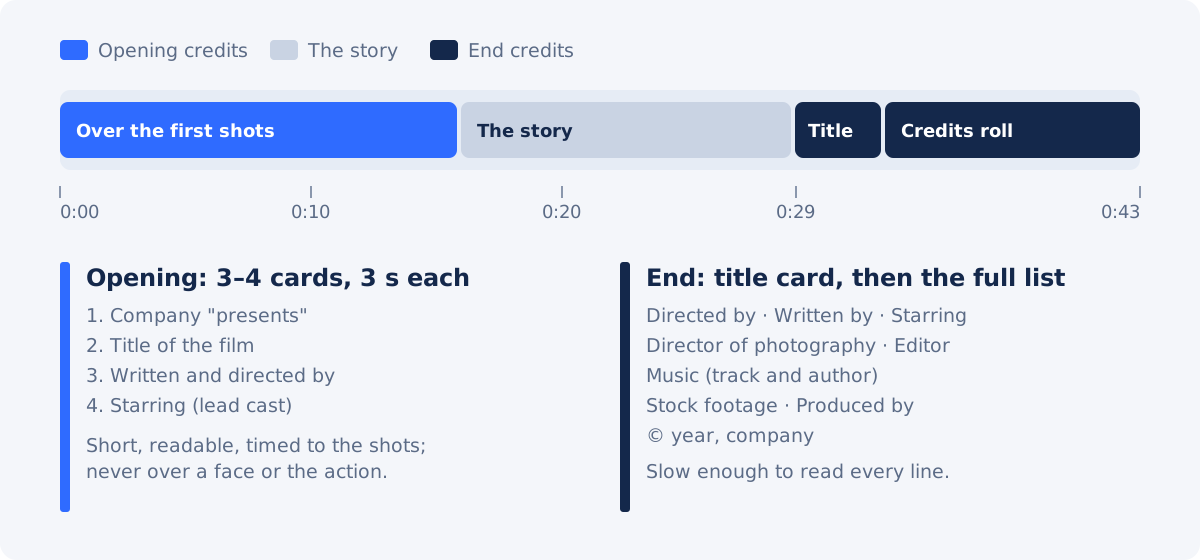
- Opening credits: 3–4 cards of about 3 seconds each, usually in this order: the company ("Harbor Lane Films presents"), the title, the writer and director, the lead cast. They can sit on a black screen or over the first shots of the film. Over footage is more engaging; keep the shots calm so the text reads.
- End credits: a title card ("The End" or the film's title), then the full list, usually as a roll that moves up the screen. The common order: director, writers, cast, crew by department, music, footage, special thanks, producer, copyright.
- Short videos for social media often skip opening credits and put a single card at the end. A wedding or event film usually opens with the couple's names and the date and ends with the videographer.
How to Add Credits to a Video in Deus.Video
The steps below use the full Deus.Video editor in the browser and the same demo throughout. The film is one project; the end credits are a second project made from a template; the Merge Videos tool joins them at the end. You can also build everything in one project, see step 6.
1. Open Your Film in the Editor
Open the editor, create a project, and upload your edited film, or assemble it from clips in the Video panel. The demo uses four stock clips (a river at sunset, a woman waiting on a bench by the pier, a ferry, the wake behind a ship) and a piano and violin track from the Audio panel with a 1-second fade in and a 2.5-second fade out.
Find the shots where the opening credits will go. Good shots for credits are calm and have empty space: sky, water, a wall, a road. Avoid placing names over faces or over the moment the story begins.
2. Add the Opening Credits With Text
Move the playhead to the first shot, open the Text panel, and click Add text. In the Edit Text panel, type the credit and set its look:
- Font and size. A serif or a light sans-serif in capitals reads as "film". The demo uses Josefin Sans 24–30 in spaced capitals for the small lines ("HARBOR LANE FILMS PRESENTS", "WRITTEN AND DIRECTED BY") and Cormorant Garamond bold italic for the title and the names.
- Letter spacing. Wide spacing (200–300) on small capitals is the classic credits look. The text box widens as you increase it.
- Color and shadow. White text with a soft dark shadow reads on most shots; on a very bright shot, place the text over a darker area instead.
- Position. Set Top and Left in the panel or drag the text on the canvas. Keep credits inside the frame margins, about 5% from each edge.

3. Time Each Credit and Add Fades
Each credit is a separate text on the timeline. Set when it appears and disappears with Start and End in the panel, or drag the edges of its block on the timeline. Then scroll down to Animations and choose Fade In and Fade Out with a duration of about one second. Hard cuts on credits feel abrupt; fades feel like a film.
- 3–4 seconds per card is enough to read a name twice.
- Leave a short gap between cards, so one fades out before the next fades in.
- Pair a role with a name. The demo shows "STARRING" in small capitals above "Ada Castellan" in the larger font, both at the same left edge.
- Reuse the style. Right-click a finished credit on the canvas and choose Duplicate, then change the text, the time, and the position. The copy keeps the font, colors, shadow, and fades.

The demo's opening credits run like this: "HARBOR LANE FILMS PRESENTS" from 0.8 to 3.8 seconds, the title from 4.0 to 7.6, "WRITTEN AND DIRECTED BY Mira Doyle" from 8.4 to 11.8, "STARRING Ada Castellan" from 12.4 to 15.8. Then the story continues without text. When it's ready, click Download video and export at 1080p if your plan includes it; the free plan exports at up to 720p with a watermark. See plans and pricing for the current limits. For more on readable text over footage, see how to make text readable on video.
4. Make the End Credits From a Template
A credits roll, where one long list moves slowly up the screen, takes time to build from scratch. A template already has the timing, the movement, and the layout. The demo uses the Short Film Credits Outro template: 14 seconds, 16:9, a studio monogram and "The End" with the film title, then a roll of credits over three shots with a dark band behind the text and a copyright line at the bottom. More end screens are in the video outro templates.
Click Use this template, open the Text panel, and expand Texts in this video. Every text of the template is a field there, with the time it's on screen:
- Studio letters, Text, Film: the monogram, "The End", and the title line.
- Credits: the whole roll in one field. Each role in capitals on its own line, the name on the next, an empty line between blocks. Type your list or paste it from your notes.
- Copyright: the line at the bottom.

Then make the template yours:
- Replace the shots. Click Replace clip on the canvas and pick a clip from your uploads or from Stock. Position, size, timing, and animations stay as they were. Using shots from your film ties the credits to the story; the demo reuses the wake, the bench, and the sunset.
- Remove what you don't need. The template has a festival laurel. The demo film wasn't selected for a festival, so the laurel was deleted: select each part on the timeline and press Delete.
- Check the roll. Play it through. If the list is longer than the template's, shorten it or make the credits clip longer so the roll doesn't run too fast to read.

Export the end credits with Download video at the same resolution as the film.
5. Join the Film and the Credits With Merge Videos
Open Merge Videos, click Choose videos, and add both files. Put the film first and the credits second, keep Landscape 16:9 — 1920×1080 and Include audio, and click Merge Videos. When it's done, click Download result, or Continue editing this video to open the merged file in the editor.

Merge Videos joins clips with a direct cut. For credits that works well: the film ends, the credits begin. If you want a fade to black or music that continues across the cut, use the method below. For more ways to join clips, see how to combine multiple videos.
6. Or Keep Everything in One Project
If your film is already in the editor, you can add the credits in the same project instead of merging files:
- Upload the exported end credits in the Video panel and place them on the timeline after the last shot. In a project started from a template, new media is cut at the project's end: accept the editor's offer to extend the project or raise the Duration in the Project panel. Empty time after the last element is cut from the export, so the Duration doesn't have to match exactly.
- Or build simple end credits yourself: a dark background or a calm final shot and a few text cards, made the same way as the opening credits in steps 2 and 3. For a short video, three or four cards are enough.
For a single caption or name on an existing video without the editor, the Add Text to Video tool is the fastest route.
Tips for Credits People Can Read
- Two fonts at most. One for roles, one for names. The demo uses spaced capitals for roles and a serif for names.
- Big enough for a phone. On a 1080p frame, names under 40 px and roles under 20 px get hard to read on a small screen.
- Contrast first. White on a dark shot, or a semi-transparent dark band behind the roll, as in the template.
- Slow roll. Every line should stay on screen for at least two seconds as it moves. If it doesn't, the roll is too fast for the list.
- Same names everywhere. The names in the opening credits must match the end credits and the video description.
- Music under the credits. The end credits have their own track in the template; make sure it fades out with the last line.
Common Mistakes
| Mistake | What to do instead |
|---|---|
| A long list of names before the story starts | Keep opening credits to 3–4 cards; put everyone else in the end credits |
| Names over a face or busy action | Choose calm shots with empty space, or move the text |
| Credits cut in and out | Add a fade in and fade out of about one second |
| A roll that's too fast to read | Shorten the list or make the credits longer |
| Music or footage not credited | List every track and source with its author, as the license asks |
| Using "credits" to mean subtitles | Credits are titles and names; for spoken words use subtitles |
Credits Checklist
- A full list of people, music, footage, and thanks, with names checked.
- Opening credits: company, title, director, lead cast, 3–4 seconds each, with fades.
- Text over calm shots, readable on a phone.
- End credits: title card and a roll slow enough to read.
- Template shots replaced and unused parts removed.
- Film and credits exported at the same resolution and joined in the right order.
- The final video watched once to the last line.
Ready to credit your film? Open the Deus.Video editor for the opening credits, and start the end credits from the Short Film Credits Outro template. For an opening sequence with a bigger title, see the title opener templates.
Frequently Asked Questions
How do I add credits to a video online?
Add opening credits as text over the first shots: in an online editor such as Deus.Video, add a text for each credit, set its font, position, start and end time, and a fade in and fade out. For end credits, start from a credits roll template, type your list into it, replace its shots, and export. Then join the film and the credits with a merge tool or place the credits at the end of the same project.
What is the order of opening credits?
A common order is the production company ("presents"), the title, the writer and director, and the lead cast. Three or four cards of about three seconds each are enough for a short film; everyone else goes into the end credits.
What should end credits include?
The director, writers, cast, crew by role (camera, editing, sound), music with the track and its author, stock footage or archive sources, special thanks, the producer or company, and a copyright line with the year.
How long should credits be on screen?
Opening credits work at three to four seconds per card. In an end credits roll, every line should stay on screen for at least two seconds as it moves; if it doesn't, shorten the list or make the credits longer.
Are credits the same as subtitles?
No. Credits are titles and names: who made the video and what was used in it. Subtitles show the spoken words line by line, timed to the speech. Credits are usually added as text cards or a roll; subtitles are added from a transcript or a subtitle file.
Do I need to credit music and stock footage?
Credit them whenever the license asks for attribution, and it's good practice even when it doesn't. List the track title and its author, and the footage library or creator, in the end credits.