A year in review video tells the story of your year in under a minute: a handful of moments, a line about each, and, if you like, a few numbers that sum it up. It's the video you post on New Year's Eve, show the family on the TV, or send a team before the holidays. Unlike a slideshow of every photo from the year, it picks a story and leaves the rest out.
This guide makes one on a demo: a 30-second horizontal recap made from a personal year in review template in Deus.Video. You'll choose the story, swap the template's photos and clips for your own, change the year and the moments, adjust the counters, and export a file for YouTube, a TV, or a post. The same steps work for a family, a couple, a team, or a small business.
Pick the Story Before You Pick the Clips
Most year in review videos fail in the camera roll, not in the editor: there are hundreds of photos, and all of them seem important. Decide how you'll tell the year first, and the choice of photos gets easy.
- Month by month. One moment from each season or each few months, in order. It's the easiest story to follow and the one the demo uses: January, April, May, July, September, November.
- Top moments. The five or six best things that happened, in any order, often counted down to the biggest one. It works when the year had a few big events: a move, a wedding, a new job, a first trip abroad.
- One theme. The year seen through one thread: the dog's first year, a year of travel, a year of training for a race, the books you read. Narrower stories feel more personal and need fewer clips.
- The numbers. Kilometres run, places visited, photos taken, orders shipped, videos posted. A few honest numbers give a recap its shape; a screen full of them turns it into a report.
Then decide who it's for. A personal recap can be playful ("37 socks chewed"); a team or business recap should name real milestones and thank people. Pick 8–12 photos or clips before you open the editor, then narrow them down to fit your template. For a 30-second recap like the demo, choose six moments.
What Goes Into a Year in Review Video
The demo is built from four parts. Most recaps use some version of them; the number of moments and the counters depend on your template and your story.
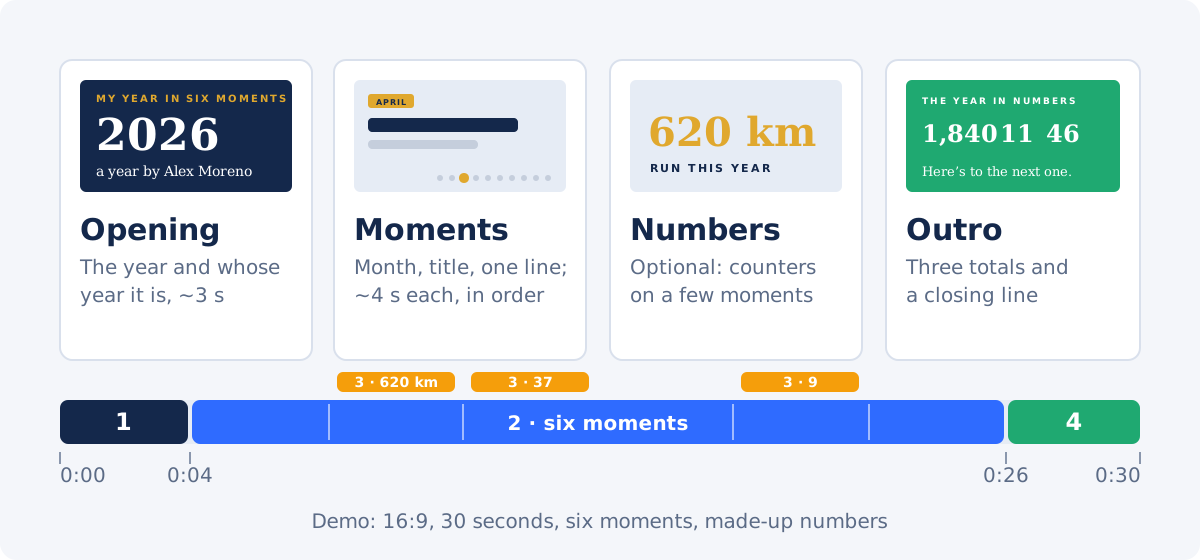
- Opening. The year in large type and whose year it is, over a strong first shot. Three seconds is enough.
- Moments. In the demo, six moments of about four seconds each, every one with a month, a short title, and a caption: "May · A puppy called Pepper · small dog, big opinions". The title says what happened; the caption says how it felt.
- Numbers (optional). A counter on two or three moments, not all of them: "620 km run this year" means more next to a running clip than in a list. A family recap works without any numbers at all.
- Outro. In the demo, three totals for the whole year and a closing line, such as "Here's to the next one." Let the music end with it.
How to Make a Year in Review Video in Deus.Video
The steps below use the full Deus.Video editor and one demo project throughout. A template gives you the titles, the month chips, the counters, and timing that already work; you only change what's yours.

1. Start From a Year in Review Template
Browse the Year in Review templates and pick one that matches your story and where you'll post it. On the template page, click Use this template. The editor creates a new project from it, and every photo, clip, text, and counter becomes an ordinary element you can change.
The demo uses My Year in Six Moments: 16:9, 30 seconds, an opening with the year in large serif type, six moments with a photo or clip each, counters on three of them, a row of twelve month dots with a marker that moves to the month of each moment, and an outro with the year in numbers. The Project panel shows its size, YouTube (16:9), and its duration, 0:00:30.
To build a recap from scratch instead, open a new project and set Size in the Project panel before adding anything: YouTube (16:9) for YouTube and TVs, TikTok (9:16) for Reels, Shorts, and Stories, FB Portrait (4:5) for a feed post. Then add your clips in the Video panel and titles in the Text panel. Recaps built mostly from old footage, such as baby, school, or anniversary videos, are in Memories & Recaps.
2. Replace the Photos and Clips
Each moment is a photo or a clip with a name on the timeline, such as "Photo 2 (new keys)" or "Clip 3 (lake jump)". When the playhead is on a template slot, a Replace photo or Replace clip badge appears on the canvas; click it. You can also select the slot on the timeline and click Replace image or Replace video in its edit panel, which also works for a slot you've already replaced. The replace panel names the slot and says that its position, size, timing, and animations stay as they are.

Drop a file from your phone or computer onto the upload area, pick one from My uploads, or search the Stock library. Photos in this template zoom slowly while they're on screen, and a new photo keeps the same gentle movement. Text sits on the left of every moment, so choose shots with the subject in the centre or on the right; a face under the title is hard to read and hard to see.
The demo replaces six of the eight slots with stock: fireworks for the opening, a winter run, a jogging clip, a puppy, a beach, and a tomato harvest. In your recap, use your own photos and clips; stock is a fallback for a moment you have no picture of, like a city you only remember.
Only have photos? The demo template mixes five photo slots and three clip slots, so it needs a few short clips. For a recap made only of photos, start from a template with photo slots only: The Okafors, 2026 (16:9, five photos) or The Year's Photo Dump (9:16, twelve photos). Every step in this guide works the same way with them; you only use Replace photo instead of Replace clip. If you'd rather skip templates altogether, the Images to Video tool turns up to 30 photos and a music track into an MP4, and how to make a photo and video slideshow covers timing and transitions.
3. Change the Year, Your Name, and the Moments
Open the Text panel and expand Texts in this video. It lists every text in the template with its name and the time it's on screen, for example "Moment 1 title · 0:04.0–0:07.4". Type in a field and the canvas updates.

- Year. The year is a separate text field, not part of the artwork, so updating it takes one edit. When you reuse the project next year, also replace the moments, captions, and totals.
- Intro name. Whose year it is: "a year by Alex Moreno", "the Okafors", or "Team Northwind".
- Each moment. A date (the month chip), a title of three to five words, and a caption of up to six. The demo's first moment reads "JANUARY · Signed up for a 10K · the first slow kilometres". Each title is on screen for about three and a half seconds, which is enough for one short line and not for a sentence.
- Index. "01 / 06" counts the moments. Keep it if you keep six moments.
Choose the moments that matter to your story. The months in the demo (January, April, May, July, September, and November) are only the template's examples: type your own month in each date field. The gold marker under the moments moves along twelve month dots and is set to the template's months, so after changing the dates either hide it or move it:
- Hide it (easiest). Right-click Month rail marker on the timeline and choose Disable. The dots stay as a decorative row. To remove the row as well, disable the twelve Month rail dot tracks the same way.
- Move it. Select Month rail marker on the timeline, put the playhead on a moment, and change Left in the edit panel, where the keyframes that move the marker are listed. Each month is about 3% further to the right.
If a light photo makes a caption hard to read, making text readable on video covers contrast, shadows, and placement.
4. Set the Counters to Real Numbers
Counters are the numbers that count up on screen. In Texts in this video, each one has two fields, From and To, and a preview of the result under them, for example "0 km → 620 km". Set To to your number and leave From at 0 so it counts up. The label under each counter, such as "RUN THIS YEAR", is an ordinary text field right below.

When you change what a counter measures, check three things: the number, the unit, and the label. The unit isn't in the form. Select the counter on the timeline (its track shows the count, such as "0 → 46") and change Suffix in the Edit Counter panel: " km" becomes " orders" or nothing at all, and Prefix takes a currency sign such as "$". Otherwise you end up with the right number in someone else's kilometres.
The demo sets six counters: 620 km run, 37 socks chewed by the puppy, 9 kilos of tomatoes, and 1,840 photos, 11 new places, and 46 park runs in the outro. All of them are invented for the demo. In your video, use numbers you can count or look up: your phone's photo library shows how many photos you took, a fitness app knows the kilometres, a shop dashboard knows the orders. Round numbers are fine; made-up precision isn't. If a number isn't worth saying out loud, leave it out: counters are optional, and many family recaps are better without them. To remove one, right-click its track on the timeline and choose Delete or Disable, and do the same with its label.
5. Choose the Music
The template comes with a calm piano loop under a free CC0 license, timed to the 30 seconds. To change it, open the Audio panel, search the Stock library or upload your own track, add it, and delete the template track on the timeline. Pick something with a steady rhythm that doesn't fight the captions, and use music licensed for where you'll post: a stock library track, a song under a free license, or the platform's own music library for Reels and TikTok.
If you add a spoken intro or a line from each person in the year, lower the music under the voices. Adding background music without drowning out dialogue shows how to balance the two. To put music under a finished video without opening a project, use Add Audio to Video.
6. Preview and Export
Click To start and watch the whole video once with sound. Check that each title is readable before its moment ends, that every counter stops on the right number, and that no photo puts a face under the text. Then click Download video, choose a Resolution, and click Export video.

1080p is right for YouTube, social posts, and TVs. On the Free plan you can export up to 720p with a watermark; the 1080p export shown here needs a paid plan. The editor renders the video and lets you download the MP4 when it's ready; you can close the page in the meantime, and you'll get an email when the video is done. The 30-second demo exported in 1080p is about 15 MB.
Share It: YouTube, Instagram, or the Family TV
- YouTube, a TV, or a video call. Post or play the 16:9 file as it is. For YouTube, put the year in the title and the description, such as "My 2026 in six moments", so people find it again next year.
- Instagram Reels, TikTok, and Shorts. A vertical video fills the phone screen. For a vertical version, start from a 9:16 template such as The Year's Photo Dump: a 16:9 recap has text across the frame, and cropping it to 9:16 cuts the titles off. If you only need the finished file in another shape, the Video Resizer can Fit the whole picture with black bars or Fill the frame by cropping the edges; resizing a horizontal video for vertical without stretching compares the options.
- A feed post or LinkedIn. 4:5 or 1:1 takes up more of the feed than 16:9. For a business recap, start from Our Year in Milestones or Thank You for This Year.
- A family chat or email. Messengers recompress videos, and many mail services limit attachments to around 20–25 MB. If the file is too big, shrink it with Compress Video or follow how to compress an MP4 for sharing.
- Joining it with other videos. To put the recap before a longer family film or after a Christmas video greeting, join the files with Merge Videos.
Year in Review Video Ideas
- Family year. One moment per season from every family member, and a closing line from the kids. The Okafors, 2026 is built for photos of a whole family.
- A couple's year. Trips, the new flat, the small routines; Our Year Together makes a good anniversary or New Year's Eve gift.
- A year of travel. One moment per trip on a route map, with the kilometres and the countries as counters: A Year of Travel. For a single trip, see how to make a travel video.
- The pet's year. A light recap "narrated" by the dog or cat, with counters like walks taken and slippers lost: Miso's Year.
- A creator's channel recap. Best videos, subscribers gained, a thank-you to viewers: Channel Year in Review.
- A team or company year. Launches, hires, customers, and a thank-you to the people behind them: Twelve Months, One Team. Keep the numbers real; a team notices invented ones.
- Your year in numbers. If your year is best told by counters, My Year in Numbers puts them first.
A year in review can be a slideshow, too. What makes it work is not the number of photos but choosing the moments and saying why each one mattered. If you want more photos from the year set to music, follow the slideshow guide.
Common Mistakes
- Too many moments for the length. Twelve months of photos in 30 seconds is a blur. In a 30-second recap like the demo, six moments of about four seconds each fit.
- Titles too long to read. If you can't read a title and its caption before the moment ends, cut words. Three to five words per title.
- Numbers that mean nothing. "1,840 photos" says something; "365 days" doesn't. If you use counters, put them on two or three moments, not everywhere, and check that each has the right unit.
- The wrong year. Reusing last year's project or a template with a different year is easy to miss. Check the Year field and every month chip.
- Faces under the text. The titles sit on the left of the frame; place people in the centre or on the right.
- The wrong frame for the platform. A 16:9 video in Reels or TikTok plays as a small strip. Choose a 9:16 template or convert the finished file.
Checklist
- The story is chosen: by month, top moments, one theme, or numbers.
- The opening shows the right year and whose year it is.
- Every moment has your own photo or clip, or a deliberate stand-in.
- Each title is three to five words and readable before the moment ends.
- If you use counters, each shows a real number with the right unit and label.
- The month chips match your moments, and the marker is moved or disabled.
- The music is licensed for where you'll post and ends with the outro.
- The frame fits the platform: 16:9 for YouTube and TVs, 9:16 for Reels, Shorts, and TikTok.
Make Your Year in Review Video
A good year in review is short, specific, and honest: the moments that mattered, a line about each, and the year in big type. Start from a Year in Review template, swap in your own photos and clips, change the year and the moments, and post it before the year is over.
Start making your year in review video
Frequently Asked Questions
How long should a year in review video be?
30–60 seconds for most personal and team recaps: an opening, a handful of moments of a few seconds each, and a closing line. For Reels, TikTok, and Shorts, 15–30 seconds works better. Keep every title readable before its moment ends.
How do I make a year in review video for free?
Start from a year in review template in an online editor, replace the template photos and clips with your own, change the year and the moments, and export the video as MP4. In Deus.Video you can make and export a year in review on the Free plan at up to 720p with a watermark; the 1080p export shown in this demo requires a paid plan.
Can I make a year in review video with only photos?
Yes. Choose a template with photo slots only, such as a family photo album or a photo dump template, and replace each photo with your own. For a photos-and-music video without a template, the Deus.Video Images to Video tool turns up to 30 photos and a music track into an MP4.
How do I change the year in a year in review template?
In the Deus.Video editor, open the Text panel and expand Texts in this video. The year is its own field, so updating it takes one edit. When you reuse a project the next year, also replace the moments, captions, and any totals.
What should I put in a year in review video?
Pick a story first: month by month, your top moments, one theme such as travel or a pet, or your year in numbers. Then choose the moments that mattered, give each a short title and caption, add a few real numbers as counters if they help the story, and end with a closing line.
Should a year in review video be vertical or horizontal?
Horizontal 16:9 for YouTube, a TV, or a video call; vertical 9:16 for Reels, TikTok, Shorts, and Stories; 4:5 or square for a feed post. Choose a template in the format you need, because cropping a finished 16:9 recap to 9:16 can cut off text placed across the frame.