A Christmas video greeting is a short video card: a few seconds of your family, your year, and a wish for the people you can't be with on the day. Unlike a store-bought ecard, it can carry your names, a shared memory, and a wish meant for one person; your own faces and voice make it even more personal. You don't need editing skills. You need a few good clips or photos, one sentence to say, and an online editor to put them together.
This guide shows the whole process on one demo: a 12-second vertical greeting for the family chat, made from a Christmas template in Deus.Video. You'll plan the message, swap the template clips for your own, change the wishes, add a spoken line, keep the music quiet under it, and export a file you can send on WhatsApp, by email, or play on the TV.
Plan the Greeting Before You Open the Editor
A video card is short, so the decisions you make first matter more than any effect you add later.
- Who it's for. A greeting for one person (a grandmother, a friend abroad) can be personal and use their name. A greeting for the whole family chat or a list of friends should work for everyone who opens it.
- Where it will be watched. Messengers and Stories are watched on a phone held upright, so a vertical 9:16 frame fills the screen. For a TV, a laptop, or an email with a link, a horizontal 16:9 frame fits better. If you need both, see sending and sharing below.
- How long. 10–30 seconds is enough for a greeting. People watch it in a chat between other messages; a two-minute film belongs in a separate year-in-review video.
- Your own footage. Scroll through the year on your phone and pick clips with faces and movement: the kids by the tree, a walk in the snow, the first time the baby laughed. Short clips are fine; each scene in the demo shows only three seconds. Photos work too (see only photos below).
- What you'll say. Write the wish down, then read it aloud and time it before recording. The two short sentences in the demo take just under five seconds.
- Music you're allowed to use. Use music licensed for how you'll share the video: a track from a stock library, a song under a free license, or nothing but your voices. For public posts, check the track's license or use the platform's own music library.
What to Put in a Christmas Video Greeting
Most good greetings have the same four parts, in this order. The demo follows them exactly.
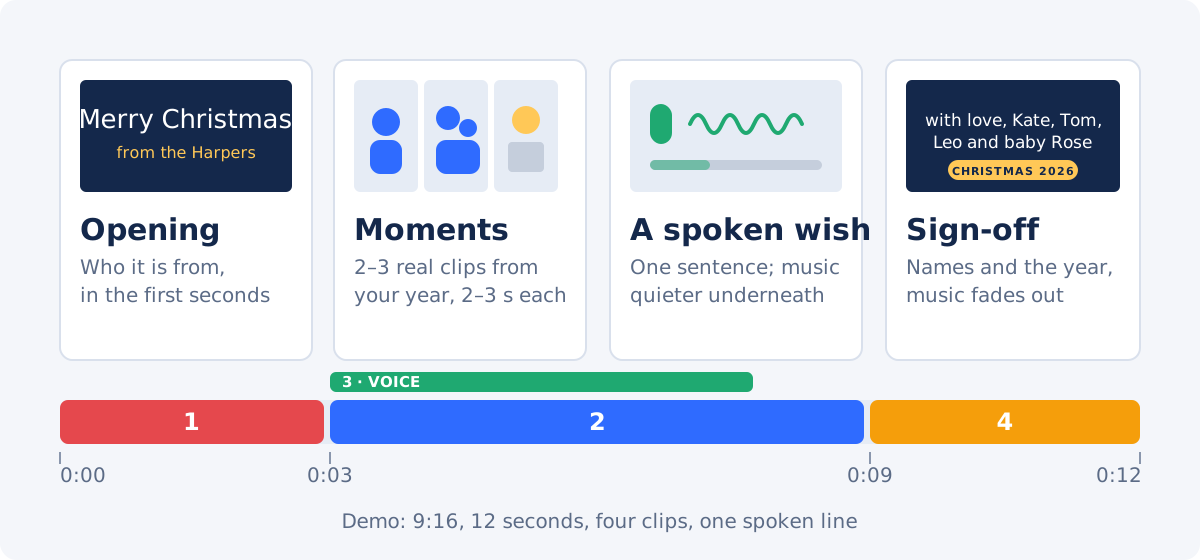
- Opening. "Merry Christmas" and who it's from, on screen in the first seconds, over your best shot. The viewer should know immediately that this isn't a forwarded video.
- Moments from your year. Two or three short clips that show what happened: a new baby, a new home, a trip, a graduation. Give each moment one short line, such as "our first Christmas as four".
- A spoken wish. One sentence in a real voice is what turns a nice video into a personal one. Keep the music quiet underneath so every word is clear.
- Sign-off. Everyone's names and the year, then let the music fade out. The year helps the video become a keepsake people find again next December.
A few lines that work on screen or out loud:
- "We made it home this year. Merry Christmas from all of us."
- "Thank you for every call and every visit. We can't wait to see you."
- "Grandma, this one's for you. Save us a seat at the table."
- "Merry Christmas from our home to yours, and a calm, happy New Year."
How to Make a Christmas Video Greeting in Deus.Video
The steps below use the full Deus.Video editor and one demo project throughout. The demo starts from a template because it gives you titles, a frame, snowflakes, and timing that already work; you only change what's personal.

1. Start From a Christmas Template or a Blank Project
Browse the Christmas video templates and pick one made for a personal greeting rather than a shop promo. On the template page, click Use this template. The editor creates a new project from it, and every clip, text, and track becomes an ordinary element you can change.
The demo uses the Merry Christmas from the Lindqvists family greeting: 9:16, 12 seconds, four scenes, a gold frame, a script title, one wish per scene, drifting snowflakes, and a "CHRISTMAS 2026" label. In the Project panel you can rename the project; the demo is called "Christmas from the Harpers".
To build a greeting from scratch instead, open a new project and set Size in the Project panel before adding anything: TikTok (9:16) for a vertical video card, YouTube (16:9) for a horizontal one. Then add your clips in the Video panel and titles in the Text panel. More family templates, for birthdays, anniversaries, and new babies, are in Family & Friends.
2. Replace the Template Clips With Your Own
Each template scene is a clip with a name on the timeline, such as "Scene 2 (couple)". Select the scene on the timeline and click Replace video in the Edit Video panel, or click the Replace clip badge on the canvas when the scene is paused. The Replace Video panel tells you which scene you're replacing and that its position, size, timing, animations, and sound settings stay as they are.
Drop a file from your phone or computer onto the upload area, pick one from My uploads, or search the Stock library. In a vertical project, the Portrait filter shows clips that already fit the frame, and each thumbnail shows its quality and length.

The new clip keeps the scene's timing, so the wish for that scene still appears over it. If your clip is longer than the scene, only its beginning plays; to use a different part, drag the clip's left edge on the timeline or set a later Start. The demo replaces all four scenes with stock clips of one family from the same shoot, which reads like real footage of one home. In your greeting, use your own clips; stock is only a fallback for a scene you have nothing for, like a close-up of the tree.
Only have photos? That's enough for a greeting. Pick a template with photo slots, such as the Our Year family album, and swap each photo with Replace image the same way you swap a clip. Give each photo two to three seconds, keep the wishes short, and add your voice and music as in the steps below. How to make a photo and video slideshow covers photo timing in more detail.
3. Change the Wishes and Names
Open the Text panel and expand Texts in this video. It lists every text in the template with its name and the time it's on screen, for example "Wish 2 · 0:03.5–0:06.1". Type in a field and the canvas updates; the text you're editing is outlined on the canvas, so you can see which line you're changing.

The demo changes five fields and keeps the rest:
- Family: "from the Harpers".
- Wish 1–3: "home together at last", "our first Christmas as four", "thank you for every call and visit".
- Wish 4: the sign-off, "with love, Kate, Tom, Leo and baby Rose".
- Year stays "CHRISTMAS 2026".
Check how long each line stays on screen; the form shows it next to every field. A wish should be readable twice before it disappears, so give it at least two seconds and keep it to about four to eight words. If a line is on screen for less time, shorten it, or select the text on the canvas and set an earlier Start in the Edit Text panel. In the demo, Wish 1 starts at 0:01.0 and stays for two seconds. If a line wraps or a light clip makes it hard to read, making text readable on video covers size, contrast, and shadows. For a single title over a finished video without a project, the Add Text to Video tool is quicker.
4. Add Your Voice
A spoken wish is the part people remember. The best option is your own voice: in the Audio panel, click Record, allow the microphone, say your line, and save it. The recording lands on the timeline at the playhead and in My uploads. How to add a voiceover to a video walks through recording and syncing in more detail. You can also record on your phone and upload the file in the same panel.
If you can't record, for example because the greeting is a surprise from the kids or you're making it on a quiet office computer, Text To Speech in the Audio panel reads your text aloud. Choose a Language, then a Voice, type the sentence, and click Listen to hear it or Add to project. Both use credits: one credit per started 1,000 characters, so a one-sentence greeting costs one credit each time.

The demo uses the voice Joanna (English, US) for "Merry Christmas from all four of us. We miss you, and we can't wait to see you." Move the playhead to where the voice should start before you add it, since new audio is placed at the playhead; the demo starts it at 0:03, after the title appears. In a template project, audio that runs past the end is cut at the end of the project, and a message offers to extend the project if you want the full clip.
5. Keep the Music Quiet Under the Voice
The template's music track plays at full volume from start to end, which would cover a quiet voice. Lower it only while the voice plays:
- Move the playhead to where the voice starts, select the music track, and click Split.
- Move the playhead to where the voice ends, select the second part of the music, and click Split again.
- Select the middle part and set its Volume in the Edit Audio panel. The demo uses 0.3 for the music and 1 for the voice.
- Select the last part and set Fade out, s so the music ends softly with the sign-off; the demo uses 1.5 seconds.

Play it back with the sound on. If you still have to strain to hear the words, lower the music further. Adding background music without drowning out dialogue explains how to balance the two in longer videos. To put music under a finished clip without opening a project, use the Add Audio to Video tool.
6. Preview and Export
Click To start and watch the whole greeting once with sound. Check that every wish appears over the right scene, that no clip starts with a blurry first frame, and that the music doesn't stop abruptly. Then click Download video, choose a Resolution, and click Export video.

1080p is the right choice for phones and TVs; 4K only makes the file bigger for a video watched in a chat. On the Free plan you can export up to 720p with a watermark; the 1080p export shown here needs a paid plan. The editor renders the video and lets you download the MP4 when it's ready; you can close the page in the meantime, and you'll get an email when the video is done. The 12-second demo exported in 1080p is about 7 MB.
Send It: WhatsApp, Email, or the Family TV
- WhatsApp and other messengers. Send the MP4 like any video. Messengers usually recompress videos sent this way; to keep the original quality on WhatsApp, attach the file as a document instead (WhatsApp accepts documents up to 2 GB), at the cost of the video not playing right in the chat.
- Email. Many mail services limit attachments to around 20–25 MB. A short 1080p greeting usually fits; if yours doesn't, shrink it with the Compress Video tool, or compress the MP4 for sharing by following the guide.
- Stories and Reels. A 9:16 greeting can be posted as is. Use music you have the rights to, or the platform's own music library.
- A TV or a video call. A vertical video shows with wide black bars on a TV. For a horizontal version, duplicate the project, set the size to YouTube (16:9), and reposition the texts, or convert the finished file with the Video Resizer.
- Adding it to a longer video. To put the greeting at the start or end of a family year video, join the files with Merge Videos.
Christmas Video Greeting Ideas
- For grandparents far away. Use the kids' clips, let each child say one word of the wish, and put the grandparents' name in the opening line.
- A first Christmas. A new baby, a new home, or a first Christmas together: let that moment carry the whole greeting, from the opening to the sign-off.
- From the pet. A greeting "signed" by the dog is a light option for friends and neighbours; there's a pet card template for it.
- From the whole group. Collect one short clip from each person, family, or friend, and give each of them one scene and one line.
- The year in a few seconds. Use one clip per season as the moments. For more photos and clips, a photo and video slideshow with music works better than a greeting.
- An invitation instead of a greeting. If you're hosting, send a Christmas dinner invitation with the date and time.
Making a video for a different occasion? How to make a birthday video follows the same approach with a demo built from photos, clips, and recorded messages.
Common Mistakes
- Nothing personal in it. A greeting with no names, no shared memory, and no wish addressed to anyone looks like a forwarded ecard. Your own clips and voice make it more personal still; stock footage works as a stand-in for a scene you don't have.
- Too long. For a family chat, aim for 10–30 seconds. Keep the best three or four moments.
- Music louder than the voice. Lower the music under the spoken part and check with the sound on a phone speaker.
- Lines too long to read. If you can't read a wish twice while its scene plays, shorten it.
- The wrong frame. A horizontal video in a messenger shows as a small strip in the middle of the screen. Use 9:16 for phones and 16:9 for TVs.
- Sending a 4K file. It takes longer to send and gets recompressed anyway. 1080p is enough.
Checklist
- The opening says "Merry Christmas" and who the greeting is from.
- Every scene uses your own clip or photo, or a deliberate stand-in.
- Each wish is short and stays on screen for at least two seconds.
- The spoken wish is clear over the music.
- Names and the year are in the sign-off, and the music fades out.
- The frame fits where people will watch: 9:16 for phones, 16:9 for a TV.
- The exported file is small enough for the messenger or email you'll use.
Make Your Christmas Video Greeting
A good Christmas greeting is short, personal, and in your own voice. Start from a Christmas video template, swap in clips from your year, write a wish for each scene, record one sentence, and send the file to the people you'll miss on the day.
Start making your Christmas video greeting
Frequently Asked Questions
How long should a Christmas video greeting be?
For a family chat, aim for 10–30 seconds: three or four short moments, one spoken wish, and a sign-off. Give each on-screen line at least two seconds. Save longer footage for a separate year-in-review video.
How do I make a video Christmas card for free?
Start from a Christmas template in an online editor, replace the template clips with your own, change the wishes and names, add music and your voice, and export the video as MP4. In Deus.Video you can make and export a greeting on the Free plan at up to 720p with a watermark; the 1080p export shown in this demo requires a paid plan. Text To Speech uses credits, and the Free plan includes 10 credits a month.
Can I record my own voice for the greeting?
Yes. In the Deus.Video editor, open the Audio panel, click Record, allow the microphone, and save the recording; it is placed on the timeline at the playhead. You can also record on your phone and upload the file. If you can't record, Text To Speech reads your text in a chosen voice.
What music can I use in a Christmas video?
Use music licensed for how you'll share the video: stock library tracks, songs under free licenses such as CC0, or your own recordings. For public posts, check the track's license or use the platform's own music library.
How do I send a Christmas video greeting on WhatsApp without losing quality?
Export the video in 1080p and send the MP4. Videos sent the usual way are recompressed by messengers; to keep the original quality on WhatsApp, attach the file as a document, which allows files up to 2 GB but doesn't play right in the chat.
Should a Christmas video greeting be vertical or horizontal?
Vertical 9:16 for anything watched on a phone: messengers, Stories, and Reels. Horizontal 16:9 for a TV, a laptop, or a video call. If you need both, duplicate the project and change its size, or convert the finished file with a video resizer.