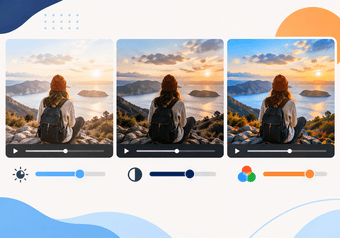
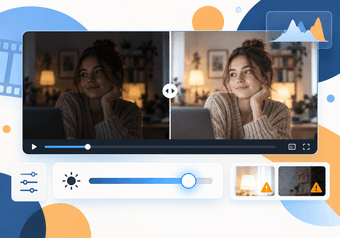
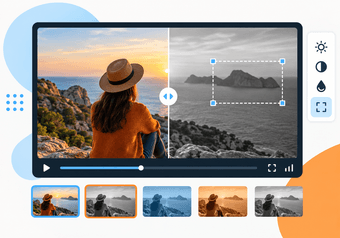
Full-frame blur vs. regional blur
A filter is an effect applied to the picture. Blur is a filter that softens detail by averaging neighboring pixels. It can be used in two ways.
Full-frame blur softens the entire picture. It is a stylistic tool: a blurred background plate behind a title, a soft transition moment, or a deliberately out-of-focus opening. Nothing in the frame stays sharp.
Regional blur softens only a fixed region, which is a rectangle with a set position and size. Everything outside it stays sharp. This is the mode people mean when they want to hide something: a name, a number, a brand, a screen.
In the tool, the choice is one checkbox. With "Apply to whole frame" selected, the filter covers the picture. With it cleared, the filter applies inside the rectangle shown in the preview.

How to blur part of a video in Deus.Video
With the Add Filter to Video tool, you can blur a fixed area of a video for a chosen time range.
- Upload one video. Common inputs include MP4, MOV, AVI, WebM, and MKV.
- Choose the Blur filter. Click the Blur quick preset, or select Blur in the Filter type list.
- Clear "Apply to whole frame." A rectangle with handles appears in the preview.
- Drag the rectangle over the target and resize it with its handles. You can also type X, Y, Width, and Height for exact placement.
- Set the Intensity. The field accepts values from 0 to 10. Start in the middle, and raise it until the detail cannot be read.
- Set Start and End to the period when the target is visible.
- Play the preview across the whole range, and check that the target stays inside the rectangle.
- Click Apply Filter, wait for processing, and download the result.
- Inspect the downloaded file at full size before you share it.
One processing run applies one filter with one region. If you need to blur two separate areas, process the video, then upload the result and blur the second area. Each pass encodes the video again, so keep the number of passes low, or use the full editor for more complex jobs.

The fixed rectangle: position, dimensions, and timing
Position and dimensions
X and Y set where the rectangle sits, and Width and Height set its size. Dragging and resizing in the preview changes the same values. Make the rectangle a little larger than the target on every side. Compression softens and shifts edges slightly, and a target that touches the border of the region may show a readable sliver.
The region is a plain rectangle. It has no soft edges, no rounded or custom shape, and no feathering, so the boundary between the blurred and sharp areas is a straight line. For a round or irregular object, cover it with a rectangle that contains it completely.
Timing
Start and End control when the blur is on screen. Set them slightly wider than the period when the target is visible. A sign that appears at 0:12 and leaves at 0:20 deserves a blur from about 0:11 to 0:21. If the blur starts one frame late, the detail is readable for that frame, and a viewer can pause on it.
If the target is visible for the whole video, set the range to the full duration.
Blur intensity: check that the detail is really unreadable
The Intensity field runs from 0 to 10. There is no value that is correct for every case, because the result depends on how large the text or object is in the frame. Large, bold lettering survives more blur than small print.
A light blur is the most common failure. It looks blurred, yet the text can still be read, particularly by someone who pauses the video and looks closely.
- Pause the preview on the clearest frame of the target.
- Try to read it yourself. Then ask someone who does not know what it says.
- Check at full size and full resolution, not in a small window.
- Repeat the check in the downloaded file.
- If the information is sensitive, do not rely on blur alone. See the privacy section below.

Stationary vs. moving targets
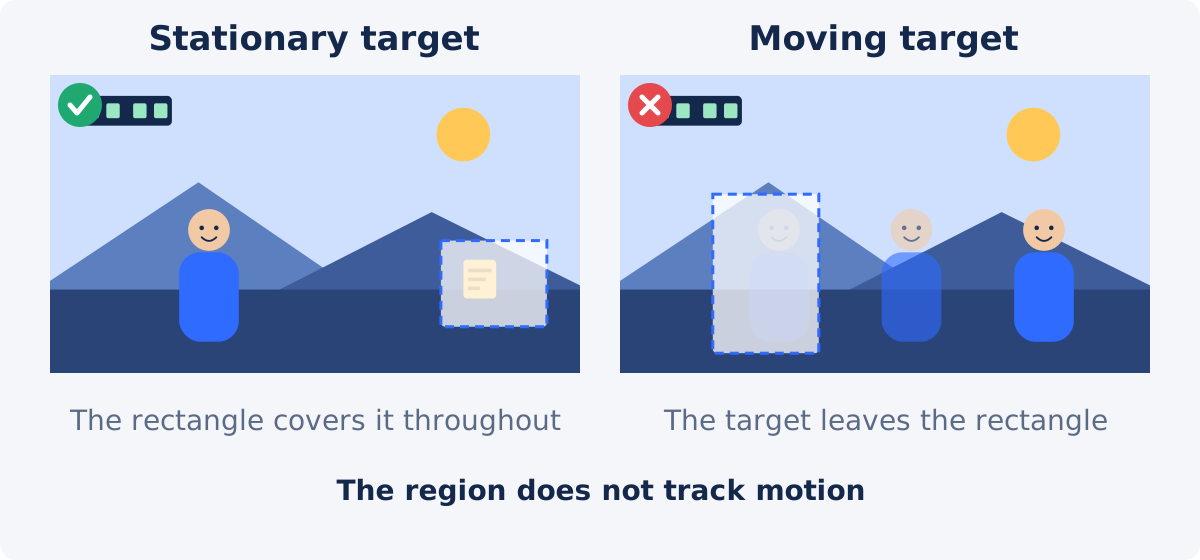
A fixed region works when the target stays in the same place in the frame. That requires two things: the object does not move, and the camera does not move.
- Good candidates: tripod shots, screen recordings, webcam footage with a static background, interviews with a locked-off camera, dashboard-mounted footage where the target is part of the car interior.
- Poor candidates: handheld footage, walking shots, pans and zooms, people, vehicles, anything held in a hand.
Small movement can be absorbed with a larger rectangle. If a person shifts in a chair, a region that covers the whole range of motion keeps the face covered. The cost is that more of the picture is blurred.
Why the tool is not suited to face or object tracking
The tool does not analyze the picture. It does not find faces, license plates, or text, and it does not know where they are from frame to frame. It also has no keyframes, so the region cannot be told to move along a path. The rectangle you set at the start is the rectangle used until the End time.
For a moving target, the realistic options are these.
- A generous fixed region, when the movement stays within a limited area.
- Several passes over short time ranges, each with the region repositioned. This works for a target that moves occasionally and then rests. It is slow, and every pass re-encodes the video.
- An opaque cover. Hiding an area with a solid image or a label removes the detail completely. Add Image to Video places a fixed image over a time range. In the full Deus.Video editor, an image element's position can be animated with keyframes, which lets a cover follow a target manually.
- Dedicated tracking software, when many faces or plates move through a long clip.
Which workflow fits which target
| Blur target | Suitable workflow | Limitation |
|---|---|---|
| Logo or sign on a wall, static camera | Fixed region, full time range | Fails if the camera moves |
| Address bar, email, or sidebar in a screen recording | Fixed region over the interface area | Scrolling or window changes move the content out |
| Document or monitor on a desk | Fixed region, slightly oversized | Someone may move the object |
| Seated person who shifts a little | Larger fixed region covering the whole range of motion | More of the frame is blurred |
| Person walking through the frame | Not suitable for a single fixed region | The region does not follow movement |
| License plate on a moving car | Not suitable | Needs tracking, or a manually animated cover |
| Two separate static areas | Two processing passes | One region per run; extra re-encoding |
| Whole picture as a soft background | Blur with "Apply to whole frame" | Nothing remains sharp |
| Highly sensitive data | Opaque cover, or crop it out | Blur may not be strong enough protection |
Privacy caveat: blur is not a guarantee of anonymity
Blurring hides detail from a casual viewer. It is not a universal guarantee that a person or a piece of data cannot be identified.
- A weak blur over large text can often be read, and some blurs can be partly reversed or guessed, especially for digits and short codes.
- A single unblurred frame at the start or end of the range exposes the detail.
- People are recognized by more than a face: voice, clothing, tattoos, location, and the context of the video all identify them.
- The same information may be audible in the soundtrack, or visible elsewhere in the frame, such as in a reflection.
When the stakes are real, such as minors, medical or financial details, passwords, or legal matters, prefer a solid opaque cover, crop the area out of the frame, or re-record without the information. This is practical guidance, not legal advice.
Common mistakes
- Checking one frame only. The target sits inside the region at 0:05 and outside it at 0:40.
- Too little intensity. The blur looks fine in a thumbnail, and the text is readable at full size.
- A region that is too tight. Slivers of text show at the edges.
- A time range that is too short. The detail is visible for a few frames before or after the blur.
- Forgetting other instances. The same name appears again later, or in another corner.
- Stacking many passes. Each run re-encodes the file and costs some quality.
- Trusting the preview alone. Always check the processed file.
If you need to explain why an area is hidden, a short label such as "Personal data hidden" can be added with Add Text to Video.
Conclusion
Regional blur is a simple tool with one firm rule: the rectangle does not move. Use it for static targets in static shots, make the region slightly larger and the time range slightly longer than the target needs, raise the intensity until the detail cannot be read at full size, and verify the downloaded file. For moving targets or sensitive information, choose a cover, a crop, or tracking software.
Have a clip with something that should not be seen? Open the Add Filter to Video tool, select Blur, place the region, and check the whole time range before you download.
Frequently asked questions
Can the blur follow a moving face?
No. The region is a fixed rectangle. The tool does not detect faces or track objects, and it has no keyframes. It suits targets that stay in one place in the frame.
Can I blur two areas at once?
Not in one run. Each processing run applies one filter to one region. Process the video for the first area, then upload the result and blur the second. Keep the number of passes low, since each one re-encodes the video.
Can I blur the background and keep the person sharp?
Not with this tool. That requires separating the subject from the background, which a rectangular region cannot do. A full-frame blur softens everything, including the person.
How strong should the blur be?
Strong enough that someone who does not know the content cannot read it on a paused frame at full size. The Intensity field goes from 0 to 10, and the right value depends on how large the detail is in the frame.
Is a blurred license plate or document safe to publish?
Not necessarily. Weak blur can sometimes be read or partly reconstructed. For sensitive data, use an opaque cover or remove the area from the frame, and check that the information does not appear elsewhere in the video or in the audio.
Will blurring reduce the quality of the rest of the video?
The video is processed and encoded again, so review the result. The area outside the region is not blurred, but no re-encode is free of change. Work from the original file and avoid unnecessary passes.