What brightness can and cannot fix
Brightness is a control that makes every part of the picture lighter or darker by a similar amount. It is the right tool when the whole image is a bit too dark but the detail is there: you can see the faces and the objects, they are just dim.
It can help with:
- footage shot indoors in the evening that looks somewhat too dark;
- a backlit scene where the subject is dim but still visible;
- a clip that looks fine on your bright monitor and murky on phones.
It cannot:
- recover detail from areas that were recorded as pure black;
- remove noise or grain, which it makes more visible instead;
- fix mixed lighting, where one part of the frame is right and another is dark;
- analyze the footage and choose a correction for you. The adjustment is manual.
Four terms that explain dark footage
Underexposure
Exposure is the amount of light the camera captured. Underexposed footage received too little. Everything sits in the lower part of the brightness range, and the picture looks dim and heavy.
Crushed shadows
When dark areas are recorded as solid black, the variations inside them, such as folds in a dark jacket or the texture of hair, are gone. Those shadows are said to be crushed. Raising the brightness turns them from black to flat gray. The texture does not return, because it was never stored.
Noise
In low light, cameras amplify a weak signal, which produces random speckles, most visible in dark areas. In a dark picture, the noise hides in the shadows. Brighten the picture, and the noise is brightened with it. Video compression adds to the problem by turning noisy shadows into blocky patches.
Clipped highlights
Highlights are the brightest parts of the picture. When they are pushed past the maximum value, they become flat white with no detail, which is called clipping. A lamp, a window, a white shirt, or the sky can clip when you brighten a scene to rescue a dark face.

How to brighten a dark video in Deus.Video
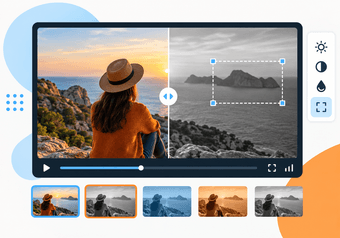
With the Add Filter to Video tool, you can adjust video brightness online for the whole clip or for a chosen time range.
- Upload the original video. Common inputs include MP4, MOV, AVI, WebM, and MKV. Use the camera original, not a copy that was already compressed by a messenger.
- Choose Brightness. Click the Bright quick preset, or select Brightness in the Filter type list.
- Make sure "Apply to whole frame" is selected. Brightening a rectangle creates a visible box, which is rarely what you want.
- Set the Intensity. The field accepts values from 0 to 10. Begin with a modest value and raise it step by step.
- Set Start and End. Cover the whole video for a consistently dark clip, or only the dark section.
- Preview several moments: the darkest scene, the brightest scene, and a close-up of a face.
- Click Apply Filter, wait for processing, and download the result.
- Review the file on a phone and on a larger screen at normal screen brightness.
One run applies one filter. If the brightened video also needs more contrast, that is a second run on the downloaded file, which re-encodes the video again. When you need several adjustments together, the full editor is the better place.

Brightness intensity and whole-frame use
The same Intensity scale is used by all six filters, and what a given number does differs from one filter to another. Do not carry a value over from Blur or Saturation and expect a comparable effect. Find the right brightness by eye, in small steps.
A useful method is to overshoot on purpose. Raise the intensity until the picture clearly looks wrong, with milky blacks or white patches, then come back down until it looks natural. The right value is usually lower than your first instinct.
Apply brightness to the whole frame. The tool also supports a fixed rectangular region, but a brightened rectangle has hard edges and does not follow a moving subject, so it reads as a box pasted over the picture. A regional brightness change only makes sense for a deliberately marked area, such as highlighting a panel in a screen recording.
Why you need to check different scenes
The intensity you set applies equally to every frame inside the time range. A video is rarely evenly lit. A value that rescues a dim living room will blow out the moment someone opens the curtains.
- Scrub through the whole range and stop on every change of location or lighting.
- Look at skin tones. Faces that turn pale and flat are overcorrected.
- Look at the brightest object in each scene for clipping.
- If only one section is dark, limit Start and End to that section.
- If two sections need different amounts, process them in separate runs with separate time ranges, or handle the job in the full editor.
Brightness and contrast work together
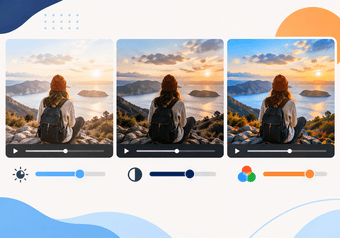
Contrast is the difference between the dark and light parts of a picture. Raising brightness lifts the blacks along with everything else, so dark areas turn gray and the image can look hazy, as if seen through fog. That is the most common side effect of brightening.
A small increase in contrast after brightening restores depth, because it pulls the darks back down and pushes the lights up. The order matters. On dark footage, raising contrast first makes things worse: the darks get darker, and more shadow detail is lost.
Since the standalone tool applies one filter per run, combining the two means two passes and two encodes. For footage that needs both, consider the full Deus.Video editor, where brightness, contrast, and saturation are adjusted together with sliders before a single export. In the editor, those adjustments apply to the whole video.

Symptoms, adjustments, and risks
| Symptom | Adjustment | Risk |
|---|---|---|
| Whole picture slightly dim, detail visible | Moderate brightness, whole frame | Low; watch the brightest objects |
| Picture looks hazy or gray after brightening | Less brightness, or a small contrast increase afterward | A second pass means another encode |
| Dark face against a bright window | Small brightness increase only | The window clips to flat white |
| Shadows are solid black | Brightness helps very little | Black turns to flat gray; no detail returns |
| Speckles or blocks appear in dark areas | Reduce the brightness | Noise grows with every step |
| Only one scene is dark | Limit Start and End to that scene | A visible jump at the boundary if the change is large |
| Colors look weak after brightening | A small saturation increase in a separate step | Skin tones turn orange if overdone |
| Almost nothing is visible | Re-record if possible | Any correction produces a noisy, flat picture |
When re-recording is better
Correction in editing is a repair. Light during recording is the cure. Consider shooting again when:
- faces are not recognizable in the source;
- the shadows are solid black over large areas;
- heavy noise is already visible before any correction;
- the video is a product shot, a course, or anything where picture quality reflects on you;
- the setup is easy to repeat: a talking head, a screen-and-webcam tutorial, a tabletop demo.
Small changes make a large difference: face a window instead of sitting with your back to it, add a lamp behind the camera, turn on the room lights, or move outdoors into open shade. If the camera or the phone offers exposure control, tap on the subject's face to set exposure before recording.
Common overcorrection mistakes
- Judging on a dim screen. If your display brightness is low, you will push the video too far. Set the screen to a normal level first.
- Matching a bright reference. An evening scene is supposed to look like evening. Aim for "clearly visible," not "like midday."
- Ignoring the highlights. Watch the brightest object in the frame, not only the subject.
- Correcting one frame. Check the full time range.
- Stacking passes. Brightness, then contrast, then saturation, each as a separate export, adds three rounds of compression.
- Brightening a rectangle. A fixed region with hard edges looks like a mistake.
- Overwriting the source. Keep the original file, so you can start over.

Conclusion
Brightening works well on footage that is dim but detailed, and poorly on footage that is nearly black. Raise the brightness in small steps on the whole frame, check the darkest and brightest scenes, watch for gray haze, noise, and clipped highlights, and add contrast only afterward and only if needed. When the source is too dark to read, more light during a re-shoot will do more than any filter.
Ready to lift a dim clip? Open the Add Filter to Video tool, choose Brightness, and preview several scenes before you download.
Frequently asked questions
Can I fix a video that is almost completely black?
Only slightly. Brightness makes recorded detail more visible, and in near-black footage there is very little recorded detail. Expect a gray, noisy picture. Re-recording with more light is the realistic fix.
Why does my video look grainy after brightening?
The grain was already there, hidden in the dark areas. Low-light recordings contain noise, and brightening amplifies it along with the picture. Use a lower intensity, and accept a slightly darker result.
Does the tool correct brightness automatically?
No. It does not analyze exposure or choose a value for you. You set the Intensity by hand and judge the preview.
Should I increase brightness or contrast?
For dark footage, start with brightness. Contrast alone makes dark areas darker. If the brightened picture looks hazy, a small contrast increase afterward restores depth.
Can I brighten only part of the frame?
The tool can apply a filter to a fixed rectangle, but a brightened box has hard edges and does not follow a moving subject. It works for marking a static area, not for lighting a face naturally.
Can I brighten only one section of the video?
Yes. Set Start and End to the dark section. The rest of the video is left as it is. If the change is strong, the transition at the boundary will be visible, so place it on a cut if you can.