Grayscale vs. simple desaturation
Both produce a picture without color, and the two words are often used as if they meant the same thing. The difference lies in how the gray value of each pixel is decided.
Saturation is the strength of color. Lowering it to zero is desaturation. Depending on the software, a simple desaturation may treat all colors alike, so a bright yellow and a deep blue of similar intensity end up as nearly the same gray.
Grayscale conversion is designed to produce a monochrome image based on how bright each color appears to the eye. People see green as brighter than red, and red as brighter than blue, and a typical grayscale conversion weights the colors accordingly. The result usually looks more natural than a flat desaturation.
In the Add Filter to Video tool, these are two separate filters. Grayscale is the one intended for black-and-white video. Saturation changes color strength and is meant for making colors stronger or weaker. For a monochrome look, use Grayscale.
How to convert a video to grayscale in Deus.Video
With the tool, you can add a filter to a video online and turn all of it, or part of it, black and white.
- Upload one video. Common inputs include MP4, MOV, AVI, WebM, and MKV.
- Choose Grayscale. Click the Gray quick preset, or select Grayscale in the Filter type list.
- Set the Intensity. The field accepts values from 0 to 10. Use a high value for a fully monochrome picture, and check the preview.
- Select "Apply to whole frame" for a black-and-white video. Clear it only if you want the effect inside a fixed rectangle.
- Set Start and End. Use the full duration, or the section that should lose its color.
- Play the preview and watch the points where the filter starts and ends.
- Click Apply Filter, wait for processing, and download the result.
- Review the file with the checklist at the end of this guide.

Intensity and timing
Intensity
Intensity controls how strongly the filter is applied. At the top of the range, the color is removed. At lower values, some color remains, which gives a muted, faded look. That partial treatment can be attractive for nostalgic or somber material, but be deliberate about it. A video that is almost, yet not quite, black and white often looks like a mistake.
The same 0–10 scale is used by all six filters, and its effect differs for each of them. Judge the grayscale amount by eye in the preview.

Timing
Start and End define when the filter is active. Outside that range, the video keeps its color. This makes simple storytelling devices possible without an editor: a memory sequence in monochrome, a "before" section followed by a color "after," or a freeze on a serious moment.
The change at Start and End is a hard switch, with no fade from color to gray. Place those times on a cut between shots when you can. A switch in the middle of a continuous shot is noticeable, which is fine only if that is the effect you want.
Whole frame vs. a selected region
With "Apply to whole frame" selected, every pixel is converted. That is the standard black-and-white video.
With it cleared, the grayscale applies inside a fixed region: a rectangle that you drag, resize, or define with X, Y, Width, and Height. Everything outside stays in color. The rectangle has hard edges, and it does not move with the content.
Regional grayscale is useful for explanatory layouts:
- a split view, with one half of the frame in gray and the other in color, for a before-and-after comparison;
- muting an unimportant panel in a screen recording, so the active area stands out;
- de-emphasizing a static background element, such as a bright poster behind a speaker on a locked-off camera.

What this is not: selective color
A popular effect keeps one color, such as a red dress or a yellow taxi, while the rest of the picture turns gray. That is called selective color, and it requires isolating a color range or masking a moving object. The tool does not do this. It cannot keep one hue, and its region is a fixed rectangle, not a mask that follows a shape.
A rectangle left in color around a static object is the closest approximation, and it only works when neither the object nor the camera moves. The tool also does not offer film emulation, grain, toning curves, or LUTs. Its Sepia filter adds a warm brown tone as a separate option, and one filter is applied per processing run.
Contrast and readability after removing color
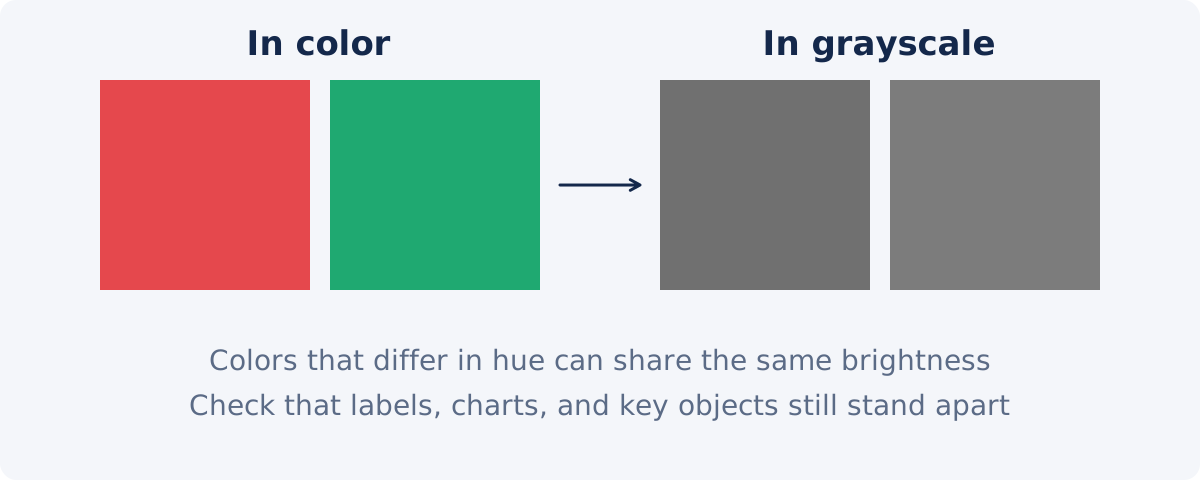
Color does a lot of silent work. It separates a red jacket from green grass, a warning label from its background, one line on a chart from another. In grayscale, only brightness remains. Two colors that look nothing alike can turn into nearly the same gray.
- Faces. Skin against a mid-toned wall can lose its outline. Look for clear separation between the subject and the background.
- Text and graphics. Colored captions, logos, and lower thirds may lose legibility. Red text on a dark background often becomes dark gray on dark gray.
- Charts and interfaces. Anything color-coded stops working. A green "OK" and a red "Error" look the same.
- Flat scenes. Overcast exteriors and evenly lit interiors can turn into a field of middle gray.
Contrast is the difference between the dark and light parts of a picture. Black-and-white images generally benefit from a little more of it than color images do. If the result looks flat, a modest contrast increase helps. In the standalone tool, that is a second processing run, because one run applies one filter. To adjust grayscale and contrast together before a single export, use the full Deus.Video editor, where filters apply to the whole video.
Creative and explanatory uses
- Mood. Monochrome strips away distraction and reads as serious, timeless, or intimate. It suits portraits, interviews, and documentary-style pieces.
- Memory or flashback. A time-limited grayscale section signals the past without any caption.
- Before and after. Show the "before" state in gray and the "after" in color, in sequence or side by side with a region.
- Rescuing bad color. Mixed lighting, a strong color cast, or clashing colors can be impossible to correct. Removing color removes the problem.
- Consistency. Clips from different cameras rarely match in color. In black and white, they sit together more easily.
- Emphasis in tutorials. Gray out a finished or irrelevant area of the screen, so the viewer looks at what matters.
Which treatment for which use
| Use case | Grayscale treatment | What to check |
|---|---|---|
| Full black-and-white film look | Whole frame, full intensity, full duration | Separation between subject and background; overall contrast |
| Flashback or memory sequence | Whole frame, limited time range | Start and End fall on cuts |
| Before-and-after in sequence | Whole frame for the "before" section only | The switch happens at the right moment |
| Side-by-side comparison | Fixed region over one half of the frame | The region edge sits exactly where you want the split |
| Muted, faded look | Whole frame, reduced intensity | It reads as intentional, not as weak color |
| Footage with a bad color cast | Whole frame, full intensity | Faces still look natural in gray |
| De-emphasized panel in a screen recording | Fixed region over the static panel | The panel does not scroll or move during the range |
| Video with colored captions or charts | Consider leaving it in color | Text legibility; whether color coding carries meaning |
Preview and quality checklist
- Is any color left? Pause on a saturated object, such as a red sign or a blue sky, and look for a tint.
- Do faces stand out from the background?
- Can every caption, title, and logo still be read?
- Does any chart, map, or interface rely on color to make sense?
- Do the dark areas hold detail, or have they become solid black?
- Are Start and End exactly where you intended, with no color frames slipping through?
- For a regional effect, does the content stay aligned with the rectangle for the whole range?
- Does the downloaded file look right on a phone as well as on a monitor?
If a title or a caption got lost in the conversion, you can add a new one afterward with Add Text to Video, using white text on a dark box, which holds up well in monochrome.
Conclusion
Turning a video black and white takes one filter and one click. Making it work takes a closer look. Use Grayscale, not Saturation, apply it to the whole frame at full strength, place any time boundaries on cuts, and check that faces, text, and color-coded information survive the loss of color. For selective color, grain, or combined adjustments in one export, you need a different tool or the full editor.
Ready to try the look? Open the Add Filter to Video tool, click Gray, and preview the whole range before you download.
Frequently asked questions
What is the difference between grayscale and black and white?
In everyday use, they mean the same thing: a picture made of shades of gray. Strictly speaking, "black and white" could mean only two tones, but nobody uses it that way for video. The Grayscale filter produces the normal black-and-white look, with a full range of grays.
Can I keep one color and make the rest gray?
No. That effect, called selective color, requires isolating a color or masking an object. The tool applies grayscale to the whole frame or to a fixed rectangle. It cannot preserve a single hue.
Can only part of the video be black and white?
Yes, in two ways. Use Start and End to limit the filter to a time range, or clear "Apply to whole frame" to limit it to a fixed rectangle. The switch in time is a hard change, without a fade.
Why does my black-and-white video look flat?
Without color, only brightness differences separate objects. If the scene was evenly lit, everything lands in the middle grays. A modest contrast increase helps. In the standalone tool, that is a separate run, and the full editor can combine both before one export.
Can I turn a black-and-white video back to color?
No. Once the video is processed, the color information is gone from that file. Keep your original, so you can always return to the color version.
Should I use Grayscale or set Saturation to the minimum?
Use Grayscale. It is the filter intended for a monochrome result. Saturation is meant for making colors stronger or weaker, and its scale behaves differently.