A good dance video looks effortless, but most of the effect comes from the edit: shots that change exactly on the beat, the best move shown twice, one track that carries everything, and a vertical frame that fills a phone screen. You can do all of that in a browser, without installing an app.
This guide covers the whole process: shooting with editing in mind, choosing the music and finding its beat, cutting clips on the beat, repeating a move in slow motion, adding a title and a music credit, and exporting for TikTok, Instagram Reels, and YouTube Shorts. All screenshots come from one demo, a 20-second vertical dance edit made from four stock clips of one crew in an empty 9:16 project in the Deus.Video editor.
Shoot With the Edit in Mind
The edit can only use what you filmed. A few minutes of planning on set saves most of the work later.
- Shoot vertical if the video is for TikTok, Reels, or Shorts. A horizontal clip cropped to 9:16 loses two thirds of the frame, and a dancer's hands and feet are the first to go. If you also need a horizontal version, keep the dancers in the middle third of a horizontal frame.
- Play the track out loud while you film. Every take then matches the same music, so cutting between takes stays on the beat.
- Film the whole routine several times from different distances: a wide shot of the full body and the group, a medium shot, and a few close-ups of faces, hands, or footwork. The edit switches between them.
- Keep the full body in the wide shot. Leave space above the head and below the feet; a cut-off foot on a jump looks like a mistake.
- Steady camera, good light. A phone on a tripod or a wall beats a shaky hand. Light from the front or the side, not a bright window behind the dancers.
- Record a few seconds before and after each take, so you have room to cut on the beat.
Pick the Music and Find the Beat
The music decides the length and the rhythm of the edit. Choose it before you cut.
- Rights. A track you hear in TikTok or Instagram works inside those apps when you add it there, but a file with that track uploaded elsewhere can be muted or blocked. For a video you post on several platforms or use for a dance school or a brand, use music you have the right to use. The Deus.Video stock library has tracks with free licenses; the demo uses "Good Vibe Background Music" by Seth_Makes_Sounds (CC0).
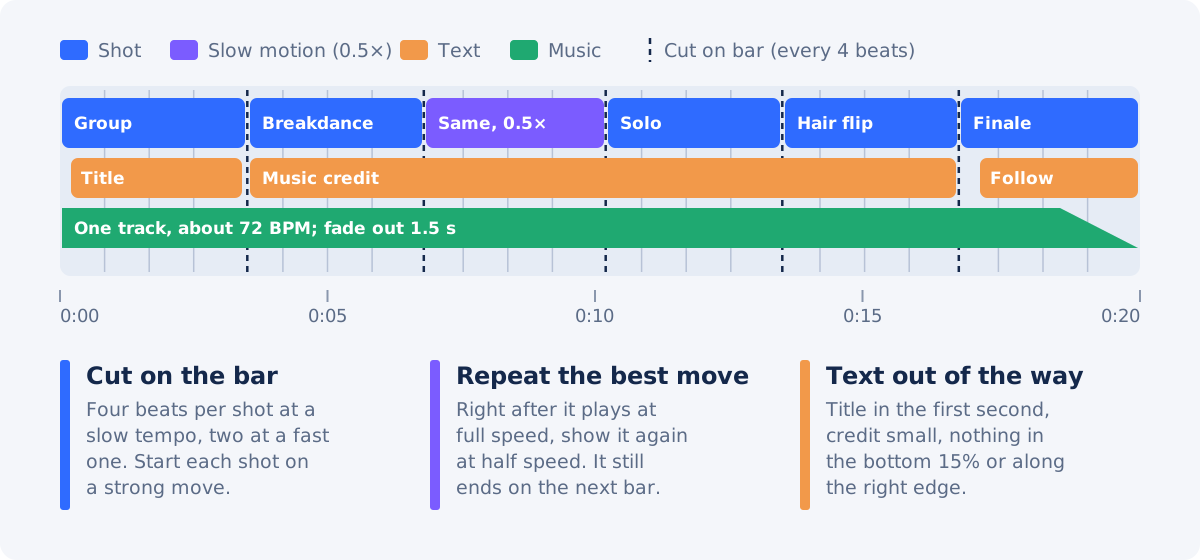
- Tempo. Count the beats: tap along for 15 seconds and multiply by four. The demo's track is about 72 beats per minute, so one beat lasts about 0.83 seconds and a bar of four beats about 3.3 seconds.
- Length. 15–30 seconds is the sweet spot for a short dance clip; a full routine or a class recap can run one to three minutes. Pick a part of the track with a clear start, such as the drop or the start of a phrase.
How to Edit a Dance Video in Deus.Video
The steps below use the full Deus.Video editor in the browser and the same demo project throughout.
1. Create a Vertical Project
Open the editor and create a project. In the Project panel, set Size to TikTok (9:16) for TikTok, Reels, and Shorts, or YouTube (16:9) for a horizontal video. Set the size before you add clips: with Original, the canvas takes the proportions of the first video you add.

Then upload your clips in the Video panel. Each new clip is placed at the playhead, so it doesn't matter where they land at first; you'll arrange them in the next step. The demo uses four clips of one crew: a group take, two solos, and a finale.
Add the music now as well, so you can cut to it: move the playhead to the start, open the Audio panel, and upload your track or add one from Stock. Step 4 fits its length, adds the fade, and mutes the clips' own sound.
2. Cut the Clips on the Beat
This is the step that makes a dance video feel tight. Each shot should start on a beat, ideally the first beat of a bar, and on a strong move: a hit, a jump, a turn.
- Find the moment you want. Click the timeline ruler to move the playhead over a clip and watch the canvas until you find where the good part starts.
- Trim the start to it. Select the clip and drag its left edge to that moment, or type that time in Start. The beginning of the footage is cut off, so the clip now starts on your move. If you'd rather cut at the playhead, click Split and delete the left piece; the result is the same.
- Set the length on the beat. Type the End in the clip's panel. In the demo every shot lasts one bar: 3.3–3.4 seconds.
- Place it. Turn on Keep length and type the Start where the shot should begin: 0, 3.5, 10.2, 13.5, and 16.8 seconds in the demo. The bar from 6.8 to 10.2 stays free for the slow-motion repeat in step 3, and the breakdance piece and the group shot both come from the same group take. With Keep length, Start and End move the clip instead of trimming it. Or drag the clip until its edge snaps to the previous one.

Watch each cut with the music on. The bar lengths from the tempo are a starting point, not exact timecodes for your track, so trust what you hear. If a cut feels late, move it a frame or two earlier: a cut slightly before the beat reads as on the beat. If you prefer to trim a single file before editing, the Trim Video tool cuts its start and end, and how to extract a clip from a longer video shows how to take a part from the middle.
3. Repeat the Best Move in Slow Motion
A replay of the strongest moment, slowed down, is a classic dance-edit move: the viewer sees it at full speed, then has time to enjoy it.
- Add the same clip to the timeline again.
- In its panel, set Speed to 0.5. The clip becomes twice as long.
- Trim its start to just before the move, as in step 2, then set the length to one bar and place it right after the full-speed shot.

Keep the repeat to one or two per video; more and the energy drops. A speed of 0.5 suits most moves; for a fast spin, try 0.3–0.4. For the opposite effect, a quick speed-up on a transition, see how to speed up a video without ruining quality; the Change Video Speed tool does it for a whole file.
4. Fit the Music to the Edit
The track went in at the start in step 1. If you haven't added it yet, move the playhead to the start, open the Audio panel, and upload your track or add one from Stock; it is placed at the playhead. Then select it and finish it:
- Cut it to the video. Set the track's End to the end of the last shot. You don't need to change the project Duration: empty time after the last element is cut from the export.
- Fade out. Set Fade out to 1–2 seconds so the video doesn't stop mid-phrase. Start on a strong beat instead of fading in.
- Mute the clips if they have sound from the set: select each clip and click Mute next to Volume. Live sound on top of the track blurs the beat.

To add a track to a finished video without the editor, use Add Audio to Video. If someone speaks in the video, see how to add background music without drowning out dialogue.
5. Add a Title, Credits, and a Call to Action
Dance videos need little text, but a few words help: who is dancing, what the music is, and what to do next. Add each in the Text panel with Add text.
- Title in the first second: the crew, the dancer, or the routine. The demo shows "NIGHT SHIFT CREW" in Montserrat bold, white with a dark shadow, for the first bar, with Fade In From Bottom and Fade Out.
- Music credit, small and low: "Music: Good Vibe — Seth_Makes_Sounds". Credit the choreographer too if it's their routine.
- Call to action on the last bar: "Follow for part 2", the class schedule, or the full routine link.
- Keep the bottom 15% and the right edge clear. TikTok, Reels, and Shorts put the caption, the username, and the buttons there.

For text that stays readable on busy, colorful footage like the demo's, see how to make text readable on video.
6. Export and Post
Play the whole video once with the sound on and check every cut against the beat. Then click Download video and choose 1080p (FullHD) if your plan includes it. In a 9:16 project, 1080p gives a 1080×1920 frame, the standard size for TikTok, Reels, and Shorts. Higher resolutions make the file bigger, and the apps compress uploads anyway. The free plan exports at up to 720p with a watermark. See plans and pricing for the current limits.

Upload the file in the app and add the caption and hashtags there. If the file is too large to send from your phone, shrink it with Compress Video.
Make a Vertical Version From Horizontal Footage
If you filmed horizontally, you can still post to TikTok and Reels:
- Crop to the dancer. Set the project to 9:16 and scale the clip up so the dancers fill the height, then move it so the action stays in the frame. This works for a solo or a duo near the center.
- Fit with a background. For a group that spreads across the frame, keep the whole width and fill the space above and below with a blurred copy or a color: add the clip a second time on a lower row, enlarge it until it covers the frame, and turn on its Blur filter, or set a Background color in the Project panel. See how to resize a horizontal video for vertical without stretching and how to crop a horizontal video to 9:16.
For a single file, Crop Video crops it to 9:16 without the editor, and the Video Resizer fits it with black bars (Fit) or crops the sides (Fill).
Ideas for Dance Videos
- Routine with angles: one routine filmed wide, medium, and close, cut on the bar, as in the demo.
- Tutorial: the routine at full speed, then the steps at 0.5 speed with counts ("5, 6, 7, 8") as text. For a full lesson structure, see how to make a video lesson.
- Class or recital recap: the best moments of several dancers, 2–4 seconds each, with the school's name and the date.
- Trend or challenge: one take, trimmed to the trend's music, with the challenge name as the title.
- Before and after: the first rehearsal and the final take side by side or one after the other.
- Event promo: a dance showcase or battle announcement; start from a template such as Dance Showcase — Tickets Live.
Common Mistakes
| Mistake | What to do instead |
|---|---|
| Cuts that fall between beats | Cut on the first beat of a bar, or a frame before it |
| Each shot starts in the middle of a move | Trim each shot so it starts on a hit, a jump, or a turn |
| Feet or hands cut off by the frame | Film the full body in the wide shot; crop horizontal footage carefully |
| Set sound on top of the music | Mute the clips and use one clean track |
| Music that stops mid-phrase | End on a bar and add a 1–2 second fade out |
| Text under the app's buttons | Keep the bottom 15% and the right edge clear |
Dance Video Checklist
- Filmed vertically, full body in frame, several angles, track playing on set.
- Music you have the right to use; tempo and bar length counted.
- Every shot starts on a beat and on a strong move.
- One slow-motion repeat of the best moment.
- Clip sound muted; the track fades out at the end.
- Title, music credit, and call to action, away from the app's buttons.
- Exported in 9:16 at 1080p (1080×1920), or the best resolution your plan allows.
Ready to edit your routine? Open the Deus.Video editor; everything above runs in the browser. For ready-made vertical layouts, browse the TikTok video templates and Instagram Reels templates.
Frequently Asked Questions
How do I edit a dance video online?
Create a vertical 9:16 project in an online editor such as Deus.Video, upload your clips and the music track, and cut the clips so each shot starts on a beat and on a strong move. Repeat the best move in slow motion, fade the music out at the end, add a short title and a music credit, and export at 1080p if your plan includes it.
How do I cut a dance video to the beat?
Count the track's tempo (tap along for 15 seconds and multiply by four) and work out how long a bar of four beats lasts: at 72 BPM, about 3.3 seconds. Trim each clip so it starts on a strong move, make each shot one or two bars long, and place the shots one after another so every cut lands on the first beat of a bar.
How do I make slow motion in a dance video?
Add the clip again, set its speed to 0.5 (or 0.3–0.4 for a fast spin), trim its start to just before the move, and place it right after the same moment at full speed. Use one or two slow-motion repeats per video.
What music can I use in a dance video?
A track added inside TikTok or Instagram can be used there, but the same track uploaded in a file to other platforms can be muted or blocked. For a video you post in several places or use for a school or a brand, use music you have the right to use, such as tracks with free licenses, and credit the artist.
What size should a dance video be for TikTok and Reels?
Vertical 9:16, exported at 1080p (a 1080×1920 frame) if your plan includes it; the free plan exports up to 720p with a watermark. A short dance clip usually runs 15–30 seconds; a full routine or a class recap can run one to three minutes. Keep the dancers' full bodies in the frame and leave the bottom 15% and the right edge free of text, where the apps place the caption and buttons.
Can I make a vertical dance video from horizontal footage?
Yes. Set the project to 9:16 and either scale the clip up so the dancers fill the height, which works for a solo or a duo near the center, or keep the full width and fill the space above and below with a blurred copy or a color for a group.