Why video editors refuse WebM
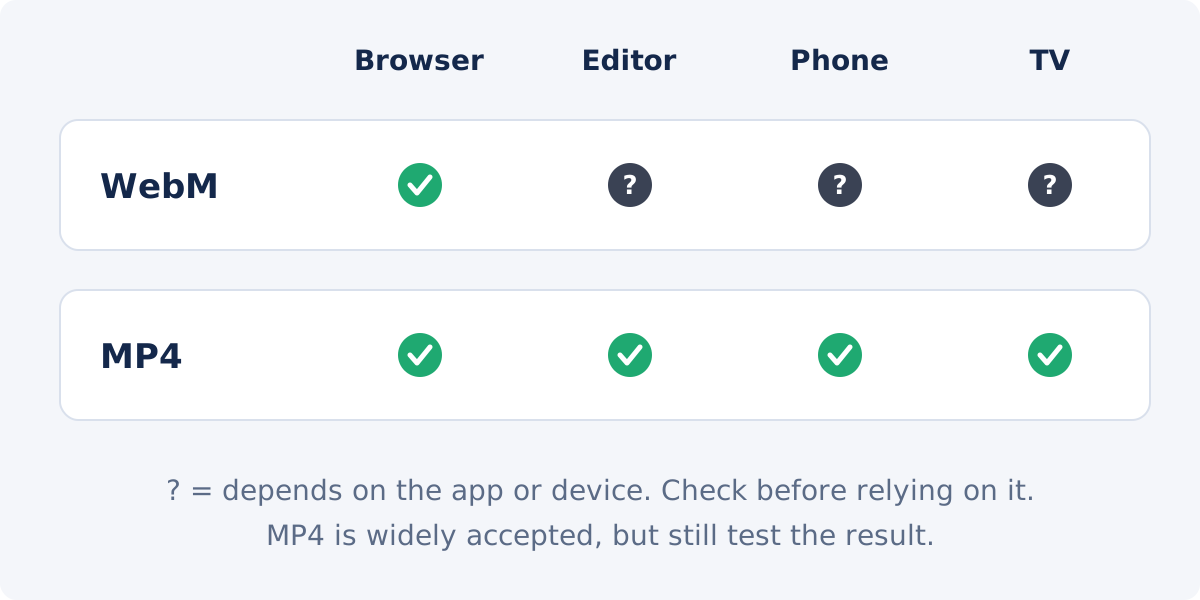
WebM is a web format. It holds video compressed with VP8, VP9 or AV1 and audio compressed with Opus or Vorbis, all chosen for browsers and streaming. Browsers bring their own decoders for these codecs, which is why a WebM plays in Chrome or Firefox and still fails in an editor: editing software supports a fixed list of formats built around camera and delivery codecs such as H.264, HEVC and ProRes.
WebM files usually come from places where nobody chose the format: browser-based screen recorders, video calls recorded in the browser, web apps, downloads and some animation tools.
What each editor does with WebM
| Editor | WebM import | What works |
|---|---|---|
| Adobe Premiere Pro | Not supported out of the box. Media Encoder cannot read or write WebM either | Convert to MP4, or install a third-party WebM plugin |
| DaVinci Resolve | Depends on the version, the operating system and the codecs. Resolve 21.1 decodes VP8 video in .webm, but VP9 only in MOV, MP4 or MKV and Opus audio only in MOV or MP4, so a WebM may import without sound or not at all | Convert to MP4; on Linux, check the codec list for your edition |
| iMovie and Final Cut Pro | Not supported; the file stays grayed out in the import window | Convert to MP4 |
| Online editors | Usually supported, because they run in a browser | Import directly; convert browser recordings without a duration first |
Checked in November 2026 against Adobe’s list of supported formats and Blackmagic’s supported codec list for DaVinci Resolve 21.1. Third-party plugins for Premiere Pro exist, but they cover only certain codec combinations, need updating with each Premiere release and have to be installed on every computer that opens the project. For a few files, converting is simpler.
Two problems specific to browser recordings
Screen recorders and call recorders that run in the browser write WebM on the fly, as the recording happens. That causes two problems that editors handle badly:
- No duration. The recorder does not know the length while it records, and many never write it into the file. Players show 0:00 or an endless length, scrubbing does not work, and some editors refuse the file.
- Variable frame rate. The recorder often captures a frame only when the screen changes, so the frame rate jumps. Editors that expect a constant rate can let the sound drift away from the picture over a long recording.
Converting rewrites the file from start to end, so the MP4 gets a proper duration and an index that editors can scrub.
The fix: convert WebM to MP4 before importing
MP4 with H.264 video and AAC audio is a widely supported choice in current editors on Windows and macOS. The WebM to MP4 converter turns VP8, VP9 and AV1 into H.264, Opus and Vorbis into AAC, and repairs browser recordings that have no duration. Upload the WebM, wait for the conversion and download the MP4. Files can be up to 200 MB.
If you only need simple edits, such as trimming, adding text or music, the online Deus Video editor accepts WebM files up to 1 GB directly. For a browser recording without a duration, convert it first.
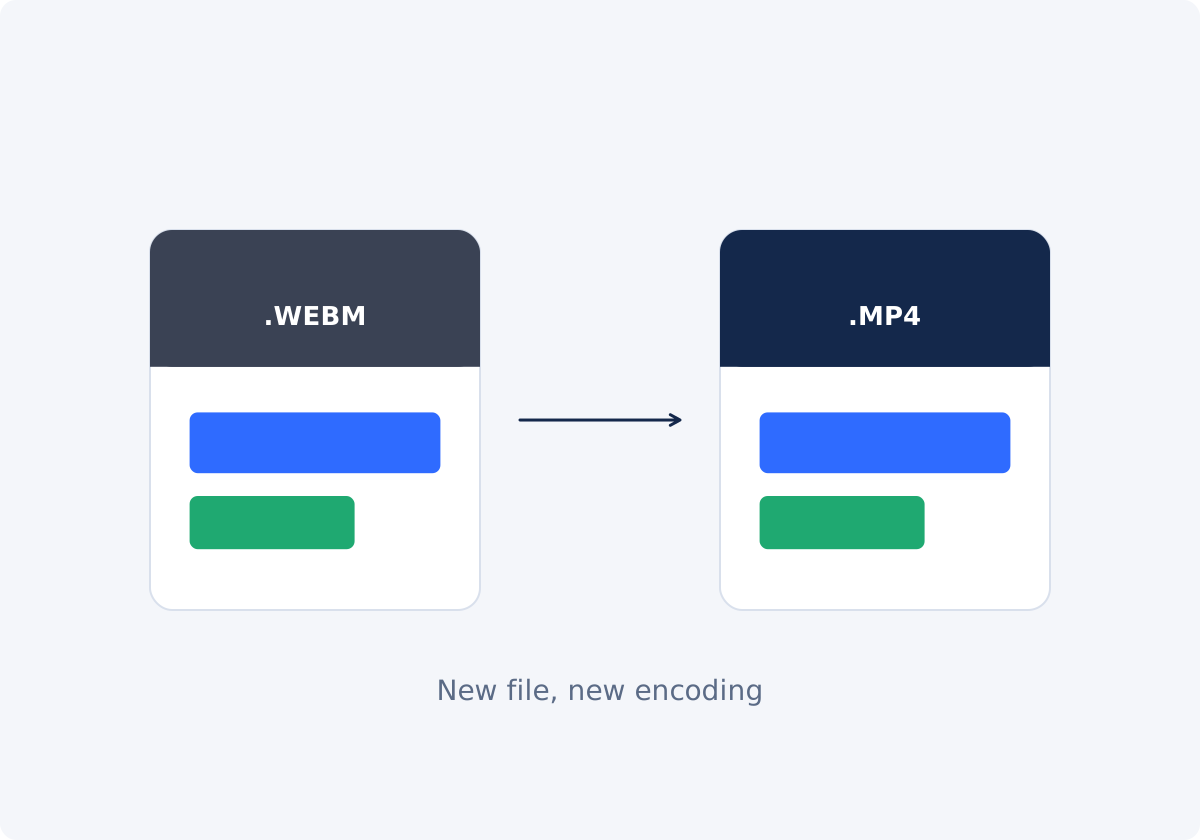
Converting is a new round of encoding, so do it once, from the original WebM. Expect the MP4 to be the same size or larger: WebM codecs are efficient, and H.264 needs more data for the same quality.
Check the file in the editor
- Duration. The clip on the timeline is as long as the recording, and you can scrub through it.
- Sync. Watch someone speak or a click with a sound near the end of the clip. Drift builds up over time, so the end is the strict test.
- Sound. If the video imports but the audio is missing, the editor probably cannot decode Opus or Vorbis. Converting to MP4 replaces the sound with AAC. On Linux, DaVinci Resolve does not decode AAC, so check its codec list for another audio format.
- Small text. In screen recordings, check menus and code at 100% zoom. Text softens first when a heavily compressed source is encoded again.
- Transparency. WebM stickers and animations can have an alpha channel. MP4 with H.264 does not carry transparency, so transparent areas become a solid color. Keep the WebM if you need the transparency in a browser.
If the sound still drifts after conversion, compare the beginning and the end in the original recording and in the MP4. A variable frame rate is a common cause, and converting to MP4 keeps the original frame timing. Import the MP4 into the full Deus Video online editor and export it: every export is rendered at a constant frame rate. Record again only if the original itself is out of sync, and set the recorder to a fixed frame rate for future recordings.
Opening a WebM on an iPhone or a TV
Safari plays WebM with VP8 and VP9 on iOS and iPadOS 17.4 or later, and on macOS since Safari 14.1, according to WebKit. Playback in Safari does not mean that the Photos app, an editing app or a TV will accept the same file. If a WebM has to open on a phone, a TV or in a presentation, convert it to MP4 as well.
Conclusion
Premiere Pro, iMovie and Final Cut Pro do not import WebM, and DaVinci Resolve reads only some WebM codecs. Browser recordings add a missing duration and an unstable frame rate on top. Convert the WebM to MP4 once, check the duration and the sync at the end of the clip, and keep the original.
Have a WebM that your editor will not take? Convert it to MP4 and import that instead.
Frequently asked questions
Can Premiere Pro import WebM files?
Not without a plugin. Adobe does not support WebM in Premiere Pro or Media Encoder. Convert the file to MP4, or install a third-party WebM importer if you work with WebM every day.
Does DaVinci Resolve support WebM?
Support depends on the version, the operating system and the codecs. The Resolve 21.1 list includes VP8 video in WebM, but that does not cover every WebM audio and video combination: VP9 and Opus are listed only in other containers. If direct import fails, an H.264/AAC MP4 is a practical route on Windows and macOS. On Linux, check the codec list for your edition.
Why does my WebM recording show no duration?
Browser recorders write the file while recording and often never add the length. Players then cannot seek, and editors may refuse the file. Converting to MP4 writes a proper duration.
Why does the audio drift after importing a screen recording?
Browser recordings often have a variable frame rate, which some editors handle poorly. Convert the WebM to MP4 first, then export it once through the full Deus Video online editor, which renders at a constant frame rate. If the original recording itself is out of sync, record again with a fixed frame rate.
Will the MP4 keep the quality of the WebM?
The video is encoded again, so some loss is possible. One conversion from the original is usually hard to notice. Check small text in screen recordings, and do not convert the same file repeatedly.
Can I export WebM from Premiere Pro?
Not natively. Export an MP4 from Premiere, then use the MP4 to WebM converter if you need WebM for a website.