Why a MOV will not play: the codec, not the container
MOV is Apple's video container. It wraps a video stream and an audio stream together, and it says little about how they are compressed. That is the job of the codec. Windows plays the MOV container, and many Android gallery apps open it, although MOV is not on Android’s list of guaranteed formats. More often, what fails is the codec inside it.
A MOV from an iPhone typically contains one of these:
- HEVC (H.265). Recorded by supported iPhones when Settings > Camera > Formats is set to High Efficiency, which is the default. Windows does not decode HEVC out of the box, and older Android phones may not either.
- HDR video. iPhone 12 and newer record HDR (Dolby Vision) when HDR Video is on, which it is by default. Players that do not handle it show pale, gray or overly bright colors.
- H.264. The older and most compatible codec, used when the iPhone is set to Most Compatible. It plays almost everywhere.
- ProRes. An editing codec from iPhone Pro models and from apps such as Final Cut Pro. The files are huge, and few everyday players support it.
MOV files from editing software can also carry an alpha channel for transparency, which ordinary players ignore or show as black.
What the symptom tells you
Before you change anything, check three things:
- The file is complete. Compare its size with the original, and avoid copies that a messenger has recompressed.
- The codec. Open the file in VLC and choose Tools > Codec Information (Window > Media Information on a Mac).
- Another player. If VLC plays the file, the problem is the app, not the file.
Then match what you see:
| What you see | Likely cause | Quickest fix |
|---|---|---|
| Sound plays, the picture is black | Often a missing HEVC decoder on Windows | Install HEVC Video Extensions, use VLC, or convert HEVC to H.264 MP4 |
| "Can't play", "unsupported format" or error 0xc00d5212 | The player has no decoder for the codec | Try VLC; to share the file, convert to MP4 |
| Colors look washed out or gray | HDR video in a player without HDR support | Convert to MP4, which maps HDR to normal brightness |
| Plays on the phone, not on a TV or older laptop | The device lacks hardware support for HEVC or 4K | Convert to MP4 (H.264) |
| Very large file that stutters | ProRes or a high-bitrate 4K recording | Convert to MP4, then compress if needed |
How to play MOV files on Windows 10 and 11
The Media Player app in Windows 11, Movies & TV in Windows 10 and the legacy Windows Media Player all rely on the same system codecs. They play MOV files with H.264 video without extra software. For HEVC, which covers most iPhone videos, you have three options:
- Install HEVC Video Extensions from the Microsoft Store. It costs $0.99, and some computers come with a free manufacturer version already installed. After that, Media Player and the Photos app play iPhone videos directly.
- Use VLC. It is free and brings its own decoders, so it plays HEVC and ProRes MOV files without system codecs.
- Convert the MOV to MP4 if the video has to play on other people's computers as well, where you cannot install anything.
Do not install QuickTime for Windows. Apple stopped supporting it in 2016, it has unpatched security holes, and it never supported HEVC anyway.
How to open a MOV file on Android
Google Photos and most gallery apps open MOV files. Whether they play depends on the codec and the phone:
- H.264 MOV plays on practically any Android phone.
- HEVC MOV plays on most phones from the last several years, which decode HEVC in hardware. Budget and older phones may show an error, play without picture or stutter, especially with 4K at 60 frames per second.
- HDR MOV from an iPhone may play with colors that look dull or too bright, depending on the phone's screen and player.
VLC for Android plays more of these files than the built-in gallery. If the video is meant for someone else's phone, or the file arrived through a messenger that refuses it, MP4 is the safe choice.
When converting to MP4 is the right fix
Convert when the MOV has to work on devices you do not control: a colleague's laptop, a TV, a projector, an upload form, a learning platform. A player or a codec pack only fixes your own computer.
The MOV to MP4 converter handles iPhone files directly: it re-encodes HEVC into H.264, maps HDR to normal brightness so the colors do not come out pale, keeps the orientation of vertical videos and puts the index at the start of the file so it starts playing quickly. Upload the MOV, wait for the conversion and download the MP4. Files can be up to 200 MB, which is about a minute of 4K iPhone video or less; trim longer clips in the Photos app first, or use the full Deus Video editor, which accepts videos up to 1 GB.
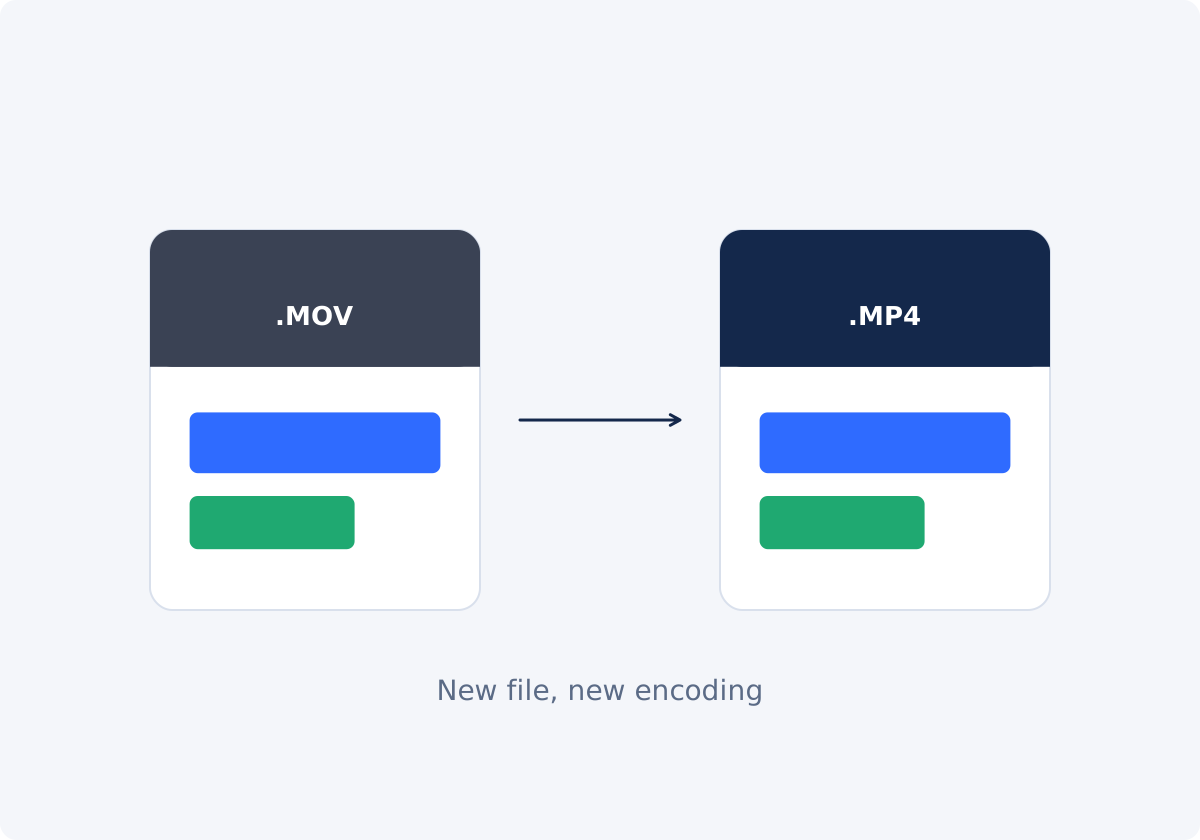
Converting is a new round of encoding, so keep the original MOV. Renaming .mov to .mp4 does not help: it changes the label, not the codec inside.
Stop the problem on the iPhone
If you regularly send videos to Windows or Android users, you can avoid HEVC and HDR at the source:
- Settings > Camera > Formats > Most Compatible records H.264. Files take more space, and 4K at 60 frames per second and the fastest slow-motion modes are not available in this mode.
- Settings > Camera > Record Video > HDR Video turned off records standard dynamic range, which avoids HDR color problems on screens and players without HDR support.
- Transfer to Mac or PC > Automatic in the Photos settings (Settings > Apps > Photos in iOS 18 and later) converts videos to a compatible format when you copy them to a computer over a cable.
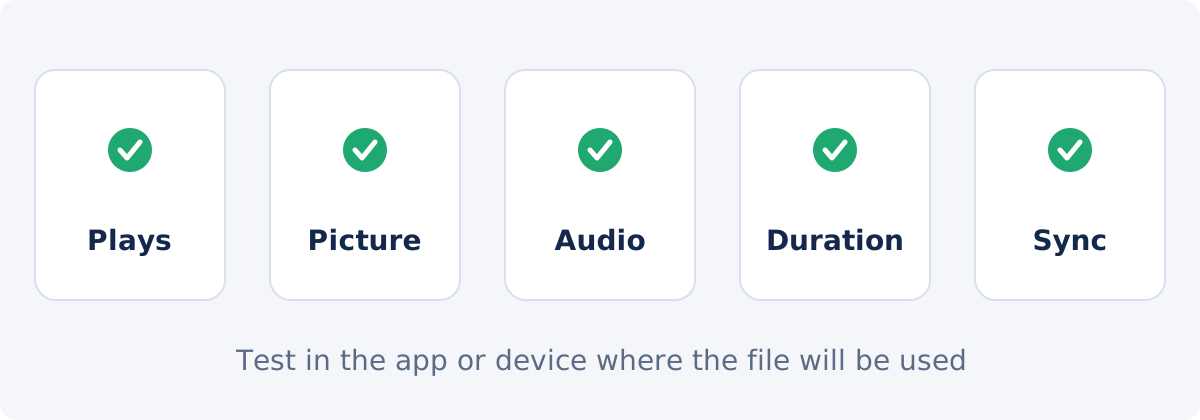
Check the result where it will be played
- Playback. Open the file on the device or in the app it is meant for. Your own computer proves less than you might think.
- Picture. A vertical video is still vertical, and colors look natural.
- Audio. Sound is present and at a normal level.
- Sync. Lips and sound still match near the end of the clip.
- Duration and seeking. The length matches the original, and jumping to a few points works.
Conclusion
For recent iPhone recordings, a common cause is HEVC or HDR video in a player without the right decoder; ProRes files from editing apps cause the same problem. On your own computer, HEVC Video Extensions or VLC solve it. For files that other people need to open, convert to MP4 once from the original, and test it where it will be played.
Have an iPhone video that will not open on someone else's device? Convert the MOV to MP4 and send that instead.
Frequently asked questions
Why does my iPhone video play sound but no picture on Windows?
A common cause is HEVC video without a compatible decoder: the audio is AAC, which Windows plays, so you hear sound over a black screen. Check the codec first; a damaged file or another unsupported codec can produce a similar symptom. If it is HEVC, install HEVC Video Extensions, open the file in VLC, or convert it to MP4.
Is there a free way to play HEVC MOV files on Windows?
Yes. VLC is free and plays HEVC without system codecs. Some computers also have the free manufacturer version of HEVC Video Extensions preinstalled. The Microsoft Store version costs $0.99.
Why does my iPhone video look washed out on Windows or Android?
It was recorded in HDR, and the player shows it without converting HDR to the screen's normal range. Converting to MP4 with the MOV to MP4 converter maps the colors to standard range, so they look natural on any screen.
Can I just rename .mov to .mp4?
Renaming changes the extension, not the video inside. An HEVC video stays HEVC, so a player without an HEVC decoder still fails. Conversion creates a real MP4 with H.264 video.
Will converting MOV to MP4 reduce quality?
The video is encoded again, so some loss is possible, but one conversion from the original is usually hard to notice at normal viewing size. Do not convert the same file repeatedly, and keep the MOV.
Do I need QuickTime to play MOV files on Windows?
No. QuickTime for Windows has not been supported since 2016 and should not be installed. The built-in Media Player plays H.264 MOV files, and HEVC files play after installing HEVC Video Extensions or in VLC.