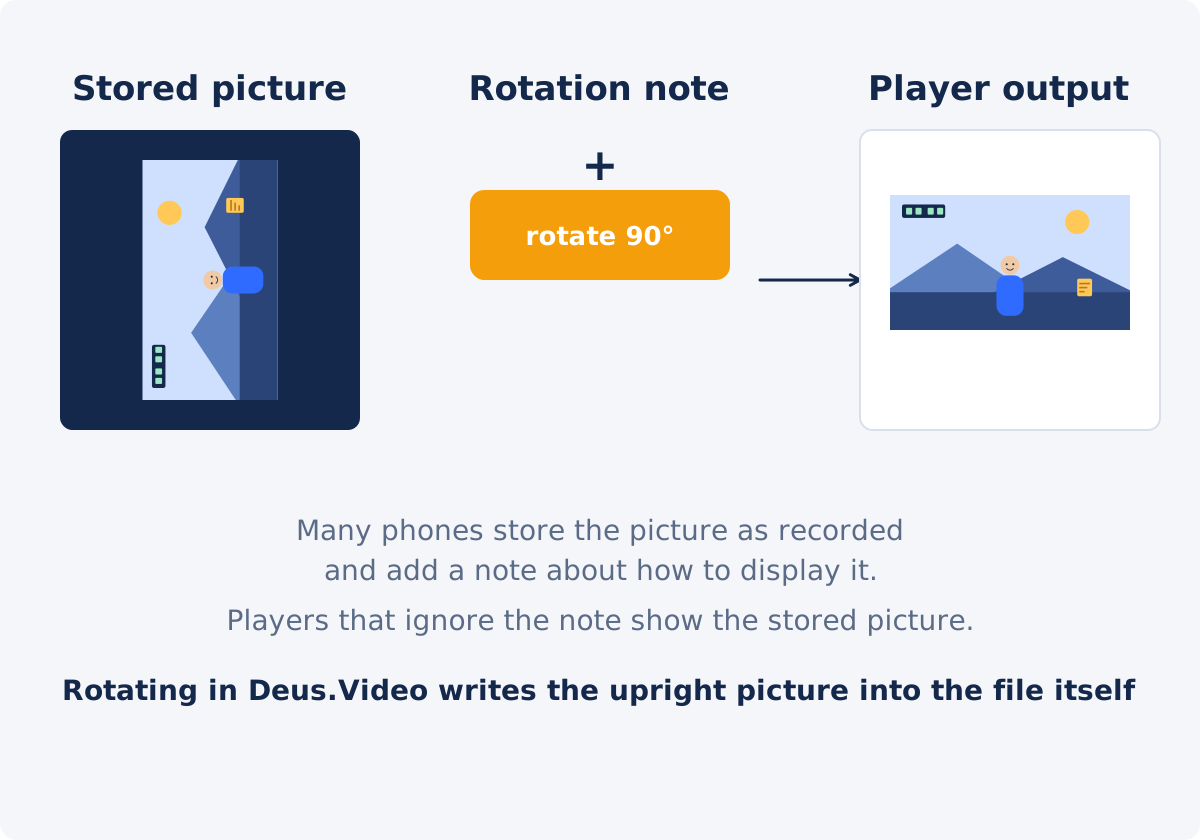
Stored picture vs. orientation metadata
A video file contains the picture data, the sound, and a set of notes about the file. One of those notes can be a rotation value, such as 90 or 270 degrees. The picture data itself is stored in one fixed orientation, usually the one in which the sensor captured it. The note says, in effect, "when you show this, turn it by this much."
Phones do this because the sensor is fixed inside the body, while you hold the phone any way you like. Rather than rotating every frame while recording, the phone stores the frames as captured and writes the note. It is a reasonable design, and it works as long as everything that opens the file agrees to honor the note.
Why players and platforms disagree
Honoring the note is optional, and support varies. A modern phone gallery, most desktop players, and most current browsers read it. Some older players, some editing tools, some embedded players, and some upload pipelines read only the picture data and skip the note, or read it and then write a new file that drops it. When a file passes through several of these, the outcome is hard to predict: it may be upright on the phone, sideways on a website, and upright again after downloading from that website.
Which programs do what changes with software versions, so any specific list would be out of date quickly. The practical approach is to test rather than to assume.
Display issue or a file that needs rotating?
There are two different situations, and they call for different actions.
- A display issue. The file carries a correct note, and one particular player ignores it. Everywhere else, the video is upright. The file is fine; the player is the problem.
- A file that needs rotating. The picture is stored sideways and there is no note, or the note is wrong, or the file has been through a tool that removed it. The video is sideways in every player.
A file can also be sideways in the stored picture and upright in most players thanks to the note. That is not a problem until the file reaches a place that ignores the note, at which point it turns into the first case.
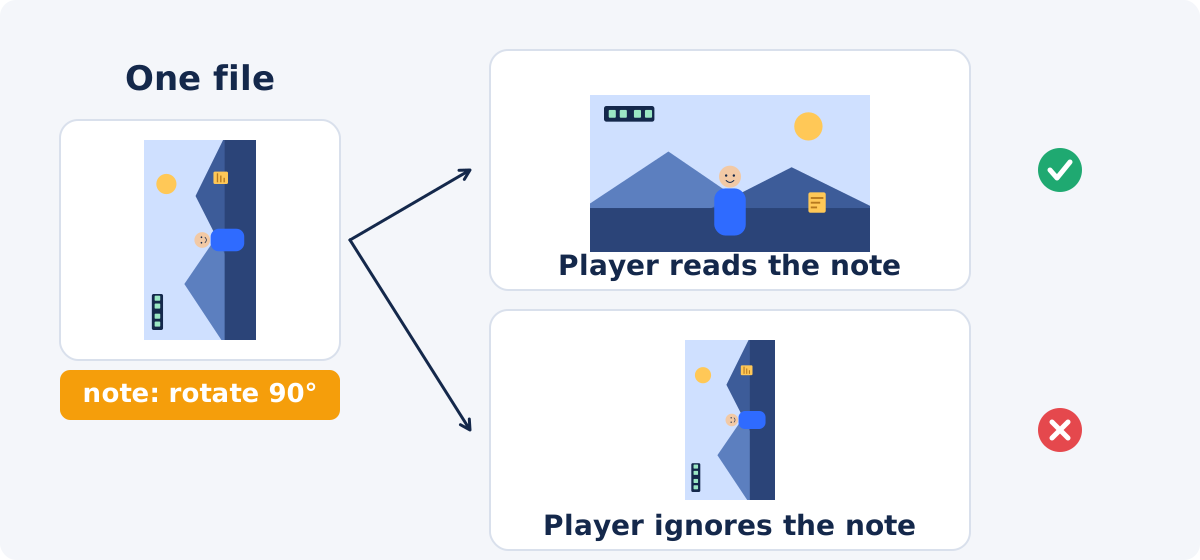
A two-device diagnostic
- Play the file on the phone that recorded it. Note whether it is upright.
- Copy the file to a computer and play it in a standard player. Note whether it is upright.
- Open it in a browser or a second player, or upload it to the destination where it will be used.
- Compare. Upright everywhere: no action needed. Sideways everywhere: the picture itself is stored sideways; rotate the file. Upright in some places and sideways in others: the note is being read inconsistently; rotating the file makes it consistent.
- Check the dimensions in the file's properties on the computer. A vertical recording that reports a horizontal size, such as 1920 × 1080, is stored sideways and relies on the note.

When a player setting is enough, and when to create a rotated file
If the video is only for you, and it is sideways in one player, look for a rotate option in that player. Many desktop players can turn the picture during playback without changing the file. That fixes the viewing and nothing else.
Create a rotated file when the video will be shared, uploaded, embedded, or edited. A file whose upright picture is stored directly, with no dependence on a note, looks the same everywhere. It also gives editing tools a clean, correctly shaped frame to work with, which avoids surprises when the clip is placed on a timeline or merged with others.
How to fix the file in Deus.Video
The tool lets you rotate a video online and store the orientation in the picture itself.
- Upload the phone video. Common inputs include MP4, MOV, AVI, WebM, and MKV.
- Look at the preview. The preview shows how the tool sees the video before processing. It is the reference for the next step.
- If the preview is upright, leave the angle at Reset 0° and process. The result stores the upright picture as it appears in the preview.
- If the preview is sideways or upside down, click Left 90°, Right 90°, or Turn 180° until it is upright.
- Read Current status. It shows the angle and the orientation of the result, Portrait or Landscape.
- Click Rotate Video and wait for processing.
- Download the result and repeat the two-device test on it. It should now be upright everywhere.
The source file is unchanged. The result is a newly processed file, so its size and fine detail can differ slightly; the audio is carried over unchanged. Rotate the original recording, not a copy that has already been through another app, and process it once at the correct angle rather than turning it in stages.

Recording the next video the right way
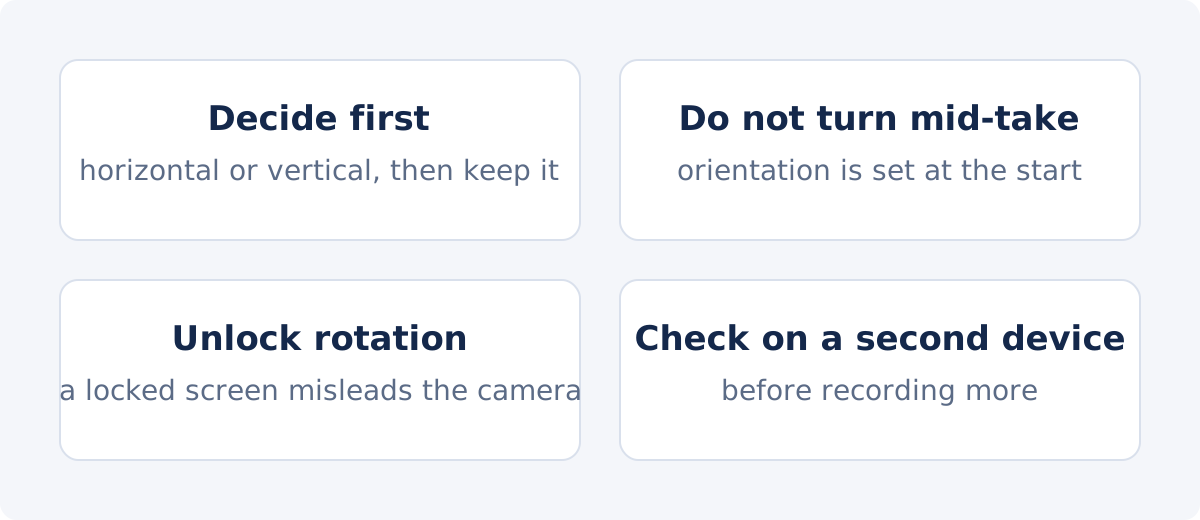
- Decide the orientation before you start, horizontal or vertical, and hold the phone that way for the whole recording. Orientation is set when the recording starts; turning the phone mid-take does not change it.
- Turn off rotation lock, or at least check it. A locked screen can leave the camera thinking the phone is upright when it is on its side.
- Wait a moment after turning the phone before pressing record, so the sensor has registered the new orientation.
- Record a short test and check it on a computer before recording anything important.
- Prefer the built-in camera app for footage that will be edited elsewhere. Third-party apps handle orientation in their own ways.
Symptoms, causes, and actions
| Symptom | Likely cause | Recommended action |
|---|---|---|
| Upright on the phone, sideways after upload | The destination ignores or strips the orientation note | Rotate the file so the upright picture is stored, then upload again |
| Sideways in every player | The picture is stored sideways and there is no usable note | Rotate the file with a quarter-turn preset |
| Upside down everywhere | Recorded with the phone upside down, and no note, or the note was lost | Turn 180° and process |
| Sideways in one editing program only | That program reads the stored picture and skips the note | Rotate the file before importing it, or rotate inside that program |
| Vertical video shows horizontal dimensions in its properties | Stored sideways, displayed upright via the note | Fine for viewing; rotate before sharing or editing to avoid surprises |
| Correct on the computer, sideways on the phone | A note was written by an editor and the phone's player ignores it | Rotate the file so it no longer relies on the note |
| Upright everywhere but leaning slightly | The phone was tilted while recording | Custom angle, then crop the empty corners |
| Upright but text reads backward | Mirrored by a front-camera app, not an orientation issue | Use Flip Video, not a rotation |
Conclusion
A sideways phone video is usually a disagreement about a note, not a broken file. Test it on two devices to see whether the problem follows the file or belongs to one player. For viewing, a player setting may do. For anything shared or edited, rotate the original once so that the upright picture is stored in the file itself, and the disagreement disappears. Then record the next clip with the orientation decided before you press the button.
Tired of a clip that turns on its side every time you upload it? Fix the sideways video in the Rotate Video tool, and check the download on a second device.
Frequently asked questions
Why is my video sideways only on one website?
That site is not honoring the orientation note in the file, or it removed the note when it processed your upload. The file is fine elsewhere. Rotating the file so the upright picture is stored directly makes it display the same on every site.
What is orientation metadata?
A small instruction inside the video file that tells a player how far to turn the picture for display. Phones use it to avoid rotating every frame while recording. Programs that read it show the video upright; programs that ignore it show the stored picture.
Is the file damaged?
No. The picture data and the sound are intact. The only issue is how different programs interpret one note about display orientation.
Can I fix this without re-encoding the video?
Some specialist tools can edit the orientation note without touching the picture, but programs that ignore the note will still show the video sideways. Storing the upright picture directly requires processing the video, which the rotation tool does in one pass.
Why does my vertical video show as 1920 × 1080 in its properties?
The picture is stored horizontally, as the sensor captured it, and the note tells players to turn it. After you rotate the file in the tool, the properties show the true vertical size, 1080 × 1920.
How do I stop this from happening again?
Decide the orientation before recording and keep the phone that way throughout, check that rotation lock is not misleading the camera, and test a short clip on a computer. For anything shared or edited, keep a rotated copy whose picture is stored upright.


