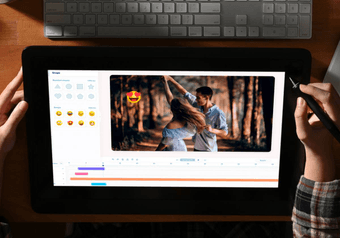
This guide covers the full process. You'll write a short creative brief, sketch a storyboard, choose the right format, and then assemble, check, and export the video in the Deus.Video editor. Every step uses the same demo project: a 15-second vertical Reel that announces a clothing release for a fictional streetwear brand, Void Supply.
Plan the Promo Before You Open the Editor
Most weak promo videos fail before editing starts, because they try to say too much. A short creative brief fixes that:
- Campaign goal: a sale, a booking, a visit.
- Target viewer and what they already know about you.
- One offer: a product, service, event, or deal.
- One key benefit the viewer should care about.
- Proof: a demonstration, result, price, or date.
- One CTA in a few words.
- Placement: Reels, Stories, or Feed.
- Assets: clips, photos, logo, colors, voice, and music you have the right to use.
Keep to one offer per video. A promo that mentions a new collection, a discount, and a store opening leaves viewers with none of them. Make separate videos instead; they can share footage and branding.
Here is the brief behind the demo:
- Goal and viewer: get existing followers to show up for a limited release.
- Offer: Drop 04, the fall collection, online on Friday at 10 AM.
- Benefit and proof: new pieces, shown worn, with prices on screen.
- CTA: set a reminder through the link in bio.
- Placement and assets: an organic Reel with five vertical clips, a lime-and-black palette, and one CC0 music track.
Build a Simple Instagram Promo Storyboard
A storyboard for a short promo needs only five beats. Each beat has one job and gets a few seconds of screen time.
| Story beat | Purpose | Example visual | Example on-screen text |
|---|---|---|---|
| Hook | Stop the scroll | Strong product close-up or result | A better morning in 15 seconds |
| Product or context | Show what is promoted | Product in use | Product or service name |
| Benefit | Explain why it matters | Demonstration | One specific benefit |
| Offer or proof | Reduce uncertainty | Review, detail, price, date, or feature | Short supporting claim |
| CTA | Tell the viewer what to do | Clean branded end card | Shop now or Learn more |
Write the on-screen text for each beat before you edit; if a beat needs more than one short line, it's too complicated for one scene. Only put claims on screen that you can back up.
The demo maps onto these beats like this:
- 0–3 seconds, hook: a model in a lime hoodie, the brand's accent color, with the line "New drop · Fall 26".
- 3–6 seconds, product: the "Void Drop 04" title over a jacket look, with price tags for the jacket and a hoodie.
- 6–12 seconds, offer: "Fri 10AM · Online only" over two more looks, with prices for a cap and a tee.
- 12–15 seconds, CTA: "Set a reminder" and a "Link in bio" button over the last look.
Choose the Right Instagram Video Format
Choose the frame by placement, not by habit:
- 9:16 is the default for full-screen Reels and Stories.
- 4:5 works for vertical Feed posts.
- 1:1 is a square Feed format, if it suits the campaign.
Instagram draws its own interface over vertical video: the caption and account name at the bottom, buttons on the right, controls at the top. Keep the headline, logo, and CTA away from those areas. For Reels ads, Meta's ad specifications currently suggest leaving roughly 14% of the top, 35% of the bottom, and 6% on each side free of key elements. These guidelines change, so check the official Reels ads page before a campaign and always check your own preview.
How to Make an Instagram Promo Video in Deus.Video

1. Start a Project and Set the Frame
To begin, open a new project in the Deus.Video editor. In the Project panel, name the project and set Size to match the placement. The editor has no preset labeled Instagram, so choose by ratio: TikTok (9:16) for Reels and Stories, FB Portrait (4:5) for a vertical Feed post, or the 1:1 square preset.
Set the format before you add anything; changing it later means repositioning every layer. The Background color fills any part of the frame that media doesn't cover. The demo uses black, so gaps blend into the dark layout. You don't need to fix the duration in advance: it grows when you add a longer element, and empty time after the last element is cut from the export.
2. Upload and Select the Strongest Media
Open the Video panel and drag your clips onto the upload area, or click it to pick files. Uploaded files appear under My uploads. Add product photos and your logo the same way through the Image panel. The Video, Image, and Audio panels also have a Stock tab with search; check the license terms of any stock item before you use it in advertising.
Choose media for the offer, not for variety. A clip that shows the product in use beats a pretty but generic shot, and one strong shot per story beat is usually enough. Use only footage you may publish commercially, including permission from people on camera.
The demo's five vertical clips are numbered in storyboard order, 01 yellow-hoodie through 05 skater, which keeps the timeline readable once many layers sit above them.

3. Arrange Clips Around the Hook and CTA
Every clip, text, graphic, and audio track gets its own row on the timeline. A block's position shows when the element appears, and its length shows how long it stays on screen. Drag a block's edges to change its duration, or select it and type exact Start and End times.
- Open strong. Start on the product or the result, not on a logo or a fade from black.
- Cut the dead air. Move the playhead to where the useful part starts or ends, click Split, and delete the leftover piece with the Delete key or the element's context menu.
- Follow the storyboard, keeping each clip only as long as its job takes.
- Give the CTA time. The end card must stay on screen long enough to be read twice. The demo gives it the last three seconds.
- Check the pacing. Press To start, play the whole video, and shorten any scene that feels slow.

4. Reframe the Visuals for a Vertical Canvas
Horizontal clips need reframing in a 9:16 project. Select a clip and use Horizontal zoom, Vertical zoom, Top, and Left to scale and position it. Keep the two zoom values equal so the picture isn't stretched.
To fill a vertical frame with wide footage, scale it up until it covers the full height, then move it so the subject stays in view. This crops the sides. If the product or a face would be cut off, or the enlarged footage looks soft, scale the clip down instead and let the background color fill the rest of the frame.
Check every scene afterwards: faces, hands, and the product should stay fully in frame. In the demo, each clip is centered with Top and Left at 50%.

5. Add Short, Readable Text and Branding
Add text from the Text panel and style it in Edit Text: font and size, Font color, Stroke color, Background, Letter spacing, Line height, and a shadow. Viewers read overlays in a second or two, so keep them short:
- New drop · Fall 26
- Drop 04
- Fri 10AM · Online only
- Set a reminder → Link in bio
To keep text readable on a phone:
- Use as few words as possible, and one idea per scene.
- Make sure the text contrasts with the footage. The demo places a black rectangle with Opacity 0.28 over all the clips, so white and lime text stays legible on any background.
- Stick to one bold display font and one accent color throughout.
- Keep headline, prices, and CTA inside the safe area.
Branding should be consistent, not loud. The demo shows the @void.supply handle and a "Drop 04" label at the top and uses the brand's lime on key words. The lime "New drop" band and the price tags are rectangles from the Elements panel with text on top, and an Elements progress bar at the top fills up as the video plays.

6. Add Music, Voice, and Captions Where Needed
Choose a track whose rhythm matches your cuts. Add it from the Audio panel (upload or Stock search) and set its Volume in Edit Audio. The same panel lets you Record a voiceover or generate one with Text To Speech.
- Balance voice and music. Lower the music under speech; values around 0.2–0.3 usually keep the melody without covering the voice. To lower it only under the voiceover, split the music track at the start and end of the speech and change the volume of the middle part.
- Mute what you don't need. In the demo, every clip's Volume is 0, so the only sound is the music track.
- Plan for silent viewing. Many people watch with the sound off. The offer and the CTA must be clear from the visuals and on-screen text alone. If the promo has a voiceover, add captions with the Subtitles panel, which can transcribe speech automatically.
Music rights need special care. Music you can select inside the Instagram app is covered by Meta's own agreements, which depend on account type and use, as Instagram's help page on its licensed music library explains. It doesn't license a track built into a promo you export elsewhere. Use music you own, music licensed for commercial use, or music published under permissive terms, like the CC0 track in the demo, and keep a record of the license.
7. Use Motion and Transitions with Restraint
The editor has no separate transitions between clips. Motion comes from animating the elements themselves:
- Animations: the Animations section of an element's settings sets how it enters (In), leaves (Out), or moves continuously (Loop), each with its own easing and duration.
- Text effects: the Effects list in Edit Text adds animated reveals to text, grouped into categories such as Kinetic, Characters, and Words & Lines.
- Keyframes: the diamond button next to a property adds a keyframe, so you can change that property over time.
- Audio reactivity: the lightning button next to a property links it to the project's audio, so the value follows the music, for example its bass.
Pick one motion style and repeat it; a different effect on every clip pulls attention away from the product. The demo uses a small, consistent set:
- Each clip has two zoom keyframes that create a slow push-in.
- At every cut, a full-frame white rectangle appears for 0.4 seconds and fades out, giving a quick flash instead of a transition effect.
- Headlines enter with Zoom From Large and leave with Fade Out, both under half a second.
- The round "04" badge has its zoom linked to the music's bass, so it pulses on the beat.

8. Preview and Export the Finished Promo
Press To start and watch the full video without stopping. Then check it against this list:
- The opening makes sense without any context.
- The product, service, or event is easy to identify.
- Text is readable at phone size.
- Key elements stay clear of the Instagram interface.
- The logo doesn't cover the subject.
- The voice is audible over the music.
- The CTA is unambiguous.
- Prices, dates, URLs, and spelling are correct.
- Rights for all media and music are valid.
- You've watched the whole video end to end.
When everything checks out, click Download video, choose a Resolution and Quality in the dialog, and click Export video. Then upload the file to Instagram.

Instagram Promo Ideas for Different Campaigns
The workflow stays the same; the hook, content, and CTA change.
| Campaign | Recommended hook | Supporting content | CTA |
|---|---|---|---|
| Product launch | The strongest result or detail | Demonstration and one benefit | Discover the product |
| Limited offer | State the offer immediately | Product, deadline, key condition | Shop the offer |
| Service promotion | Lead with the customer's problem | Process, result, proof | Book a consultation |
| Event | Open with the event's promise | Date, place, activities | Reserve your spot |
| Local business | Show the location or experience | Product, atmosphere, area | Visit us |
| App or digital product | Show the outcome or the UI in use | One workflow and its benefit | Learn more |
Organic Promo vs Instagram Ad Creative
An organic promo reaches people who already follow you, so it can lean on personality and community. The demo is organic: its audience knows the brand and only needs the date. A paid Instagram video ad often reaches people who have never heard of you, so it must explain the offer in the first seconds and state the CTA without assuming context.
You can adapt one master project for both. Before running it as an ad, recheck the placement format and safe areas, the rights to every clip and track for paid use, and Meta's advertising policies.
Common Instagram Promo Video Mistakes
- No single campaign goal. Pick one offer and one action, and cut the rest.
- A slow or unclear opening. Start on the product or the result, not on a logo or a black screen.
- Too much text. Keep each overlay to a few words and one idea per scene.
- Text outside the safe area. Keep key text away from the edges and check it in preview.
- A weak crop of horizontal footage. Reframe so the subject stays in view.
- Music that covers the voice. Lower the music under speech and listen again on a phone speaker.
- Too many effects. Choose one motion style and use it throughout.
- No clear CTA. End with one specific action and leave it on screen long enough to read.
- Unlicensed media or music. Use only footage and tracks you have the rights to use commercially.
- No full mobile preview. Watch the whole video at phone size before you publish.
Instagram Promo Video Checklist
- One audience, one offer, and one CTA.
- The opening shows clear value.
- The format matches the placement.
- The product or service remains the focus.
- Text is readable and inside the safe area.
- Branding is consistent.
- Music and voice are balanced.
- The CTA has enough screen time.
- Dates, prices, spelling, and links are correct.
- Media rights are valid.
- The full video has been checked on a small screen.
Create Your Instagram Promo Video
A strong Instagram promo comes down to one offer, a clear visual story, and one call to action. Plan the beats first, pick footage that demonstrates the offer, keep text short and inside the safe area, and check everything at phone size before you export.
Create your Instagram promo video in Deus.Video
Frequently Asked Questions
What should an Instagram promo video include?
One offer, an opening visual that makes sense on its own, a clear benefit, some proof or demonstration, consistent branding, and one call to action. Anything that doesn't support the offer can usually be cut.
What aspect ratio should I use for an Instagram promo video?
It depends on the placement. Use 9:16 for full-screen Reels and Stories, 4:5 for vertical Feed posts, and 1:1 for square Feed posts. Set the frame before you start editing.
How long should an Instagram promo video be?
There is no universal ideal length. Make it as short as possible while still showing the hook, the benefit, and the call to action clearly. The demo in this guide runs 15 seconds as an editorial example, not a platform limit.
Can I make an Instagram promo video from photos?
Yes. Arrange the photos on the timeline, set how long each one stays on screen, and add motion, text, music, and a call to action the same way you would with video clips.
Should an Instagram promo video work without sound?
Yes. Many people watch with the sound off, so the offer and the call to action must be clear from the visuals and short on-screen text alone.
Can I use any music in an Instagram promo video?
No. You need the appropriate rights or license for any track in the video, especially for commercial or paid use. Music you can pick inside the Instagram app is not automatically licensed for a promotional video file you create elsewhere.
Can I use one video for Reels, Stories, and Feed?
You can start from one project, but adapt it for each placement: check the frame, keep key text and the call to action inside the safe area, and preview each version before publishing.