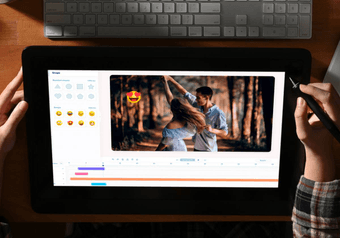
This guide covers the whole process: planning the idea, collecting material, building a simple story, assembling everything in the editor, adding text and music, and checking the result before export. The screenshots come from one demo project: a 15-second scrapbook-style greeting for a 30th birthday. When your material is ready, open the Deus.Video editor and follow along.
Plan Your Birthday Video Before You Start Editing
Before you open the editor, decide on the basics.
- Who it's for. A video for a friend can rely on inside jokes and fast cuts; one for a grandparent needs a calmer pace and larger text.
- Where it will be shown. A TV at the party, a group chat, and an Instagram Story each suit a different frame shape.
- How long it should be, so you know how much material to collect.
- Photos and clips. Gather them in one folder with numbered names such as
01-opening.jpgto make ordering easier. - Greetings from others. Ask friends or family early and give a deadline a few days before you edit.
- Music that matches the mood and that you have the right to use.
- A rough order: what opens the video, what comes in the middle, what closes it.
For length, these ranges work well in practice:
- 30–60 seconds for social media or a short birthday greeting video.
- 1–3 minutes for a personal video with photos, clips, and several messages.
- Longer only if you have enough varied material to hold attention.
These are editing guidelines, not limits of the editor. A very short piece can work too: the demo project is a 15-second animated card meant for a social post.
Choose a Simple Story for the Video
The difference between a good birthday slideshow and a forgettable one is usually structure, not effects. A video that moves from a clear beginning to a clear ending is easier to follow than photos in random order. This structure fits most birthdays:
- An opening birthday title with the person's name.
- Early or memorable photos.
- Recent photos and clips.
- Messages from friends or family.
- A final birthday wish.
Here is how that structure could be spread across a 60-second video:
| Time | Content |
|---|---|
| 0–5 seconds | Opening title |
| 5–20 seconds | Early photos or shared memories |
| 20–40 seconds | Recent clips and highlights |
| 40–55 seconds | Short birthday messages |
| 55–60 seconds | Final wish and closing frame |
Treat these timings as a starting point: with no recorded messages, give more time to the photos. The demo squeezes the same logic into 15 seconds: a header, four moments, and a closing wish.
How to Make a Birthday Video in Deus.Video
The steps below follow the full Deus.Video editor, using the same demo project throughout.
If you prefer to start with a ready-made design instead of a blank project, browse our birthday video templates. Choose a style for an invitation, greeting or photo tribute, then replace the sample text and media in the editor.

1. Start a New Project
Go to the editor and start a new video project. The Project panel on the left holds the basic settings: the project name, the Size of the frame, the Duration, and the Background.
Choose the size based on where the video will be watched:
- YouTube (16:9) for a TV, a laptop, or YouTube.
- TikTok (9:16) for Stories, Reels, and TikTok.
- Square (1:1) for a square feed post.
The list also includes FB Portrait (4:5), FB Landscape (5:4), Pinterest (2:3), and Original, which matches the size of a video you've uploaded.
The demo uses FB Portrait (4:5), a 15-second duration, and a cream background color. Set the size before you add anything; changing it later means repositioning most elements. You don't have to guess the duration: it grows automatically when you add an element longer than the project, and empty time after the last element is cut from the exported video.
2. Upload Photos and Video Clips
Open the Video panel and drag your files onto the upload area, or click it to pick files from your device. Uploaded files appear under My uploads, so you can add them to the project whenever you need them. The Stock tab has a search field if you need extra footage. Photos are added the same way through the Image panel, whose Stock tab also has birthday backgrounds and illustrations.
Be selective. Fifteen strong photos of different moments make a better video than 80 near-identical shots from the same evening.
Watch the orientation, too: a vertical photo in a 16:9 frame leaves empty sides. Use Horizontal zoom, Vertical zoom, Top, and Left to scale and position each element, or place photos inside frames as the demo does.

3. Arrange Everything on the Timeline
Every photo, clip, text, and audio track gets its own row on the timeline. A block's position shows when the element appears, and its length shows how long it stays on screen.
- Set the order. Place the blocks according to your story plan. For a classic slideshow, put photos one after another.
- Set the duration. Drag the edges of a block, or select the element and enter exact Start and End times in its settings. Three to five seconds per photo is a comfortable default.
- Trim clips. Move the playhead to where the useful part begins or ends, use Split, and delete the part you don't need with the Delete key or the element's context menu. Split works on any element, including text and audio.
- Check the story and pace. Press To start and play the video. Shorten sections that drag and extend anything that flashes by.
The demo layers elements instead of placing them in sequence. A background clip runs for all 15 seconds, and each polaroid (a frame, a video clip, a tape strip, and a caption) starts a few seconds after the previous one and stays to the end, so the scrapbook fills up gradually.

4. Add a Birthday Title and Personal Messages
Use text for the opening title, short greetings, names and dates, captions, and the final wish. For example:
- Happy Birthday, Alex!
- A few of our favorite memories
- Wishing you an amazing year ahead
Open the Text panel to add a text element, then type your line in the text box of the Edit Text panel. There you can choose the font and size, alignment, bold or italic, Font color, Stroke color, and a Background color behind the text. Start and End control when the text is visible, and settings such as Line height, Letter spacing, Opacity, and Angle fine-tune the look.
In the demo, the title "happy 30th, Nora!" uses the handwritten Caveat font at size 59 in red with a slight tilt, and appears at 11.2 seconds. The captions use the same font at size 22.
Keep readability in mind:
- Use short lines: one idea per screen.
- Make sure the text contrasts with what's behind it. If it doesn't, add a stroke or a background color.
- Leave text on screen long enough to read twice: roughly two to three seconds for a short line, longer for a sentence.

5. Add Music, Voice, or Recorded Messages
Music sets the mood: a gentle melody feels warm, an upbeat track feels like a party. In the Audio panel, upload your own track or search the Stock tab, then add it to the timeline. In the Edit Audio panel you can set its Start, End, Volume, and Speed.
Recorded greetings are often the part people remember most. Upload them like any other clip, record a video greeting with Camera recording in the Video panel, or record a voice message with Record in the Audio panel.
To keep music from drowning out speech:
- Lower the music Volume while someone is speaking. Values around 0.2–0.3 usually keep the melody audible without covering a voice.
- If the music should be quieter only under the messages, split the music track at the start and end of the messages section and lower the volume of that part.
- Mute clips whose original sound adds nothing. In the demo, every video clip has Volume set to 0, so only the music plays.
Use music you have the right to use. The demo track is a music box version of "Happy Birthday" published under CC0. Commercial songs usually require a license, especially if the video will be posted online.

6. Add Transitions and Visual Details
Motion and decoration should support the photos, not compete with them. Pick one style and use it consistently: if photos fade in, let them all fade in. The editor has no separate transitions between clips; instead, you animate how each element appears and leaves:
- Animations. The Animations section in an element's settings sets how it enters (In), leaves (Out), or moves continuously (Loop), each with its own easing and duration. The demo captions use Fade In with Ease Out over 0.6 seconds.
- Text effects. The Effects list in the Edit Text panel adds animated reveals to text, grouped into categories such as Kinetic, Characters, and Words & Lines. Typewriter or Word-by-Word Build suits a birthday message; Bounce In or Popcorn Pop fits a playful title.
- Keyframes. The diamond button next to properties such as Opacity, Angle, Top, Left, and zoom adds a keyframe, for example to make a photo slowly zoom in while it's on screen.
For decoration, the Elements panel has standard shapes (including a heart, arrows, and circles), emojis, and animated stickers from GIPHY, among them balloons and "Happy Birthday" lettering. One or two animated stickers can liven up a birthday greeting video for a child or a friend; more than that starts to crowd the photos.
The demo keeps to one theme instead: polaroid frames, tape strips, a small "xoxo" note, and a semi-transparent cream layer that softens the background clip.
7. Preview and Export the Video
Press To start and watch the whole video without stopping. Then check that:
- names and dates are correct;
- music and voices are balanced;
- every line of text stays on screen long enough to read;
- nothing important is cut off at the frame edges.
When everything looks right, click Download video. In the dialog, choose one of the resolutions available for your account and a Quality setting, then click Export video. 1080p is a sensible choice for most screens and messengers when that option is available.

Birthday Video Ideas for Different People
Whether you're making a birthday video for a friend or for family, the editing steps are the same, but the material and pace change. Use this table as a starting point for your birthday video ideas.
| Recipient or situation | Suggested materials | Recommended structure | Editing emphasis |
|---|---|---|---|
| Friend | Shared photos, funny clips, inside jokes | Fast opening, memories, group messages | Energetic pacing and short captions |
| Parent or grandparent | Family photos, older memories, voice messages | Chronological story from past to present | Large, readable text and a slower pace |
| Child | Bright photos, short clips, favorite colors, toys, or activities | Playful introduction and highlights of the year | Simple text and lively visuals |
| Partner | Personal clips, travel memories, a short message | Story with a personal ending | Music choice and meaningful captions |
| Colleague | Team photos and short greetings | Brief introduction, group messages, closing wish | Professional and concise |
| Remote celebration | Separate video greetings from each person | Introduction, individual messages, final group wish | Consistent audio levels between messages |
How to Make the Video Feel Personal
A personalized birthday video doesn't need expensive effects. It needs details that could only belong to this one person.
- Use their name in the opening title and the final wish.
- Show specific memories. "The trip to the lake in 2019" is more personal than a generic happy photo.
- Keep a logical order. Chronological order works for most people; grouping by theme (travel, family, work) works for a busy year.
- Ask contributors the same short question so the messages feel connected rather than random.
- End with a personal wish from you, not a stock phrase.
Questions that give contributors a clear starting point:
- What is your favorite memory with this person?
- What do you appreciate most about them?
- What do you wish them for the coming year?
Ask people to keep their answers under 20 seconds.
Common Birthday Video Mistakes
- Too many photos. Dozens of similar shots blur together. Keep the strongest one from each moment.
- Long clips without trimming. Cut each clip down to its best few seconds with Split.
- Music that is louder than speech. Lower the music volume under voice messages and listen again with headphones.
- Text that disappears too quickly. If you can't read a line twice at normal speed, extend its End time.
- Inconsistent aspect ratios or poor cropping. Reposition and scale each element, or place photos in frames on a shared background.
- Too many transitions and effects. Choose one style of motion and repeat it throughout the video.
- No clear opening or ending. Start with a title that says whose birthday it is and finish with a wish, so the video doesn't just stop.
- Using copyrighted material without permission. Use your own photos and clips, licensed stock, and music you have the right to use.
Birthday Video Checklist
Run through this list before you export:
- The recipient's name is spelled correctly.
- The video has a clear opening and ending.
- Photos and clips appear in a meaningful order.
- Long pauses and weak clips have been removed.
- Text is easy to read.
- Voice messages are audible.
- Music does not overpower speech.
- The aspect ratio fits the destination.
- The full video has been previewed.
- All used media can legally be shared.
Create Your Birthday Video
A memorable birthday video comes down to good material, a clear structure, and a personal message. Pick your strongest photos and clips, arrange them into a short story, add a title and a wish in your own words, and check the sound before you export.
Start creating your birthday video
Frequently Asked Questions
What should I include in a birthday video?
Include a short opening title, a selection of photos and video clips, personal messages from you or other people, music, and a final birthday wish. Keep only the material that supports the story you want to tell.
How long should a birthday video be?
A short greeting usually works well at 30–60 seconds. A personal video with photos and several messages often works best at 1–3 minutes. Go longer only if you have enough varied material to keep it interesting.
How many photos do I need for a birthday video?
It depends on the length. For a short video, 10–20 strong photos are often enough. You don't need to add every picture you have; choose the ones that show different moments.
Can I make a birthday video with photos and music?
Yes. Place the photos on the timeline, set how long each one stays on screen, add text where it helps, and add a music track that runs under the whole video.
Can several people contribute birthday messages?
Yes. Ask friends, family, or colleagues to record short clips, upload them to your project, and arrange them one after another on the timeline. Asking everyone the same short question keeps the messages consistent.
Which aspect ratio should I choose?
Choose it based on where the video will be shown: 16:9 for TVs, laptops, and YouTube, 9:16 for Stories, Reels, and TikTok, and 1:1 for square feed posts. Set the size before you start arranging material.
Can I use any song in a birthday video?
No. Use music you own, have a license for, or that is published under terms allowing your use, such as a Creative Commons license. This matters most if you plan to post the video online.