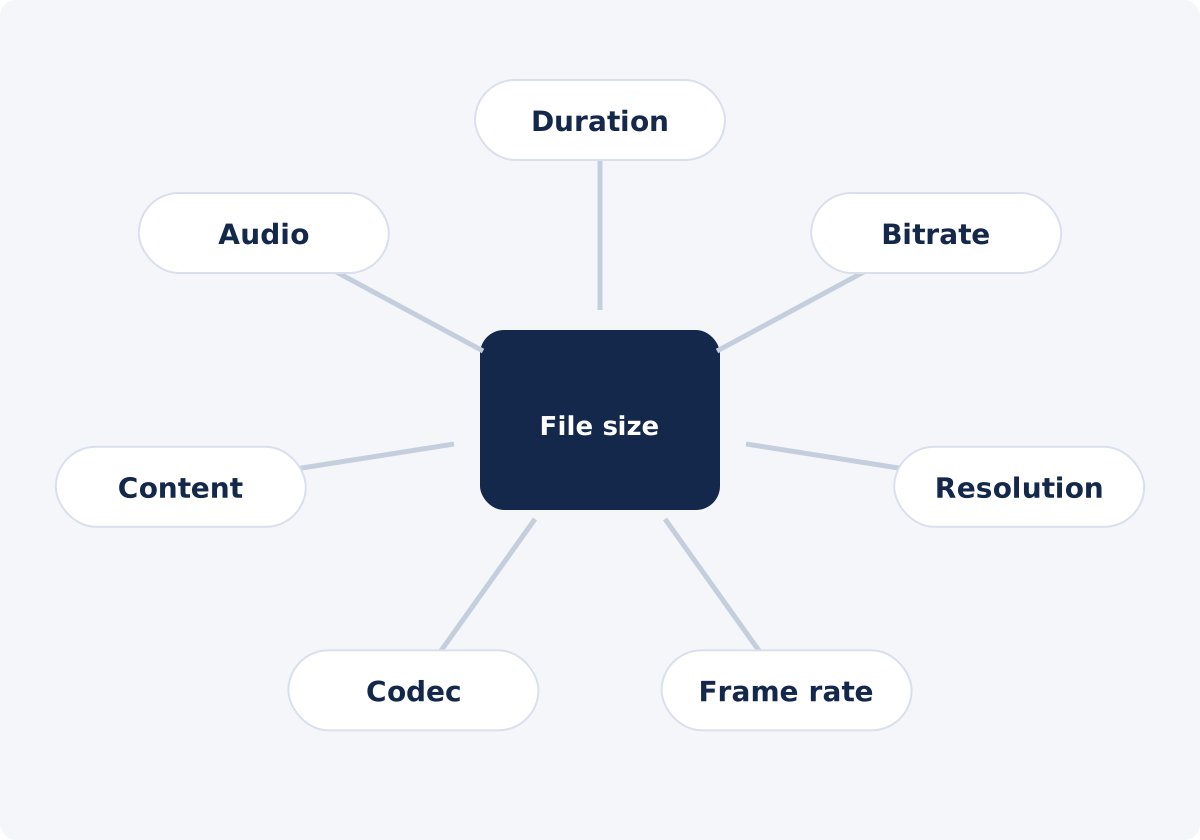
Duration
Duration is the simplest factor. If everything else stays the same, twice as many seconds means roughly twice as much data. Trimming reduces size by removing whole seconds instead of asking the encoder to use less data for every remaining second.
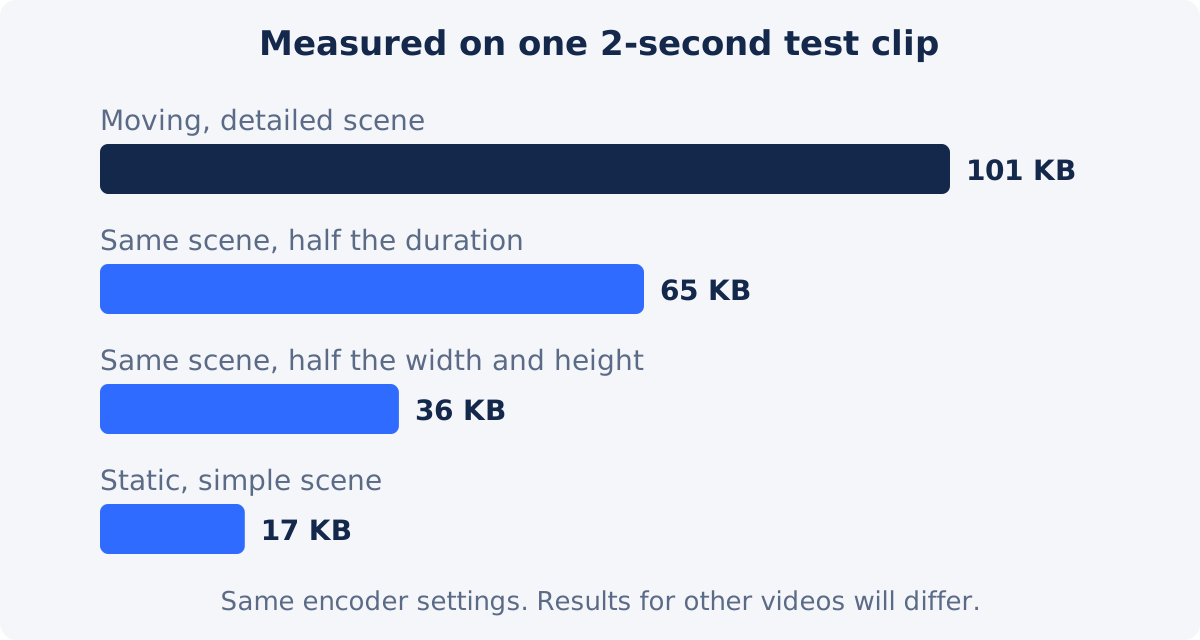
The relationship is close to proportional, not exactly so. In a small test for this guide, cutting a two-second clip in half reduced the file to about 64% of its size, not 50%. Video is stored as occasional full frames with the changes between them, and a short clip still needs its expensive first frame. Over minutes of footage, the effect evens out, and duration scales almost linearly.
Total bitrate
Bitrate is the amount of data used per second of playback, usually stated in kilobits or megabits per second. Total bitrate is the sum of the video bitrate and the audio bitrate. Conceptually, file size is that rate multiplied by the duration, plus a little overhead.
This is why bitrate is the real lever behind every compression tool. A camera may record at a very high bitrate to protect quality, while a copy made for messaging may use a small fraction of that. Same length, same resolution, very different size.
Bitrate is also where quality is won or lost. With too little data for the content, the picture shows blur, blocking, banding, and smeared motion. The Compress Video tool does not expose a bitrate setting. When you choose a preset or a target size, it makes that decision for you.

Resolution and frame rate
Resolution is the number of pixels in each frame, such as 1920 × 1080. Frame rate is the number of frames shown per second. Both are often blamed directly for file size, but they act through bitrate.
A 4K frame has four times the pixels of a 1080p frame. To keep the same visual quality, an encoder needs more data to describe it, so recording devices and export presets assign higher bitrates to higher resolutions. If the bitrate were held fixed, a 4K file and a 1080p file of the same length would be about the same size. The 4K one would simply look worse per pixel.
The same logic applies to frame rate. Sixty frames per second means twice as many frames as thirty, but consecutive frames are more alike, so the extra cost is usually less than double.
That is why reducing resolution does not produce a fixed percentage saving. In the test for this guide, halving the width and height of a detailed, grainy clip cut the file to about 35% of its size at the same encoder settings. Another clip could land at 25% or 60%. The result depends on how much fine detail the downscale removes and on how the new file is encoded.
Codec efficiency
A codec is the method used to compress and decompress the video. Codecs differ in efficiency, meaning how much data they need to reach a given visual quality. Newer generations can generally match the look of older ones with noticeably less data, at the cost of more processing work and, sometimes, narrower device support.
Two caveats matter. First, a more efficient codec makes a smaller file only if the encoder is set to take advantage of it. A file in a modern codec at a high bitrate is still large. Second, changing the codec means encoding the video again, which is a lossy step. The standalone Compress Video tool does not offer a codec choice.
Content: motion, noise, grain, and texture
Video compression works by finding what is predictable. Within a frame, flat areas are cheap to describe. Between frames, anything that stays the same, or moves in a simple way, is cheap too. Content that is unpredictable is expensive.
- Motion. Fast action, handheld shake, and quick pans change most of the picture in every frame.
- Noise and grain. Low-light noise and film grain are random by nature, so nothing about them can be predicted from the previous frame.
- Particles. Confetti, rain, snow, sparks, and dust behave like moving noise.
- Water. Ripples, waves, and reflections change constantly and irregularly.
- Foliage. Thousands of small leaves moving independently are one of the hardest subjects to encode.
- Gradients. Smooth skies and backdrops look simple, but they need enough data to avoid visible banding, and they reveal compression quickly.
The effect on size depends on how the file is encoded. With quality-based encoding, complex content produces a larger file. With a fixed bitrate or a target size, the file stays the same size and the complex content looks worse. In the test for this guide, a static scene and a version of the same scene with a moving subject, foliage texture, and light grain were encoded with identical settings. The busy version came out about six times larger.

Audio and container overhead
Audio is usually a small part of a video file, but not always. At ordinary settings, a stereo soundtrack may account for a few percent of a high-quality video. In a heavily compressed video, where the picture uses very little data, the same soundtrack can be a significant share. Multiple audio tracks add up in the same way.
The container is the file format that wraps the streams together, such as MP4, MOV, or MKV. It stores indexes, timing data, and metadata. This overhead is small, typically well under a few percent, but it is one reason a file never matches a calculated size to the byte. It is also part of why a target size is an estimate.
Factors at a glance
| Factor | Typical effect | Important caveat |
|---|---|---|
| Duration | Size grows roughly in proportion to length | Very short clips do not scale exactly; trimming removes content rather than squeezing every remaining second harder |
| Total bitrate | Directly sets data per second, and so the size | Too low for the content means visible artifacts |
| Resolution | More pixels usually come with a higher bitrate | No fixed percentage; at a fixed bitrate, size barely changes and quality per pixel drops |
| Frame rate | More frames need more data | Usually less than proportional, because neighboring frames are similar |
| Codec | Newer codecs can match quality with less data | Only if encoded to use that advantage; re-encoding is lossy; device support varies |
| Motion and texture | Busy content needs more data for the same quality | At a fixed size, it shows up as lower quality, not a larger file |
| Noise and grain | Random detail is very expensive to encode | Often invisible as a cause; low-light footage is larger than it looks |
| Audio | Usually a small share | Becomes significant in heavily compressed or audio-rich files |
| Container and metadata | A small fixed addition | Explains small gaps between calculated and actual size |
| File extension | None by itself | .mp4, .mov, and .mkv are wrappers; the contents decide the size |
Why the extension alone does not determine size
An extension names the container, and a container can hold video in many codecs, at any resolution, at almost any bitrate. A MOV from a phone and a MOV exported for editing can differ by a factor of twenty. An MKV can be smaller than an MP4 of the same video, or larger.
This is also why renaming a file changes nothing, and why converting from one format to another does not reliably shrink it. If a converted file comes out smaller, it is because it was encoded again with a lower bitrate or a more efficient codec, not because of the new extension.
Decision path: trim, resize, compress, or convert
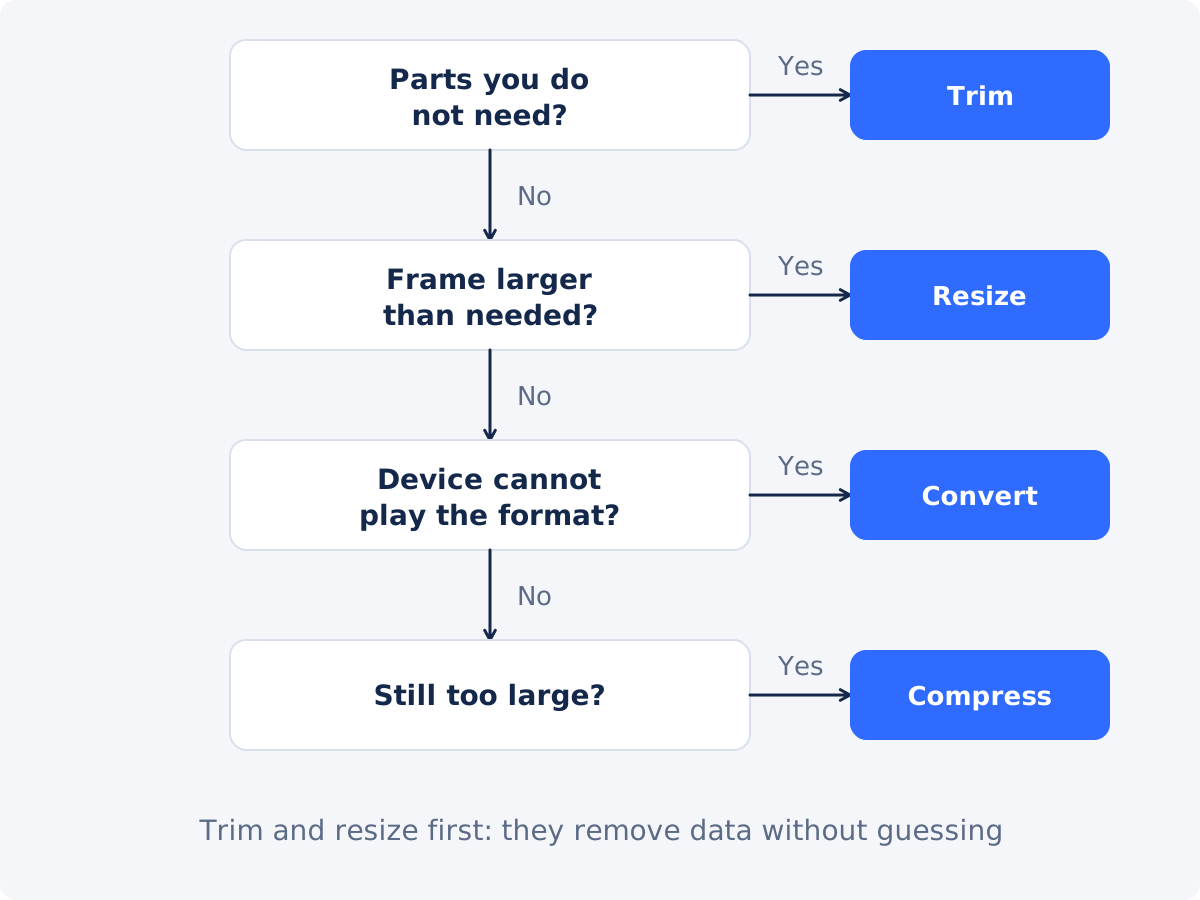
When a file is too large, work through the options in the order that costs the least quality.
- Is there footage you do not need? Remove it with Trim Video. This reduces duration before you decide how strongly to compress the footage that remains.
- Is the frame larger than the place it will be watched? A 4K file destined for phones or a small web player carries pixels nobody will see. Reduce the dimensions with Resize Video.
- Is the real problem playback, not size? If a device or site cannot open the file, use Convert Video. Compression will not fix compatibility.
- Is the file still too large? Now compress. With the Compress Video tool, you can compress a video to a target size when there is a limit, or use a preset when there is not.
- Choose the method. "High quality, medium size" favors the picture. "Low quality, small size" favors the smallest file. Target file size aims for a number in MB, and the result can differ slightly from it.
- Compare the result with the source in the busiest, darkest, and most detailed scenes, and check the sound.
- Keep the original. If the result is not right, go back to it. Do not compress a compressed copy.
If you only need the sound, such as a lecture or a podcast recorded as video, extracting the audio gives a far smaller file than any video compression. If you need several of these steps together, the full Deus.Video editor lets you combine them and export once.
Conclusion
Video file size comes down to duration multiplied by bitrate, plus a little overhead. Resolution, frame rate, codec, and content matter because they change how much bitrate is needed for the picture to look right. The extension tells you almost nothing. When a file is too large, remove what you do not need first, then reduce what nobody will see, and compress last.
Ready to make a file smaller? Open the Compress Video tool, choose a preset or enter a target size, and compare the result with your source.
Frequently asked questions
Why is my video file so large?
Most often because of a high recording bitrate combined with length. Phones and cameras record at high bitrates, high resolutions, and sometimes high frame rates to protect quality. A few minutes of 4K footage can easily reach gigabytes.
Does lowering the resolution always make a file smaller?
Almost always, but not by a fixed amount. The saving depends on how the new file is encoded and how much detail the footage has. Halving the width and height does not guarantee a file a quarter of the size.
Is MP4 smaller than MOV or MKV?
Not inherently. All three are containers. Size depends on the codec, bitrate, resolution, and content inside them. The same video can be larger or smaller in any of them, depending on how it was encoded.
Why is my screen recording small but my phone video huge?
Screen recordings are mostly static, with flat colors and little motion, which is easy to compress. Phone footage has camera shake, sensor noise, and natural texture, and phones record at high bitrates. Similar length can mean very different sizes.
Does audio make a big difference to file size?
Usually not. In a typical video, the soundtrack is a small share. It becomes noticeable in heavily compressed videos, in long recordings with a nearly static picture, and in files with several audio tracks.
Can I see or set the bitrate in the Compress Video tool?
No. The tool offers two presets and a target file size in MB, and it makes the encoding decisions for you. To see the bitrate of a file, check its properties in a media player or in your operating system's file details.


