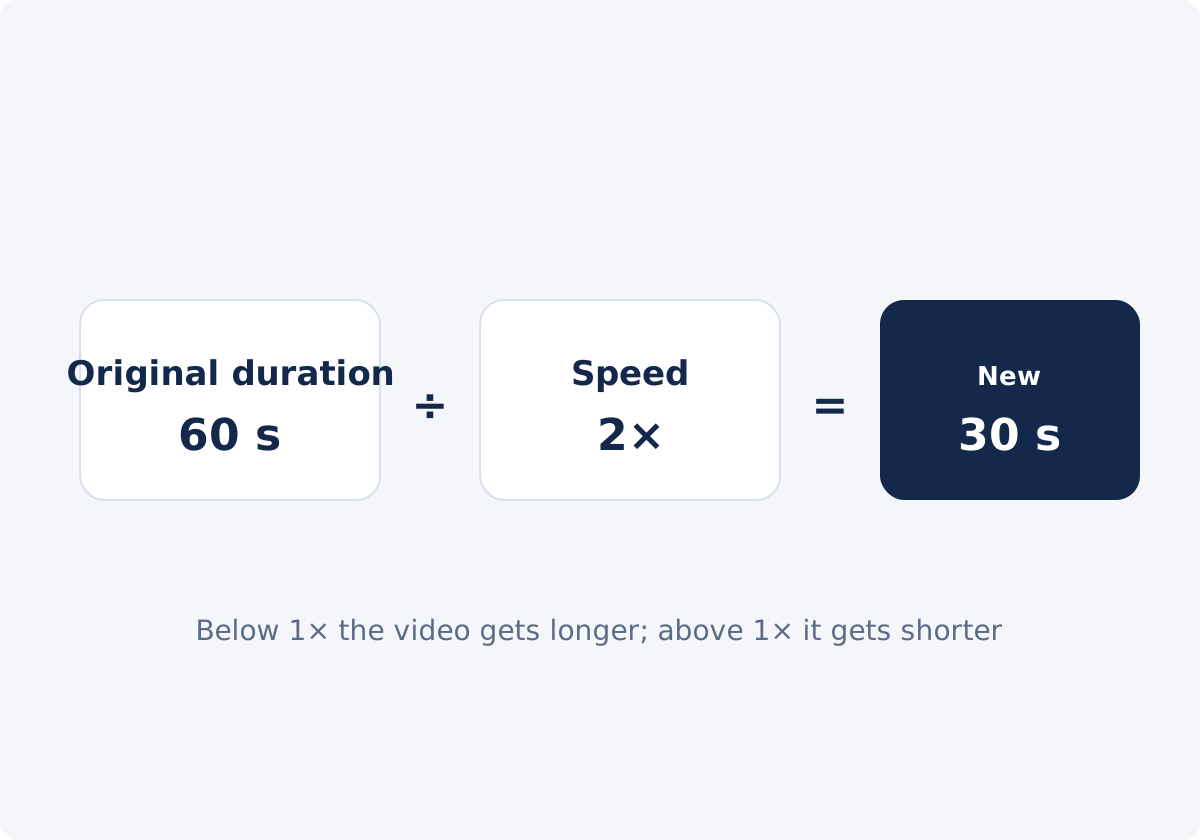
The formula
New duration = original duration ÷ speed.
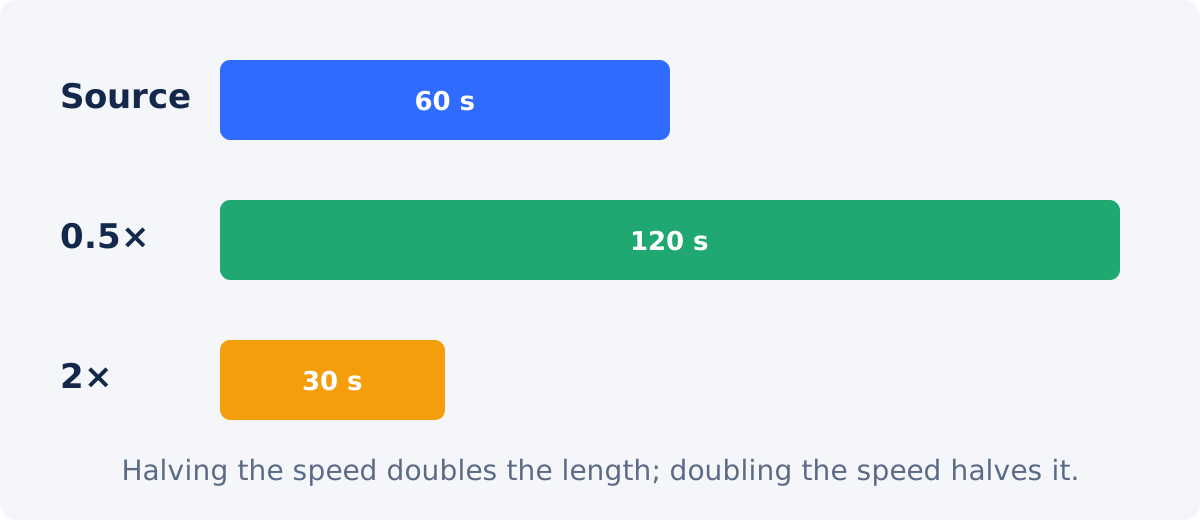
Speed is the playback speed as a multiplier of normal, where 1× is the original pace. The duration multiplier, which is how much longer or shorter the video becomes, is simply 1 ÷ speed. At 2× the multiplier is 0.5, so the video is half as long. At 0.5× the multiplier is 2, so it is twice as long. At 4× it is 0.25, and at 0.25× it is 4.
The formula works in reverse when you have a target length. Speed = original duration ÷ target duration. A 90-second clip that must fit 60 seconds needs 90 ÷ 60 = 1.5×.
Worked examples
| Original | 0.5× | 1.5× | 2× |
|---|---|---|---|
| 30 seconds | 60 s | 20 s | 15 s |
| 60 seconds | 120 s (2:00) | 40 s | 30 s |
| 120 seconds (2:00) | 240 s (4:00) | 80 s (1:20) | 60 s |
A few more that come up often: 45 seconds at 1.25× is 36 seconds; 5 minutes at 1.5× is 3 minutes 20 seconds; 10 minutes at 4× is 2 minutes 30 seconds.
Why the encoded result can differ by a fraction of a second
The formula gives an exact number, and the processed file usually lands within a few hundredths of a second of it, but rarely on it to the millisecond. Two things cause the difference.
- Whole frames. A video is a sequence of frames at a fixed rate, such as 30 per second. The retimed video has to end on a whole frame, so its length is rounded to the nearest frame boundary.
- Audio blocks. Compressed audio is stored in small blocks, and the processed sound also ends on a block boundary. The video and audio tracks can therefore end a few milliseconds apart, and players report the longer of the two.
For a platform with a hard duration limit, aim a little under it rather than exactly on it. If a video must be exactly 60.0 seconds, process it a touch fast and trim the end in the full editor.
The preview duration is an estimate
When you choose a speed in the tool, the player shows New duration, and Current status lists Original duration and New duration. Both are calculated from the formula before anything is processed. They are the right numbers for planning, and the processed file will match them closely, but they are estimates until the file exists. The tool says so under the speed field. Confirm the final length in the downloaded file's properties when the exact value matters.

What happens to the audio
The sound is processed at the same speed as the picture. It is time-stretched rather than simply played faster or slower, which keeps the pitch close to the original: a voice at 2× is fast but not high and squeaky, and at 0.5× it is slow but not deep and booming. Very large changes are handled in stages, and the more extreme the speed, the more the processing has to work, so some texture can creep in at 0.25× and 4×.
Pitch is not the only thing that decides whether audio is usable. Speech has a comfortable speed range regardless of pitch, music has a tempo that either fits or does not, and every listener notices sync. So the processed audio always deserves a listen. A file with no audio track is simply processed without sound.
What to check in the processed audio
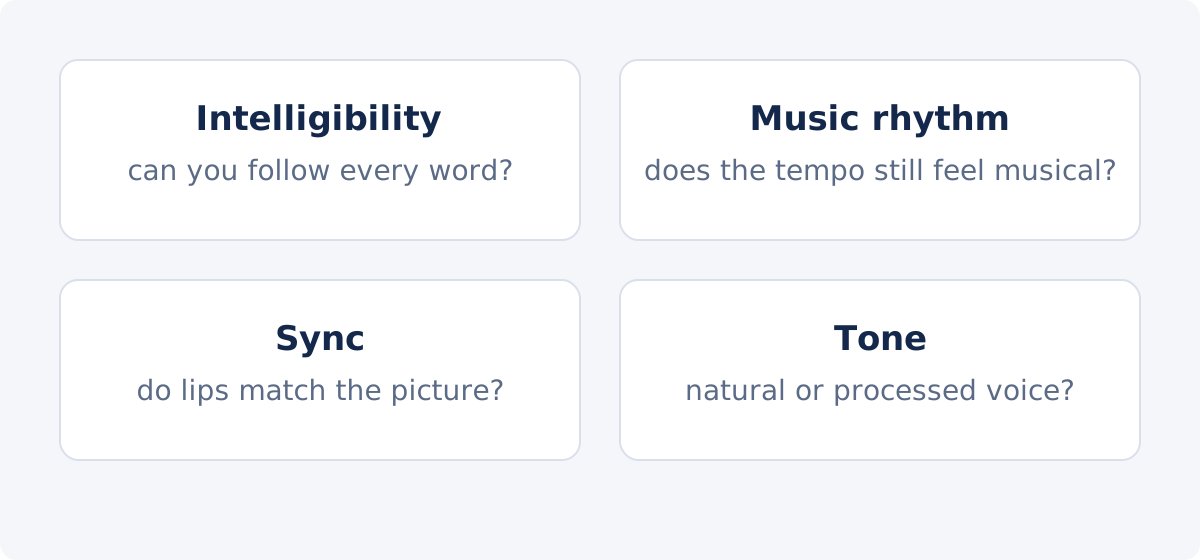
- Intelligibility. Can you follow every word without effort? Most people manage 1.25× to 1.5× easily, 2× with attention, and struggle beyond that. Slowed speech is understandable at 0.75× and awkward at 0.5×.
- Music rhythm. A music bed sped up by 1.5× has a tempo 1.5 times faster. It may still work, or it may feel frantic. Slowed music drags.
- Sync. Watch lips, footsteps, and impacts near the end of the clip. Sync problems grow over time, so the end is where they show.
- Pitch and timbre. The pitch should be close to the original. Listen for artifacts that come with time-stretching: a warble, a slight echo, or a metallic quality. If you hear them, try a milder speed, or replace the audio.
Do not rely on a description of what the processing is supposed to do. Listen to the file you will publish.
How to change the speed and check the duration
The tool lets you change video speed online and shows the estimated duration before you process.
- Decide the target. Either a speed, such as 1.5×, or a length. For a length, divide the original duration by the target to get the speed.
- Upload the video. Common inputs include MP4, MOV, AVI, WebM, and MKV.
- Read Original duration in Current status.
- Set the speed with a preset, the slider, or the Video speed field, in steps of 0.05 between 0.25× and 4×.
- Compare New duration with your target. Adjust the speed until it fits, leaving a small margin under any hard limit.
- Press Play and listen to the speech or music at that speed.
- Click Change Speed, then Download result, or Continue editing this video.
- Check the downloaded file's duration in its properties, and listen through to the end.
Speed, duration multiplier, and practical effect
| Speed | Duration multiplier | Practical effect |
|---|---|---|
| 0.25× | 4 | Four times longer; motion steps unless the source has a high frame rate; speech unusable |
| 0.5× | 2 | Twice as long; slow motion on 60 fps sources; speech drawn out |
| 0.75× | 1.33 | A third longer; subtle slowdown; speech still understandable |
| 1× | 1 | Original pace |
| 1.25× | 0.8 | A fifth shorter; barely noticeable; speech clear |
| 1.5× | 0.67 | A third shorter; brisk; speech understandable |
| 2× | 0.5 | Half as long; speech needs attention; some frames skipped |
| 4× | 0.25 | A quarter as long; fast-motion effect; speech unusable; most frames skipped |
When to replace or mute the audio in the full editor
Some results are better silent, or with new sound.
- A time-lapse-style speed-up of 3× or 4×, where the sped-up sound is noise.
- Slowed footage at 0.5× or below, where slowed speech or music sounds strange.
- Any clip where the processed audio has audible artifacts.
- Footage that will get a voice-over or music at normal speed.
In the full Deus.Video editor, the clip is muted with the speaker icon next to its Volume control or by setting Volume to 0, and music or narration is added as a separate track that plays at normal speed over the retimed picture. The editor also sets speed per clip, so a narrated section can stay at 1× while the demonstration around it runs faster.
Conclusion
Duration follows one rule, original divided by speed, and the tool shows the result before you process. Expect the file to land within a fraction of a second of it. Audio follows the picture, with the pitch held close to normal, but whether it is still usable depends on the content and the speed, and only listening tells you. Plan with the formula, check with your ears, and replace the sound in the editor when the retimed original does not serve the video.
Need a clip to fit a length? Open the Change Video Speed tool, set the speed that gives the estimated duration you want, and listen to the download before you publish.
Frequently asked questions
How do I calculate the new duration?
Divide the original duration by the speed. A 90-second clip at 1.5× becomes 60 seconds; at 0.75× it becomes 120 seconds. To find the speed for a target length, divide the original duration by the target.
Why is the processed file a fraction of a second longer or shorter than the estimate?
The video ends on a whole frame and the audio on a whole block, so both are rounded slightly, and they can differ from each other by a few milliseconds. Leave a small margin under any hard duration limit.
Does changing the speed change the pitch of the audio?
The sound is time-stretched so the pitch stays close to the original rather than rising or falling with the speed. Extreme speeds can add audible artifacts, so listen to the processed file before publishing.
Will the audio stay in sync?
The picture and sound are processed at the same speed, so they should stay together. Check the end of the clip, where any drift would be most visible, and confirm with lip movement or a sharp sound.
Can I keep the audio at normal speed and only change the picture?
Not in the standalone tool, which processes both together. In the full editor, mute the retimed clip and add a separate audio track that plays at normal speed.
What if my video has no sound?
It is processed without audio, and the result is silent. Add music or a voice-over afterward in the full editor if the clip needs sound.


