Resolution and dimensions
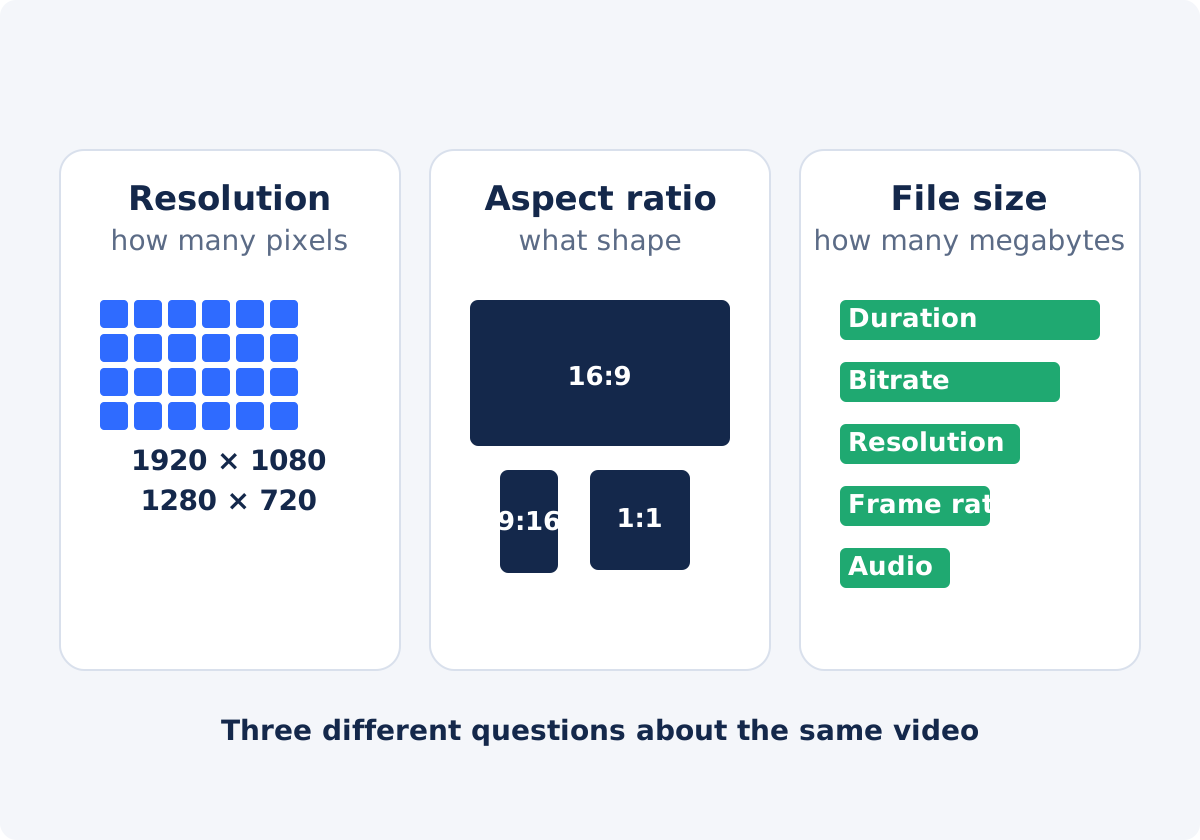
A video frame is a grid of pixels. Its dimensions are the width and the height of that grid, and the pair is what people mean by resolution. 1920 × 1080 is 1,920 pixels across and 1,080 pixels down, about 2.1 million pixels per frame. 1280 × 720 is about 0.9 million. More pixels can hold more detail, provided the camera recorded that detail in the first place.
Shorthand names refer to the height: 720p, 1080p, and so on. 4K is the exception, named for a width of roughly four thousand pixels, most often 3840 × 2160. The names are convenient, and they hide the second number, which is why the shape needs its own term.
Aspect ratio
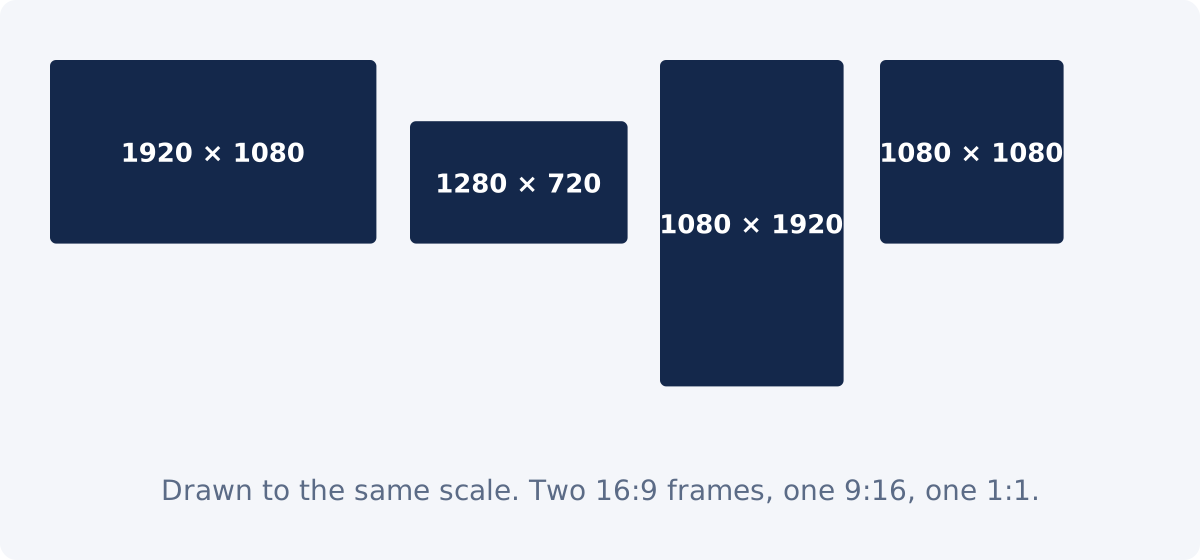
Aspect ratio is width divided by height, written as two numbers. 1920 × 1080 and 1280 × 720 are both 16:9, so they have the same shape at different sizes. 1080 × 1920 is 9:16, the same numbers turned on their side: a vertical frame. 1080 × 1080 is 1:1, a square.
The ratio decides how a video fits a screen. A 16:9 video fills a television and a laptop screen. A 9:16 video fills a phone held upright. Put one on the other, and you get bars or a crop. Resolution has nothing to say about this. Two videos can share a resolution and differ in shape only if the numbers are swapped, and they can share a shape at any resolution.
What determines file size
File size is often the measurement people actually care about, and it is the one least connected to the other two. A video file is made of compressed data, and the amount of data depends on several settings.
- Duration. Twice the length, roughly twice the size.
- Bitrate. The amount of data allowed per second of video. This is the single biggest factor. A high bitrate keeps fine detail and produces a big file. A low bitrate discards detail and produces a small one, at any resolution.
- Codec. The compression method. Newer codecs store the same picture in fewer bytes.
- Frame rate. More frames per second means more pictures to store.
- Resolution. More pixels need more data to describe, at the same quality level.
- Audio. A soundtrack adds its own data, usually a small share.
- Content. Grain, confetti, and camera shake compress badly. A still talking head compresses well.
The two meanings of "video size"
When someone asks to "make the video smaller," they may mean fewer pixels or fewer megabytes, and the two requests lead to different tools. A clip that is too large for a small player on a page needs fewer pixels. A clip that fails an upload limit needs fewer megabytes. Before changing anything, ask which number is wrong: the dimensions in the file's properties, or the size on disk.
Four common dimensions
| Dimensions | Pixels per frame | Aspect ratio | Typical use |
|---|---|---|---|
| 1920 × 1080 | About 2.1 million | 16:9 horizontal | Standard horizontal video for screens and the web |
| 1280 × 720 | About 0.9 million | 16:9 horizontal | Lighter horizontal video, small embeds, previews |
| 1080 × 1920 | About 2.1 million | 9:16 vertical | Full-screen vertical clips on phones |
| 1080 × 1080 | About 1.2 million | 1:1 square | Compact feed posts |
Note that 1920 × 1080 and 1080 × 1920 have exactly the same pixel count and opposite shapes, while 1280 × 720 has the same shape as 1920 × 1080 with less than half the pixels.
Why the same resolution does not mean the same file size
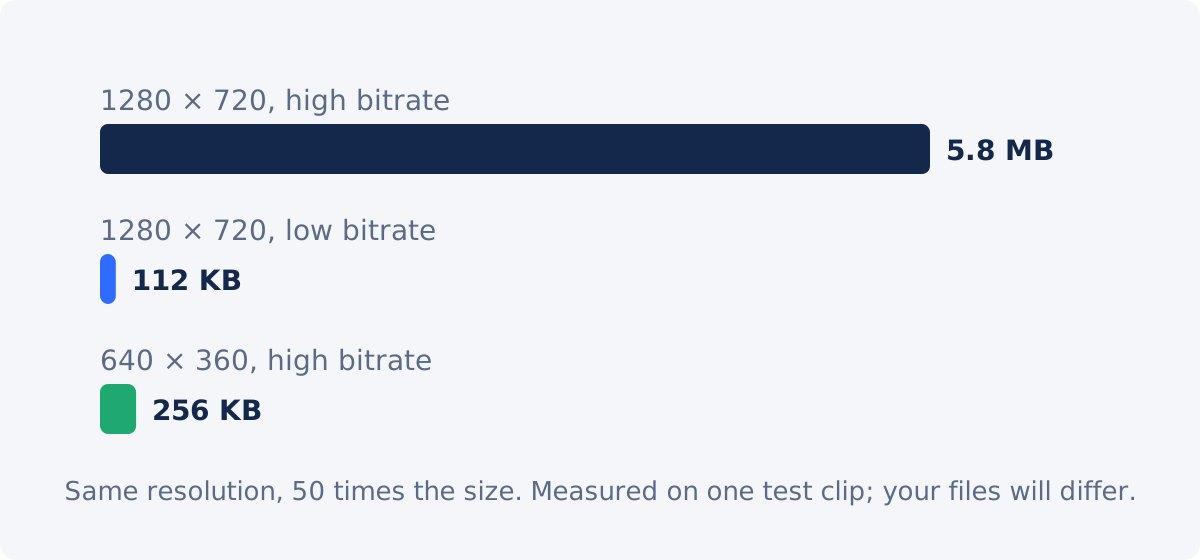
Two 1080p videos of the same length can differ in size by a factor of ten or more, because their bitrates differ. To make this concrete, we encoded one six-second test clip at 1280 × 720 twice, once at a high bitrate and once at a low one, and once more at 640 × 360 with the high bitrate. The two 720p files came to 5.8 MB and 112 KB: same resolution, fifty times the size. The 360p file, with a quarter of the pixels, was 256 KB, more than double the low-bitrate 720p file.
The lesson is that resolution sets how many pixels there are, and bitrate sets how carefully they are stored. A file's megabytes tell you about the encoding, not about the dimensions, and certainly not about the shape.
Why resize is not a substitute for compression
Reducing the dimensions gives the encoder fewer pixels to describe, so the file usually gets smaller. But "usually" is doing work in that sentence. The new file is encoded with its own settings, and if those settings spend more data per pixel than the original did, the smaller frame can produce a file that is not much lighter, or even heavier. Resizing also throws away detail you may have wanted to keep, in exchange for a saving you did not choose.
Compression is the direct route. It keeps the dimensions and reduces the data spent on them, and a compression tool can aim at a target size. Resize when the picture is genuinely larger than it needs to be. Compress when the file is heavier than it needs to be. Sometimes both apply, and then it is worth doing them in one project rather than as two exports.
What each operation changes
| Operation | What changes | What usually stays | Correct tool |
|---|---|---|---|
| Resize | Width and height; the pixel count | Shape, if proportions are locked; duration; what is in the frame | Video Resizer |
| Crop | Which part of the picture is kept; often the shape | Pixel size of the kept area; duration | Crop Video |
| Compress | Bitrate and file size | Dimensions; shape; duration | Compress Video |
| Change aspect ratio | Shape of the frame | The picture itself; it is either cut, or kept whole with space around it | Video Resizer with Fit or Fill; Crop Video for a placed crop; the full editor for a background |
| Trim | Duration, and with it file size | Dimensions; shape; quality | Trim Video |
Practical workflow in Deus.Video
When the job is a change of dimensions, you can change the video dimensions in the resizer.
- Upload one video, and read the Input line under Current size to learn its resolution.
- Decide which measurement you are changing. Pixels: continue here. Shape: see Crop below. Megabytes: see Compress below.
- Choose a preset (Full HD 1920×1080, HD 1280×720, Vertical 1080×1920, Square 1080×1080, Portrait 1080×1350) or enter custom width and height.
- Keep Preserve proportions selected so the second dimension is recalculated and the shape does not change. A frame of a different shape gets a Fit or Fill choice, not a stretch.
- Check the New and Ratio lines, and the preview of the target frame.
- Click Resize video, and download the result, or continue in the full editor.
- Look at the file's properties. The dimensions are what you set. The file size is whatever the new encode produced.

Resize, crop, or compress: three scenarios
The video is 4K and the web page shows it at 1080p
Resize to 1920 × 1080 with the ratio locked. The pixels that the page cannot show are removed, and the file gets lighter as a side effect.
The video is horizontal and the post needs to be vertical
That is a change of shape. The resizer with a vertical preset offers Fit, a small band with black above and below, or Fill, a centered crop. For a subject away from the center, use Crop Video to keep a vertical slice, or place the whole clip on a vertical canvas with a designed background in the full editor.
The video is 1080p and the upload limit is 25 MB
That is a file-size problem. Use Compress Video with a target size. Only if the file is still too heavy, and the destination will show it small anyway, add a resize to 720p.
Conclusion
Resolution counts pixels, aspect ratio describes shape, and file size measures data. They are set by different things and changed by different tools. Ask which one is actually wrong before reaching for the resizer, because a resize fixes dimensions and nothing else with any certainty.
If pixels are the measurement you need to change, create a new output resolution in the Video Resizer, and leave shape and megabytes to the tools built for them.
Frequently asked questions
Is 1080p the same as 1920 × 1080?
Usually. 1080p names the height, and 1920 × 1080 is the common 16:9 frame with that height. A vertical 1080 × 1920 video also has 1,080 pixels in one dimension, so the name alone does not tell you the shape.
Does a lower resolution always mean a smaller file?
No. Fewer pixels give the encoder less to store, but bitrate decides the actual size. A low-bitrate 720p file can be far smaller than a high-bitrate 360p file of the same clip.
Can I change the aspect ratio by resizing?
Unlocking the proportions lets you set a frame of a different shape, and the resizer then either fits the whole picture inside it with black bars or crops the edges to fill it. A more deliberate change of shape means choosing which part of the picture to keep, or adding a designed background. That is a crop or a canvas layout.
What is bitrate?
The amount of data used per second of video. Higher bitrates keep more detail and make larger files. It is the main reason two videos with the same resolution and duration can differ so much in size.
Should I resize or compress to send a video by email?
Compress. It reduces the data while keeping the dimensions. Resize as well only if the video is much larger than the recipient will ever display, for example a 4K clip that will be watched on a phone.
Does the Video Resizer let me set the bitrate?
No. It has presets, custom width and height, and the Preserve proportions option. The file is encoded with the tool's own settings, so the resulting size is a consequence, not a target.


