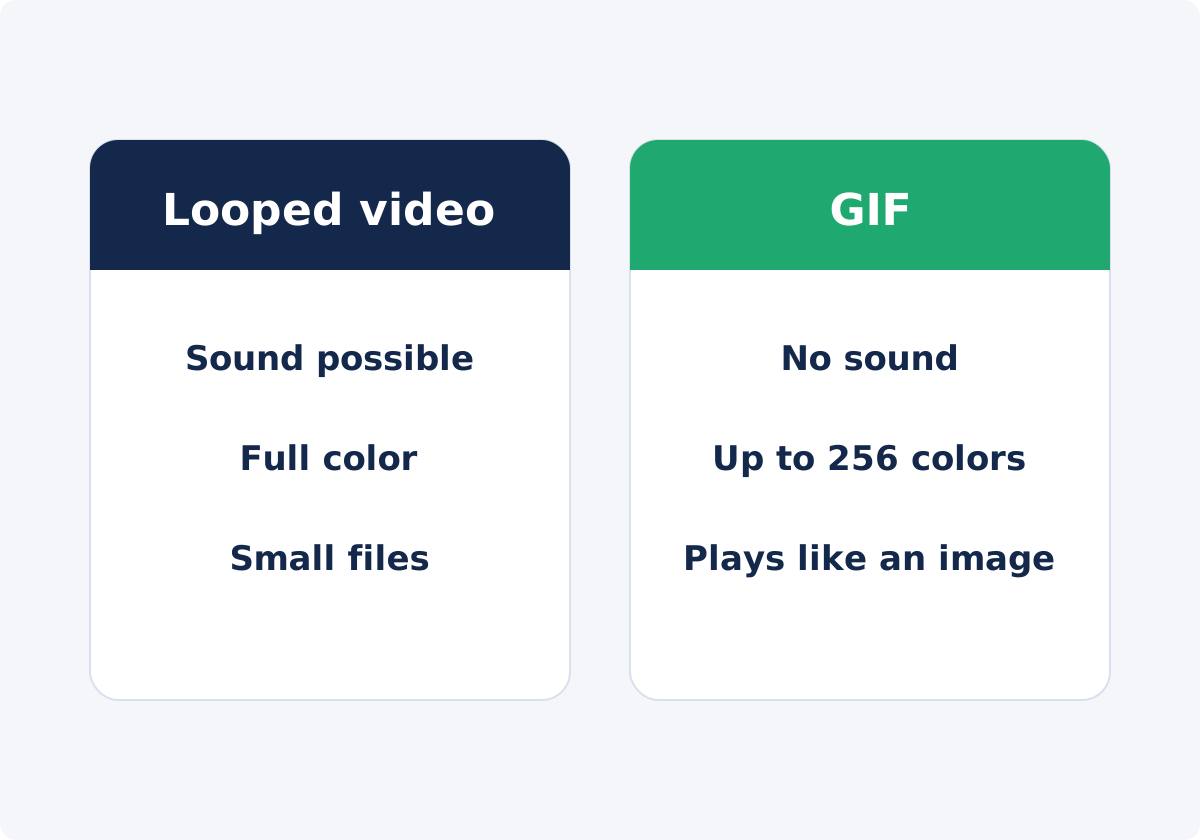
What each one is
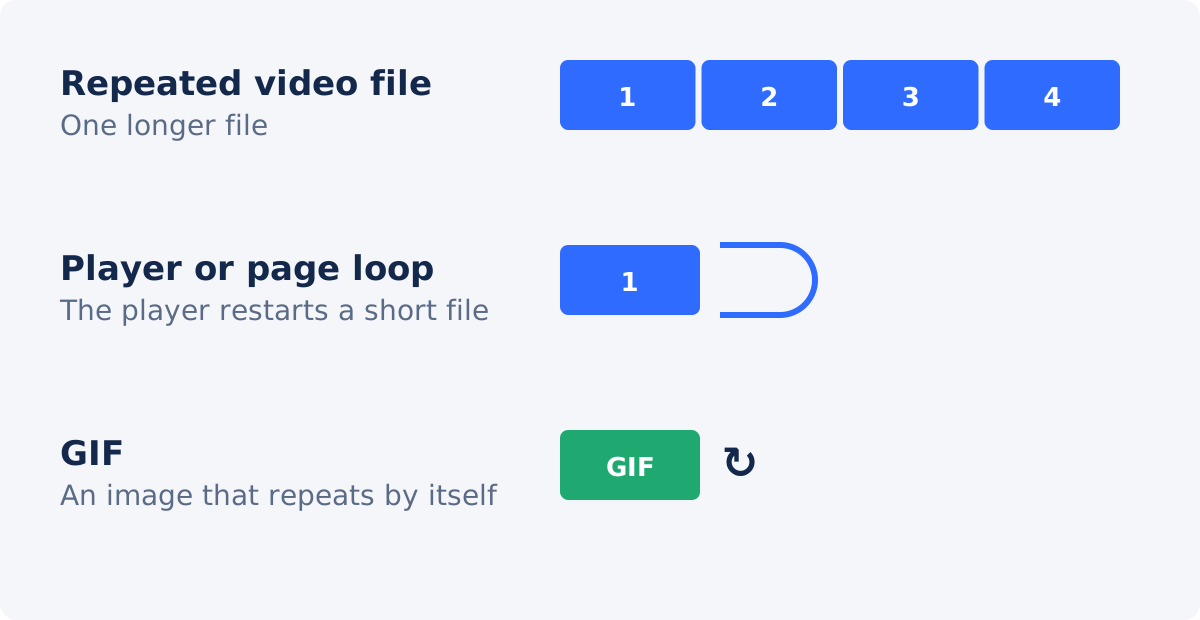
A looped video is ordinary video, usually an MP4 or a WebM file, that plays repeatedly. There are two ways to get there. The player or the web page can be set to restart a short file every time it ends. Or the repetition can be built into the file, by placing several copies of the clip one after another, so it plays the same way in every player, whatever its settings.
A GIF is an image format that can hold a sequence of frames with timing. It is displayed like a picture, starts by itself in most places, and repeats without any player. Each frame is limited to a palette of 256 colors, and the format has no audio.
The differences that matter
Audio
Video can carry sound, and can be muted when it is not wanted. A GIF is always silent. If a voice, a beat, or a sound effect is part of the point, GIF is ruled out.
Color
Video stores full color, so skies, skin, and shadows stay smooth. A GIF has to approximate them with 256 colors per frame, which produces banding, meaning visible steps, or dithering, a pattern of dots. Flat graphics and interface recordings are much less affected.

File size
Video compression stores mainly what changes between frames. GIF compresses each frame as an image. For the same clip at the same dimensions, the video is usually many times smaller, and the gap grows with length, width, and visual complexity. A GIF is not always smaller than a video. For anything beyond a tiny, simple animation, it is normally larger.
Playback quality
Video plays at full frame rates with accurate timing, and offers controls to pause and seek. GIFs are usually made at reduced frame rates to keep size down, their timing is coarse, and viewers cannot pause them.
Transparency
GIF supports simple transparency, where a pixel is either fully transparent or fully opaque, which works for stickers and small icons with hard edges. Standard MP4 video does not carry transparency. If you need a moving element to sit over a page background, neither format is ideal, and neither loop tool is the place to create it.
Sharing context
A GIF goes wherever an image goes: chat messages, comment fields, README files, wikis, many email templates. A video needs a player. Most websites, social platforms, and messengers provide one, and many play short videos automatically when muted. Some places accept images only. Behavior varies by platform and changes over time, so test in the real destination.
Comparison table
| Criterion | Looped video | GIF |
|---|---|---|
| Type of file | Video file, such as MP4 or WebM | Animated image |
| Audio | Supported; can be muted | None |
| Color | Full color | Up to 256 colors per frame |
| File size for the same clip | Usually much smaller | Usually much larger |
| Practical length | Any | A few seconds |
| Frame rate | Full, with accurate timing | Usually reduced; timing is coarse |
| Looping | Set by the player or page, or built into a repeated file | Built in; repeats by itself |
| Controls | Play, pause, seek, volume | None |
| Transparency | Not in standard MP4 | On or off per pixel |
| Where it works | Wherever video is accepted | Wherever images are accepted |
| Best suited to | Websites, presentations, social posts, anything photographic or with sound | Chats, docs, comments, short simple animations |
When a looped video is the better choice
- The footage is photographic: people, products, places, gradients, low light.
- Sound matters, now or possibly later.
- The clip is longer than a few seconds.
- Loading speed and data use matter, as on most web pages.
- Viewers should be able to pause.
- You cannot control the player. On a display screen, in a slideshow, or on a platform with no loop setting, a file that already contains the repeats plays the same way everywhere.
- A platform requires a minimum video length, and your clip is shorter.
When a GIF is more practical
- The destination accepts images and not video.
- The clip is very short, silent, and simple, such as an interface action, a reaction, or a small animation.
- It must start moving by itself, with no play button, wherever it is pasted.
- You are illustrating documentation, a changelog, or a support article in a system that renders images only.
- Simple on-or-off transparency is needed for a small sticker-like element.
How to make a video loop in Deus.Video
The Loop Video tool lets you loop a video online by building the repeats into one file.
- Upload one video. Common inputs include MP4, MOV, AVI, WebM, and MKV.
- Select what to repeat. Use the whole video, or set Start and End, or drag the range on the timeline.
- Press Play to watch the selected range restart, and adjust the endpoints until the join looks right.
- Choose a preset or a Loop mode. "Repeat count" makes one to five copies. "Target duration" adds complete copies up to a length in seconds, with a maximum of 1,800.
- Set "Include audio in loop" to keep the sound with every copy, or clear it for a silent result.
- Check Current status for the fragment length, repeat count, and approximate output duration.
- Click Loop video, wait for processing, and download the file, or continue in the full editor.
The output is a newly processed video file. The tool places copies back to back. It does not add crossfades or hide a mismatched cut, and in Target duration mode the result may be slightly longer than requested, because the last copy is never cut partway.

GIF conversion is a separate operation
Loop Video produces video. It does not output GIF, and a GIF does not need repeating, since it loops on its own. If an animated image is what your destination needs, Convert Video to GIF turns a video, or a selected time range of it, into a GIF at a frame rate and width you choose. Keep the selection short, because GIF size climbs quickly with duration, width, and frame rate. The full Deus.Video editor exports video, not GIF.
Accessibility: autoplay, motion, and meaningful text
- Give people a way to stop it. Accessibility guidelines for web content ask that moving content which starts automatically and lasts more than five seconds can be paused, stopped, or hidden. A video player provides that control. A GIF does not, which is a reason to keep decorative GIFs short, or to prefer video on web pages.
- Be careful with intense motion. Rapid flashing can be dangerous for people with photosensitive conditions, and constant movement distracts many readers from nearby text. Calm loops are safer than strobing ones.
- Do not rely on sound. Many loops play muted. If speech matters, add captions, which only video workflows support.
- Do not hide essential information inside the loop. Text that flashes by in a GIF cannot be paused or read by a screen reader. Put the key message in real text next to it, and give the image a descriptive alt text, or the video a text description.
- Respect reduced-motion preferences where your platform allows it, by offering a static image as an alternative.
Recommendations by context
Websites
Use video. A muted, looping, inline video gives the GIF experience at a fraction of the weight, and it can be paused. How it is embedded is a matter for your site's developer or content system. Reserve GIF for systems that accept only images.
Messages and chats
GIF is the convention, and it works where video previews do not autoplay. Many messaging apps deliver "GIFs" as short videos behind the scenes, so either may be fine. Keep it to a few seconds.
Presentations
Video gives better quality, and most presentation software can loop a clip. If you cannot rely on that setting on the presenting computer, a file with the repeats built in is a safe fallback: it keeps playing for as long as you made it. A GIF also works on a slide, at lower quality.
Social posts
Platforms are built around video, and many convert uploaded GIFs to video anyway. Upload a video. If a short clip needs to reach a minimum length, or should play several times within one view, build the repeats into the file. Check the platform's current upload guidance, since length limits and loop behavior change.
Conclusion
A looped video and a GIF can look alike on screen, and they are very different files. Video wins on color, sound, size, and control, and it should be the default wherever video can play. GIF wins on reach into image-only places. Decide by destination first, keep either one short and calm, and never make the loop the only carrier of essential information.
If video works where you are publishing, open the Loop Video tool, select your range, and build the repeats into one file.
Frequently asked questions
Is a GIF a video?
No. A GIF is an image format that can contain several frames and play them in sequence. It has no audio track and no player controls. What some apps call a "GIF" is, in practice, a short muted video delivered in a video format.
Is a GIF smaller than a looped video?
Usually not. For the same clip and dimensions, video compression is far more efficient, so the video file is often many times smaller. A GIF can be small only when it is very short, narrow, and visually simple.
Can a GIF have sound?
No. The format cannot store audio. If sound matters, use a video. When a video is converted to GIF, its audio is dropped.
Why build the repeats into the file when a player can loop?
Because you do not always control the player. Display screens, slideshows, and some platforms do not offer a loop setting, or ignore it. A file that already contains the repeats plays the same everywhere. It is also a way to bring a very short clip up to a required minimum length.
Can the Loop Video tool export a GIF?
No. It outputs a processed video file. Creating a GIF is a separate operation, done with Convert Video to GIF, which works from a video or a selected time range.
Which is better for a website background?
Video. It looks better, loads faster, and can be paused. Keep it short, muted, and calm, make sure text over it stays readable, and provide a static fallback for visitors who prefer reduced motion.


