Container vs. codec
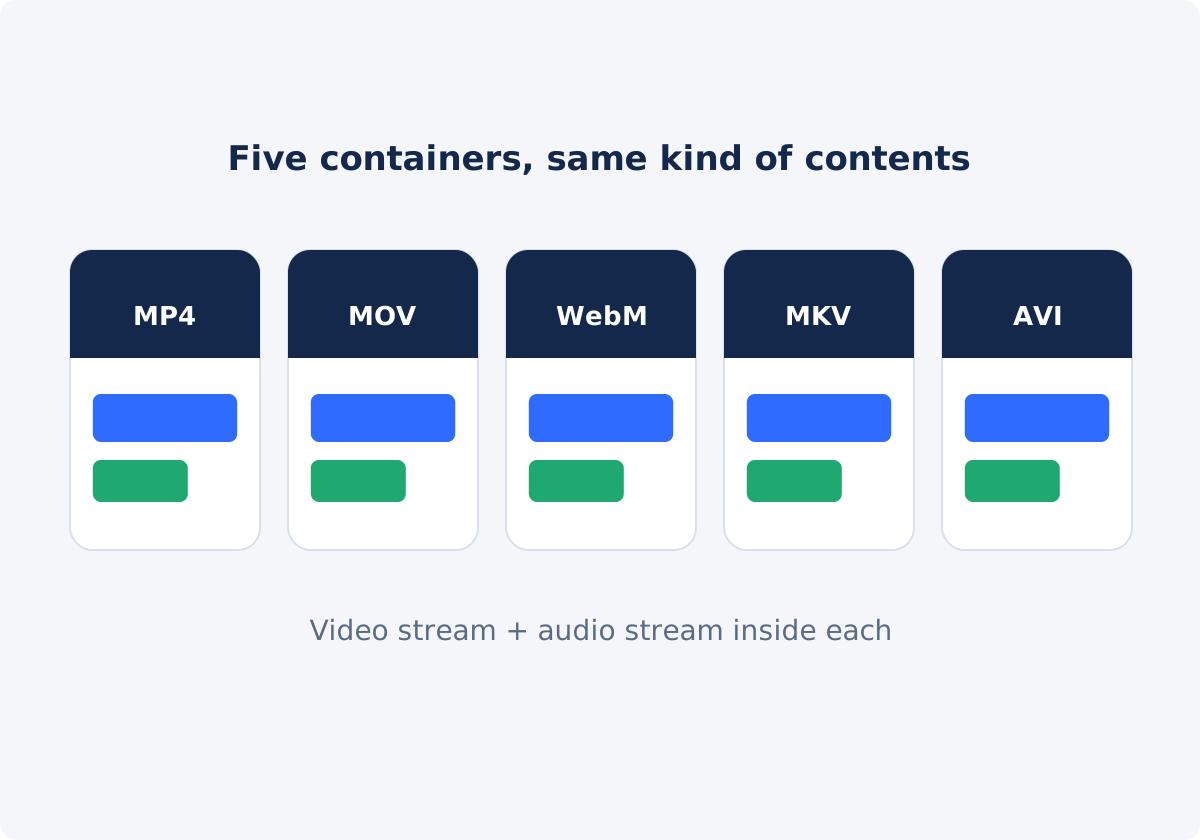
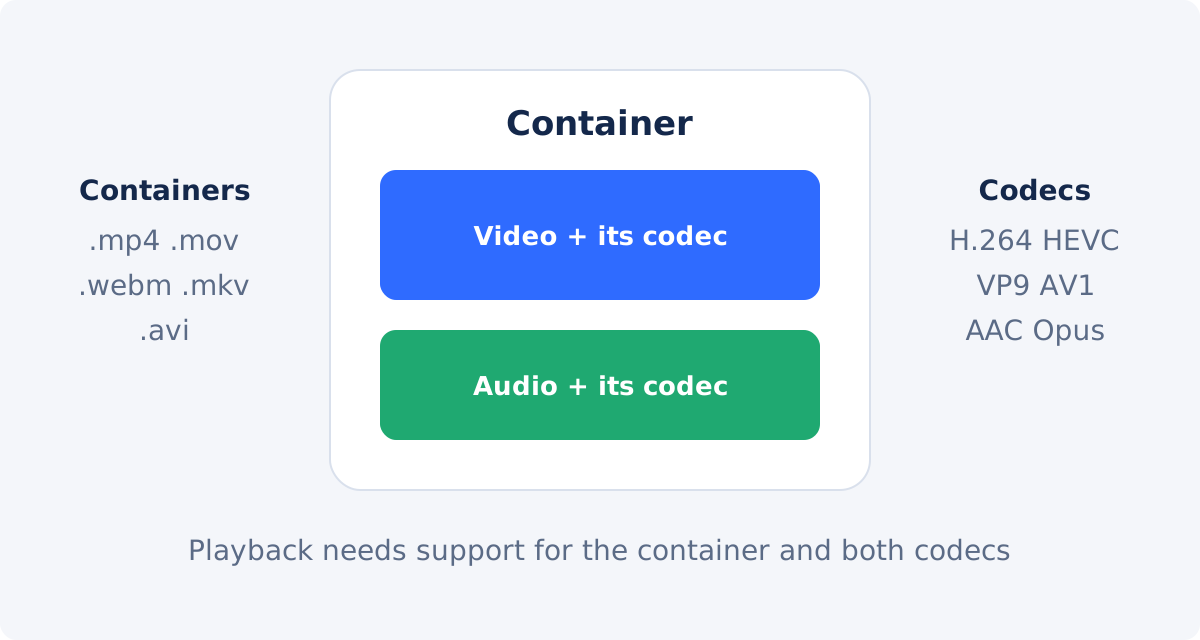
A container is the file structure indicated by the extension, such as .mp4 or .mkv. It holds the video stream, one or more audio streams, and supporting data such as timing information, subtitles, or chapter markers. It decides what kinds of things can be stored, not how the picture looks.
A codec is the method used to compress and decompress the video or the audio. Compressing is called encoding. Common video codecs include H.264, HEVC (also called H.265), VP9, and AV1. Common audio codecs include AAC and Opus. The codec, together with the bitrate, which is the amount of data used per second, and the resolution, which is the number of pixels in each frame, determines quality and file size.
A useful comparison is a shipping box and its contents. The box says how things are packed. It does not tell you what is inside. Two .mp4 files can contain different codecs, and one may play on an old TV while the other does not.
The five common formats
MP4
MP4 is the most widely accepted container for everyday use. Phones record it, browsers play it, and social platforms, messengers, and most editors accept it. It typically carries H.264 video with AAC audio, a combination that very old and very new devices alike tend to handle.
Limitations: an MP4 can also hold newer codecs such as HEVC or AV1, which older devices and some software cannot decode. It is less suited to files with many audio or subtitle tracks, and it is a delivery format, not a professional editing format.
MOV
MOV is Apple's QuickTime container and a close relative of MP4. It is common in Apple-centered workflows and in professional editing, where it often carries editing-friendly codecs with very high quality. Some MOV workflows also support transparency through an alpha channel.
Limitations: support outside Apple software and editing tools is less consistent. Browsers generally do not treat MOV as a web format, and MOV files with editing codecs are very large.
WebM
WebM is an open container designed for the web. It carries VP8, VP9, or AV1 video with Vorbis or Opus audio, and current versions of the major browsers play it. It is a common output of screen recorders, browser-based tools, and web downloads.
Limitations: support drops off outside the browser. Many video editors, phone gallery apps, TVs, presentation programs, and upload forms do not accept it.
MKV
MKV, or Matroska, is an open and very flexible container. It can hold almost any codec, along with multiple audio tracks, multiple subtitle tracks, and chapters, which makes it popular for archives and media libraries.
Limitations: that flexibility is also its weakness. Browsers, phones, many editors, and most social platforms do not accept MKV directly, and "it's an MKV" tells you almost nothing about the codecs inside.
AVI
AVI dates from the early 1990s. Its strength is age: old software, old cameras, and some industrial or embedded systems still expect it.
Limitations: it handles modern codecs and features poorly, files tend to be large for their quality, and it is not a web format. Choose it only when something specifically requires it.
Comparison table
| Format | Typical use | Strength | Compatibility caveat |
|---|---|---|---|
| MP4 | Sharing, uploads, phones, general playback | Broad support across devices, browsers, and apps | Newer codecs inside an MP4 may not play on older devices |
| MOV | Apple-centered workflows, editing, handoff between editors | Carries high-quality editing codecs; some workflows support alpha | Inconsistent outside Apple and editing software; not a web format |
| WebM | Web pages, browser-based recording, web delivery | Open format with efficient web codecs | Often rejected by editors, phone galleries, TVs, and upload forms |
| MKV | Archives, media libraries, files with many tracks | Holds almost any codec, many audio and subtitle tracks, chapters | Not accepted by browsers, most phones, many editors, and platforms |
| AVI | Legacy software and hardware | Understood by very old systems | Poor fit for modern codecs and web use; large files |
Browser, device, editor, and platform requirements
Each kind of destination has its own rules, and they do not overlap neatly.
- Browsers play a short list of container and codec combinations, mainly MP4 and WebM. MDN's media container documentation, for example, lists WebM support in Safari only from version 14.1 on macOS and version 15 on iOS, which is why older Apple devices fail on WebM.
- Devices depend on hardware decoders. A TV or an older phone may open the container and still fail on the codec, or play sound without a picture.
- Editors have import lists of their own. A file that plays in a browser tab may be refused on import, and the reverse is also true.
- Platforms such as social networks, learning systems, and ad managers publish upload specifications that name accepted containers and sometimes codecs, resolution, and frame rate. These change, so read the current help page and do not rely on memory.
Why the extension alone does not guarantee playback
- The codec may be unsupported. The player recognizes .mp4 and cannot decode the video inside.
- The audio codec may be the problem. The picture plays in silence.
- The profile or settings may be too demanding. High bit depth, HDR, very high resolution, or unusual frame rates can exceed what a device handles.
- The extension may simply be wrong. Renaming a file from .webm to .mp4 changes its name and nothing else.
This is why conversion, which builds a new file, can fix what renaming cannot.
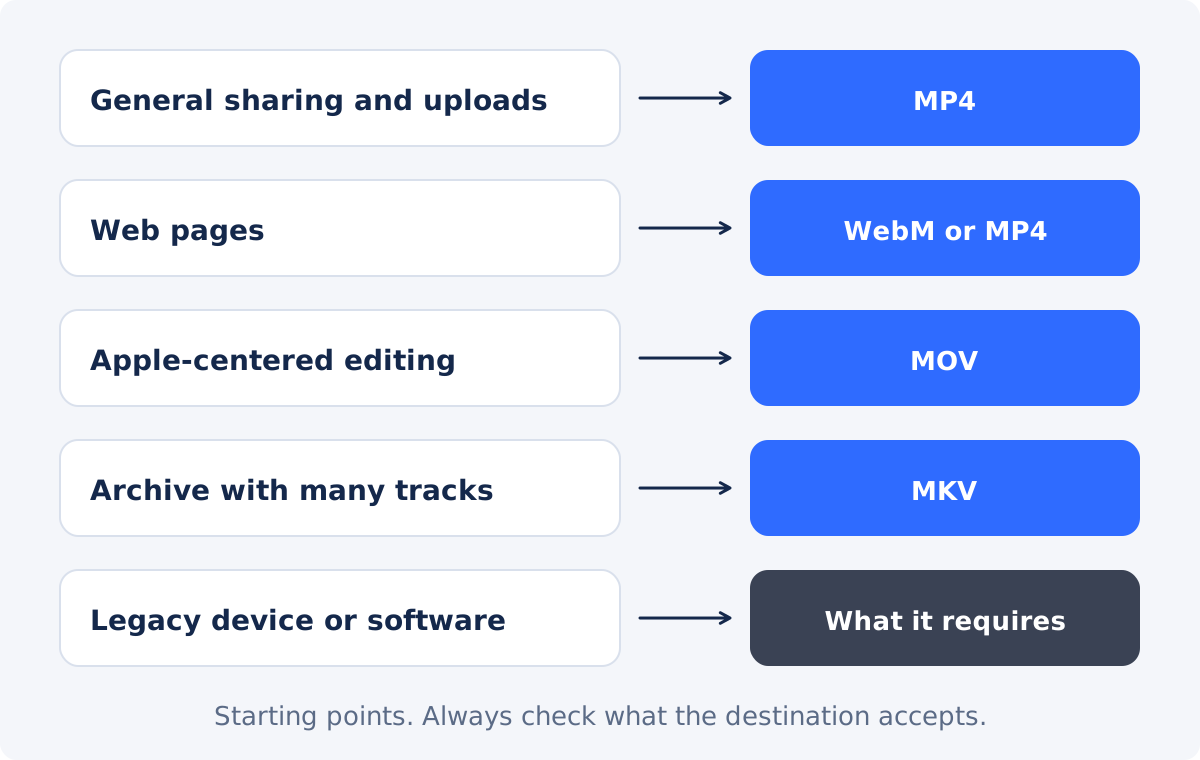
Choosing a video file format by destination
- Look for published requirements. If the destination documents accepted formats, follow that and nothing else.
- General sharing and uploads: start with MP4.
- Embedding on a web page you control: MP4 or WebM, depending on your site's setup. Many sites offer both.
- Handing footage to an editor in an Apple-centered workflow: ask what they want. MOV is common, but the codec inside matters more than the container.
- Archiving with several audio or subtitle tracks: MKV, kept alongside your original.
- Old hardware or software: the specific format its manual names, and only that.
How to convert a video in Deus.Video
When the file you have is not the file your destination accepts, you can convert a video online with the Convert Video tool. It produces a new file in the output you choose. It does not offer codec, bitrate, resolution, frame rate, or quality settings.
- Check what the destination accepts.
- Upload one video by drag and drop or with the file picker. The picker accepts common and legacy video extensions.
- Open the Format list. It is grouped into Common outputs and Additional and legacy outputs. MP4 is selected by default, and a note under the list says MP4 is usually the simplest starting choice for broad modern playback.
- Select one output. Each run produces one format.
- Click Convert video and wait for the status to show that processing is complete.
- Download the converted file.
- Test it in the real destination using the checklist below.
- Need another format? Reset the tool and convert the original file again. Do not convert a converted copy.

Legacy and specialist outputs
The second group in the Format list exists for specific requirements, not for everyday sharing.
- M4V sits in the common group. It is a close relative of MP4 associated with Apple software.
- 3GP was made for early mobile phones.
- ASF and WMV belong to older Windows Media workflows.
- OGV is the Ogg video format, an older open web format.
- SWF is a Flash format. Browsers no longer support Flash, so use it only for a legacy system that requires it.
- TS is a transport stream format from broadcast and streaming systems.
- VOB comes from DVD-Video.
- HEVC and XVID are named after codecs, not containers. HEVC (H.265) is a modern, efficient video codec. Xvid is an older MPEG-4 codec once common in AVI files. In the tool they appear as output choices for workflows that need video encoded that way: the HEVC output is delivered as an MP4 file, and the XVID output as an AVI file. Test the result, because support for both codecs varies widely between devices.
If nothing explicitly asks for one of these, you almost certainly do not need it.
Test checklist after conversion
Conversion encodes the video again, so quality and file size can change, and extras may not carry over. Do not assume that subtitles, chapters, metadata, additional audio tracks, HDR, or transparency are preserved. Keep the original, and check the result:
- It opens in the actual destination app, device, or upload form.
- The picture plays from start to finish, with the correct orientation and shape.
- Sound is present and stays in sync at the start and at the end.
- The duration matches the source.
- Quality is acceptable in the busiest and darkest scenes.
- The file size suits the destination. If it is too large, that is a job for Compress Video, not for another conversion.
If you need to edit the video as well, with cuts, text, audio, or transitions, do that in the full Deus.Video editor and export once.
Conclusion
Formats are wrappers, codecs do the real work, and the destination makes the rules. Start from what the destination accepts, choose MP4 when nothing more specific is required, and reach for WebM, MOV, MKV, AVI, or a legacy output only when there is a reason. Whatever you choose, test the converted file where it will actually be used.
Have a file your destination will not accept? Open the Convert Video tool, pick the output it asks for, and test the download.
Frequently asked questions
Which video format should I use if I am not sure?
MP4 is the practical starting point. It is accepted by most devices, browsers, apps, and platforms. It is not a guarantee, so if the destination publishes requirements, follow them, and test the result.
Is MP4 better quality than MOV or MKV?
No. Quality depends on the codec, the bitrate, and the resolution inside the file, not on the container. The same video can look identical in all three, or different, depending on how each file was encoded.
Why does my MP4 not play even though MP4 is "universal"?
The container is supported, but the codec inside probably is not. For example, an MP4 with HEVC or AV1 video may fail on an older device. Converting it to a new MP4 may help. Test the new file on that device.
Is HEVC a file format?
HEVC, also called H.265, is a video codec. It is normally stored inside a container such as MP4, MOV, or MKV. The tool lists it as an output choice for workflows that specifically need HEVC-encoded video, and delivers that result as an MP4 file. An MP4 with HEVC inside may not play on older devices that handle ordinary MP4 files without trouble.
Does converting change the quality?
It can. Conversion encodes the video again, and the tool has no quality or bitrate settings, so compare the result with the source. Avoid converting the same file repeatedly, and keep the original.
Can I convert several files, or to several formats, at once?
No. The tool processes one video and one output in each run. Reset it, and start a new conversion for each additional file or format.


