Direct definitions
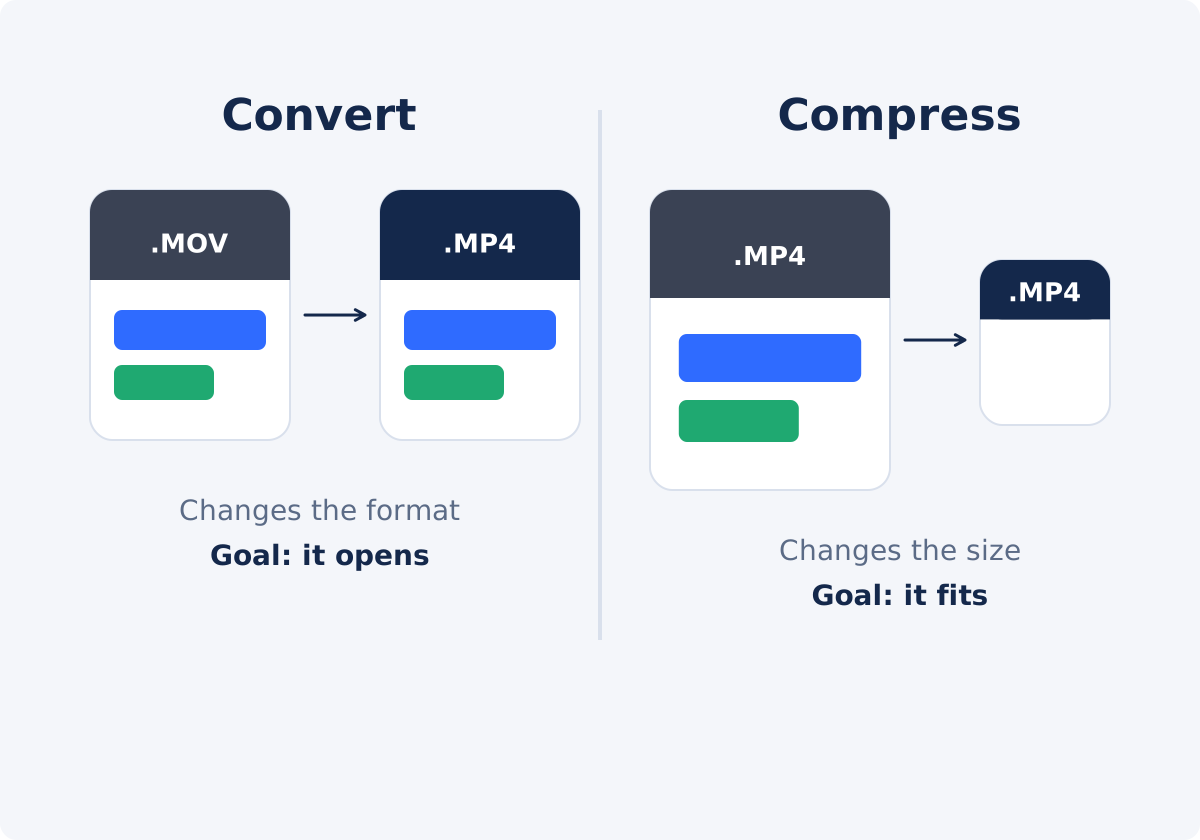
Video conversion creates a new file in a different output format. The purpose is compatibility. In Deus.Video, the Convert Video tool lets you choose one output, such as MP4, WebM, MOV, MKV, or AVI, and returns the converted file. It has no size, quality, bitrate, or resolution settings.
Video compression creates a new file that uses less data. The purpose is size. The Compress Video tool offers two presets, "High quality, medium size" and "Low quality, small size," plus a target file size in MB. Its output is an MP4. It has no format choice.
Comparison table
| Goal | Conversion | Compression |
|---|---|---|
| Make a file open on a device or in an app | Yes, this is its purpose | Only if MP4 is what the destination needs |
| Meet an upload-size limit | No; size may go up or down | Yes; use target file size with a margin |
| Change the file type, for example MOV to MP4 | Yes | The output is MP4, whatever the input |
| Choose a specific output format, such as WebM or MKV | Yes | No |
| Reduce storage or transfer time | Not reliably | Yes |
| Control the quality-to-size tradeoff | No controls for it | Presets or a target size |
| Keep quality as high as possible | One re-encode | One re-encode with a smaller data budget |
| Fix a damaged file or improve poor footage | No | No |
How container, codec, bitrate, resolution, and size relate
Five terms explain why the two operations differ.
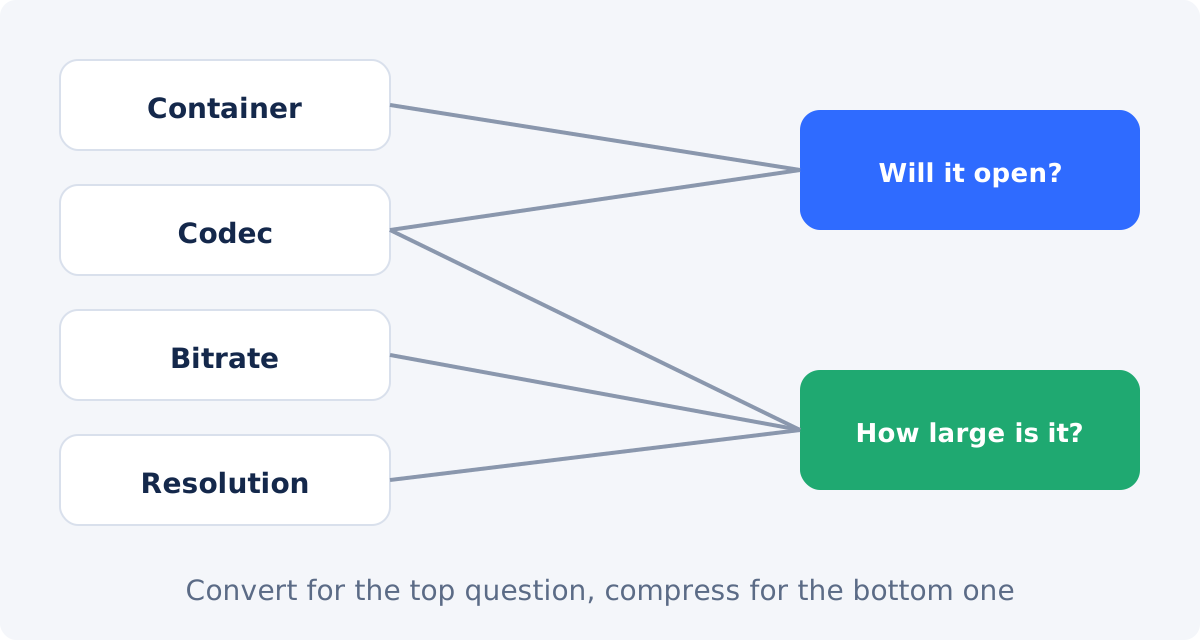
- A container is the file format that wraps the streams together: MP4, MOV, WebM, MKV, AVI. It mainly affects where the file can be opened.
- A codec is the method used to compress the video or the audio. Compressing with a codec is called encoding, and doing it again to an existing file is re-encoding. The codec affects compatibility, because the player needs a matching decoder. It also affects efficiency, meaning how much data is needed for a given quality.
- Bitrate is the amount of data used per second. It is the main driver of file size and a main driver of quality.
- Resolution is the number of pixels in each frame. More pixels need more bitrate to look good.
- File size is roughly the bitrate multiplied by the duration, plus a little container overhead.
Conversion works mostly on the first two: the container and the codec. Compression works mostly on the bitrate. That is why changing an extension, or even truly converting to another container, does not automatically make a video smaller. If the new file is encoded at a similar or higher bitrate, it will be similar in size or larger.
Four examples
The incompatible MOV
A client's Windows laptop will not play the MOV you sent. The size is fine, and the format is the obstacle. Convert it to MP4.
The large MP4
A 600 MB MP4 plays everywhere, but the portal accepts 100 MB. The format is fine, and the size is the obstacle. Compress it with a target somewhat below the limit. Converting it to another format would not help.
The WebM an editor refuses
A screen recording saved as WebM plays in the browser, but the video editor will not import it. That is a compatibility problem, so convert it to MP4. Expect the MP4 to be about the same size or larger, since WebM codecs are efficient.
The upload-size limit with an unusual file
An MKV of 900 MB has to go into a form that accepts MP4 only, up to 200 MB. Both problems are present. Because Compress Video outputs MP4, compressing the MKV to a target under the limit can solve both in one step.
When to use Convert Video
- The destination rejects the file type, or names a required format.
- A device or a program shows an error, a black picture, or plays no sound.
- You need a specific output: WebM for a web page, MOV for a particular workflow, or a legacy format for older equipment.
- Size is not the concern.
Conversion workflow
Use the Convert Video tool to convert a video online.
- Check which formats the destination accepts.
- Upload one video by drag and drop or with the file picker.
- Choose one output in the Format list. MP4 is selected by default.
- Click Convert video and wait for processing to finish.
- Download the converted file.
- Test it in the destination. Check picture, sound, duration, and sync.
- Reset the tool to convert another file or to try another format, always starting from the original.
When to use Compress Video
- The file already opens where it needs to, and it is too large.
- There is a hard upload limit to get under.
- You want faster transfers or lower storage use for copies that are not your master.
- An MP4 output is acceptable.
With Compress Video, choose a preset when the balance between quality and size matters more than a number, or enter a target size in MB when there is a limit. The target is an estimate, so leave a margin under a hard limit, and check the actual size of the download.

When both may be needed
If a file is both unsupported and too large, think about the order, because each step is another lossy encode.
- If the destination needs MP4: try Compress Video alone. It takes common input formats and returns an MP4, so one step may fix both problems with a single re-encode.
- If the destination needs a format other than MP4: conversion is required, since compression cannot produce it. Convert from the original and check the size. Compressing afterward would turn the file back into an MP4, so if the converted file is still too large, reduce it another way, for example by shortening it, or deliver it through a shared link.
- If you also need to edit: cuts, text, or audio changes should happen before the final encode. Do them in the full Deus.Video editor, export once, and then convert or compress only if the export does not fit the destination.
As a rule, run as few lossy steps as possible, always from the best source, and never chain tools on a file that has already been through them if the original is available.
Quality tradeoffs
Both operations re-encode the video, and re-encoding is lossy. The difference is how much pressure is applied.
Conversion aims for a working file in the new format. From a good source, one pass is usually hard to notice. Extras are a separate matter. Do not assume that transparency, subtitles, chapters, metadata, HDR, or additional audio tracks are carried into the new file.
Compression deliberately reduces the data budget, so the quality cost grows with the reduction. Strong compression shows up as blur, blocky squares, banding in gradients, smeared motion, and thin-sounding audio, particularly in footage with fast motion, water, foliage, grain, or dark scenes.
In both cases, keep the original file, compare the result with it in the hardest scenes, and produce any future version from the original again.
Decision checklist
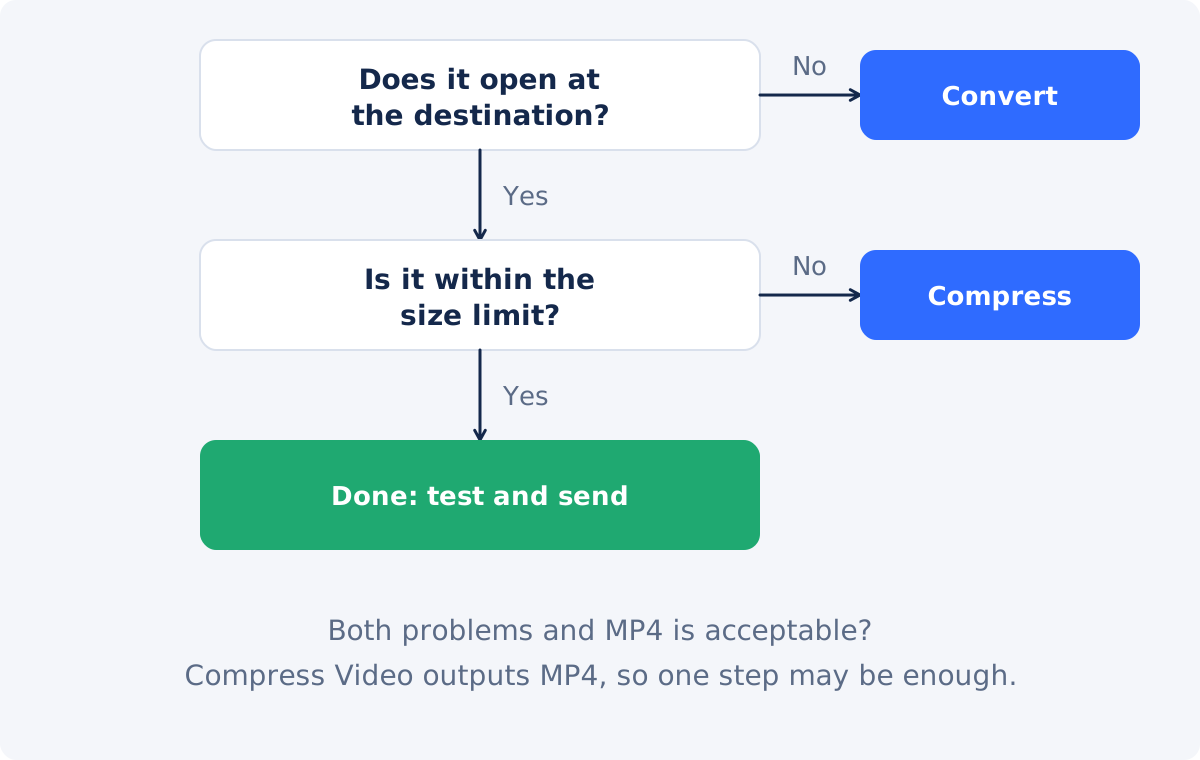
- Does the file open in the destination? If not, you need conversion, or compression when MP4 is acceptable.
- Does the destination publish accepted formats? Choose that output, not a guess.
- Is the file within the size limit? If not, you need compression.
- Is a specific non-MP4 format required? Then conversion is the tool, and size has to be managed separately.
- Do you need only part of the video? Shorten it first. Less duration means less data without forcing every wanted second into a smaller data budget. The trimming output may still be re-encoded, so review it too.
- Do you need only the sound, a still frame, or a GIF? Use Extract Audio, Convert Video to Photo, or Convert Video to GIF instead.
- Have you kept the original? Every new version should start from it.
- Have you tested the result where it will be used, and checked its actual size?
Conclusion
Conversion answers "will it open?" and compression answers "will it fit?" They share a mechanism, re-encoding, and a cost, some loss of quality, but they are not interchangeable. Identify which problem you have, use the tool made for it, combine them only when both problems are real, and start every step from the original file.
If the problem is a format your destination will not accept, open the Convert Video tool, choose the output it asks for, and test the result.
Frequently asked questions
Does converting a video make it smaller?
Not reliably. The result can be smaller, similar, or larger, depending on the source and on how the new file is encoded. A MOV with an editing codec often shrinks a lot when converted to MP4. A compact WebM often grows. Use compression when size is the goal.
Does compressing change the format?
In Deus.Video, the Compress Video tool returns an MP4 whatever you upload. If you need another format, use Convert Video.
Is changing the file extension the same as converting?
No. Renaming changes only the label. The container and the codecs inside stay the same, so a player that could not open the file before will not open it now, and the size does not change.
Which one reduces quality more?
Usually compression, because it deliberately lowers the amount of data. A single conversion from a good source is typically gentle. Both are lossy, and the loss adds up when steps are repeated.
Should I convert first or compress first?
If MP4 is acceptable, try compression alone, since it outputs MP4. If you need another format, convert from the original, and manage size separately. Avoid running both on the same file unless you have to.
Can I choose the codec or the bitrate in either tool?
No. Convert Video offers a choice of output format only. Compress Video offers two presets and a target size. Neither exposes codec, bitrate, resolution, or frame rate settings. The tools choose the required encoding settings automatically.


