What aspect ratio means
Aspect ratio is the ratio of an image's width to its height, written as width:height. A 16:9 frame is 16 units wide for every 9 units tall. The units do not matter. A 16:9 picture can be 16 centimeters by 9 centimeters on a phone, or 16 feet by 9 feet on a cinema wall.
To find the ratio of any video, divide its width by its height. 1920 ÷ 1080 = 1.78, which is 16 ÷ 9. 1080 ÷ 1080 = 1, a square. Ratios above 1 are horizontal, also called landscape. Ratios below 1 are vertical, also called portrait.
Aspect ratio versus pixel dimensions
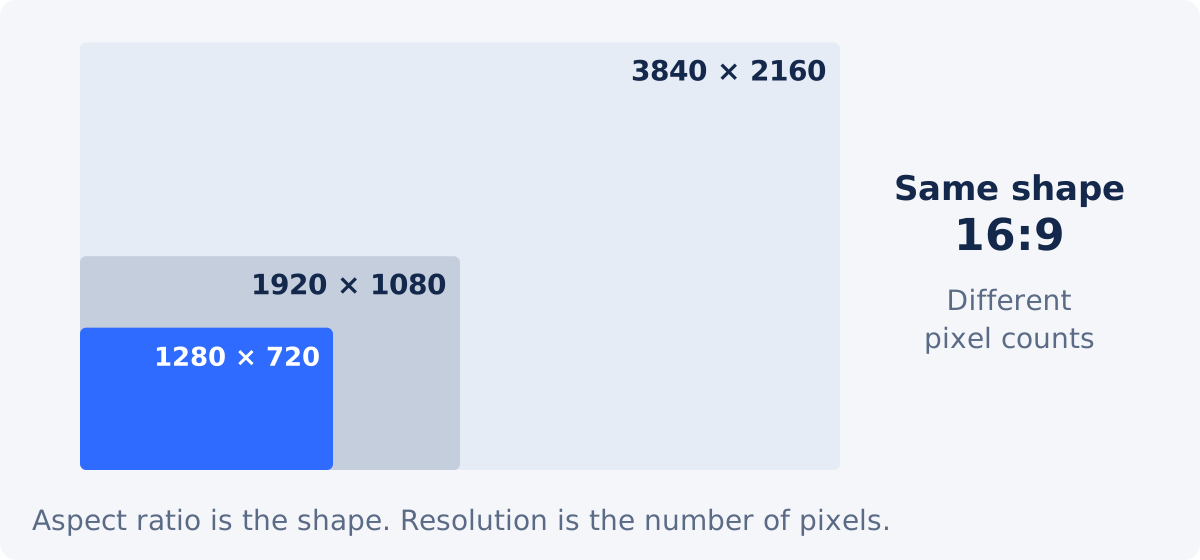
Pixel dimensions, or resolution, tell you how many pixels the frame contains, for example 1920 × 1080. Aspect ratio tells you only the shape. Many different resolutions share one shape: 1280 × 720, 1920 × 1080, and 3840 × 2160 are all 16:9.
This distinction matters when you crop. A crop preset fixes the shape of the selection. The number of pixels you end up with depends on how large you draw the selection inside the source. A 1:1 crop from a 1080p video can be 1080 × 1080, or 400 × 400, and the two will look very different on a large screen.
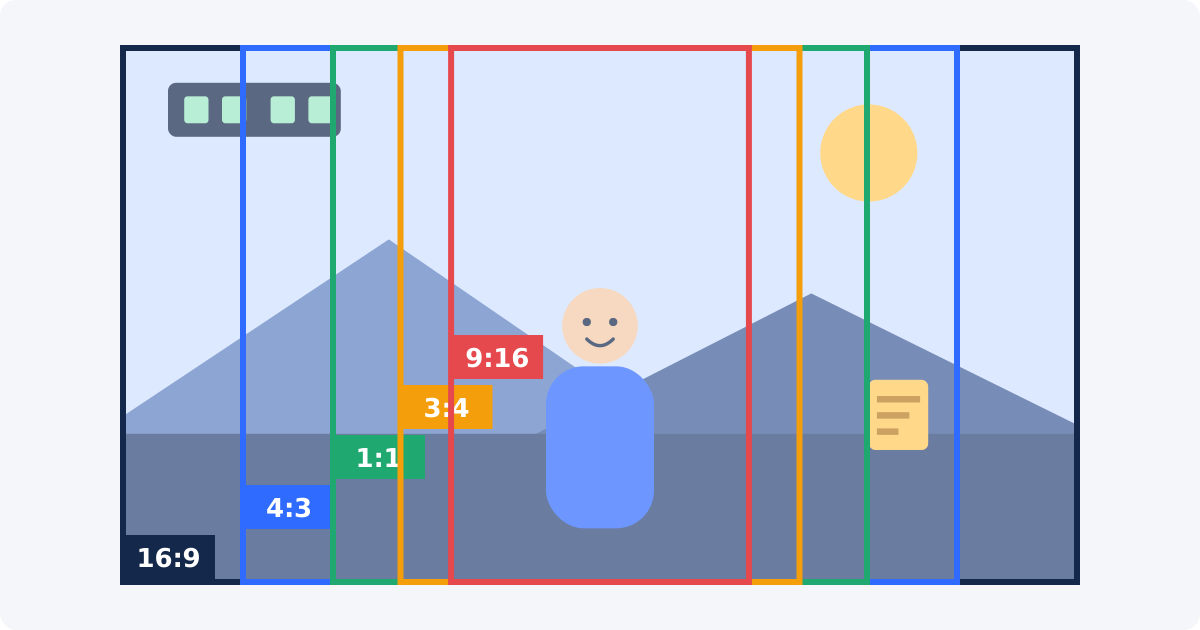
The five common ratios
16:9 horizontal video
The standard shape of TVs, monitors, laptops, and most video players. It suits wide scenes, two people in conversation, screen recordings, presentations, and anything watched on a desktop or a TV. Cameras and phones held sideways record it by default.
9:16 vertical video
The same proportions upright. It fills a phone held in one hand, which makes it the usual shape for short-form feeds. It suits a single person, full-length shots, tall subjects, and anything where the viewer's attention should stay on one thing. It handles wide scenes badly.
1:1 square video
Equal width and height. A square takes up more feed space than a horizontal video on a phone, without demanding a fully vertical composition. It suits a centered subject: a product, a face, a dish, a logo animation. There is little room at the sides, so it does not suit two people side by side.
4:3 landscape video
The shape of 20th-century television and of many older camcorders, webcams, and presentation slides. It is taller than 16:9 for the same width. You will meet it in archive footage and in slide-based recordings. Cropping 16:9 to 4:3 removes relatively little, which makes it a gentle way to tighten a loose wide shot.
3:4 portrait video
The upright version of 4:3. It is vertical, but noticeably wider than 9:16, so it keeps more of the scene around a person. It suits portraits with some environment, product shots with hands in frame, and feeds that display portrait posts without going fully full-screen.
Comparison table
| Ratio | Orientation | Example dimensions | Typical composition |
|---|---|---|---|
| 16:9 | Horizontal | 1920×1080 | Wide scenes, presentations |
| 9:16 | Vertical | 1080×1920 | Phone-first portrait framing |
| 1:1 | Square | 1080×1080 | Centered subject or product |
| 4:3 | Horizontal | 1440×1080 | Traditional footage and presentations |
| 3:4 | Vertical | 1080×1440 | Portrait-oriented composition |
These dimensions are examples of each shape, not mandatory export specifications. Any pixel size with the same proportion has the same aspect ratio, and platforms publish their own current recommendations.
How cropping changes aspect ratio
Cropping selects a rectangle inside the frame and removes everything outside it. If the rectangle has a different shape from the source, the video's aspect ratio changes to the shape of the rectangle.
Starting from a 1920 × 1080 source and using the full height, the largest possible selections are:
- 16:9: 1920 × 1080, the whole picture;
- 4:3: 1440 × 1080, which keeps 75% of the width;
- 1:1: 1080 × 1080, which keeps about 56% of the width;
- 3:4: 810 × 1080, which keeps about 42% of the width;
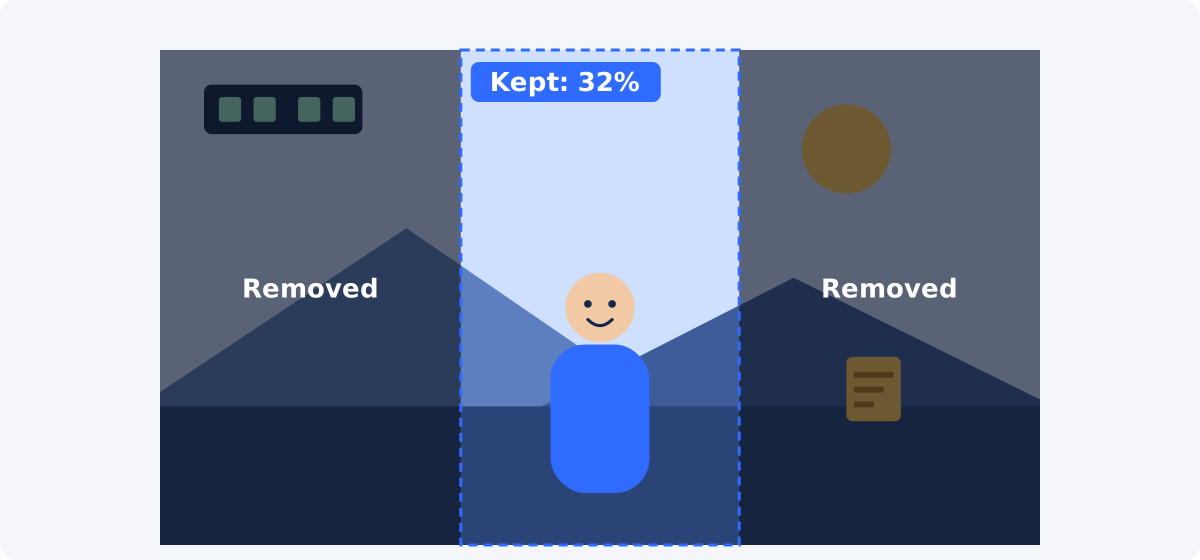
- 9:16: about 608 × 1080, which keeps about 32% of the width.
The list shows a pattern. The further the new shape is from the source shape, the more picture you give up.
Why changing aspect ratio may remove picture content
A rectangle of one shape cannot be fitted into a rectangle of another shape without one of three things happening: part of the picture is cut off, empty space is added around it, or the picture is stretched. Stretching distorts faces and circles, so it is not a real option. That leaves cropping and padding.
Going from 16:9 to 9:16 by cropping removes more than two thirds of the width. Anything that lived at the sides of the shot is gone: a second person, a sign, a caption, the context of a landscape. Going from 9:16 to 16:9 by cropping is just as severe in the other direction, and it removes the top and bottom.
Cropping versus placing a video on a different canvas
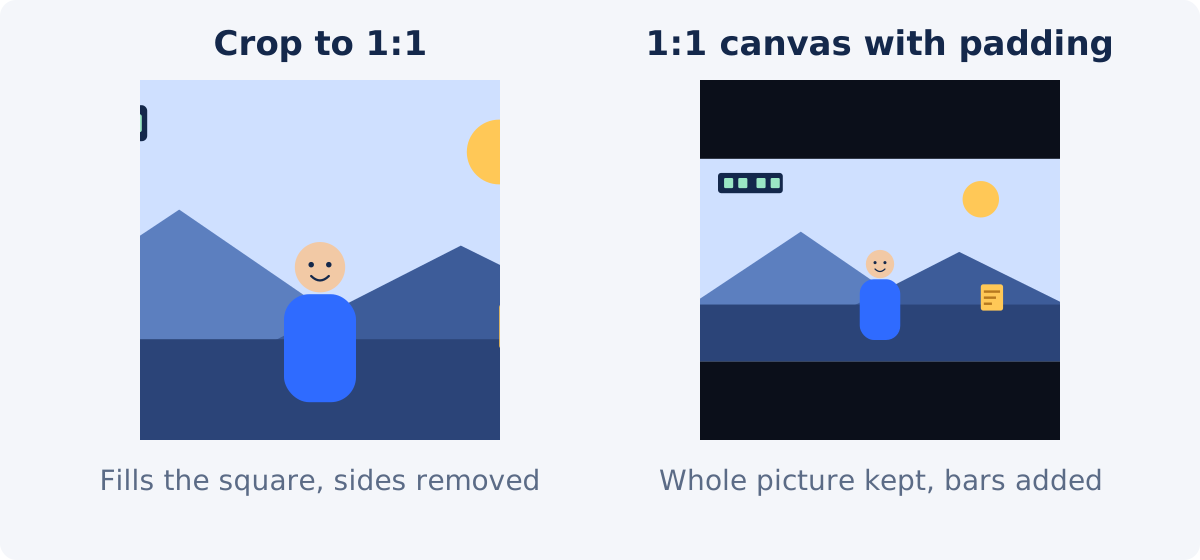
The alternative to cropping is to keep the whole picture and change the canvas around it. The canvas is the output frame. If you place a 16:9 video on a 1:1 canvas without cropping, the video fits the width, and empty bands appear above and below. Those bands can be black, a color, a blurred copy of the video, or a designed area with a title.
- Crop to ratio: the picture fills the new shape, and part of it is removed. The output has fewer source pixels than the original.
- Canvas with padding: the whole picture is kept and displayed smaller inside the new shape. Nothing is removed.
Crop Video does the first. For the second, use Resize Video, which changes the output dimensions and canvas without asking you to choose edges to discard. For the difference between these operations in more detail, see crop vs. resize vs. zoom vs. remove black bars.
Choose the ratio by content, not only by platform name
It is tempting to think "this platform wants 9:16" and crop everything to it. A better starting point is the footage.
- Where is the subject, and how wide is it? One person or one product fits almost any shape. Two people side by side need a horizontal shape, or at most a square.
- Does the subject move? Sideways movement needs width. A fixed narrow crop will lose a subject that walks across the frame.
- Is there text in the picture? Slides, interfaces, and captions need the area they occupy. Check that the new shape contains all of it.
- Where will it be watched? A phone held upright favors 9:16, 3:4, or 1:1. A desktop player, a TV, or a presentation favors 16:9.
- What does the destination currently accept? Platforms support several shapes and change their guidance, so check the official help page. YouTube Help, for example, explains that its player adapts to the aspect ratio of the uploaded video.
- How many pixels will remain? A narrow crop from a modest source may be too small for a large display.
If the content and the platform disagree, for example a wide group shot headed for a vertical feed, a padded canvas or a separate edit usually serves the viewer better than a forced crop.
How to use the aspect-ratio presets in Deus.Video
In the Crop Video tool, you can crop a video online with a preset shape or with free dimensions.
- Upload the video. Common inputs include MP4, MOV, AVI, WebM, and MKV. If the browser cannot display the format directly, the tool may prepare a compatible preview.
- Choose a preset: Custom, 1:1, 16:9, 9:16, 4:3, or 3:4. A preset locks the shape of the crop frame while you resize it. Custom lets you set any shape.
- Drag the crop frame over the part of the picture you want to keep. It can be moved anywhere inside the source video.
- Resize the frame with its handles, or type the output width and height in source-video pixels.
- Read the Selected source area. It shows the position and the size of the selection in pixels, which tells you how much resolution you are keeping.
- Preview the complete video. The same rectangle is applied to every frame, and it does not follow moving subjects.
- Click Crop Video, then download the result, or continue editing it in the full editor.
A preset controls the shape only. It does not apply a platform's publishing requirements, and the tool does not mark interface safe areas.

Conclusion
Aspect ratio is shape, and resolution is pixel count. Changing the shape by cropping always removes part of the picture, and the more the shapes differ, the more you lose. Look at where the subject sits and how it moves, decide whether cropping or a padded canvas serves it better, and only then pick 16:9, 9:16, 1:1, 4:3, or 3:4. Preview the full clip, and check the destination's current guidance before you publish.
When you know which shape fits your footage, select the area of the frame to keep with a preset, and check the retained pixel size before processing.
Frequently asked questions
Is 1920 × 1080 an aspect ratio?
No. It is a resolution. Its aspect ratio is 16:9, because 1920 ÷ 1080 equals 16 ÷ 9. Many other resolutions, such as 1280 × 720 and 3840 × 2160, have the same aspect ratio.
What is the difference between 9:16 and 3:4?
Both are vertical. 9:16 is tall and narrow and fills a phone screen. 3:4 is wider for the same height, so it keeps more of the scene at the sides. From a horizontal source, a 3:4 crop removes less than a 9:16 crop.
Does changing the aspect ratio reduce quality?
Cropping to a new ratio keeps fewer source pixels, so the natural size of the video gets smaller. It looks softer only if that smaller picture is then enlarged. A padded canvas keeps all the pixels and shows the picture smaller.
How do I change the aspect ratio without cutting anything off?
Place the video on a canvas of the new shape and fill the remaining space with bars, a color, or a blurred background. That is a resize or canvas operation, not a crop.
Which aspect ratio should I use for social media?
It depends on the platform, the placement, and the content. Vertical and square shapes take more space on phones, and horizontal video suits desktop and TV viewing. Platforms update their guidance, so check the current official help page, and choose the shape that keeps your subject intact.
Can I enter an exact size, not a ratio?
Yes. With the Custom preset, you can drag the frame freely or type the output width and height in source-video pixels.
Sources
- Wikipedia, "Aspect ratio (image)" – definition, common ratios, and conversion by cropping, padding or stretching: https://en.wikipedia.org/wiki/Aspect_ratio_(image)
- YouTube Help, "Video resolution & aspect ratios" – the player adapts to the video's aspect ratio: https://support.google.com/youtube/answer/6375112 (checked September 17, 2026)
- Wikipedia, "Pillarbox" – padding a narrower picture inside a wider frame: https://en.wikipedia.org/wiki/Pillarbox
- Deus.Video, Crop Video tool page – presets Custom, 1:1, 16:9, 9:16, 4:3, 3:4; pixel fields; selected source area: https://deus.video/crop-video/ (checked September 21, 2026)


