
What "mirrored" means
A mirror image is a picture in which left and right are swapped, the way you see yourself in a bathroom mirror. A horizontal flip is the operation that produces it: every frame is reflected across a vertical line through the middle, so what was on the left ends up on the right.
The same operation also undoes it. If a video was saved as a mirror image, one horizontal flip restores the true orientation. A vertical flip is different. It swaps top and bottom and has nothing to do with reversed text.
How to check text, logos, clocks, interfaces, and direction
Faces and landscapes look plausible either way, so they are poor evidence. Look for things that have a known correct orientation.
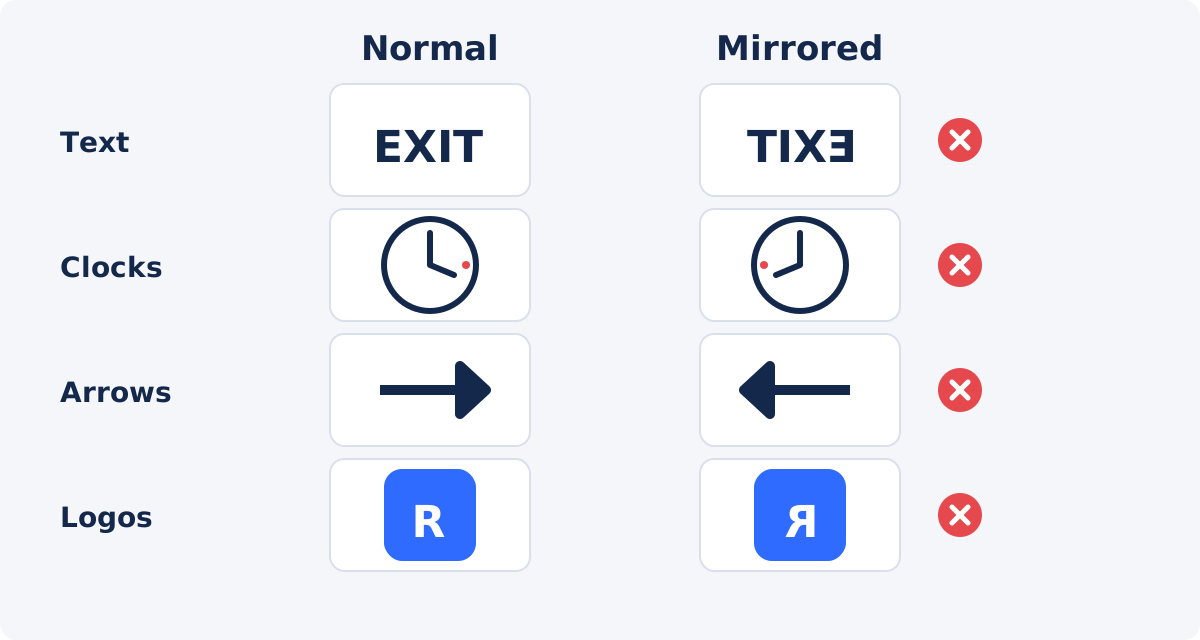
- Text. Signs, book spines, T-shirts, packaging, whiteboards, subtitles burned into the picture. Reversed letters are the clearest sign.
- Logos. Brand marks on clothing, devices, vehicles, and storefronts. Even symmetrical-looking logos usually have lettering nearby.
- Clocks and watches. On a mirrored analog clock, the numbers run counterclockwise. Most people wear a watch on the left wrist.
- Interfaces. In a screen recording or a shot of a monitor, menus sit on the wrong side and text is reversed.
- Directional actions. Traffic on the wrong side of the road for the country, a right-handed person writing with the left hand, a guitar held the other way, a steering wheel on the wrong side, a wedding ring on the other hand.
One clue is enough to raise suspicion. Two independent clues, such as reversed lettering plus a watch on the wrong wrist, settle it.
Mirrored preview vs. mirrored exported file
This distinction prevents most mistakes. Many camera and video-call apps show you a mirrored preview, because people find it natural to see themselves as in a mirror. That preview is a display choice. It does not tell you how the file was saved.
Some apps save the recording the way the preview looked. Others save it unmirrored. Some let you choose in their settings. The behavior varies between devices, apps, and versions, so do not assume.
- Find the actual saved file, not the in-app preview.
- Open it in an ordinary video player, ideally on a computer.
- Pause on a frame with text or another clear clue.
- If the text is readable, the file is fine, and no flip is needed.
- If the text is reversed in that player, the file is mirrored.
How to fix a mirrored video in Deus.Video
With the Flip Video tool, you can fix a mirrored video by reflecting every frame left to right.
- Upload the video. Common inputs include MP4, MOV, AVI, WebM, and MKV.
- Choose Horizontal. Click the Horizontal quick preset, or switch on the Horizontal flip toggle. The presets are Original, Horizontal, Vertical, and Both.
- Look at the live preview. A label in the corner of the preview names the selected reflection. Text in the picture should now read normally.
- Play the clip and pause on several frames with text, logos, or a clear direction.
- Leave Vertical flip off. It swaps top and bottom, which is not part of this fix.
- Click Flip Video and wait for processing. The button stays inactive until at least one direction is selected.
- Download the result, or continue editing it in the full editor.
The tool creates a new processed file and leaves your upload unchanged. The frame size, the duration, and the playback order stay the same. Because the result is encoded again, which is called re-encoding, its file size and fine detail can differ slightly from the source.

When flipping the whole frame is the wrong fix
A flip reflects everything in the picture. It cannot tell the footage from text that was added later, and it cannot flip one object while leaving the rest alone.
The footage is mirrored, and correct captions were added on top
If you unmirror that file, the footage becomes correct, and the captions, titles, or logo you added become reversed. Go back to the version without overlays, flip that, and then add the text again, for example in the full Deus.Video editor, where text and images are separate layers on top of the video.
The footage is correct, and only an added graphic is reversed
Flipping the frame would fix the graphic and break everything else. Replace or re-create the graphic in the editor instead. If the graphic is a separate element in an editor project, it can be mirrored on its own there: select it, and drag the handle on one side across the opposite edge.
You want to keep the mirrored look
Some creators prefer their mirrored selfie appearance, because it matches what they see every day. That is a legitimate choice. If only a small piece of text in the background is reversed, you can leave the footage as it is and add a clear, readable label or caption as a new layer.
Only part of the video is mirrored
In a compilation, one clip may be mirrored and the others not. The standalone tool flips the entire file. Split out the mirrored clip, flip it on its own, and reassemble the video in an editor.
Why a second horizontal flip returns the original
A horizontal flip is its own opposite. Flip once, and left becomes right. Flip the result again, and right becomes left again, which is where you started. Geometrically, nothing is lost.
This has two practical consequences. First, a wrong flip is easy to reverse, as far as orientation goes. Second, it explains a common confusion: if a file was already correct and you flipped it "to be safe," you have now mirrored it.
There is one caveat. Each processing pass re-encodes the video, and repeated encoding can reduce quality slightly. If you flipped by mistake, do not flip the flipped file back. Return to your original file, which is still correct and untouched.

Symptoms, causes, and the right action
| Symptom | Likely issue | Correct action |
|---|---|---|
| All text in the saved file reads backward | The whole file was saved mirrored | Horizontal flip |
| Text is reversed only in the camera app's preview | Mirrored preview; the file may be fine | Check the saved file in a regular player first |
| Footage looks right, but your added title is reversed | The overlay was mirrored, not the footage | Fix the overlay in an editor; do not flip the frame |
| Footage is mirrored, and burned-in captions are readable | Captions were added after mirroring | Flip a version without captions, then add them again |
| Picture is upside down | Orientation problem, not mirroring | Rotate by 180° |
| Picture lies on its side | Orientation problem | Rotate by 90° or 270° |
| Motion plays backward in time | Reversed playback, not a mirror | Use a reverse tool |
| One clip in a compilation is mirrored | Mixed sources | Flip that clip separately, then reassemble |
| Text is readable after the flip, but your hair part looks "wrong" to you | You are used to your mirror image | Nothing; this is how others see you |
For sideways and upside-down footage, Rotate Video is the matching tool.
Checklist after download
- Open the downloaded file in a regular player, not only in the browser.
- Pause on text: signs, clothing, packaging, screens. All of it should read normally.
- Check a logo and, if there is one, a clock or a watch.
- Check handedness and direction: which hand writes, which way traffic moves.
- Look at any captions or titles that were already in the video. If they are now reversed, see the section above.
- Confirm the duration matches the source, and that the sound is present and in sync.
- Compare sharpness with the source on a detailed scene, since the file was re-encoded.
- Keep the original file until you are sure about the result.
Conclusion
Unmirroring is a single horizontal flip, and the work lies in the diagnosis. Check the saved file, not the preview. Look for text, logos, clocks, and handedness. Flip the whole frame only when the whole frame is mirrored, and handle added overlays separately. Then verify the download with the same clues you used to spot the problem.
Found reversed lettering in your saved clip? Open the Flip Video tool, choose Horizontal, and check the preview before you download.
Frequently asked questions
How do I know whether my video is mirrored?
Open the saved file in a normal player and pause on something with a known orientation: text, a logo, a clock face, a watch, or a right-handed action. If letters read backward, the file is mirrored. Faces and scenery alone are not reliable evidence.
Will a horizontal flip make all text readable?
It makes text readable if that text was reversed by mirroring. It reverses any text that was correct before the flip, such as captions added afterward. A flip reflects the entire picture and cannot treat text differently from footage.
Do I need to unmirror every selfie video?
No. It depends on how the file was saved and on the result you want. Many saved selfie videos are already unmirrored. If yours is mirrored and contains no text or direction-sensitive content, leaving it as it is can be a valid choice.
Does flipping reduce quality?
The flip itself only rearranges pixels. The result is encoded again, so file size and fine detail can change slightly. Work from the original file, and avoid flipping the same file repeatedly.
What is the difference between Horizontal and Both?
Horizontal swaps left and right. Both applies the horizontal and the vertical reflection together, which looks the same as turning the picture 180°. For reversed text, use Horizontal only.
Can I flip only one object or one part of the frame?
No. The standalone tool reflects the whole frame for the whole video. For separate handling of footage and overlays, use an editor where they are separate layers.


