Definitions
Trim
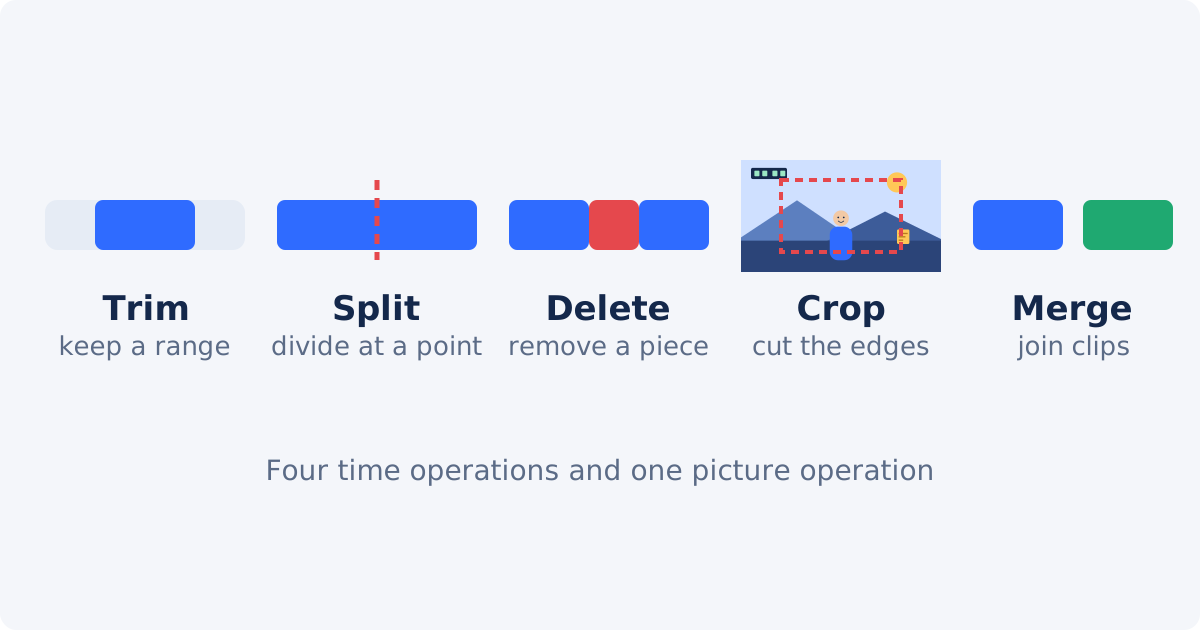
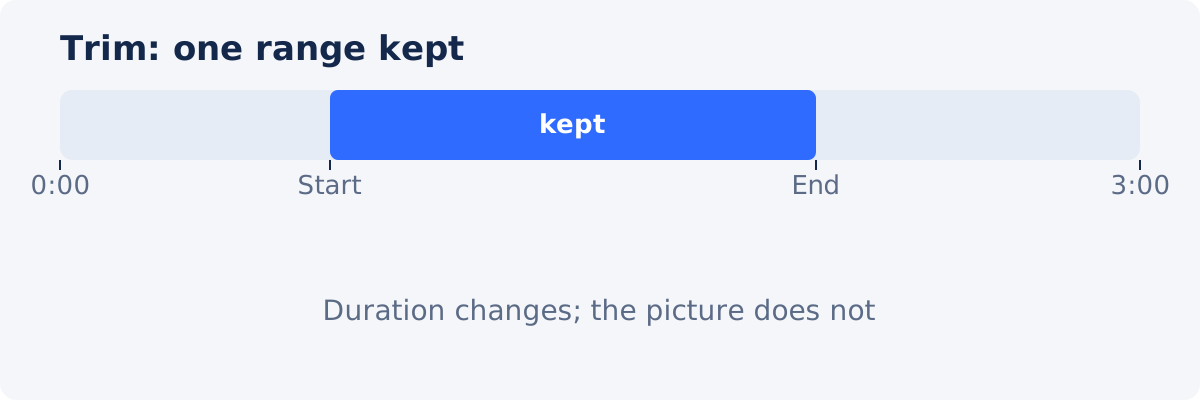
A trim keeps one continuous range between a Start and an End and removes everything before and after. It changes the duration and nothing else: the frames inside the range are the recorded frames. Typical uses are removing setup time from the beginning, an empty ending, or lifting one highlight from a long recording. In Deus.Video, this is the Trim Video tool.
Cut
"Cut" is the everyday word and the ambiguous one. People say "cut the video" to mean trim it, shorten it, take a piece out of the middle, or divide it into parts. In editing, a cut is also the transition between two shots. When someone asks for a cut, find out which result they want before choosing a tool; most of the time it is a trim.
Split
A split divides one clip into two at a chosen time on the timeline. Nothing is removed by the split itself; the video plays exactly as before, in two pieces. Splitting is a preparation step: it creates the boundaries that a later delete, move, or effect will use. In Deus.Video, Split is a button in the full editor that cuts the selected clip at the playhead.
Delete
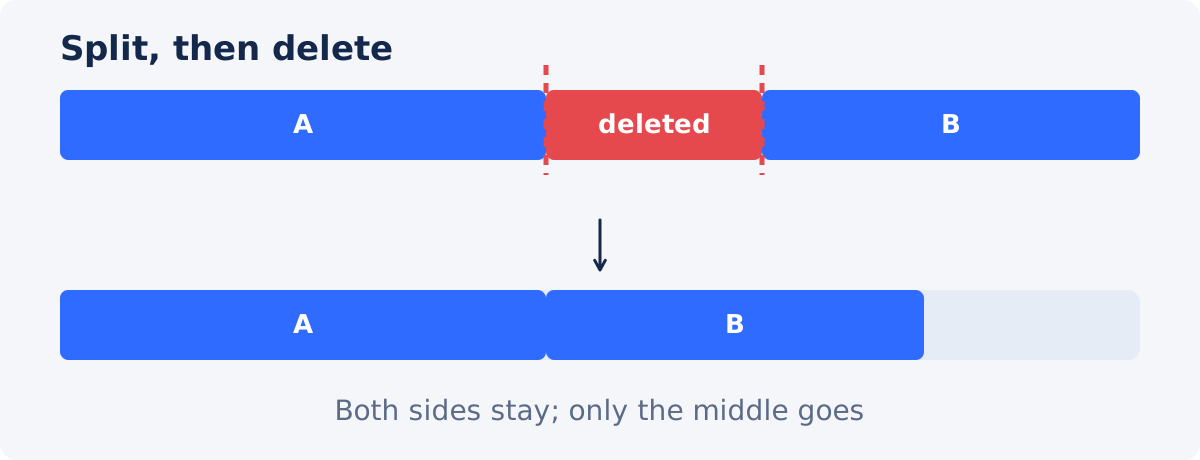
Deleting removes one of the pieces made by splitting, from the right-click menu on the timeline or with the Delete key. Split twice and delete the middle piece, and a section is gone while both sides remain, which is the operation people usually mean by "cut out the middle." This is also done in the full editor.
Crop
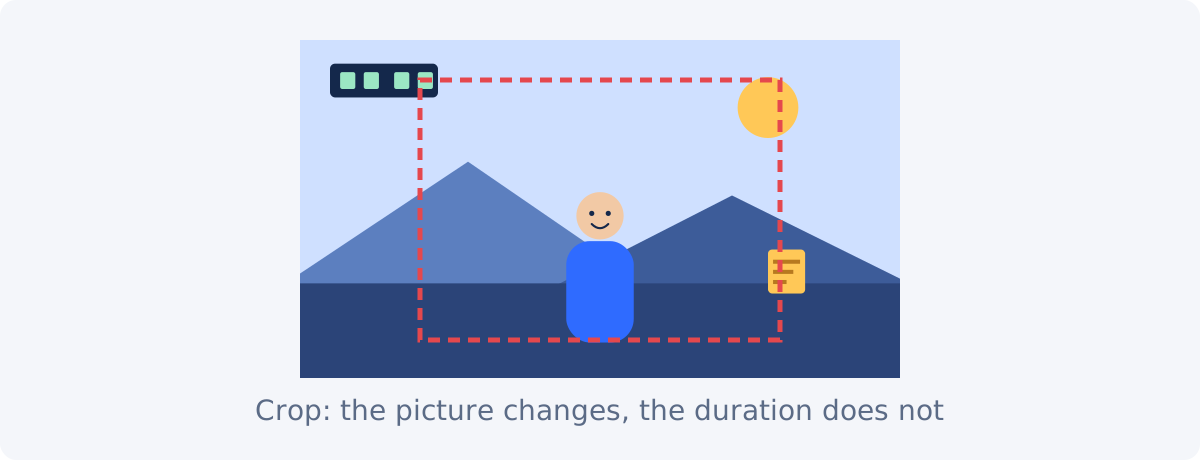
A crop keeps a rectangular area of the picture and removes the strips outside it. It changes the frame, its dimensions and often its shape, and leaves the duration alone. Cropping is how a horizontal video becomes a vertical one, how a distracting edge is removed, or how a subject is reframed. In Deus.Video, this is Crop Video. Trimming and cropping are different operations on different axes: one on time, one on space.
Merge
A merge joins two or more clips in sequence into one file. The duration is the sum of the parts. Merging is the last step when highlights were extracted separately, or when the two halves of a video were trimmed separately and need to be one file again. In Deus.Video, this is Merge Videos.
Comparison
| Operation | Changes duration | Changes visible frame | Typical goal | Recommended Deus tool |
|---|---|---|---|---|
| Trim | Yes | No | Keep one timeline range | Trim Video |
| Split | Not by itself | No | Divide a clip at a point | Full editor |
| Delete segment | Yes | No | Remove an internal scene | Full editor |
| Crop | No | Yes | Remove picture edges | Crop Video |
| Merge | Usually yes | No | Join separate clips | Merge Videos |
Trim: one range on the timeline
Picture the video as a bar. A trim marks two points on it and keeps what is between them. The result starts at the first point and ends at the second. It cannot skip anything in between, which is why a trim solves "too much at the start" and "too much at the end" and "I only need this part," and does not solve "there is a mistake in the middle."
Split and delete: removing from the middle
Two split points turn one clip into three pieces. Deleting the middle piece and closing the gap gives a video with the section removed and both sides intact. The result is shorter, and it has a join where the two remaining pieces meet, which is worth checking for a clipped word or a jump in the picture. Because this happens on an editor timeline, the same session can add a fade at the join, remove further sections, or place other clips around the result.
Crop: part of the picture
A crop draws a rectangle on the frame and keeps only what is inside it, for the whole duration. The video is as long as before; the picture is smaller, or a different shape. People sometimes reach for a crop when they mean a trim, because "cut off the edges" sounds like "cut off the ends." The test is what you want to lose: seconds or pixels.
Video cutter, clipper, trimmer: the same intent, different jobs
Search results are full of tools called video cutter, video clipper, MP4 cutter, and video trimmer. The names describe the same broad intent, making a video shorter, and they do not tell you which operation the tool performs. A "cutter" may keep one range, may remove a middle section, or may split into parts. Rather than matching the name, decide what the finished video should contain, and pick the operation from that:
- The finished video is one continuous stretch of the original: trim.
- The finished video is the original with a piece taken out of the middle: split and delete.
- The finished video shows less of the picture: crop.
- The finished video is several pieces played one after another: merge.
One tool for each of those is enough; separate tools for each synonym would only be the same operation under different names.
Decision tree
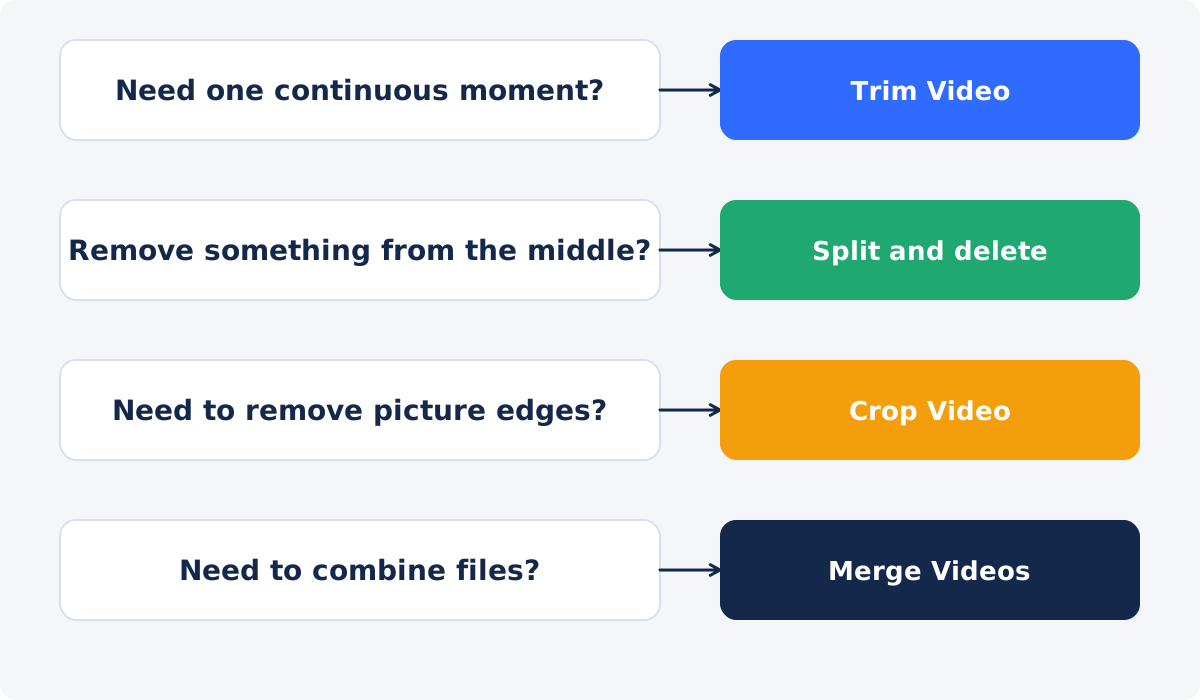
- Need one continuous moment? Trim. In Deus.Video, you can trim a video online by setting Keep from and Keep until.
- Need to remove something from the middle? Split before it, split after it, and delete the middle piece in the full editor.
- Need to remove picture edges? Crop, with Crop Video.
- Need to combine files? Merge, with Merge Videos.
Combinations are common: extract two moments with the trimmer and merge them; crop a trimmed clip to vertical for a phone feed; split and delete two sections and then trim the ending. Do the time operations first, because a crop applied to the whole video is more work if the video is longer than it needs to be.
What each operation does to the file
All of these produce a new file; none of them changes the source. A trim, a delete, and a merge change the duration and re-encode the picture when the result is written, while the audio is carried over. A crop re-encodes the picture too, because the frame changes. Doing several operations in one editor project and exporting once means one encode instead of one per tool, which is the argument for the full editor whenever a job involves more than a single trim.
Trimming in Deus.Video
- Upload the video. MP4, MOV, AVI, WebM, MKV, and other common formats are accepted.
- Set Keep from and Keep until, typed as seconds, MM:SS, or HH:MM:SS, or by dragging the timeline handles.
- Preview the selected fragment with Play.
- Click Trim Video, then download the result or open it in the full editor.

Conclusion
Trim keeps a range of time. Split divides, delete removes a piece, and together they take a section out of the middle. Crop removes picture, not time. Merge joins files. "Cut" can mean any of them, so choose by the result: seconds or pixels, one stretch or several, one file or many.
If the answer is one continuous stretch of the original, use the online video trimmer, set the two points, and download the shorter file.
Frequently asked questions
Is trimming the same as cutting a video?
Usually that is what people mean, but "cut" is ambiguous. Trimming keeps one range of time. If "cut" means taking a piece out of the middle, that is split and delete; if it means removing edges of the picture, that is crop.
What is the difference between trim and crop?
Trim removes time: the video gets shorter and the picture stays the same. Crop removes space: the picture gets smaller or changes shape and the duration stays the same. They are separate tools in Deus.Video.
Does splitting a clip remove anything?
No. A split only divides the clip into two pieces at a point; playback is unchanged. Removing happens when you delete one of the pieces.
How do I take out a section from the middle?
Split at the start of the section, split at the end, delete the middle piece, and close the gap. This is done in the full editor, because the standalone trimmer keeps only one continuous range.
Which tool should I use for a video cutter search?
Decide what the finished video should contain. One continuous stretch: Trim Video. A middle section removed: split and delete in the editor. Less picture: Crop Video. Several pieces joined: Merge Videos.
Can I do all of these in one place?
Yes, in the full editor, which trims, splits, deletes, crops on a canvas, and places clips in sequence, then exports once. The standalone tools are quicker for a single operation.
Sources
- Deus.Video, "Trim Video Online" tool page: https://deus.video/trim-video/ (accessed September 23, 2026)
- Deus.Video, "Crop Video" tool page: https://deus.video/crop-video/ (accessed September 23, 2026)
- Deus.Video, "Merge Videos" tool page: https://deus.video/merge-videos/ (accessed September 23, 2026)
- Wikipedia, "Cropping (image)," for the definition of cropping as removing outer areas of a picture: https://en.wikipedia.org/wiki/Cropping_(image) (accessed September 23, 2026)
- Wikipedia, "Cut (transition)," for the editing sense of the word cut: https://en.wikipedia.org/wiki/Cut_(transition) (accessed September 23, 2026)


