What happens during trimming
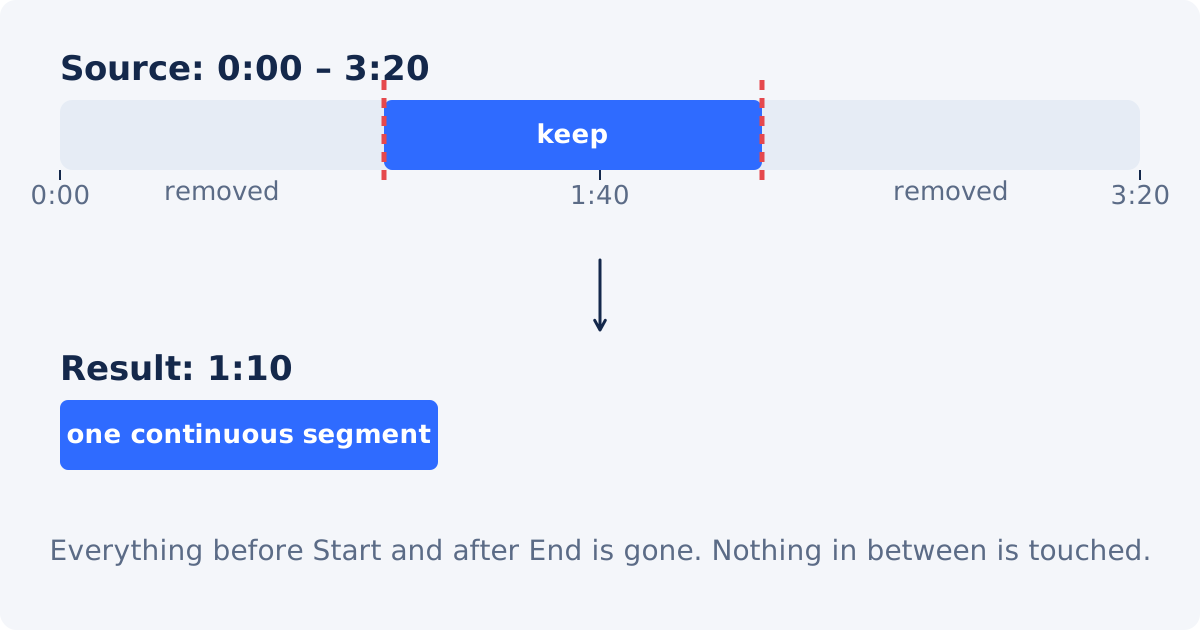
A trim keeps one continuous range of a video, from a Start time to an End time, and removes everything before and after. The frames inside the range are not changed by the trim itself. Nothing is scaled, cropped, or filtered; the picture and the sound between the two boundaries are exactly what was recorded.
What changes is the file. The shorter video has to be written out as a new file, and how that file is written decides whether any detail is lost. There are two ways to do it.
Trimming vs. re-encoding
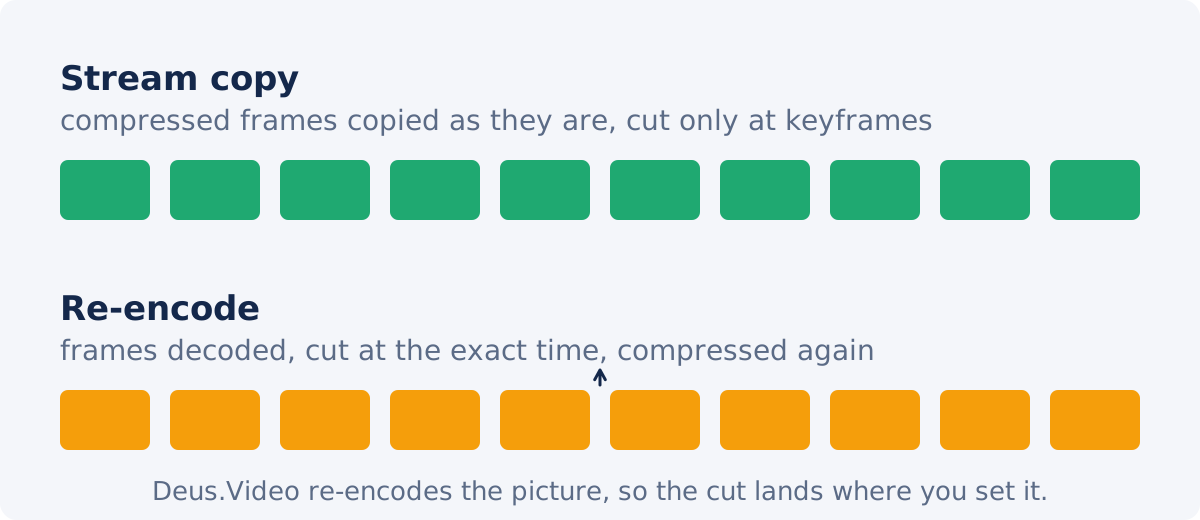
Stream copy copies the compressed frames from the source into the new file without decoding them. No detail is lost, because the data is identical. The limitation is that a compressed video can only be entered at certain frames, called keyframes, so the cut can only fall on those frames, which may be a second or more apart.
Re-encoding decodes the frames, cuts at the exact time you asked for, and compresses the frames again into the new file. The cut is accurate to the frame, and the tool can start the output anywhere. The cost is that compression runs again on the picture, and each pass discards a little detail. With a good encoder at a reasonable quality setting, one pass is hard to see; several passes are not.
Deus.Video's Trim Video tool re-encodes the picture and copies the audio as it is. That means the cut lands on the frame you set, the sound is untouched, and the video has been through one more encode than the source. There is no quality slider or bitrate control in the tool, so the way to protect quality is the input you give it and the number of times you export.
Keyframes in plain words
Compressed video does not store every frame as a full picture. Most frames are stored as differences from the frames around them. Every so often, typically every one to ten seconds depending on the encoder settings, there is a full picture called a keyframe, and the frames after it are described relative to it.
To start playing, or to start a copy, from a given frame, a decoder has to begin at the keyframe before it and work forward. A tool that copies streams without decoding therefore has to begin the new file at a keyframe. A tool that decodes can start anywhere, because it rebuilds the frames it needs and drops the ones before your Start.
Why a cut sometimes lands a few frames off
When a trim seems to start slightly before or after the time you typed, the tool is usually a stream-copy trimmer that moved the cut to the nearest keyframe. The shift is the distance between your Start and that keyframe: nothing, or up to several seconds on footage with sparse keyframes.
A re-encoding trimmer does not have this problem for the picture. It can still show a very small offset in the audio, a fraction of a frame, when the audio is copied as-is, because compressed audio is stored in short blocks and the copy begins at a block boundary. In practice this is a few milliseconds and not audible as a sync problem. If a cut looks off by a whole second or more, the cause is keyframe alignment in another tool, or a Start typed in the wrong format.
Why repeated exports degrade the result
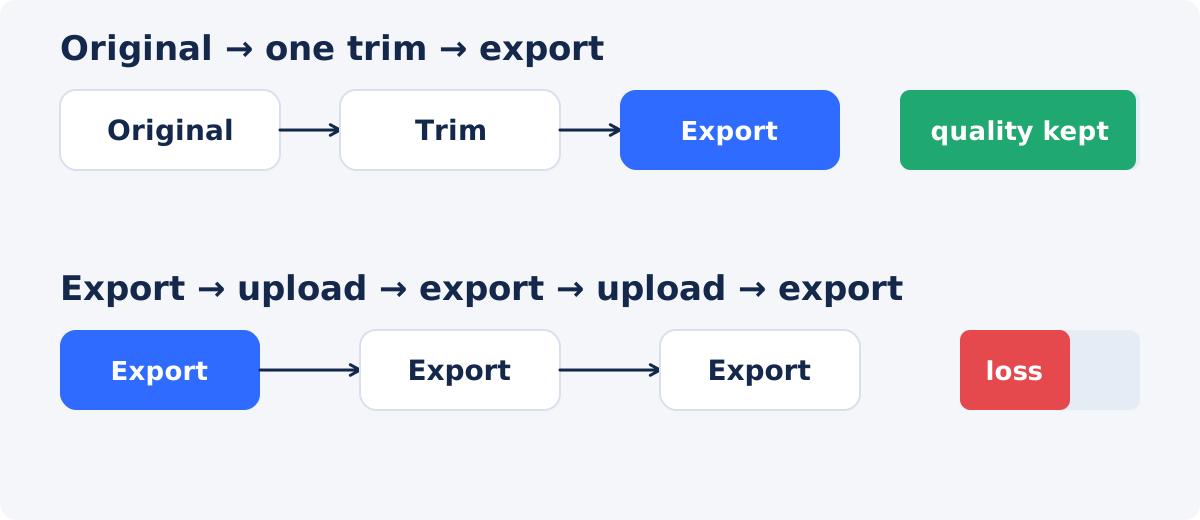
Each time a video is encoded, the compressor decides what detail to keep and what to throw away. It never gets detail back. A file that was exported from a phone, uploaded to a platform that re-encoded it, downloaded again, trimmed, and exported has been compressed four times, and each round works on a picture that has already lost something. This is called generation loss. It shows first in fine textures, gradients such as sky, sharp text, and fast motion, which turn soft or blocky.
The fix is not a setting. It is to reduce the number of rounds: start from the earliest file you have, do all the changes you need, and export once.
Use the original source file
The original is the file the camera or the screen recorder wrote, or the first export from your editing project. It has been compressed once. A copy that came back from a messaging app, a social platform, or a previous edit has been compressed at least twice, often at a lower quality than the original.
Find the original before trimming. If several versions exist, the largest file at the same resolution is usually the least compressed. If only a compressed copy exists, trim that; one more encode on a compressed copy is still better than trimming and re-exporting it several times.
| Workflow | Expected quality impact | Recommended use |
|---|---|---|
| Original file → one trim → export | Lowest practical risk | Normal trimming |
| Compressed copy → trim → export | Artifacts may become more visible | When no original exists |
| Multiple upload/export cycles | Accumulated generation loss | Avoid when possible |
| Higher-resolution export from a small source | No new recorded detail | Not a quality fix |
How to trim an MP4 in Deus.Video
With the tool, you can trim a video online in one pass from the original file.
- Upload the original. MP4, MOV, AVI, WebM, MKV, and other common formats are accepted. If your browser cannot play the format directly, the tool prepares a compatible preview before you set the range.
- Set Keep from. Type the start as seconds, MM:SS, or HH:MM:SS, or drag the left handle on the timeline under the player.
- Set Keep until. Type the end, or drag the right handle.
- Read Selected clip. It shows the source duration and resolution, and the Start, End, and Duration of your selection.
- Press Play to preview the selected fragment. Check both ends.
- Click Trim Video and wait for processing. Longer files take longer.
- Download the result, or open it in the full editor.
The output keeps the format of the upload: an MP4 comes back as an MP4. The source file is not changed.

How to check the result
Play the downloaded file, not the preview, and look at these points.
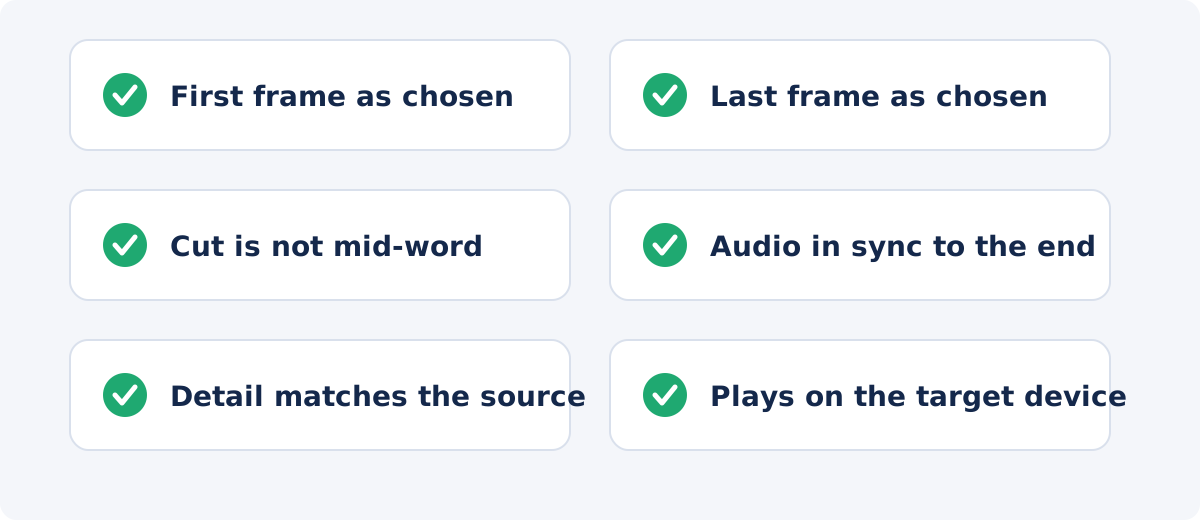
- First and last frames. Pause at the very start and the very end. They should be the frames you chose.
- Duration. Compare the file's duration with the Selected clip readout. Small differences of a fraction of a second are normal.
- The cuts. Speech should not start or end mid-word, and the picture should not jump.
- Audio sync. Watch a moment near the end where lips or an impact are visible.
- Fine detail. Pause on text, hair, or a gradient and compare with the source at the same on-screen size. Slight softening is normal for one encode; heavy softening means the source was already a compressed copy.
- File size. Note it, but do not read quality into it. The new encode can be larger or smaller than the same seconds of the source.
Keep the original until you have checked the result, and preferably afterward too.
When you need the full editor
The standalone trimmer keeps one range. Use the full Deus.Video editor when the job is more than that: removing a section from the middle while keeping both sides, which is done by splitting the clip at two points and deleting the middle piece from its right-click menu or with the Delete key; making several cuts in one video; combining a trim with text, audio, or other clips; or fitting a trimmed clip to a platform's canvas. The editor does all of it in one project and exports once, which keeps the number of encodes at one.
Conclusion
Trimming removes time, and the export that writes the shorter file is where quality can go. Keep it to one export from the original, expect a frame-accurate cut because the picture is re-encoded, and expect the audio to be untouched because it is copied. Check the first frame, the last frame, and the cuts in the download, and keep the source.
Have the original file at hand? Cut an MP4 video with Deus.Video, set the range once, and compare the download with the source before you share it.
Frequently asked questions
Does trimming reduce video quality?
The trim itself does not; the frames inside the range are unchanged. The export that writes the shorter file re-encodes the picture, which can cost a little detail. One export from an original is usually not visible. Repeated exports are.
Is the trim lossless?
No. The picture is re-encoded and the audio is copied. The tool does not promise unchanged quality, bitrate, or file size. The advantage of re-encoding is that the cut lands exactly where you set it rather than at the nearest keyframe.
Why does my trimmed video start a second early in another tool?
That tool copies the stream without decoding, so it can only start at a keyframe and moved the cut to the nearest one. A re-encoding trimmer starts at the frame you chose.
Will the audio change?
No. The audio is copied as it is, so it sounds the same and stays in sync. A start offset of a few milliseconds at the very beginning is possible and not audible.
Can I improve quality by exporting at a higher resolution?
No. A larger frame has no more recorded detail than the source. Trim at the source resolution and keep the number of exports to one.
What if I only have a compressed copy?
Trim it once and export once. One more encode on a compressed copy is acceptable; trimming it, re-uploading, and exporting again several times is what makes artifacts obvious.
Sources
- Deus.Video, "Trim Video Online" tool page: https://deus.video/trim-video/ (accessed September 23, 2026)
- Wikipedia, "Key frame" (video compression section), for what keyframes are and why decoding starts at them: https://en.wikipedia.org/wiki/Key_frame (accessed September 23, 2026)
- Wikipedia, "Generation loss," for the accumulation of loss over repeated lossy encodes: https://en.wikipedia.org/wiki/Generation_loss (accessed September 23, 2026)
- Wikipedia, "Video coding format," for the distinction between the compressed stream and the container: https://en.wikipedia.org/wiki/Video_coding_format (accessed September 23, 2026)


