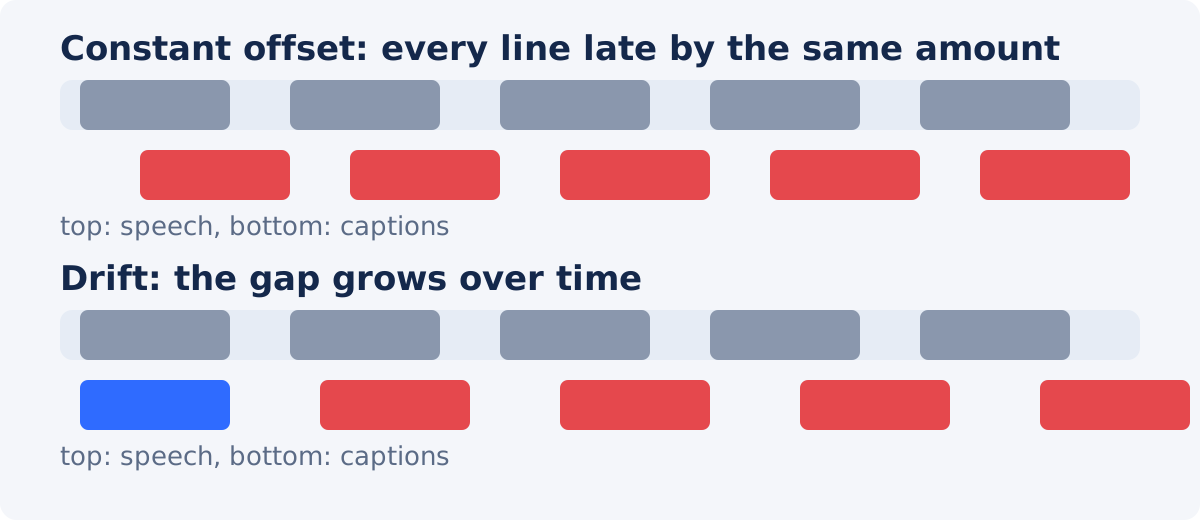
Constant offset vs. drift
Before changing anything, find out which problem you have. Play the video at three points: near the start, in the middle, and near the end, and note how far each line is from the speech.
- Constant offset. Every line is early or late by the same amount, say 1.5 seconds. The usual cause is a subtitle file made for a version of the video with a different beginning: an intro was added or removed, or the clip was trimmed. The fix is the same shift for every line.
- Progressive drift. The first lines are close, and the gap grows steadily until the last lines are seconds out. The usual cause is a subtitle file made for a version at a different frame rate or speed, or a video that was sped up or slowed down after the subtitles were written. Each line needs a different correction, growing along the video.
- Scattered errors. Most lines are fine and a few are off. The cause is simply imprecise placement, and each line is fixed on its own.
A file with drift is worth retiming at the source if you can: obtain the subtitles for the correct version, or match the video to the subtitles. Correcting drift line by line is possible for a short video and tedious for a long one.
Start, end, and the gap between lines
Each subtitle line has a start time, when it appears, and an end time, when it leaves. Both matter for the feeling of sync.
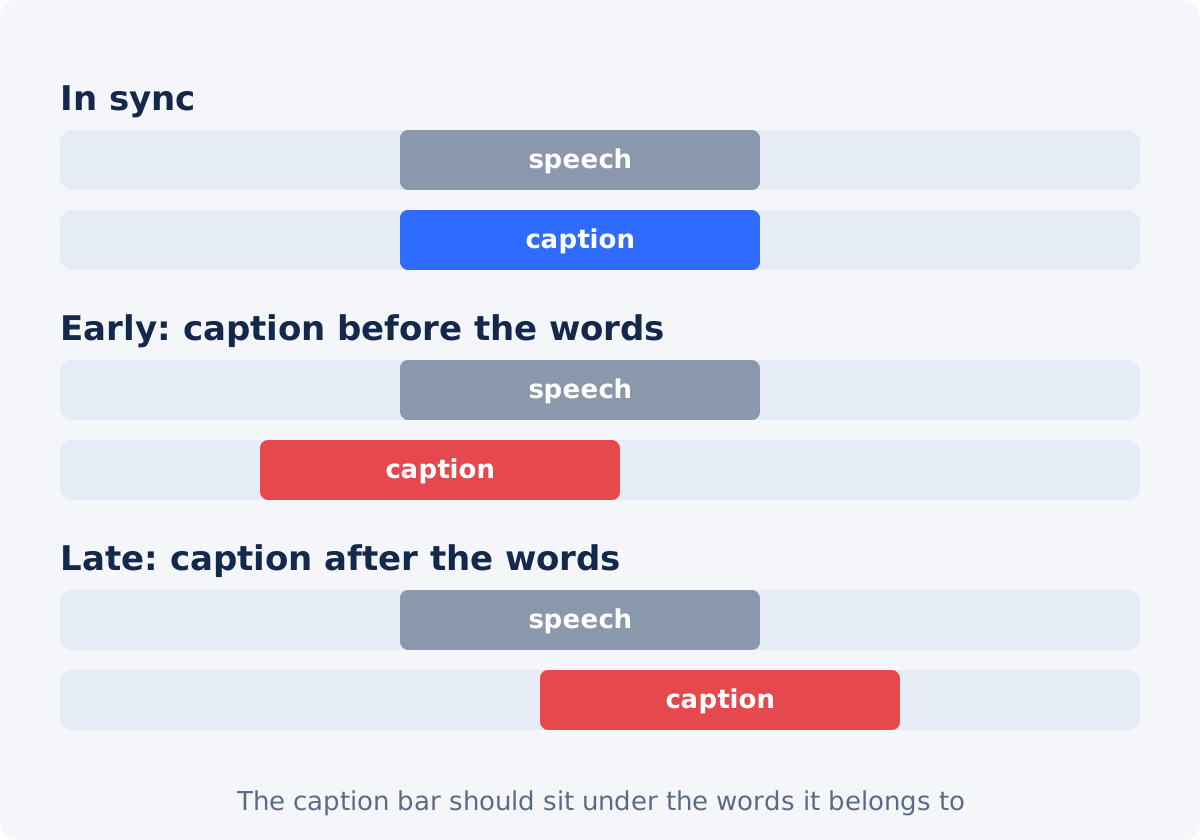
- Start. Place it at the first spoken word, or up to a couple of tenths of a second before. Viewers accept a line that is slightly early and notice one that is late.
- End. Place it at the last word, or slightly after, so the line does not vanish while the reader is on the final word. Do not hold it through a long silence; a line that stays after the speech ends looks like a mistake too.
- Gap. Leave a small gap between consecutive lines, a few tenths of a second, so the change from one to the next is visible. Lines that touch exactly can look like one long line whose text changed.
- Overlap. If one line's end is later than the next line's start, both are drawn at once, stacked. Use it deliberately for two speakers, and otherwise avoid it.
Workflow with the timeline and the preview
The tool lets you create timed subtitle lines and correct them against the picture.
- Upload the video and add your lines, by typing them or by importing an SRT file. Common inputs include MP4, MOV, AVI, WebM, and MKV.
- Play the first line. Drag the timeline slider to just before its start and press Play. Watch whether the line appears with the words.
- Adjust Start or End in the line's fields. The fields accept seconds and the minutes:seconds notation shown; small changes of 0.2 to 0.5 seconds are usually enough.
- Play the line again and confirm.
- Move to the next line and repeat. Work in order, because moving one line can create an overlap with its neighbor.
- Check the middle and the end before fixing everything, so you learn whether the problem is an offset, drift, or scattered errors.
- Set Font size and Bottom offset, then click Add subtitles and download the result, or continue in the full editor.
The preview shows the active line at the current playback time, drawn as it will be in the processed file. Judging timing by ear and eye, in the preview, is the whole method.

Fixing one line and fixing many
One line
Play from a second before the line, note whether it is early or late and by roughly how much, change the Start by that amount, and play again. Then check the End the same way. Two or three tries per line is normal.
Many lines with the same offset
The tool has no bulk shift, so a constant offset means editing each line's Start and End by the same amount. For a short video, that is quick: read the value, add or subtract the offset, type the new value. For a long one, the faster route is to shift the timestamps in the SRT file before importing, with a subtitle editor or a careful find-and-replace, and then import the corrected file.
Many lines with drift
Fix the first line, then check a line halfway through and the last line. If the video was retimed after the subtitles were made, the cleanest fix is a subtitle file that matches this version. Otherwise, correct the lines you have, starting with the ones viewers will notice most, and expect the correction to grow along the video.
Reading speed
A line that is well placed but too short to read still feels wrong. There is no universal number of words per second that fits every audience, language, and platform, so treat guidance as a starting point and test on real viewers where you can. In practice: a line should stay on screen long enough to be read comfortably at a normal pace, short lines need a minimum of about a second, and long lines need proportionally more. When speech is faster than reading, shorten the text rather than the display time, so the line says less but stays readable. The tool does not measure reading speed; the preview is the check.
Scene cuts, interrupted speech, and overlapping speakers
- Scene cuts. A line that runs across a cut is confusing, because the picture changes while the text stays. Where possible, end a line at the cut and start a new one after it, even if the sentence continues.
- Interrupted speech. When a speaker stops mid-sentence, end the line where they stop, and mark the break with an ellipsis or a dash. The next line picks up the rest.
- Overlapping speakers. When two people talk at once, either give each a short line with a speaker label and let them overlap in time, so both are drawn stacked, or combine both into one line with dashes, one row per speaker. Keep it brief; overlapping lines are hard to read.
- Pauses inside a sentence. Keep one line across a short pause. Split across a long one.
Symptoms, causes, and adjustments
| Symptom | Cause | Adjustment |
|---|---|---|
| Every line early or late by the same amount | Subtitles made for a different cut | Shift all lines by the offset; for long videos, shift in the SRT and re-import |
| Lines drift further out toward the end | Different frame rate or speed than the subtitles were made for | Get subtitles for this version, or correct lines progressively |
| A line appears after the speech starts | Start set too late | Move the Start earlier by a few tenths |
| A line disappears before the speech ends | End set too early | Move the End later |
| A line hangs after the speech ends | End set too late | Move the End earlier, leaving a short tail |
| Two lines stacked on screen | Overlapping times | End the first before the second starts, unless two speakers are intended |
| Lines flash and are unreadable | Too much text for the time | Shorten the text; merge with a neighbor if the speech allows |
| Text stays across a scene change | Line spans a cut | Split the line at the cut |
Final check from start to end
After the fixes, watch the whole video once without stopping, at normal speed, on the kind of screen it will be shown on. Reading the lines as a viewer would is the only way to catch what the line-by-line work missed.
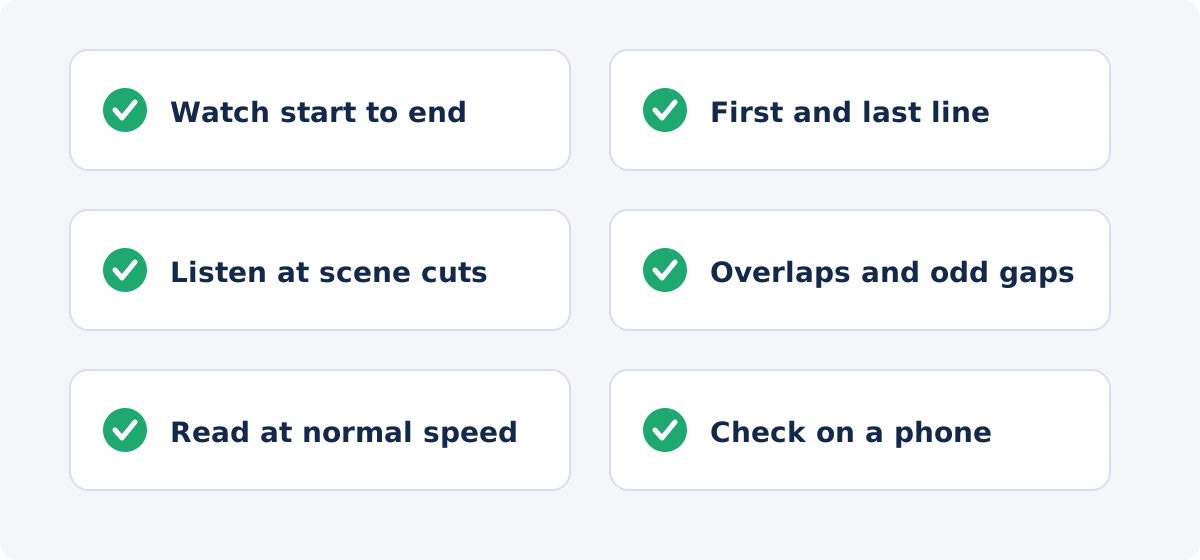
- Does the first line appear on time? First impressions set the viewer's trust.
- Does every line appear with its words and leave after them?
- Are there overlaps or odd gaps?
- Can every line be read at normal speed?
- Do lines respect the cuts?
- Is the last line right, and does nothing hang after the final words?
Then process, and watch the download once more. The processed file is what viewers get.
When you need a subtitle editor or the full editor
- Bulk shifts and stretches. A dedicated subtitle editor can move every line by an offset or stretch the whole file to fix drift in one operation. Do that first, then import the corrected SRT.
- Frame-accurate work. The tool's time fields are precise to a fraction of a second, which suits most speech. Frame-by-frame placement for animation or music cues belongs in an editor with frame stepping.
- Timeline editing. In the full Deus.Video editor, each subtitle is an element on the timeline with its own start and end, so lines can be dragged and stretched visually, and styled individually.
- Retimed video. If the video's speed or trim is still changing, finish the picture edit before timing the subtitles.

Conclusion
Syncing is diagnosis first, then adjustment. Check three points in the video to learn whether the error is constant, growing, or scattered. Fix constant offsets in the file when the video is long, fix scattered errors line by line in the preview, and treat drift as a sign that the subtitles belong to a different version of the video. Respect cuts and speakers, keep lines readable, and watch the whole thing once at the end.
Have subtitles that are close but not right? Open the Add Subtitles to Video tool, play each section in the preview, adjust the start and end fields, and download the synced copy.
Frequently asked questions
Can the tool sync the subtitles automatically?
No. It has no automatic alignment. You set each line's start and end, and you check them in the preview. An SRT that is already timed imports with its timing, which you can then correct.
All my lines are late by the same amount. Is there a shift-all option?
Not in the standalone tool. Edit each line, or shift the timestamps in the SRT file with a subtitle editor and import it again, which is faster for long videos.
Why do the subtitles drift out of sync over time?
The subtitles were made for a version of the video at a different speed or frame rate, or the video was retimed afterward. Use subtitles that match this version, or correct the lines progressively from start to end.
Should a subtitle appear slightly before or after the speech?
Slightly before, or exactly with the first word. Viewers accept a line that leads by a fraction of a second and notice one that lags.
How do I handle two people talking at once?
Either overlap two short labeled lines, which are drawn stacked, or put both speakers in one line with a dash at the start of each row. Keep the text short.
What is the last thing to check before processing?
Watch the whole video once at normal speed without stopping, reading the lines as a viewer would. Then process, and watch the download the same way.


