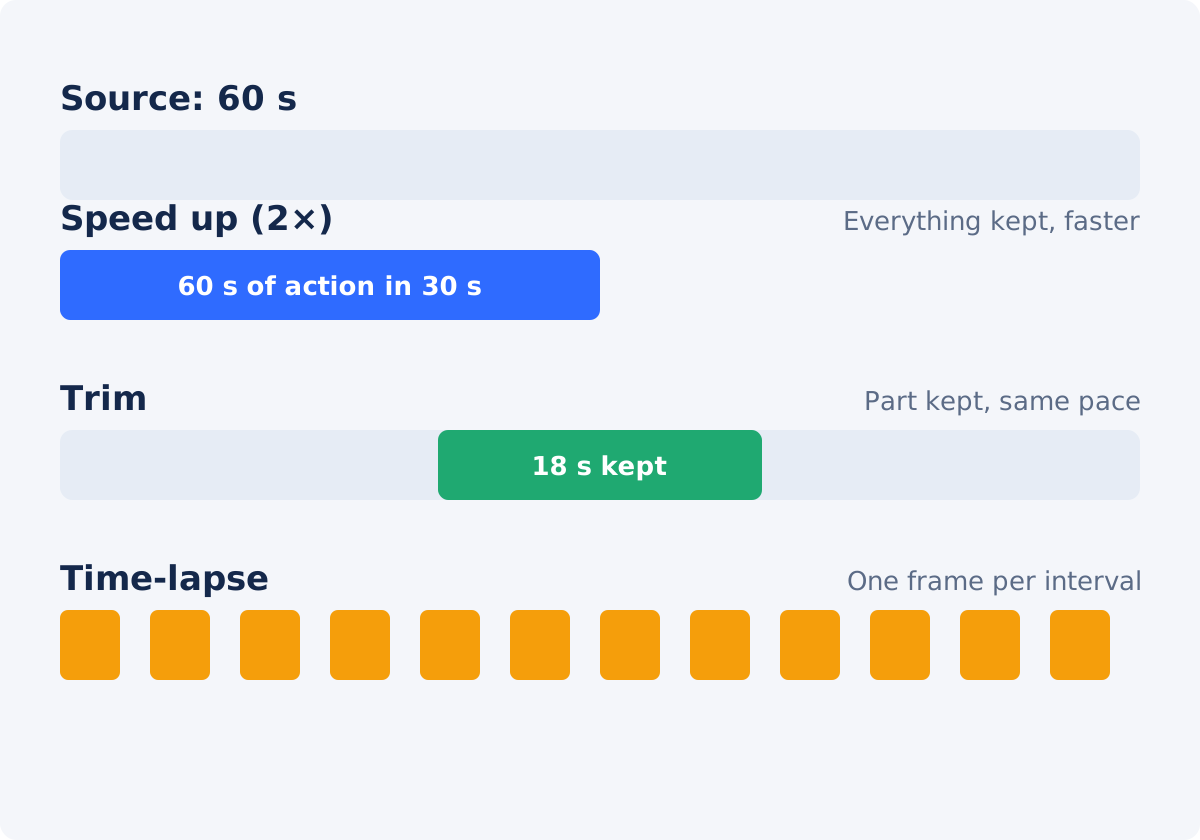
Speed change: everything kept, retimed
Changing the playback speed keeps every second of the recording and shows it in less time. A 10-minute setup played at 2× is a 5-minute video in which the whole setup still happens, in order, with nothing missing. At higher speeds some frames are skipped to fit the frame rate, and the sound is sped up with the picture, so speech becomes hard to follow above about 1.5×.
The speed tool applies one speed to the whole file. It does not detect pauses, remove silence, or cut anything. If the recording contains two minutes of dead air at the start, a 2× speed-up contains one minute of dead air at the start.
Trim: unwanted time removed, pace unchanged
Trimming cuts a time range out of the video: the false start before the action, the fumbling with the camera at the end, or a section in the middle that adds nothing. What remains plays at its original pace, with its original sound, exactly as recorded. Nothing is retimed and no frames are skipped.
Trimming is the right answer when the problem is where the good material sits, not how fast it moves. Trim Video keeps a selected range without changing its speed.
Time-lapse: sampled, not retimed
A time-lapse shows a slow process, such as a sunset, a building site, or a plant growing, in seconds. It is usually created during recording: the camera captures one frame every few seconds or minutes, and those frames are played back at normal frame rate. Because it keeps only one frame per interval, a true time-lapse is far more compressed than any speed change; an hour becomes a few seconds.
A strong speed-up can approximate the look on a short recording, since 4× skips three frames out of four, but it is limited to a quarter of the original length and keeps the sound and the camera motion. A recording of an entire afternoon is not a candidate for a speed tool; it is a candidate for a time-lapse mode on the camera, or for sampling frames in dedicated software. Calling every sped-up clip a time-lapse is a stretch; the term describes the sampled result.
Examples
- Tutorial. A 12-minute recording with an explanation that is a little slow and some searching for the right menu. Speed up to 1.25× or 1.5× so the whole explanation survives and speech stays clear. Trim the false start. Do not use 4×, which would make the narration useless.
- Setup footage. Assembling a display stand for 20 minutes. Nobody needs the narration; they need to see the stand come together. Speed up to 3× or 4×, and mute or replace the sound.
- Journey. A dashcam or bike recording of a 40-minute route. Trim to the interesting stretch and speed the rest to 2×; or, if the whole route matters, treat it as a candidate for a time-lapse-style 4× with music. Handheld footage jumps at high speeds, so mounted cameras fare better.
- Screen recording. A 15-minute walkthrough with long waits for pages to load. Trim the waits if they are few and long; speed up to 1.5× to 2× if the waiting is spread throughout. Menus must remain readable.
- Construction or a process over days. This is time-lapse territory. Record with an interval, or extract one frame per interval in software. A speed change on hours of footage neither fits the tool's purpose nor produces a watchable result.
A note on file size
People often reach for these methods because a file is too large, and only one of them reliably helps. Trimming removes seconds, so it removes data in proportion. Speeding up also shortens the file, but the result is re-encoded with its own settings, so the saving is not guaranteed and a heavily compressed source can even come back larger. A time-lapse is tiny because it keeps so few frames. If the real problem is megabytes rather than minutes, a compression tool with a target size is the direct route.
Comparison
| Method | Keeps complete action | Audio | Best use | Main risk |
|---|---|---|---|---|
| Speed up | Yes, faster | Sped up with the picture; speech unclear above about 1.5× | Long actions that must be seen whole: demos, processes, setups | Jumpy motion and unreadable text at high speeds |
| Trim | No, the cut parts are gone | Unchanged in the kept range | Dead time at the start, end, or in one stretch | Cutting something the viewer needed |
| Time-lapse | Only sampled moments | Usually none; music added | Slow processes over minutes or hours | Needs interval recording or frame sampling; not a one-click edit |
| Trim + speed (editor) | Chosen parts, retimed | Per clip; can be muted or replaced | Most real-world long recordings | More steps; one export at the end |
Decision tree
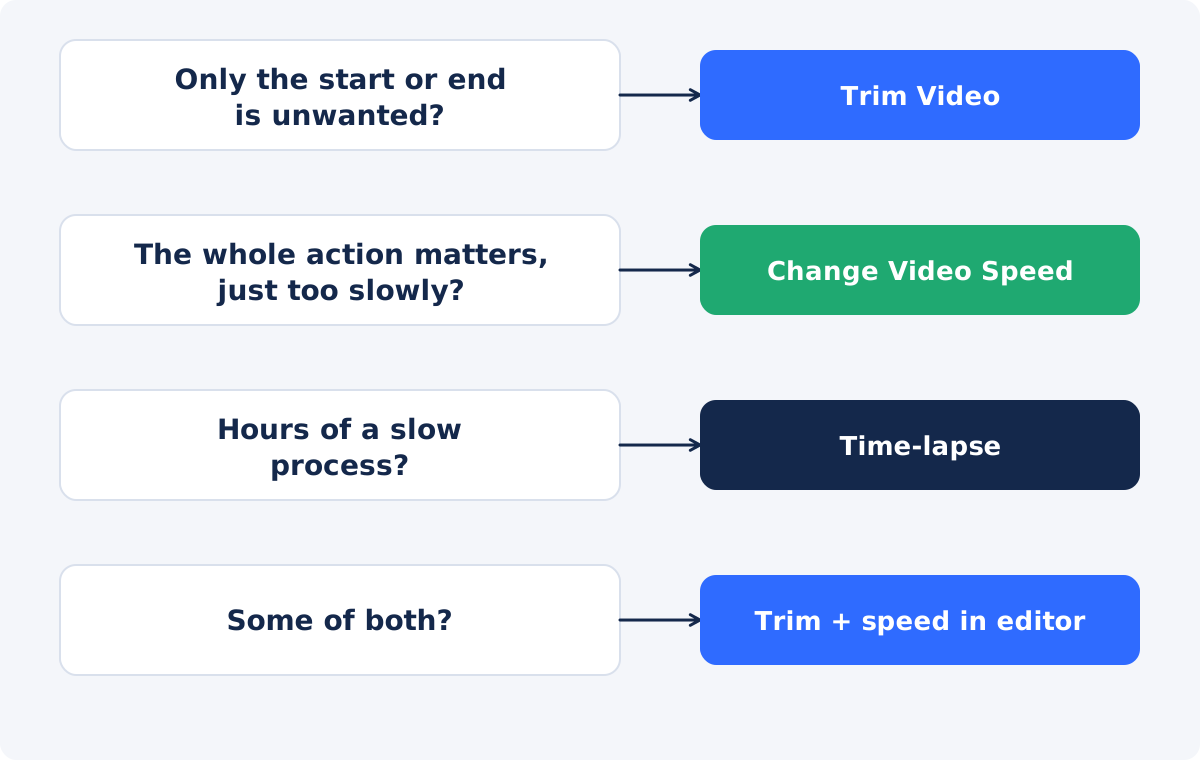
- Is the unwanted time at the start, the end, or in one clear stretch? Trim it.
- Does the viewer need to see the whole action, just faster? Speed it up. Keep speech at 1.5× or below, and go to 2× to 4× only for footage where the sound does not matter.
- Is it a slow process over an hour or more? A time-lapse, recorded with an interval or sampled afterward.
- Is it a mix: some dead time to remove and a long middle to compress? Trim first, then speed up, in the full editor, where each clip can have its own speed and the result is exported once.
- Is the pacing fine and the clip simply too long for a limit? Trim to the part that fits, or use a mild speed such as 1.25× if every second must stay.
Workflow for the speed tool
When the answer is a speed change, the Deus.Video tool lets you speed up the complete video in one pass.
- Trim first if needed, so the tool does not spend its speed on dead time.
- Upload the video. Common inputs include MP4, MOV, AVI, WebM, and MKV.
- Choose a speed from 0.25× to 4×, with the presets or the Video speed field.
- Read the estimated New duration, which is the original length divided by the speed.
- Press Play to check pacing, legibility, and how the speech sounds at that speed.
- Click Change Speed, and download the processed file, or continue in the full editor.
The whole uploaded video is processed at the one speed, and the result is a newly processed file whose size and quality can differ slightly from the source.

Combining trim and speed in the full editor
Most long recordings need both. In the full Deus.Video editor, add the clip, trim its start and end, split it where the pace should change, and set the Speed property on each piece: 1× for the narrated part, 3× for the repetitive stretch, 1× again for the conclusion. Mute the fast sections and lay music under the whole thing if the sped-up sound is noise. Export once. This keeps the number of re-encodes at one, which is kinder to the picture than trimming in one tool and speeding in another.

Conclusion
Speed up when the whole action matters and the pace is the problem. Trim when the problem is where the good material sits. Record a time-lapse when the subject is a process measured in hours. For the ordinary long recording with a slow start, a repetitive middle, and a useful ending, trim and speed together in the editor, and export once.
Have a recording that is complete but slow? Change the video speed online, preview 1.5× and 2×, and download the version that keeps the action readable.
Frequently asked questions
Is a sped-up video the same as a time-lapse?
Not quite. A time-lapse keeps one frame per interval and compresses hours into seconds, usually recorded that way. A speed change retimes an ordinary recording by up to 4×. A strong speed-up on a short clip can look similar, but the term time-lapse describes the sampled result.
Does the speed tool remove pauses automatically?
No. It applies one speed to the whole file and does not detect or cut silence or dead time. Trim pauses first, or handle them in the full editor.
Should I trim or speed up a long tutorial?
Both, in most cases. Trim the false start and the ending, then speed the rest to 1.25× or 1.5× so the narration stays clear. Higher speeds make the explanation unusable.
Can I trim and change speed in one step?
Not with the standalone tools, which do one operation each. The full editor trims, splits, and sets speed per clip in one project, then exports once.
Which keeps the sound usable?
Trimming leaves the sound untouched. Speeding up processes it with the picture; speech stays usable to about 1.5×. Time-lapses are normally silent, with music added.
Can I make a real time-lapse from a normal recording?
Only in a limited way. The speed tool goes up to 4×, so a 20-minute recording becomes 5 minutes, not 20 seconds. For true time-lapse compression, record with an interval, or sample frames in software built for it.


