What changes when a video is sped up
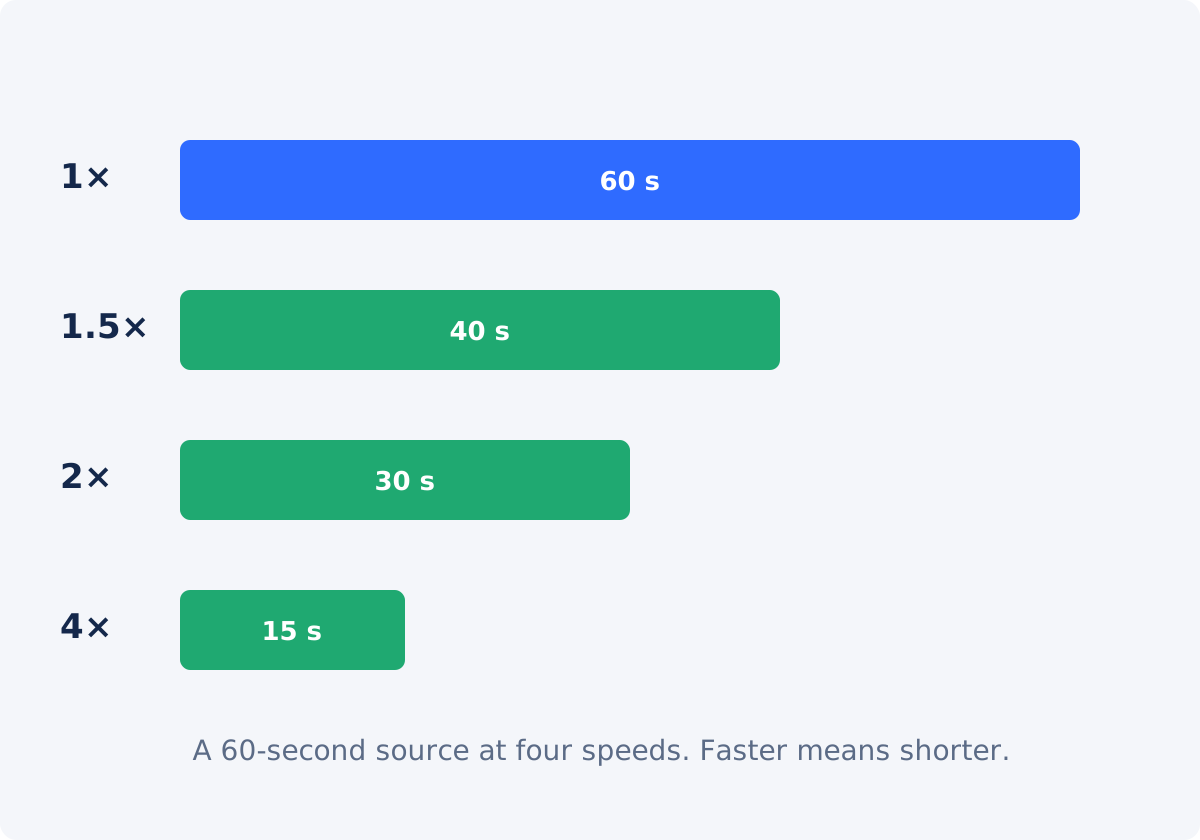
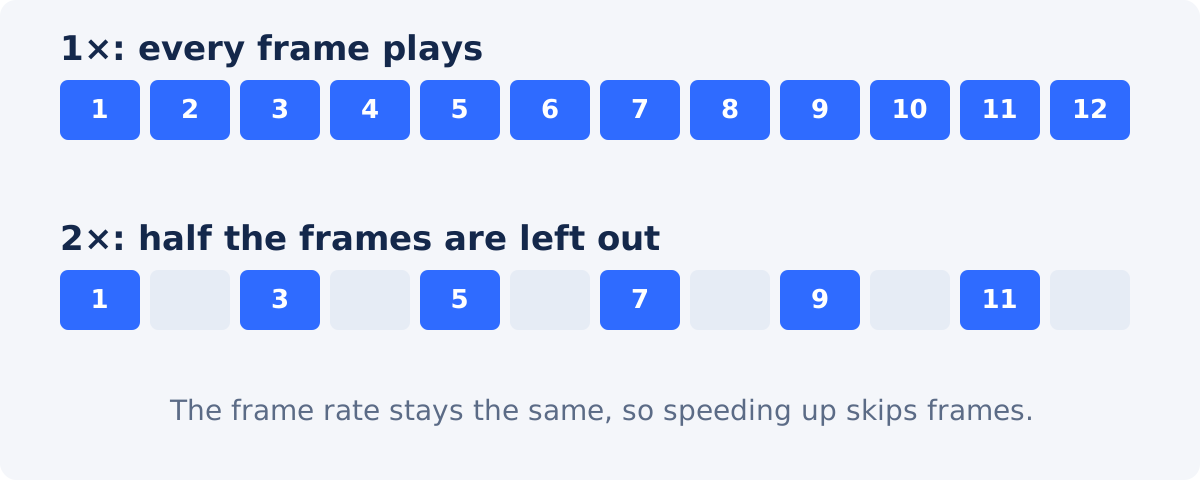
Playback speed is how fast the recorded time passes for the viewer. At 2×, one second of the result shows two seconds of the recording. The frame rate, meaning the number of pictures shown per second, stays the same, so the tool cannot show every recorded frame in the shorter time. It keeps some and skips the rest. At 2×, roughly every second frame is left out; at 4×, three out of four.
Skipped frames are why fast motion looks different at high speeds. A hand that moved a little between frames now jumps further between the frames that remain. Slow, smooth motion hides this well; fast, busy motion does not.
The sound is processed too. It is sped up to match the picture, and the tool time-stretches it so that voices keep their normal pitch rather than turning squeaky. Speech at 1.25× to 1.5× is usually still easy to follow. At 2× it needs concentration, and beyond that most listeners give up. At extreme speeds the processed sound can pick up a slightly synthetic texture, which is one more reason to listen to the result.
How 1.25×, 1.5×, 2×, and 4× feel
- 1.25×. Barely noticeable to viewers, and it removes a fifth of the running time. Speech is clear. A good choice for a slightly slow talk or demo.
- 1.5×. Brisk. Speech is still understandable for most listeners. A tutorial or screen recording with pauses tightens up well here.
- 2×. Clearly fast. Speech becomes hard to follow, and hand movements start to jump. Suits setup footage, repetitive work, and walkthroughs where the picture matters more than the words.
- 4×. A fast-motion effect. Speech is unusable, three quarters of the frames are skipped, and any camera movement becomes a blur of jumps. It suits long, steady, repetitive processes and little else. It is not a safe default for arbitrary footage.
The new duration is the original duration divided by the speed: a 60-second clip runs 48 seconds at 1.25×, 40 at 1.5×, 30 at 2×, and 15 at 4×.
Scenes that speed up well
- Steady camera, slow subject. A person assembling something, a cursor moving through menus, traffic from a fixed viewpoint.
- Repetitive work. Painting, cooking, cleaning, coding. The viewer needs the shape of the process, not every stroke.
- Long transitions. Walking between locations, waiting for a program to load, a slow reveal.
- Anything with dead time that is spread throughout rather than concentrated at the ends. Concentrated dead time is better removed with a trim.
Scenes that do not: fast sports, handheld walking shots, quick dialogue, and anything where a single moment matters.
Text, captions, screen recordings, and camera movement
- Burned-in text and captions are on screen for less time. A caption that showed for three seconds shows for one and a half at 2×. Check that each one can still be read; if not, add captions after speeding up, timed to the new pace, in the full editor.
- Screen recordings speed up well because the camera is steady, but menus and dialogs flash past. 1.5× to 2× keeps them legible; higher speeds turn a walkthrough into a slideshow.
- Fast camera movement is the first thing to fall apart. Pans and handheld motion become a series of jumps once frames are skipped. Keep such footage at 1.5× or below, or trim it out.
- Flashing content gets faster too. Rapid flashes can be uncomfortable or unsafe for some viewers, so avoid speeding up footage that already flickers.
How to speed up a video in Deus.Video
With the tool, you can speed up the complete video in one pass.
- Upload the original recording. Common inputs include MP4, MOV, AVI, WebM, and MKV.
- Read Current status. It shows the source dimensions and the original duration.
- Choose a speed. Click a preset, 1.25×, 1.5×, or 2×, or use the slider or the Video speed field for any value from 0.25× to 4× in steps of 0.05.
- Check the estimated New duration under the player and in Current status. It is the original duration divided by the speed.
- Press Play. The browser plays the source at the selected speed, so you can judge the pacing and the legibility of text before processing.
- Click Change Speed and wait for processing. The whole uploaded video is processed at the one speed.
- Click Download result, or Continue editing this video to open it in the full editor.
The source is not changed. The result is a newly processed file; its size and fine detail can differ from the original, and the output keeps the format of the upload.

Work from the original, not a re-exported copy
Every export compresses the picture again, and video compression discards a little detail each time. A clip that was exported from an editor, sent through a messenger, and then sped up has been compressed three times, and the softness shows in text and fine textures. The camera file, or the first export from your project, is the cleanest input. Speed it up once, and keep the result as a delivery copy. If you decide on a different speed later, go back to the original rather than speeding up the sped-up file.
Starting speeds by source type
| Source type | Sensible starting speed | What to check |
|---|---|---|
| Talking head, lecture, interview | 1.25× | Every sentence still clear; pauses not too clipped |
| Tutorial with narration | 1.25×–1.5× | Speech, and whether on-screen steps can be followed |
| Screen recording without narration | 1.5×–2× | Menus and dialogs readable; cursor traceable |
| Product demo, unboxing | 1.5× | Hands not jumping; labels readable |
| Setup, cleanup, repetitive work | 2×–3× | Motion still understandable; no strobing |
| Long steady process, fixed camera | 3×–4× | Nothing flickers; the process still reads as one action |
| Walking, handheld, sports | 1×–1.25×, or trim instead | Camera movement not turned into jumps |
These are starting points to test in the preview, not rules. Two clips of the same kind can tolerate different speeds.
Checklist for the processed result
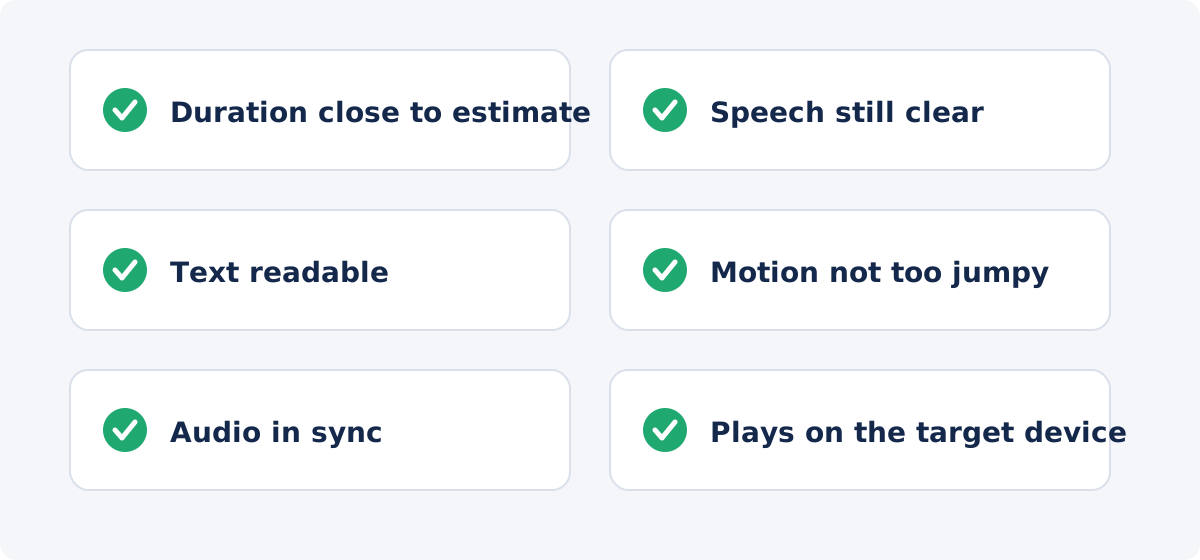
- The duration is close to the estimate. Small differences of a fraction of a second are normal.
- Speech can be followed without effort, if the video has speech.
- Every caption and on-screen text stays long enough to read.
- Fast movements do not strobe or jump distractingly.
- The audio stays in sync with the picture through to the end.
- The processed sound has no obvious artifacts: warbling, echo, or a metallic edge. If it does, try a milder speed, or mute the result and add music in the editor.
- The file plays on the device or platform where it will be used.
- The original recording is kept.
Conclusion
Speeding up costs frames and, at the encode, a little detail. Keep both costs low: start from the original, choose the speed by the content, keep speech at 1.5× or below, and treat 4× as a special effect for steady, repetitive footage. Preview at the chosen speed, process once, and watch the result with the sound on before you publish it.
Ready to tighten a slow recording? Open the Change Video Speed tool, try 1.25× and 1.5× in the preview, and download the version that still reads clearly.
Frequently asked questions
Does speeding up a video reduce its quality?
The remaining frames are unchanged, but frames are skipped at higher speeds, so fast motion looks jumpier, and the file is re-encoded, which can soften fine detail slightly. From an original recording at moderate speed, the difference is rarely visible. The tool does not promise unchanged quality or file size.
What happens to the sound?
It is sped up to match, with the pitch kept close to normal rather than raised. Speech stays understandable up to about 1.5× for most listeners. Always listen to the processed file, since extreme speeds can add audible artifacts.
Is 4× too fast?
For most footage, yes. Three quarters of the frames are skipped, speech is unusable, and camera movement turns into jumps. It works for long, steady, repetitive processes from a fixed camera.
Can I speed up only one part of the video?
Not in the standalone tool, which applies one speed to the whole file. In the full editor, each clip has its own Speed property, so you can split the video and set a different speed for each section.
Can I use a speed between the presets?
Yes. The slider and the Video speed field accept any value from 0.25× to 4× in steps of 0.05, for example 1.35× or 2.7×.
Will captions still be readable?
Burned-in captions stay on screen for less time, in proportion to the speed. Check each one in the preview. If they become too brief, add captions after processing, timed to the new pace, in the full editor.


