Simple slowdown vs. true high-frame-rate slow motion
True slow motion is recorded, not applied. A camera in a slow-motion mode captures many more frames per second than the video will be played at, such as 120 or 240. When that footage is played at 30 frames per second, every frame is a real, distinct moment, and the motion looks fluid at a quarter or an eighth of real speed.
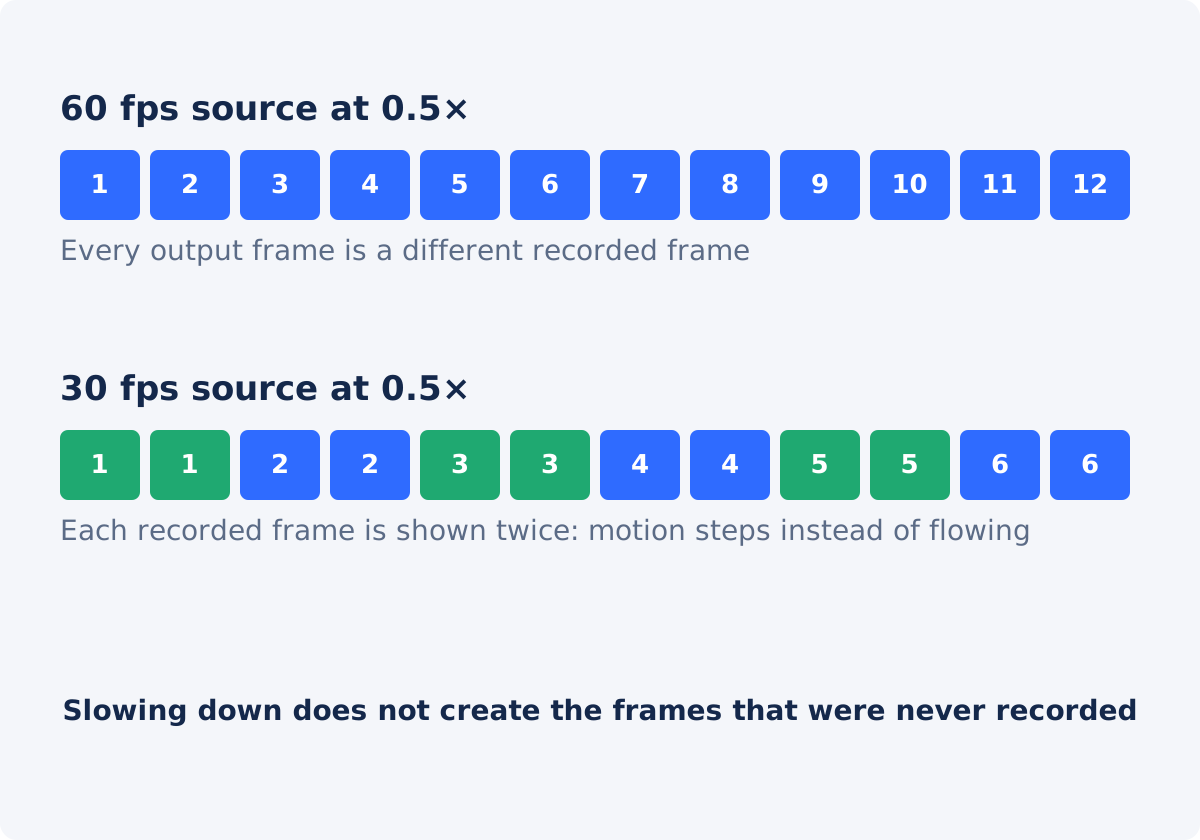
A simple slowdown takes footage recorded at ordinary speed and makes each frame stay on screen longer. The tool keeps the playback frame rate, so the extra time is filled by repeating the recorded frames. There is no new information between them. The picture is not blurred or damaged, but the motion advances in the same steps it always did, now with each step held for longer.
Both are useful. The first is what you want for an athletic move or a splash. The second is fine for a gentle pace change, a lingering look at a product, or a mood shift in ambient footage.
The role of the source frame rate
Frame rate is the number of pictures recorded per second. It sets how far a slowdown can go before frames repeat.
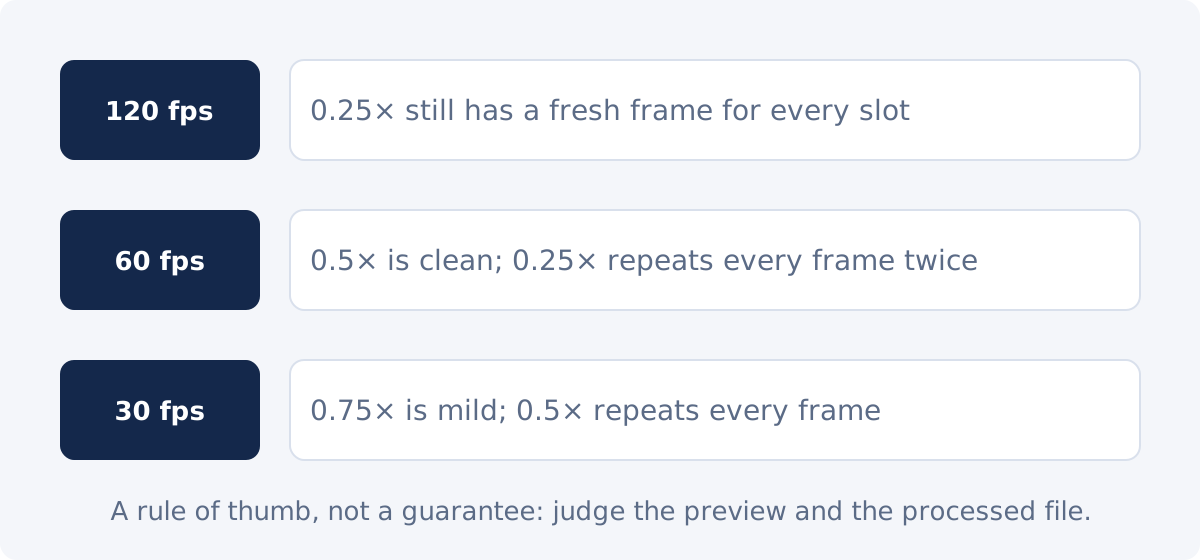
- 120 or 240 fps (a phone's slow-motion mode, or an action camera): 0.25× still shows a different recorded frame in every output frame. This is the footage that slows down beautifully.
- 60 fps (many phones by default, screen recordings on some systems): 0.5× is clean. 0.25× shows each frame twice.
- 30 fps (the most common setting for cameras and older phones): 0.75× repeats one frame in four, which most viewers do not notice. 0.5× shows every frame twice. 0.25× shows every frame four times, and motion becomes a slideshow.
- 24 or 25 fps (film-style and some regional settings): even 0.5× is noticeably steppy.
The file's properties on a computer show the frame rate. The Deus.Video tool shows the source dimensions and duration but not the frame rate, so check it beforehand if you are planning a deep slowdown.
Why a slowdown cannot invent missing motion
Between two recorded frames, the camera saw nothing. A simple slowdown can only hold the earlier frame longer, or repeat it. Some editing software offers motion interpolation, which estimates the frames in between by analyzing how objects moved, and some newer tools use trained models to generate them. Those methods can produce convincing results on simple motion and visible artifacts on complex motion, such as crossing limbs or fast rotations. The Deus.Video speed tool does not do either. It retimes the recorded frames as they are, which is predictable and never invents anything, but it cannot make a 30 fps clip look like it was shot at 120.
When 0.75× or 0.5× is the safer choice
- Ordinary 30 fps footage. 0.75× is subtle and smooth; 0.5× is usable for slow subjects; 0.25× is rarely worth it.
- Motion blur in the source. A frame recorded during fast movement already contains a smear. Held four times as long, the smear is very visible. Milder slowdowns hide it.
- Handheld footage. Small camera shakes become slow drifts. The gentler the slowdown, the less they stand out.
- Speech and music. The sound is slowed with the picture, with the pitch kept close to normal, but slowed speech at 0.5× is drawn out and strange, and at 0.25× it is unintelligible. For gentle slowdowns with talk, 0.75× is the practical limit.
Use 0.25× when the source was recorded at a high frame rate, or when the stepping is part of the look, as it sometimes is in music videos.
How to slow down a video in Deus.Video
With the tool, you can slow down a video to any value from 0.25× to 1×.
- Check the source frame rate in the file's properties, and decide how far you can slow it down.
- Upload the original recording. Common inputs include MP4, MOV, AVI, WebM, and MKV.
- Choose a speed. Click 0.75× or 0.5×, or set a custom value with the slider or the Video speed field, in steps of 0.05. Values below 1× lengthen the video.
- Read the estimated New duration. It is the original duration divided by the speed: 20 seconds at 0.5× becomes about 40.
- Press Play. The browser plays the source at the chosen speed, so you can see the pacing and hear the slowed sound. A browser preview is not the processed file, but it is a fair indication of how steppy the motion will look.
- Click Change Speed and wait for processing. The whole video is processed at the one speed.
- Click Download result, or Continue editing this video to keep working in the full editor.
The source file is unchanged. The result is a newly processed file, and its size and fine detail can differ from the source.

How to judge the result: repeated frames, judder, blur, shake
Watch the processed file at full screen, and then step through a moving section slowly.
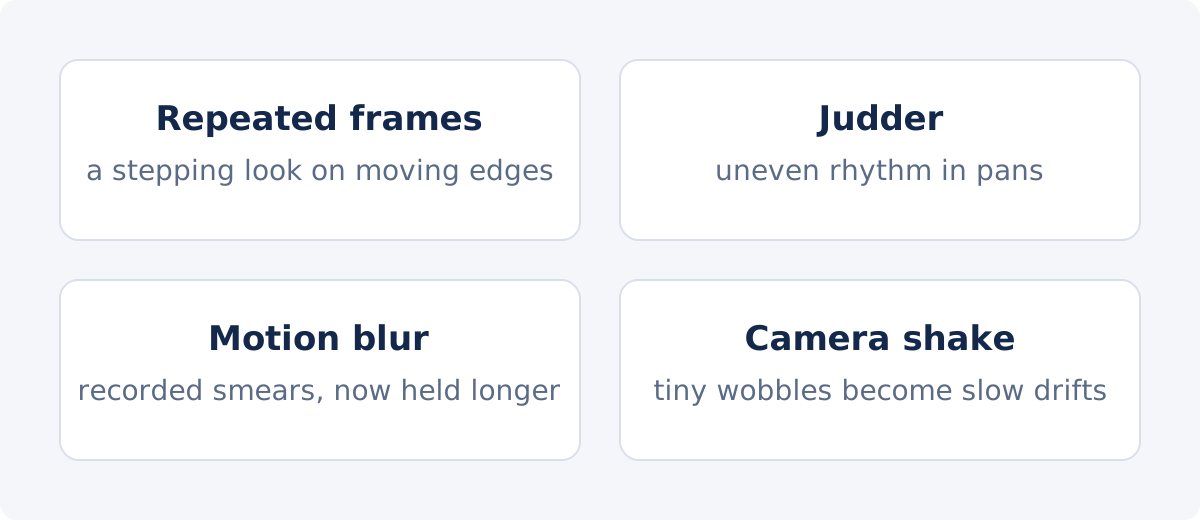
- Repeated frames. Moving edges advance in visible steps, and a paused frame is identical to the next one. Expected on 30 fps footage at 0.5× and below.
- Judder. An uneven rhythm, where motion seems to hesitate at a regular interval. It appears when the slowdown does not divide evenly into the frame rate, for example 0.75× on 30 fps, where every fourth frame is repeated. It is mild at 0.75× and grows with odd values such as 0.6×.
- Motion blur. A smeared frame held for longer. Nothing can sharpen it; the only remedies are a milder slowdown or footage recorded with a faster shutter.
- Camera shake. Hand tremor at normal speed becomes a slow, seasick drift when slowed. Tripod footage does not have this problem.
Then listen. Slowed audio at 0.5× is deep and drawn out even with the pitch held; at 0.25× the sound becomes a texture rather than speech or music. Mute the result and add a normal-speed track if that is a problem.
Source frame rate, slowdown, and what to expect
| Source frame rate | Slowdown | Expected tradeoff |
|---|---|---|
| 120 fps or higher | 0.25×–0.5× | Fluid motion; the intended use of high-frame-rate recording |
| 60 fps | 0.5× | Smooth; every output frame is a recorded frame |
| 60 fps | 0.25× | Each frame shown twice; noticeable on fast motion |
| 30 fps | 0.75× | Subtle; one repeated frame in four, rarely noticed |
| 30 fps | 0.5× | Each frame shown twice; acceptable for slow subjects |
| 30 fps | 0.25× | Each frame shown four times; slideshow-like on anything that moves |
| 24–25 fps | 0.5× and below | Stepping visible on most motion; keep slowdowns mild |
These are expectations, not guarantees. Subject speed, motion blur, and camera stability matter as much as the numbers, and the preview is the final judge.
When you need the full editor or an interpolation tool
- Slowing only one moment. The standalone tool applies one speed to the whole file. In the full Deus.Video editor, each clip has its own Speed property, so you can split the video and slow just the section that matters, then export once.
- Replacing the sound. A slowed clip usually wants music or ambience at normal speed. The editor lets you mute the clip and add a separate audio track.
- Combining slow and normal footage, with text, transitions, or captions on top.
- Making low-frame-rate footage look fluid. That requires a program with motion interpolation, and even then results vary with the content. The Deus.Video speed tool does not include interpolation or generated frames.
- Frame-accurate speed ramps, where the speed changes gradually, are an editor task in software that supports them; the standalone tool applies one constant speed.
Conclusion
Smooth slow motion comes from frames, and frames come from the recording. Know the source frame rate, slow it down only as far as the frames allow, and use 0.75× or 0.5× on everyday footage. Judge the result on moving edges, listen to the slowed sound, and reach for the full editor when only a section should be slow or the audio needs replacing. For true quarter-speed fluidity, record in a slow-motion mode next time.
Have a clip with enough frames to spare? Change the video speed online, try 0.75× and 0.5× in the preview, and check the moving edges in the download.
Frequently asked questions
Why does my slowed video look choppy?
The source did not have enough frames for the slowdown, so frames are repeated. A 30 fps clip at 0.25× shows each frame four times. Use a milder speed, or record in a high-frame-rate mode for footage you plan to slow down.
Does the tool add frames to make slow motion smooth?
No. It retimes the recorded frames and repeats them to fill the extra time. It does not estimate or generate in-between frames. Programs with motion interpolation can do that, with results that vary by content.
What is the slowest speed available?
0.25×, which makes the video four times longer. It suits footage recorded at 120 fps or more. On ordinary 30 fps footage it produces very steppy motion.
What happens to the sound when I slow down a video?
It is slowed with the picture, with the pitch kept close to normal. At 0.75× speech is still understandable; at 0.5× it is drawn out; at 0.25× it stops being usable. Listen to the processed file, and replace the sound in the editor if needed.
Can I slow down only one moment in the video?
Not in the standalone tool. In the full editor, split the clip and set the Speed property of the section you want to slow, leaving the rest at 1×.
Does slowing down improve the video quality?
No. Each frame is shown as recorded, for longer. Motion blur, noise, and camera shake in the source become more visible, not less.


