
Rotate: turning the frame
A rotation moves every part of the picture around the center by the same angle. Right angles are the common ones: 90 degrees clockwise, 90 degrees counterclockwise, which is the same as 270 clockwise, and 180 degrees. A quarter turn stands a horizontal video on its side, so the width and height swap. A half turn puts the picture upside down, or puts an upside-down picture the right way up.
Nothing is mirrored. A sign that read "EXIT" still reads "EXIT" after any rotation; it is just turned. Faces, logos, and gestures keep their handedness: a person's right hand is still their right hand.
Flip: mirroring the frame
A flip reflects the picture across an axis, an imaginary line through the middle of the frame. A horizontal flip reflects across a vertical line, so left and right swap, which is exactly what a bathroom mirror does. A vertical flip reflects across a horizontal line, so top and bottom swap.
Text is the giveaway. After a horizontal flip, "EXIT" reads as mirror writing. A watch moves to the other wrist, a logo is reversed, and a right-handed gesture looks left-handed. The frame keeps its width and height.
Three examples
- Sideways phone clip. The sky is on the left and people lie on their side. Text is turned but not reversed. This is a rotation job: a quarter turn brings the top back to the top.
- Mirrored text. The picture is upright, but a sign reads backward and a watch is on the wrong wrist. This is a flip job: a horizontal flip restores left and right.
- Front-camera footage. Selfie cameras often show a mirrored preview, and some save the file that way. If the saved file has reversed lettering, it needs a horizontal flip. If it is simply on its side, it needs a rotation. If both, it needs both.
| Operation | What changes | Text direction | Best use |
|---|---|---|---|
| Rotate 90° / 270° | Frame turned a quarter; width and height swap | Turned, still readable | Sideways recordings |
| Rotate 180° | Frame turned a half; shape unchanged | Upside down, readable when turned | Upside-down recordings |
| Horizontal flip | Left and right swapped; shape unchanged | Mirror writing | Mirrored selfies, reversed text and logos |
| Vertical flip | Top and bottom swapped; shape unchanged | Upside down and mirrored | Reflection effects; rarely a correction |
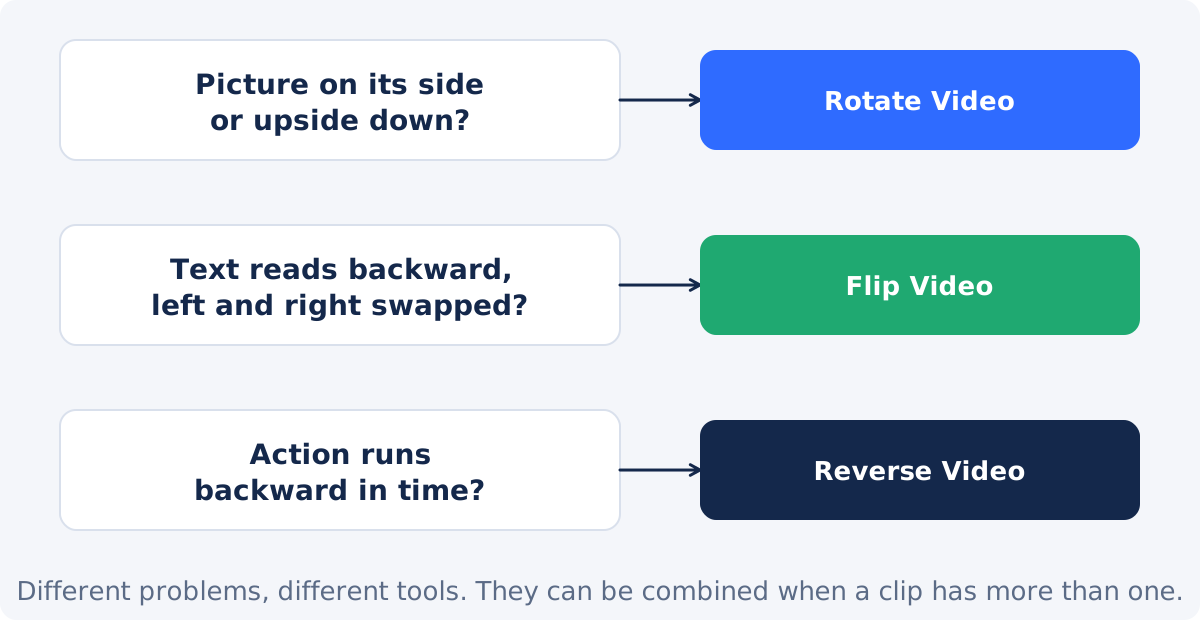
| Reverse (not a geometry change) | Order of frames in time | Unchanged | Backward playback effects |
How to choose between Rotate Video and Flip Video
Pause on a frame that contains text, a logo, or a clock. Then ask two questions.
- Is the picture turned? If the top of the scene is on a side or at the bottom, it needs a rotation.
- Is the text reversed? Turn your head to read it if the picture is on its side. If the letters read backward even then, it needs a flip.
Rotation problems come from how the camera was held. Mirror problems come from how the app saved the file, or from an earlier edit. A video with no text or direction clues is hard to diagnose, so look for a watch, a car on the road, a door handle, or which hand holds the phone.
The two tools also produce different frames. A quarter turn in Rotate Video swaps the width and height, so a horizontal clip becomes vertical. A flip keeps the dimensions exactly as they were. If the fix you have in mind should change the shape of the video, it is a rotation; if it should keep the shape and only swap sides, it is a flip.
Why a 180° rotation is not a flip
This is the most common confusion. A 180° rotation turns the picture upside down but keeps it as a picture: turn the screen around and it reads normally. A vertical flip also puts the sky at the bottom, but it is a reflection, so the picture is mirrored as well. Turn the screen around and the text is still backward.
A horizontal flip is different again: the sky stays at the top, and left and right swap. So the three operations give three different pictures. Only one combination overlaps: a horizontal flip followed by a vertical flip gives the same picture as a 180° rotation, because two reflections cancel each other's mirroring.

When a clip needs both
A front-camera clip recorded sideways can be both turned and mirrored. Fix the rotation first, so you can read the picture normally, then check the text. If it is reversed, flip it. The two operations are independent, and each is a separate processing pass in its own tool: rotate in Rotate Video, then take the result to Flip Video. Each pass re-encodes the picture, so start from the original file and do only the passes you need.
Another case is a rotated clip that will be combined with mirrored footage from a screen or a webcam. Match the orientation with a rotation, and match the handedness with a flip, before merging.
Practical workflow for a rotation
Use the tool to rotate a video online.
- Upload the video. Common inputs include MP4, MOV, AVI, WebM, and MKV.
- Click a preset: Left 90°, Right 90°, or Turn 180°. The Rotation angle field shows the value.
- Check the preview. The picture should be upright and any text should read normally.
- If the text reads backward, note that a flip will be needed as a second step.
- Click Rotate Video and download the result, or continue in the full editor.
The source is unchanged; the result is a newly processed file whose size and fine detail can differ slightly from the source. In the full Deus.Video editor, the same turn is available as the Angle property of any clip, and a clip can be mirrored by dragging a side handle across its opposite edge, so both operations can be done in one project and exported once.

Common mistakes with logos, captions, and gestures
- Flipping to fix orientation. A vertical flip makes a sideways or upside-down picture look upright at a glance, and mirrors it in the process. Text and logos come out reversed. Use a rotation.
- Rotating to fix a mirror. No rotation unreverses text. If letters read backward, only a flip helps.
- Forgetting added captions. A flip mirrors everything in the frame, including captions and logos that were burned in earlier. Flip a clean version and add them again.
- Gestures and handedness. A flipped tutorial shows the wrong hand. If the instructions say "on the right," the picture must not be mirrored.
- Mixing up reverse. Reverse makes frames play backward in time. It changes nothing about the geometry, and it is a different tool.
Conclusion
Rotate turns, flip mirrors. A turned picture keeps its text readable and its handedness intact; a mirrored one reverses both. Diagnose with a frame that has text or a clock, rotate for sideways and upside-down footage, flip for mirrored footage, and do both, in that order, when a clip has both problems.
Decided that your clip is turned rather than mirrored? Open the Rotate Video tool, pick the preset that makes the preview upright, and download the result.
Frequently asked questions
Is rotating a video 180° the same as flipping it?
No. A 180° rotation turns the picture upside down but keeps it unmirrored; text reads normally when you turn the screen. A flip mirrors the picture. Only a horizontal flip combined with a vertical flip equals a 180° rotation.
My video is upright but the text is backward. Rotate or flip?
Flip, horizontally. Rotation cannot reverse mirror writing. The file was saved as a mirror image, most often by a front-camera app.
Can I rotate and flip in one tool?
Not in the standalone tools, which do one operation each. Rotate first, then flip the result, or do both in the full editor, where a clip has an Angle property and can be mirrored on the canvas by dragging a side handle across the opposite edge. The editor route exports once, which means one re-encode instead of two.
Does rotating reverse gestures or handedness?
No. A rotation keeps left and right as they were; a right hand is still a right hand. Only a flip swaps them.
Is reversing a video a kind of flip?
No. Reversing changes the order of frames in time, so the action plays backward. Flipping mirrors the picture and rotating turns it. All three are different operations with different tools.
Which one fixes a sideways selfie with reversed text?
Both, in order: rotate to bring the picture upright, then flip horizontally to restore the text. Check the text again after each step.


