What actually happens to the quality
Two things are worth separating. The rotation and the encoding.
A rotation by 90, 180, or 270 degrees moves every pixel to a new position and changes none of them. The picture that goes in is the picture that comes out, turned. There is no scaling, no blending of neighboring pixels, and no cropping.
Re-encoding is what happens after the rotation. The rotated frames have to be compressed into a video file again, and video compression discards a little detail every time it runs. The first pass from a good source is rarely visible. Several passes add up: a clip that was exported, sent through a chat, rotated, then converted, has been compressed four times, and each round takes a little more.
The tool has no bitrate, codec, or quality settings, so there is nothing to tune. What you control is the input: the original recording, processed once. The audio is copied unchanged, and the output keeps the format of the upload.

When you need 90°, 180°, or 270°
- 90° is a quarter turn clockwise. Use it when the top of the scene is on the left of the preview.
- 270° is the same as 90° counterclockwise. Use it when the top of the scene is on the right. In the tool, this is the Left 90° preset.
- 180° is a half turn. Use it for a recording made with the camera upside down.
If the direction of a quarter turn is not obvious, try one, look at the preview, and switch to the other if the picture comes out upside down. Choose the right angle from the source and process once, rather than turning a processed file a second time.
Clockwise and counterclockwise in plain words
Clockwise is the way a clock's hands move: the top of the picture swings to the right. Counterclockwise is the opposite: the top swings to the left. In the Rotation angle field, positive numbers rotate clockwise, so 90 is a quarter turn clockwise. A negative number, such as −90, is normalized to its clockwise equivalent, 270, and values above 360 wrap around; the Current status block shows the normalized angle that will be used.
Why to process the original, not an exported copy
Every copy of a video that came out of an app, a messenger, or a social platform has been compressed again on its way to you. Some of those compressions are aggressive. Rotating such a copy adds one more pass on top of a picture that has already lost detail, and the softness becomes visible in text, hair, and fine textures.
The camera file, or the first export from your editor, is the cleanest starting point. Find it, rotate it once, and treat the rotated file as a delivery copy rather than as a new master. If you later need a different angle, go back to the original again.
How to rotate a video in Deus.Video
Use the tool to turn the video 90 degrees in one pass.
- Upload the original recording. Common inputs include MP4, MOV, AVI, WebM, and MKV.
- Click Right 90° or Left 90°. The Rotation angle field shows 90 or 270.
- Check the preview. Text should read normally and the horizon should be level.
- Read Current status. It shows the angle, the normalized angle, and the resulting orientation, Portrait or Landscape.
- Click Rotate Video and wait for processing.
- Download the result, or continue in the full editor.
- Run the quality checklist at the end of this guide on the downloaded file.

What changes in the frame
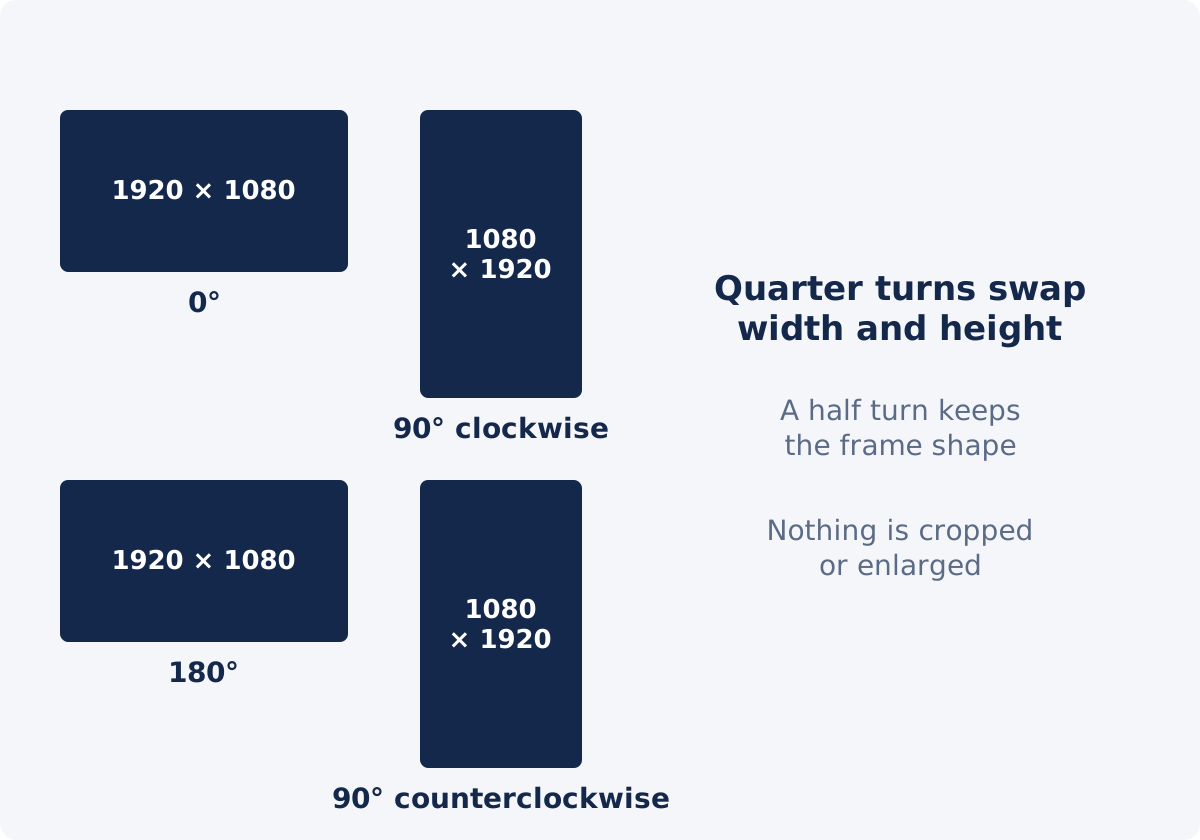
At 90° and 270°, the width and height of the frame trade places. A 1920 × 1080 horizontal video becomes a 1080 × 1920 vertical one, and the aspect ratio, meaning the shape of the frame, changes from 16:9 to 9:16. Nothing is cropped or enlarged: the same pixels fill a frame of the same area, turned on its side. Players and platforms treat the result as a vertical video from then on.
At 180°, the frame keeps its width, height, and shape. The picture is simply upside down relative to the source, which puts an upside-down recording the right way up.
Custom angles that are not multiples of 90 behave differently. The turned picture no longer fits a rectangle of the same size, so the tool produces a larger frame that contains the whole tilted picture, with black in the corners. That involves resampling the picture and is not the subject of this guide; for a quality-preserving orientation fix, stay with the right-angle presets.
If you need a tilt as part of an edit, the full Deus.Video editor is the better place for it. There, a clip has an Angle property that can be set by slider, by typing a value, or by dragging the rotation handle on the canvas, and the canvas edges decide what stays in the frame. The whole project is then exported once, which keeps the number of re-encodes at one regardless of how many changes you make.

| Problem | Correct angle | Expected frame |
|---|---|---|
| Top of the scene is on the left of the preview | 90° (Right 90°, clockwise) | Width and height swap; horizontal becomes vertical, or vertical becomes horizontal |
| Top of the scene is on the right | 270° (Left 90°, counterclockwise) | Width and height swap, as above |
| Picture is upside down | 180° (Turn 180°) | Same dimensions and shape as the source |
| Horizon leans a few degrees | Custom angle | A larger frame with black corners; crop afterward |
| Picture is upright but mirrored | None; use Flip Video | Same dimensions; left and right swapped |
| Preview already upright, sideways only in one player | 0° (Reset 0°), then process | Same dimensions; orientation stored in the picture |
A note on sound and format
The audio is copied into the new file without being processed, so it sounds exactly as it did, and it stays in sync because the video's timing does not change. The output keeps the format of the upload: an MP4 comes back as an MP4, a MOV as a MOV. If the destination needs a different format, convert once after rotating rather than before, so the rotation is done on the cleaner file.
Quality checklist after download
- Dimensions. Open the file's properties. A quarter turn should show swapped width and height; a half turn should show the original values.
- Orientation. Play the file in a second player. It should be upright everywhere.
- Detail. Pause on text, hair, or foliage and compare with the source at the same on-screen size. Slight softening is normal; obvious blockiness means the source was already a heavily compressed copy.
- Motion. Watch a fast section for stutter.
- Audio. Present, and in sync.
- File size. Note it, but do not read quality into it. The new encode can be larger or smaller than the source.
- Original kept. Any further change should start from it.
Conclusion
A right-angle rotation moves pixels without altering them, so the only quality cost is the re-encode that writes the new file. Keep that cost to one pass: start from the original, choose the correct angle from the preview, process once, and check the download. Quarter turns swap width and height, half turns keep the frame, and custom angles are a different job with different trade-offs.
Have the original file at hand? Rotate the video online with a quarter-turn preset, and compare the download with the source before you share it.
Frequently asked questions
Is rotating a video by 90 degrees lossless?
Not entirely. The rotation itself moves pixels without changing them, but the result is then encoded into a new file, and that step can change the picture slightly and the file size somewhat. Done once from the original recording, the difference is usually not visible. The tool does not promise unchanged quality, bitrate, or file size.
Does the file get smaller or larger after rotating?
Either is possible. The new file is encoded with the tool's own settings, so its size is a result, not a target. Do not judge quality by the change in megabytes.
What is the difference between 90° and 270°?
Both are quarter turns. 90° turns the picture clockwise, and 270° is the same as 90° counterclockwise. Right 90° and Left 90° are the presets for these two values.
Will a 90° turn make my horizontal video vertical?
Yes. The width and height swap, so a 1920 × 1080 clip becomes 1080 × 1920. Nothing is cropped or enlarged; the same picture stands on its side.
Can I rotate a video twice to get 180°?
You can, but there is no reason to. Turn 180° does it in one pass, and every extra pass is another re-encode. Choose the final angle from the source and process once.
Does rotating change the audio?
No. The audio is carried over unchanged. Only the picture is processed.


