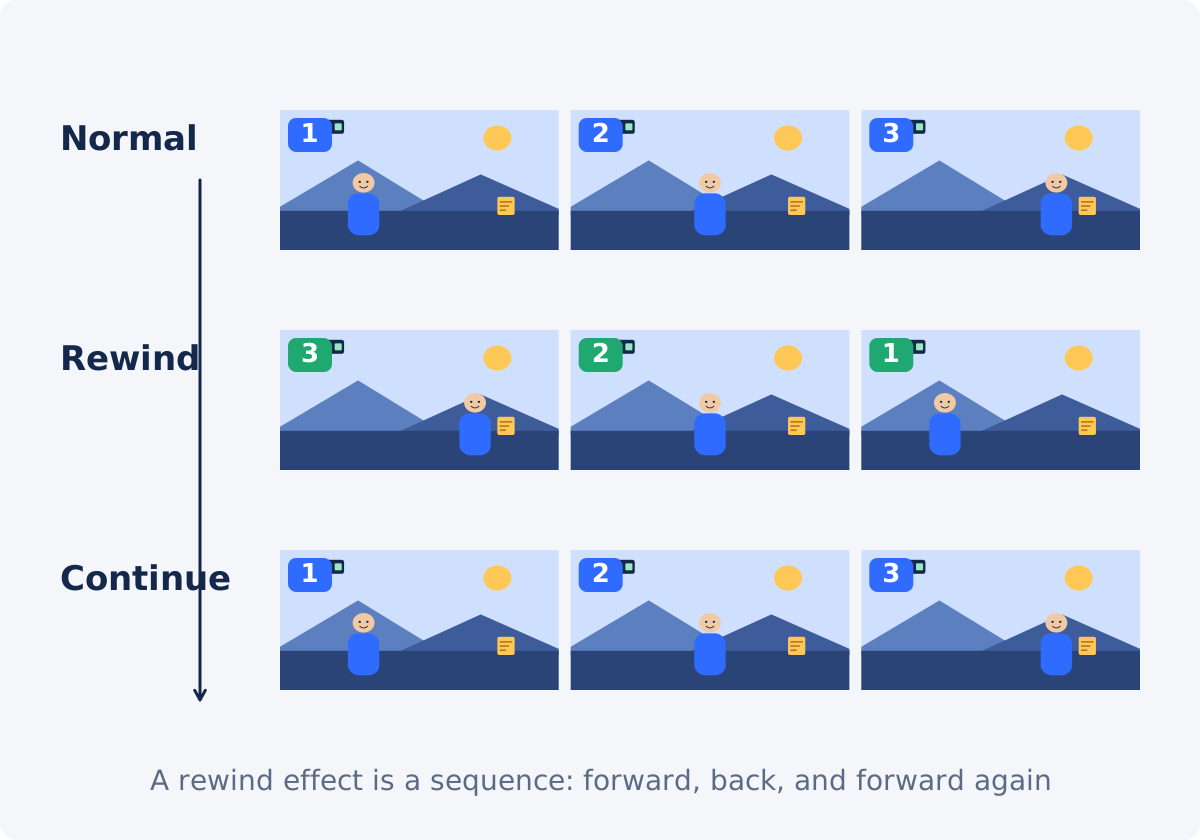
A literal reverse vs. a rewind effect
Reversing a clip is a single operation: the selected frames play from last to first. On its own, a reversed clip is an oddity. A cup fills itself from a puddle, and the viewer wonders what they are looking at.
A rewind effect gives the same reversed clip a context. The viewer first sees the action forward, or at least sees its result, so they understand what is being undone. Then the reverse runs, often faster, often with a whoosh or a tape sound, and the picture returns to an earlier state. Then normal time resumes, sometimes with a different outcome. Context before, the reversed segment, and context after are what turn "a backwards clip" into "a rewind." Not every reversed clip is a rewind effect, and a reversed clip without the surrounding footage is just a reversed clip.
Actions that work backward
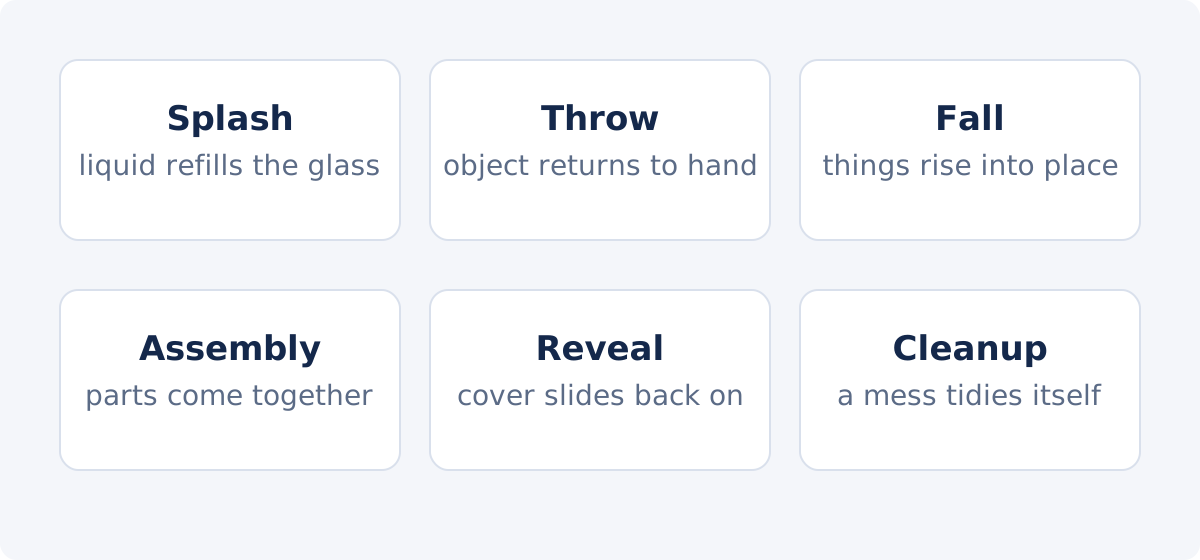
The reverse is easiest to read when the action has an obvious direction and a clear end state. The classic subjects are the ones where "undo" is visible at a glance.
- Splash and pour. Liquid leaps back into the glass, the bottle refills.
- Throw and catch. A ball flies back to the hand; a stack of paper gathers itself.
- Fall and collapse. Blocks rise into a tower, a person springs up from the floor.
- Assembly. Parts spread on a table snap together into the finished object.
- Reveal. A cloth slides back over the product, a door closes on the surprise.
- Cleanup. A messy desk tidies itself, crumbs jump back onto the plate.
Walking and talking read as unnatural rather than as an undo, which is fine for comedy and distracting elsewhere.
Planning and recording tips
- Lock the camera. A tripod or a propped phone. A moving camera makes the reverse look like a mistake instead of an effect, and it makes the join with the forward footage jump.
- One clear action per take. Start from stillness, perform the action, return to stillness. Do not combine two actions in one clip.
- Leave a margin. Record a second of rest before and after. The margin becomes the still frames you cut on, and it lets the reversed segment start and end on a pose that matches the forward footage.
- Keep the framing identical for the forward footage that surrounds the reverse. If the whole sequence comes from one continuous take, the join is invisible.
- Light for clarity. Motion blur and dim light hide what is being undone.
- Plan the outcome. The strongest rewinds change something after the reverse: the second attempt succeeds, a different person walks in, the product is a different color.
Basic workflow: select, reverse, download
For a standalone backward clip, you can reverse a video online in one pass.
- Upload the take. Common inputs include MP4, MOV, AVI, WebM, and MKV.
- Select the action with a quick preset, the timeline handles, or Start and End times. Include the rest margins. One selection can be up to 60 seconds; a rewind moment is usually two to eight.
- Press Play to check the range. The preview runs forward; the backward version comes after processing.
- Choose the sound. Keep Reverse audio for a backward sound effect, or clear it to add a whoosh or music later.
- Click Reverse video, and download the clip, or continue in the full editor.
The source file is unchanged. The result is a new processed file containing only the selection, and its size and fine detail can differ slightly from the source because of encoding.

Advanced workflow: forward, rewind, continue
The full effect is built in the full Deus.Video editor, where the reversed clip sits between two pieces of forward footage.
- Reverse the action as above, and download the reversed clip.
- Open the editor, and add the original take to the timeline.
- Split the original at the end of the action, where the rewind should begin.
- Insert the reversed clip after the first part. Its first frame is the end of the action, which is where the first part stopped, so the motion turns around without a jump.
- Trim the duplicate frame at the join if you see a brief freeze: the last forward frame and the first reversed frame are the same picture.
- Add the continuation. Either the second part of the original, which shows the action happening again, or a different take that shows a new outcome.
- Speed up the reversed clip slightly if you want a snappier rewind; many rewinds run at one and a half to three times speed.
- Add sound and text, then export once.
The Reverse Video tool does not place the reversed clip back into the original, add transitions, or apply sound effects; those steps belong to the editor.
Sound for a rewind effect
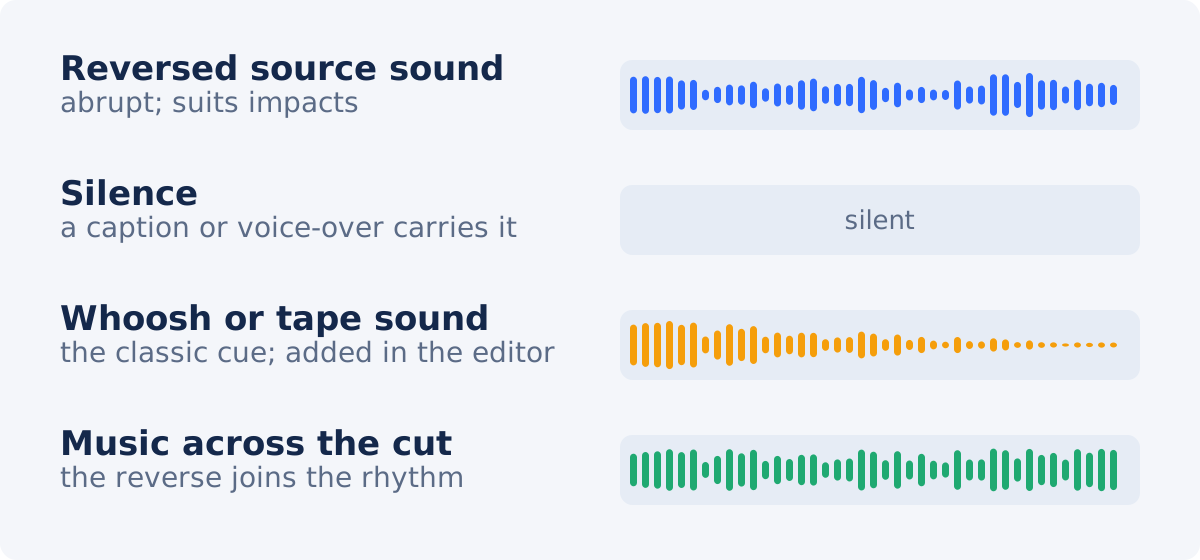
Sound is half of the effect. Viewers recognize a rewind by ear as much as by eye.
- Reversed source sound. Keep Reverse audio on. The clip's own sound runs backward: an impact that builds and stops, a pour that slurps upward. Abrupt and slightly comic; it suits splashes, crashes, and reveals.
- Silence. Clear Reverse audio. The quiet reverse works when a caption or a voice-over explains what is happening, or when music runs across the whole sequence.
- A whoosh or tape-rewind cue. The classic signal, added in the editor as a separate sound over the reversed segment. Even a short whoosh at the start of the reverse tells the viewer to read the segment as a rewind.
- Music across the cut. Continuous music under the forward, reversed, and continuation clips makes the reverse feel like a deliberate beat rather than a glitch. Place the rewind on a musical accent if you can.
Scenarios
| Action | Backwards result | Editing note |
|---|---|---|
| Pouring a drink | The glass empties itself back into the bottle | End the selection on the full glass at rest; reversed sound works well |
| Knocking over a stack | Blocks fly up into a neat tower | Use a locked camera; a whoosh sells it; continue with a second, successful attempt |
| Unwrapping a product | Paper folds back around the box | Reverse with silence, then reveal again forward with music |
| Writing on a whiteboard | Words erase themselves letter by letter | Good for "let's try that again" transitions in tutorials |
| Jumping into water | The person rises out of the pool onto the edge | Include a margin after the splash settles; speed up the reverse |
| Assembling a piece of furniture | The finished piece dismantles into parts | Run the forward assembly as a montage, rewind in one fast segment |
| Someone walking out of frame | They walk backward into frame | Reads as odd rather than as an undo; keep it for comedy |
Mistakes that make the effect hard to read
- No context. Reversing a clip nobody has seen forward. Show the action, or its result, first.
- A moving camera. The scene appears to swim, and the join with the forward footage jumps.
- Too long. A ten-second rewind loses its punch. Two to five seconds, often sped up, is typical.
- Cutting in mid-motion. No rest margin, so the reverse begins and ends abruptly.
- Reversed speech. Unintelligible and distracting unless the strangeness is the joke.
- No sound cue at all when the picture alone is ambiguous.
- A different framing in the continuation shot, which breaks the illusion that time ran backward in the same scene.
Conclusion
A rewind effect is a reversed clip with a story around it: something happens, time runs back, and things continue. Record a steady, single, clearly directional action with margins, reverse the seconds that matter, and build the forward-rewind-continue sequence in the editor with a sound that signals the rewind. The reversed segment is the easy part; the context and the sound are what make viewers see a rewind rather than a strange clip.
Ready to undo something on camera? Create a reversed video clip of the action, and place it between the forward shots in the editor.
Frequently asked questions
Is a rewind effect the same as reversing a video?
Reversing is the operation that makes the frames play backward. A rewind effect uses a reversed segment inside a sequence, with forward footage before and after and usually a sound cue, so the viewer reads it as time running back. A reversed clip on its own is not yet a rewind effect.
Can the Reverse Video tool build the whole effect?
No. It produces the reversed segment from your selection. Splitting the original, inserting the reversed clip, adding a whoosh or music, and speeding it up are done in the full editor.
Should I keep the original sound reversed?
For impacts, pours, and crashes, reversed sound often adds to the effect. For anything with speech or music, turn Reverse audio off and add a sound cue or music in the editor.
How long should the reversed part be?
Usually two to five seconds, sometimes sped up in the editor. The tool allows up to 60 seconds per selection, but long rewinds lose their impact.
Why does my rewind look like a glitch?
Most often because the camera moved, the selection cut into the middle of the motion, or there is no sound or context to signal a rewind. Re-record on a tripod with rest margins, and add a whoosh or music.
Can I make the rewind faster?
Not in the standalone tool, which keeps the original speed and duration. Change the speed of the reversed clip in the full editor after placing it on the timeline; one and a half to three times is common for a snappy rewind.


