
What resizing changes
A video's dimensions are its width and height in pixels, such as 1920 × 1080. Together they are also called the resolution. Resizing produces a new file with different dimensions. Every frame is redrawn at the new size, and then the whole video is encoded again, which is called re-encoding: the frames are compressed into a video file one more time.
Two things follow. The picture is changed by the resampling, and it is changed by the second round of compression. Neither is dramatic when done once from a good source. Both add up when a file is resized, converted, and compressed in separate passes.
Downscaling vs. upscaling
Downscaling means reducing the dimensions, for example from 1920 × 1080 to 1280 × 720. The output has fewer pixels, so fine detail is averaged away. A well-made downscale looks clean, and often looks better than the source shown small, because the averaging hides noise. The detail is gone, though. You cannot get 1080p back from the 720p file.
Upscaling means increasing the dimensions, for example from 1280 × 720 to 1920 × 1080. The output has more pixels, and the extra ones are filled by spreading the existing picture over a larger area. Nothing new is added. Edges get softer, and text and hair look smoothed. Mild upscaling, up to about one and a half times, is usually acceptable. Doubling or tripling the size of a small clip produces a visibly soft or blocky picture.

Why larger dimensions do not create missing detail
A camera records a fixed number of pixels. Everything finer than that grid, such as a strand of hair or a letter on a distant sign, is already averaged into a single pixel value. Resizing later works only with those values. When it enlarges the frame, it estimates in-between values from the neighbors, which is the same as blurring the picture slightly and stretching it. The sign does not get more legible. The tool does not include AI upscaling or detail restoration, and dimensions alone cannot substitute for them.
This is why "resize to 4K" from a phone clip recorded at 720p is a request for a large, soft 720p video. If a destination requires larger dimensions than the source, a mild enlargement is a workable compromise. The result should be judged for what it is.
Check the source resolution before choosing an output
Every good decision depends on knowing what you have. In Deus.Video, the Current size block shows the input dimensions as soon as the video is loaded, for example 1280 × 720. On a computer, the file's properties show the same values.
- If the source is larger than your target, you are downscaling, and quality will be fine.
- If the source matches the target, consider leaving it alone. Re-encoding for no change gains nothing.
- If the source is smaller, you are upscaling. Ask whether the destination really needs the larger size, or whether it will display the video at its native size anyway.
When to keep the original aspect ratio
The aspect ratio is the shape of the frame: the width compared to the height, such as 16:9 or 9:16. Keep it whenever you want the same picture at a different size, which is almost always. With Preserve proportions enabled, changing the width recalculates the height automatically, and the other way round, so nothing is stretched.
Unlock the ratio only when you deliberately need a frame of a different shape. The resizer does not stretch the picture in that case. It offers Fit, which keeps the whole picture with black bars, or Fill, which crops the edges to cover the frame. Changing the shape of a video, for instance from horizontal to vertical, is a framing decision that needs cropping or a background, and the black bars are what you get when that decision has not been made.
How to resize a video in Deus.Video
With the tool, you can resize a video online to a preset or to custom dimensions.
- Upload one video. Common inputs include MP4, MOV, AVI, WebM, and MKV.
- Read Current size. Note the input dimensions before choosing anything.
- Pick a preset, such as Full HD 1920×1080 or HD 1280×720, or choose Custom and type a width and height. Values start at 16 pixels.
- Keep Preserve the proportions of the original video selected. The note under it confirms that the ratio is locked and the second dimension updates on its own. If you type a width, the height follows.
- Check the preview, which shows the target frame and its dimensions, and read the New and Ratio lines in Current size.
- Click Resize video, and wait for processing.
- Download the result, or continue in the full editor, and go through the checklist below.
The tool has no bitrate, codec, or output-format controls. The picture is re-encoded at the new size, the audio is carried over unchanged, and the output keeps the format of the upload.

Sensible outputs by source and use
| Source | Intended use | Sensible output | Main risk |
|---|---|---|---|
| 3840 × 2160 (4K) | Web page, email, most social posts | 1920 × 1080 | None to speak of; a clean downscale |
| 1920 × 1080 | Same as above | Leave as is, or 1280 × 720 for lighter delivery | Re-encoding for no reason |
| 1920 × 1080 | Small embed, thumbnail preview, chat | 1280 × 720 or 854 × 480 | Small text becomes hard to read |
| 1280 × 720 | Platform that requests 1080p | 1920 × 1080, with the ratio locked | Softness from 1.5× enlargement; acceptable for most viewers |
| 640 × 360 or smaller | Anything at 1080p or 4K | Avoid, or enlarge mildly | Visible softness and blockiness |
| Any horizontal source | Vertical feed | Crop or a background layout, then a resize with the ratio locked | Fit gives a small picture with bars; Fill crops the sides |
Common mistakes
- Excessive upscaling. Choosing the largest preset because it sounds best. The output is bigger, slower to upload, and no sharper.
- Unlocking the ratio to hit a target shape. A 16:9 video sent to 1080 × 1920 with Fit comes out as a small band with black above and below, and with Fill as a centered slice. Neither is distorted, but check that the option matches what you wanted.
- Confusing resize with compression. Resizing changes pixel dimensions. It does not target a file size, and a smaller frame does not guarantee a smaller file. To reduce megabytes, use Compress Video.
- Resizing a copy instead of the original. A file that came through a messenger has already been compressed. Start from the camera file.
- Chaining passes. Resize, then convert, then compress, each as a separate export. Combine what you can, or do the whole job in one editor project.
- Resizing to the same dimensions in the hope of "refreshing" the file. It only re-encodes.
Checklist after download
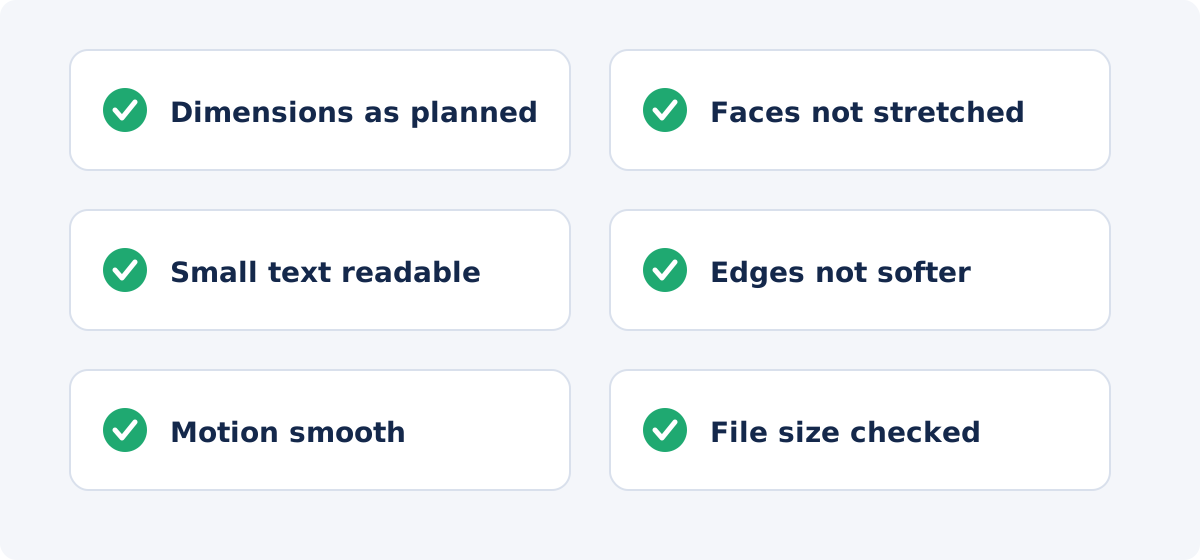
- Open the file's properties and confirm the dimensions are what you planned.
- Play the video at full screen. Faces, circles, and logos should have their normal shape, and there should be no unexpected black bars.
- Pause on small text, hair, or foliage, and compare with the source at the same on-screen size. Some softening after a downscale is normal; heavy softness after an upscale means the enlargement was too large.
- Watch a moment of fast motion for stutter or blockiness.
- Check the audio is present and in sync.
- Note the file size. It will differ from the source, in either direction, and it is not a quality measure.
- Keep the original file.
Conclusion
Quality is preserved by not asking the resize to do things it cannot do. Downscale from a good source and the loss is invisible. Upscale mildly, and only when the destination needs it. Keep the proportions locked, choose the size the video will actually be shown at, and resize once from the original. Then look at the result at full screen before you publish it.
Know your source dimensions and your target? Open the Video Resizer, pick the closest preset with the ratio locked, and compare the download with the original.
Frequently asked questions
Does resizing a video reduce its quality?
A downscale removes fine detail but usually looks clean. An upscale adds no detail and looks softer. In both cases the file is re-encoded, which can change the picture slightly. Done once from the original, the change is small; repeated passes add up.
Can I make a 720p video look like real 1080p?
No. Enlarging to 1920 × 1080 produces a file with those dimensions, but the detail is still what a 720p camera recorded. It will look acceptable for a 1.5× enlargement and soft beyond that. The tool does not restore or invent detail.
What does Preserve proportions do?
It locks the aspect ratio. When you change the width, the height is recalculated automatically, and the other way round, so the frame keeps the source's shape. With it off, you can set a frame of a different shape; the picture is then either fitted with black around it or cropped to fill, never stretched.
Will the file be smaller after resizing?
Often, but not reliably. File size depends on duration, bitrate, frame rate, and audio as well as dimensions. The tool does not target a file size. Use Compress Video when megabytes are the goal.
Which output should I choose if I am not sure?
The size the destination will display, and never larger than the source unless it is required. For most web and social use, 1920 × 1080 for horizontal video is a safe choice from a 1080p or 4K source.
Can I resize only part of the picture?
No. Resizing scales the whole frame. To keep part of the picture and remove the rest, use Crop Video. To enlarge one area within the frame, use Zoom Video.


