
16:9 and 9:16 are different shapes, not just different numbers
Dimensions are width × height in pixels. Aspect ratio is their proportion, the shape of the frame. 1920 × 1080 and 1080 × 1920 contain exactly the same number of pixels, but one is a wide rectangle and the other is a tall one. No amount of scaling turns a wide rectangle into a tall one while keeping everything inside it in proportion. A wide picture can be made smaller, so that it fits inside the tall frame with empty space, or it can be cut, so that only a tall part of it remains. Anything else changes the shapes of people and objects.
That is the whole problem in one sentence. A proportional resize can only give you another 16:9 frame. The vertical frame needs a second decision about the picture: keep it whole and small, or keep a part of it large.
Three approaches
Crop, or reframe
Keep a vertical slice of the original and discard the rest. A full-height 9:16 slice of a 16:9 frame keeps a little under a third of the width. The subject can fill the phone screen at full quality, because no pixels are enlarged. The cost is the picture outside the slice, and any subject that moves across the frame may leave it. The resizer's Fill option takes the slice from the center of the frame; Crop Video lets you move it over the subject.
Fit with a background
Scale the whole picture down until its width fits the vertical frame, and fill the space above and below with something. Nothing is lost and nothing is distorted, but the video occupies a band across the middle of the screen, and everything in it is smaller. The fill can be plain black, which is what the Video Resizer produces, or a blurred copy of the video, a color, a brand graphic, or text, which is a job for the full editor.
Stretch
Pull the pixels into the new shape. Faces become narrow, circles become ovals, and text becomes tall and thin. No content benefits from it, and it usually happens by accident in tools that scale to a size without regard for the shape. The Deus.Video resizer does not do this, even with the proportions unlocked.
| Method | Keeps whole frame | Distortion | Best for |
|---|---|---|---|
| Fill: centered crop (Video Resizer) | No | None | A subject that sits in the middle of the frame |
| Crop / reframe (Crop Video) | No | None | A subject off-center; choosing the slice by eye |
| Fit with black bars (Video Resizer) | Yes | None | Quick vertical delivery where a band across the middle is acceptable |
| Fit with a designed background (full editor) | Yes | None | Screen recordings, wide scenes, groups, clips that need text above and below |
| Stretch | Yes, distorted | Severe | Nothing in normal use; not available in the resizer |
The role of Preserve proportions
The Preserve the proportions of the original video option controls the numbers you enter. With it selected, typing a width recalculates the height, and typing a height recalculates the width, so the target frame always has the source's shape. The note under it says the ratio is locked. Use it whenever you want the same picture at a different size.
With it cleared, width and height are independent, and you can set a frame of a different shape. Choosing the Vertical 9:16, Square 1:1, or Portrait 4:5 preset for a horizontal source clears the option automatically. As soon as the target shape differs from the source, the note under the option changes to say so, and a choice labeled "How to fit the picture into the new frame" appears: Fit, keep the whole picture and add black bars, or Fill, crop the edges to fill the frame. Fit scales the picture down until it sits inside the new frame, centered, and fills the remaining area with black. Fill scales the picture up until it covers the frame and cuts off the edges that spill over, equally on both sides. In neither case is anything stretched, and the preview shows the result of the selected option: a band with bars for Fit, or a picture that reaches the frame edges for Fill.

When to use Resize Video
- When you already have a vertical or square clip and need a different size, with the ratio locked.
- After cropping, to bring the vertical slice to exact dimensions. A 9:16 crop from 1080p footage is around 608 × 1080; a proportional resize scales it to 1080 × 1920 if a platform asks for that, at the cost of a 1.8× enlargement.
- When a fit with black bars is acceptable. Pick the Vertical 9:16 preset with Fit, and the horizontal picture is delivered inside a 1080 × 1920 frame with black above and below. It never distorts, and it looks like what it is: a horizontal video in a vertical slot.
- When the subject sits in the middle of the frame. Pick the vertical preset with Fill, and the resizer crops the sides evenly and delivers a full-frame vertical video in one step, without a visit to Crop Video.
Note that a 9:16 slice of 1080p footage does not contain 1080 × 1920 pixels, so enlarging it to that size softens the picture. If the footage is 4K, the slice is about 1215 × 2160, and a downscale to 1080 × 1920 is clean. This is a strong reason to record in 4K when vertical versions will be cropped from a horizontal frame.
When you need Crop Video
Whenever the subject is not in the middle of the frame. The resizer's Fill option always crops from the center. Crop Video has a 9:16 preset and a movable crop frame, so you place the slice over the subject and see what will be kept. Its Output width and height show the pixel size of the kept area, which tells you how much enlargement a later resize would involve. The crop is fixed for the whole clip: it does not follow a moving subject, so check the full timeline before committing.
When you need the full editor
For a fit with a real background, and for anything that needs positioning: the video placed higher or lower in the frame, a blurred copy behind it, a color, a logo, and text above and below. In the full Deus.Video editor, you create a vertical canvas, add the clip, scale and position it, add the background layer, and export at the size you need from the Download video dialog. The editor is also the place for a moving subject, where the framing can be animated with keyframes instead of fixed.
A safe workflow
The steps below cover the crop route, which suits most single-subject clips, and end in the resizer where you can create a new output resolution with the ratio locked.
- Watch the whole clip and note where the subject is in every section. If it stays within a vertical band, crop. If it crosses the frame, or the whole picture matters, use a fit instead.
- Crop to 9:16 in Crop Video: choose the 9:16 preset, drag the frame over the subject, check the start, middle, and end, and process.
- Upload the cropped clip to the Video Resizer, and read its dimensions under Current size.
- Keep Preserve proportions selected, and enter the target width. The height follows. A crop that is not exactly 9:16 gives a height a few pixels off, which is normally fine.
- Check the preview. The picture should fill the target frame with no black bars. Bars mean the cropped clip and the target have different shapes, in which case the Fit or Fill option appears.
- Click Resize video, download, and check the result on a phone.

For the one-step routes, skip the crop: upload the horizontal clip, choose the Vertical 9:16 preset, and pick Fit or Fill in the option that appears. Check the preview: a band with black above and below for Fit, or a full frame with the sides gone for Fill. Then process. The audio is carried over unchanged, and the output keeps the format of the upload.

Check text, faces, logos, and safe areas
- Faces. Eyes should be round and heads their normal width. The resizer keeps them so; if they look off, a stretch crept in somewhere else in the chain.
- Text. Burned-in captions and titles from the horizontal version are often cut by a vertical crop, or too small in a fit. Plan to add text again in the vertical layout.
- Logos and graphics. Corner logos disappear in a crop. Move them, or re-add them.
- Safe areas. Vertical platforms overlay their own interface on the video: captions and buttons along the bottom, icons on one side, a header at the top. Keep faces, text, and logos in the central area of the frame, and check the platform's current guidelines, since the covered regions differ between apps and change over time. A fitted horizontal picture sits in the middle band, which usually clears those areas by itself.
- Real-device check. Watch the result on a phone, not only in a desktop preview. Small text and fine detail behave differently at that size.
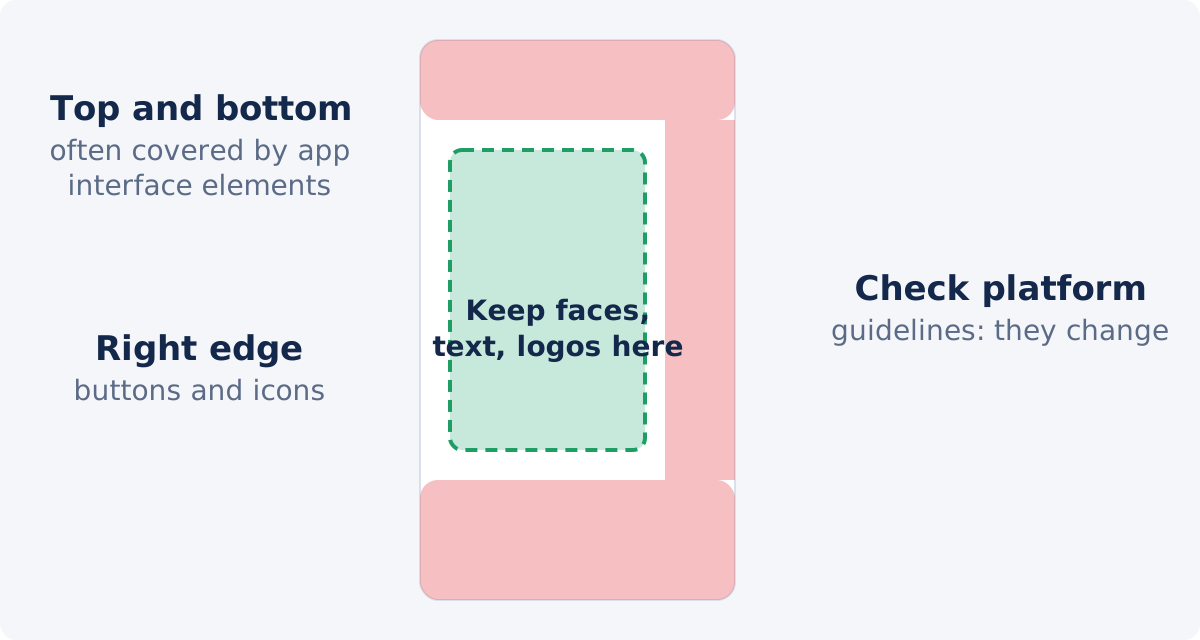
Conclusion
Horizontal to vertical is a change of shape, so it always involves a choice about the picture: keep a slice, or keep it all but smaller. The Video Resizer offers both, as Fill and Fit, and never stretches. Crop Video places the slice where you want it. The full editor does the fit with a designed background. Decide by what the viewer should see large, and check faces, text, and safe areas on a phone.
Have the horizontal clip, or its cropped vertical version, ready? Resize the video online, watch the preview for bars, and check the result on a phone before you post.
Frequently asked questions
Can the Video Resizer turn a horizontal video into a vertical one?
Yes. Choose a vertical preset, then Fit to keep the whole picture with black bars, or Fill to crop the sides and cover the frame. Neither option stretches the picture. Fill crops from the center, so for an off-center subject use Crop Video first.
Will the resizer stretch my video if I unlock the proportions?
No. Unlocking lets you enter a frame of a different shape, and a Fit or Fill option then appears. The picture is always kept in proportion: padded with black, or cropped at the edges. The preview shows the result of the option you chose.
Does the resizer choose the best part of the picture to keep?
No. Fill crops from the center of the frame and does not analyze the content or follow a subject. Choosing exactly what to keep is done in Crop Video; choosing what goes behind the picture is done in the full editor.
Which is better, cropping or a fit with bars?
Cropping when one subject can fill the vertical screen and nothing important is at the sides. A fit when the whole picture matters, such as a screen recording, a wide scene, or a group, or when the subject moves across the frame. A designed background looks more finished than plain black.
Will the vertical crop look as sharp as the original?
A crop keeps the original pixels of the slice, so it is as sharp as the source at that size. If it is then enlarged to 1080 × 1920 from 1080p footage, it is about 1.8× larger than the recorded pixels and looks softer. 4K sources avoid that.
Do I need 1080 × 1920 exactly?
Platforms display 9:16 video at whatever size their player uses, and many accept other sizes with the same shape. Exact dimensions matter when a platform or a client specifies them. Check the current requirements of the destination rather than assuming a fixed number.


