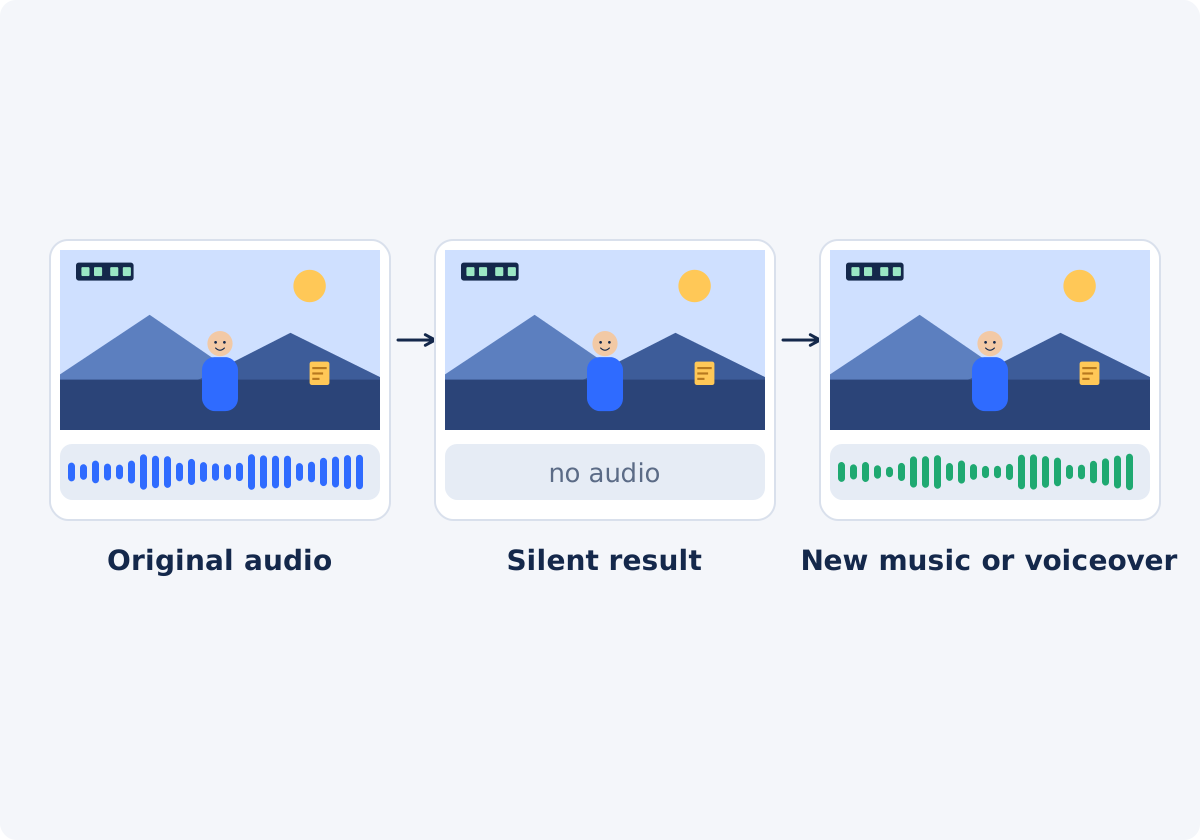
Two workflows
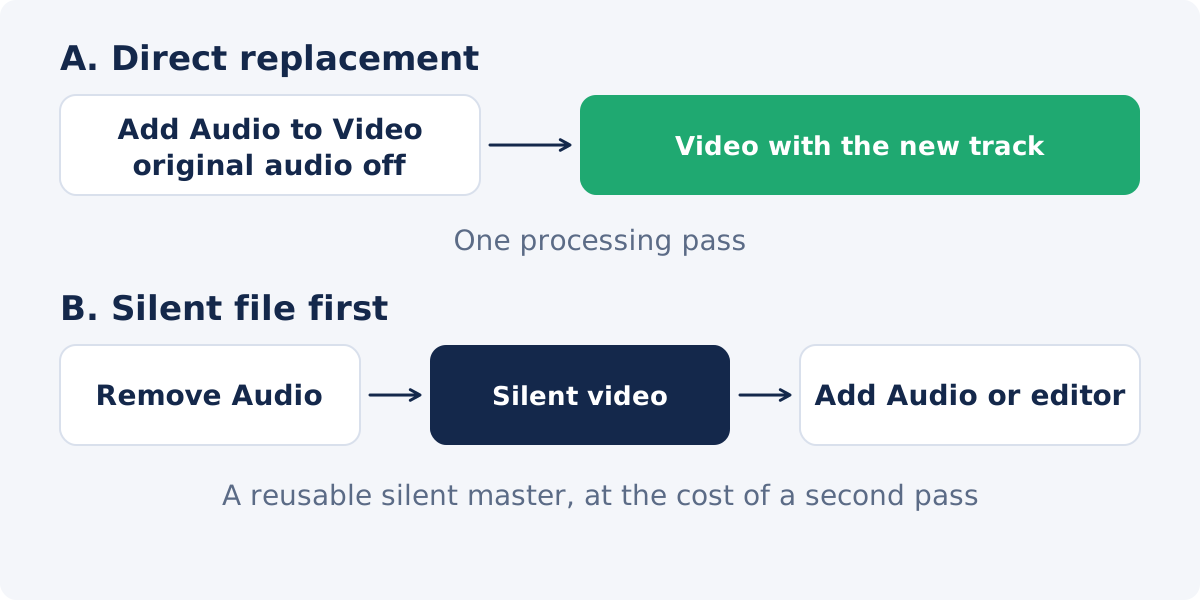
A. Direct replacement in Add Audio to Video
Add Audio to Video mixes one or more audio files into a video. It has a checkbox labeled Keep original video audio. Clear it, and the result contains only the tracks you added. That is a replacement in a single processing pass, which is the quickest route.
B. Silent result first, then a new mix
Make a silent video with Remove Audio, download it, and then add the new sound to that file, in Add Audio to Video, or in an editor. This adds a step, but it does not cost picture quality: Remove Audio normally copies the image as it is, without compressing it again. In exchange, you get a clean silent master that you can reuse.
When to remove the original soundtrack first
- You need the silent version anyway, for a website background, a display, or a colleague who will add their own sound.
- You will make several versions from the same footage: different languages, different music, a version with narration and one without.
- The file has to pass through other hands or tools, and you want to be certain that the original sound cannot come back by accident. A file with no soundtrack cannot be unmuted.
- The original audio is private, and you would like it gone before the footage is uploaded anywhere else.
- The new audio is not ready yet. You can prepare and approve the silent picture now, and add sound later.
If none of these apply, workflow A is simpler. If you might want the original sound again, save it first. Extract Audio from Video stores the soundtrack as a separate MP3 or WAV file.
Prepare the music or the voiceover
Rights
Replacing a soundtrack does not make any music usable. You need the right to publish the track you add: music you made, music licensed for your purpose, or a library track whose terms cover your use. Platforms detect commercial music, and may mute, block, or restrict videos that use it without permission. For a voiceover, make sure the speaker has agreed to the use. This is general guidance, not legal advice.
Length
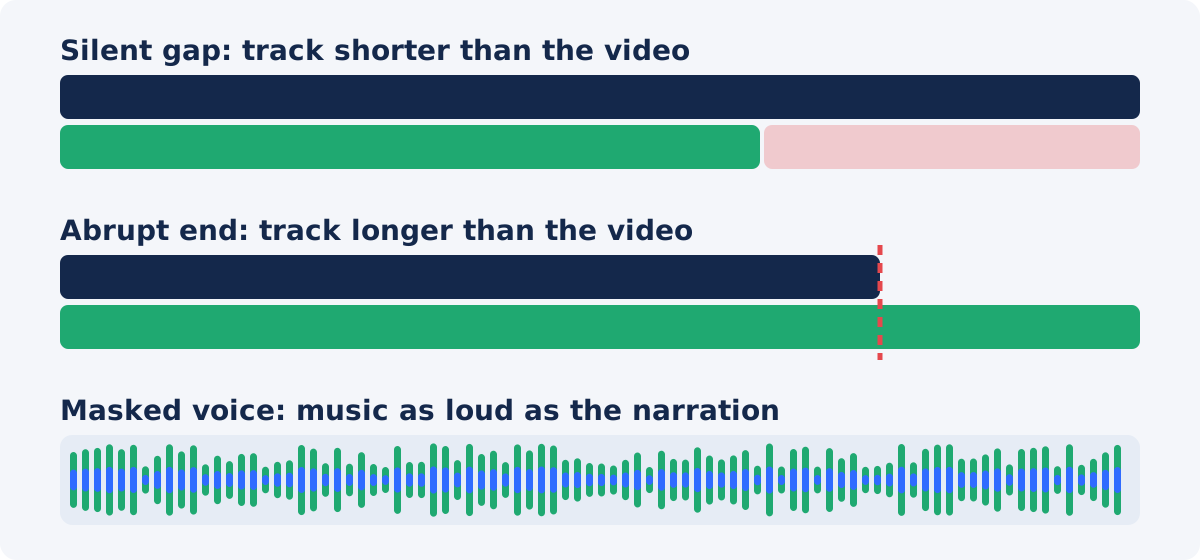
Compare the duration of the audio with the duration of the video. Music that is too short leaves silence at the end. Music that is too long is cut off when the video ends, often in the middle of a phrase.
Voiceover recording
Record in a quiet, soft-furnished room, close to the microphone, at a steady level. Watch the video while you read, so your pacing follows the picture. Leave a second of silence at the start and the end of the recording.
File
Export the audio as a standard file, such as MP3 or WAV, and listen to it by itself before you upload it. Problems are easier to fix at this stage than in the mix.
Workflow: remove the original audio
Use the Remove Audio tool to remove the original soundtrack and get a silent file.
- Upload one video. Common inputs include MP4, MOV, AVI, WebM, and MKV.
- Click Remove audio from video. The complete soundtrack is removed. There are no partial options.
- Wait until the status reads "Done! Download your result below."
- Click Download result, and play the file to confirm that it is silent. The picture is normally copied without being compressed again, so it should look exactly like the original, at the same duration.
- Keep the original file. It is your only copy of the original sound, unless you extracted it.
- Click Continue editing this video if you want to go straight to the full editor with the silent result.

Workflow: add the new sound
In Add Audio to Video
- Upload the video: the silent file for workflow B, or the original for workflow A.
- Add your music or voiceover file. Each file becomes a track with its own settings.
- For workflow A, clear Keep original video audio. For workflow B, it makes no difference, since the file is already silent.
- Set Track start, and if needed Track end, to place the track against the picture.
- Set the volume, and a fade if you want the music to ease in and out.
- Play the preview, process the video, and download the result.

In the full editor
The full Deus.Video editor is the better place when the replacement involves more than one track, or has to be timed against cuts. There is no separate "remove audio" command there. You silence a clip by clicking the speaker icon next to its Volume control, or by setting Volume to 0. Then you add music and narration on the timeline, position them, set their levels, and export once.
Sync, volume, fades, and the final review
Sync
Music rarely needs exact sync, though a cut or an action that lands on a beat feels deliberate. A voiceover does need it. Each sentence should begin when its subject appears on screen. If the narration runs ahead or behind, split it into sections, and place each one separately.
Volume
When music plays under a voice, the voice has to win. Keep the music well below the narration, low enough that you can follow every word without effort on phone speakers. When music plays alone, it can sit at a normal level.
Fades
A track that starts or stops at full level sounds like a mistake. A short fade in, and a longer fade out, make the edges unobtrusive. In Add Audio to Video, fades are applied when the video is processed, so judge them in the downloaded file, not in the preview.
Final review
- Play the whole result, not only the start.
- Confirm that none of the original sound remains.
- Listen to the first and last five seconds for gaps, and for abrupt edges.
- Check the voiceover against the picture at three or four points.
- Listen once on headphones, and once on a phone speaker.
Which tool for which goal
| Goal | Original audio | Replacement | Tool |
|---|---|---|---|
| Swap camera sound for a music track | Remove | One music file | Add Audio to Video, with Keep original video audio cleared |
| Silent master for several versions | Remove | Added later, per version | Remove Audio first, then Add Audio to Video |
| Narrated tutorial from a noisy recording | Remove | Voiceover | Add Audio to Video, or the full editor for section-by-section timing |
| Music under the existing speech | Keep | Music at a low level | Add Audio to Video, with Keep original video audio selected |
| Voiceover plus music plus sound effects | Remove | Several tracks | Add Audio to Video with several tracks, or the full editor |
| Replace the sound in one section only | Keep elsewhere | One track over that section | Full editor |
| Silent video with captions | Remove | None; text instead | Remove Audio, then Add Subtitles to Video |
| Keep a copy of the original sound | Save before removing | Any | Extract Audio from Video first |
Common mistakes
- Silent gaps. The track is shorter than the video, or starts late, and part of the video plays in dead silence. Extend the track, add a second one, or shorten the video.
- Mismatched duration. The track is longer than the video, and is cut mid-phrase. Set a track end with a fade, or choose a piece of the right length.
- Dialogue masked by music. You kept the original speech, or added narration, and the music is too loud. Lower the music, not the voice.
- Leftover original sound. Keep original video audio was still selected, so the camera sound plays under the new track.
- Too many passes. Remove, then add music, then add narration, then compress, each as a separate export. Steps that mix or add sound create a newly processed file each time. Combine steps where you can.
- Unlicensed music. The replacement causes the very problem you were trying to avoid.
- No final listen. Problems at the end of a video are the ones most often missed.
Conclusion
Replacing a soundtrack is removal plus addition. Do both in one pass with Add Audio to Video when you simply want new sound, and make a silent file first when you need that silent version as an asset. Prepare audio you have the right to use, match its length to the picture, keep music under the voice, fade the edges, and listen to the whole result.
Need the silent version first? Make the video silent with the Remove Audio tool, check the download, and build your new sound on top of it.
Frequently asked questions
Does the Remove Audio tool add my new music?
No. It only removes the complete original soundtrack and returns a silent video. Adding music, narration, or effects is done in Add Audio to Video, or in the full editor.
Do I have to remove the original audio before adding new audio?
No. In Add Audio to Video, you can clear Keep original video audio, and the result will contain only the tracks you added. Removing the audio first is useful when you also want a reusable silent file.
Can I keep the original speech and add music under it?
Yes. In Add Audio to Video, leave Keep original video audio selected, add the music as a track, and set its volume low enough that the speech stays clear.
What happens if my music is shorter than the video?
The rest of the video plays without that track. Add the same or another piece as a second track for the remainder, choose a longer piece, or shorten the video.
Can I get the original sound back after removing it?
Not from the silent file. It comes only from your original video, which the tool does not modify. If you may need the sound again, keep the original, or extract the audio to a separate file beforehand.
Will replacing the audio reduce the video quality?
Removing the audio does not: the picture is normally copied as it is, without being compressed again. Adding a new track creates a newly processed file, which can change fine detail slightly. One such pass is rarely noticeable. Avoid long chains of separate exports, and start from the original file.


