How AI separates the subject from the background
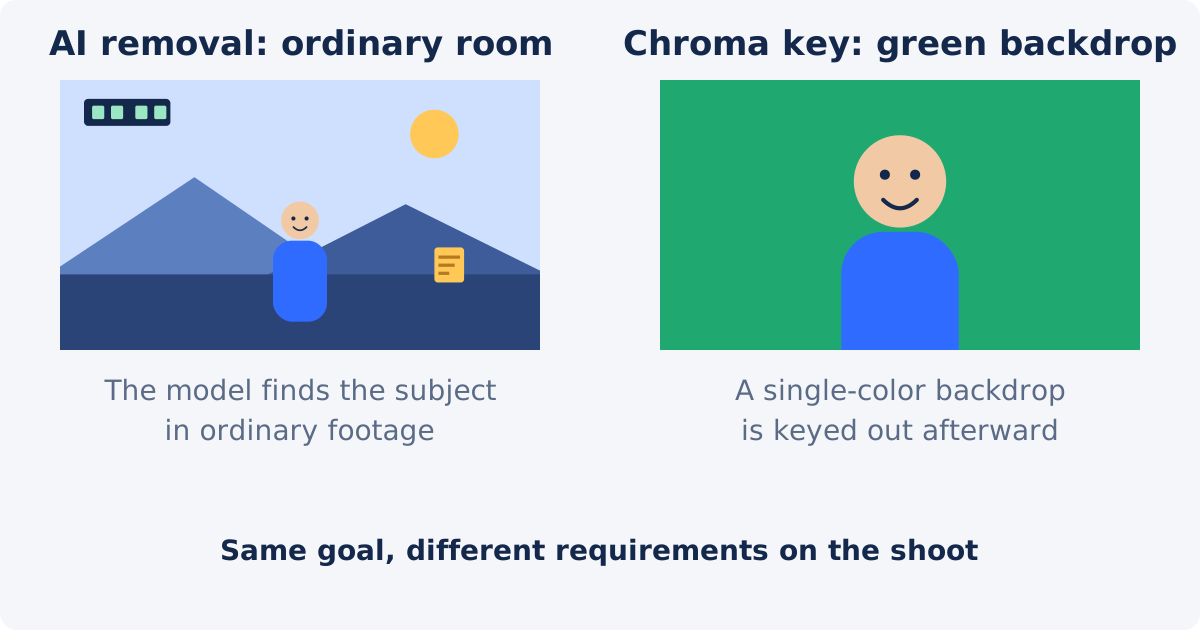
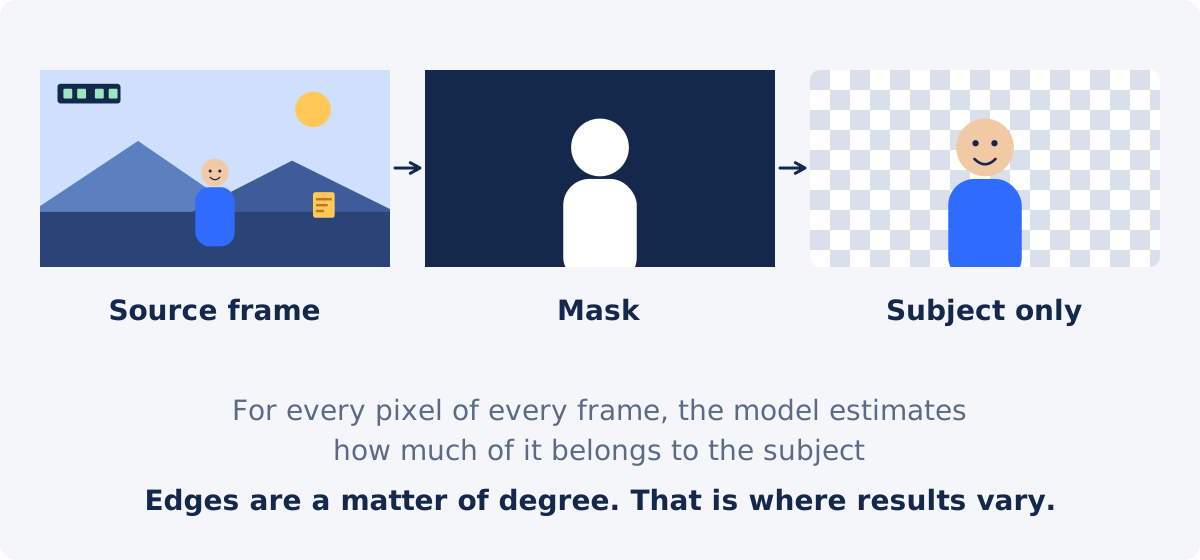
A green screen works by color. Everything that is green is treated as background, and everything else is kept. AI background removal works by recognition instead. A model trained on large numbers of images and videos has learned what people, and most everyday objects, look like against their surroundings. For every pixel of every frame, it estimates how much of that pixel belongs to the subject.
The output of that estimate is a mask, which is a gray image where white means subject, black means background, and the shades in between mark the edges. The mask is applied to the frame, and the background pixels are dropped, or replaced with a color or an image you choose.
Two details matter for practical use. First, edges are not a yes-or-no decision. A strand of hair that is one pixel wide, or a hand blurred by motion, is partly subject and partly background, and the model has to pick a value in between. That is why edges are where results vary. Second, the model reads the picture the way a person would. When the subject is well lit, sharp, and clearly different from the scene, it has an easy job. When the subject blends in, so does the mask.
AI removal vs. green screen vs. manual masking
Chroma keying, the technique behind the green screen, removes a chosen color from the picture. It is dependable when the backdrop is evenly lit, wrinkle-free, and far enough behind the subject that no green light bounces onto skin or clothing. Get those conditions right, and it handles hair and motion very well. Get them wrong, and you spend the edit fighting spill and patchy keys.
Manual masking, called rotoscoping in the film industry, means drawing the outline of the subject by hand and adjusting it frame by frame. It works on anything, and it is slow. A few seconds of footage can take hours.
AI removal sits between the two. It needs no preparation of the set, and it runs unattended. Its weakness is that you cannot correct the mask by hand in the standalone tool. What you can control is the footage you feed it.
| Method | Special backdrop required | Best for | Main limitation |
|---|---|---|---|
| AI background removal | No | Existing footage and quick workflows | Edge quality depends on footage |
| Chroma key | Yes | Controlled professional recording | Requires correct lighting and backdrop |
| Manual masking | No | Complex precision work | Slow and labor-intensive |
Which videos work best
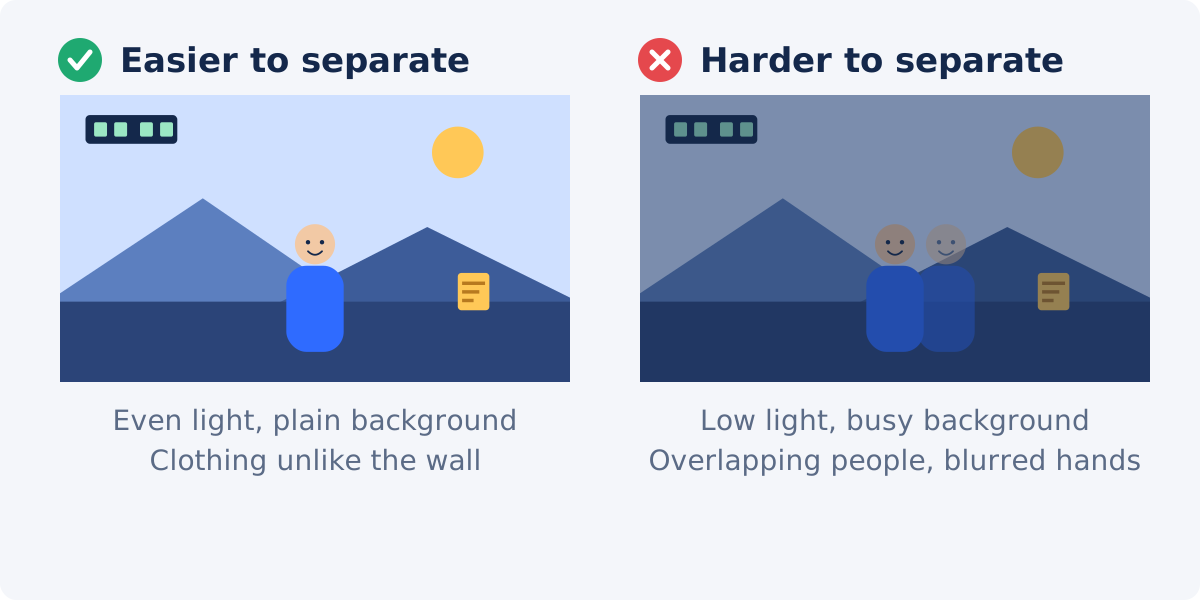
The model can process ordinary footage, but some footage is much easier than other footage. If you are about to record, aim for the left column.
- Light the subject, not the wall. Even, front-facing light on the person, with the background a little darker, gives the clearest separation. Strong backlight and windows behind the subject are the classic problem.
- Keep the background simple. A plain wall separates more reliably than bookshelves, plants, or another person walking past. The wall does not have to be green, or any particular color, but it should differ from the subject's clothing and hair.
- Use a steady camera and moderate movement. Fast gestures blur, and blurred edges are ambiguous. A tripod, or a phone propped on a stable surface, helps more than any setting.
- Record sharp, at a decent resolution. Focus on the subject, and keep the original file. Compressed copies downloaded from a chat or a social platform have lost the fine edge detail the model relies on.
- One clear subject. The tool is built around a main foreground subject. Two people who overlap, or a subject who leaves the frame and returns, give the model more to guess about.
How to remove the background in Deus.Video
With the tool, you can remove a video background online from an ordinary recording.
- Upload one video. MP4, MOV, AVI, WebM, MKV, and other common formats are accepted.
- Choose the Output background. Transparent keeps only the subject. Color places the subject on a solid color that you pick. Image lets you upload a picture to use as the new scene.
- Set the color or the image, if you chose one of those modes. For Image, use a picture with the same proportions as your video, since it is fitted to the video frame.
- Click Remove Video Background. Processing happens on Deus.Video servers, frame by frame, so a longer or higher-resolution clip takes longer. A progress indicator shows where it is.
- Review the result in the preview, with the checks in the next section.
- Download the file, or continue in the full editor. A transparent result is delivered as a WebM file, which can preserve transparency. Color and image results are delivered as MP4.
The clip's resolution and frame rate are kept, and so is its audio. The tool does not sharpen or upscale anything. Background removal changes what is around the subject, not how good the subject looks.

How to check hair, hands, and moving edges
Judge the result where the model works hardest. Play the clip once through, and then step through the moments below.
- Hair. Pause on a frame where hair is against the old background. Look for strands that vanished, a solid helmet-like edge, or a soft haze of the old background color around the head. Loose hair and fur are the hardest cases for any automatic method, and this tool is no exception.
- Hands. Find the fastest gesture in the clip. A hand in motion may have a soft, half-transparent edge, or a brief flicker where the mask changes between frames.
- Clothing. Check any area where the clothing color is close to the old background. Missing patches show up as holes.
- Objects the subject holds. A phone, a mug, or a pen is sometimes cut off, or kept only partly, especially if it is thin or reflective.
- Frame edges. If the subject touches the bottom or the side of the frame, look at how the cutout ends there.
- Playback. Watch the full clip against the new background, at the size where it will be shown. Small defects that are obvious on a paused frame can be invisible in motion, and some flicker is visible only in motion.
If a problem is limited to one moment, trimming that moment out is often faster than any other fix.
Examples by use case
Presenter or talking head
The most common case and usually the most successful. A seated or standing person, facing the camera, in a lit room. Record against the plainest wall available, and keep the subject at least a meter in front of it. Replace the background with a brand color, or a clean image of a studio or an office.
Product demo
Products are more varied than people. A matte box on a desk separates well. A glass bottle, a chrome gadget, or a product with thin straps or cables gives the model less to work with, because transparent and reflective surfaces show the background through them. Use a plain surface, keep hands steady, and check any transparent part.
Tutorial with hands and props
Cooking, crafts, and repairs involve fast hands and many small objects. Expect the mask to soften during quick moves. Slow down slightly for the important actions, or accept that a solid color background hides those moments better than a detailed image would.
Social media clip
Short, vertical, and often shot handheld on a phone. The tool handles the vertical format like any other. Handheld motion is the main risk, so brace the phone, and avoid walking shots for anything you plan to cut out.
When a green screen still gives a better result
- Fine hair, fur, or veils that must be preserved strand by strand.
- Transparent or reflective objects, such as glass, smoke, water, or a wine glass in hand, where the background has to show through correctly.
- Fast, continuous motion, such as dance or sports, where edges blur in most frames.
- Broadcast or client work where a controlled, repeatable result matters more than convenience.
- Long recordings where you cannot review every moment. A well-lit key is predictable across a whole session.
A useful middle path exists. If you have a green or blue backdrop but no keying software, the AI tool can still be used on it. The plain, contrasting background makes the model's job easier, even though the tool is not keying the color.
Common mistakes
- Judging the result only on a paused frame. Flicker lives in motion.
- Uploading a compressed copy instead of the original recording.
- Wearing the wall. A gray sweater against a gray wall, or dark clothes in a dark room, are the most frequent cause of holes.
- Standing against a window. Backlight turns the subject into a dark shape with glowing edges.
- Choosing a busy replacement image that shows every edge defect. Start with a solid color to inspect the cutout.
- Expecting AI removal to fix bad footage. It separates what it can see.
The same capability is available inside the full Deus.Video editor, where a Remove background button appears in the panel of any video or image element, so you can cut out a subject and immediately place text, other clips, or a new background around it.

Conclusion
A green screen is a way of making the subject easy to find. AI removal finds the subject without it, which makes background removal available for footage you already have and for setups with no room for a backdrop. It works best on well-lit, sharp, steady footage with a clear subject, and its edges deserve a check at hair, hands, and fast motion. Record for the model when you can, choose the output that suits the destination, and review the result in motion.
Have a clip recorded in an ordinary room? Try the AI video background remover, start with a solid color output to inspect the edges, and switch to transparent or an image once you are happy with the cutout.
Frequently asked questions
Do I need a green screen to remove a video background?
No. The tool identifies the subject by recognition, not by color, so an ordinary wall, room, or outdoor scene can be removed. A plain, evenly lit background still helps, because it makes the subject easier to separate.
Does the background have to be one color?
No. Any background can be processed. Results are most reliable when the background is simpler than the subject and differs from the subject's clothing and hair in color and brightness.
Will hair and fast hands always come out clean?
Not always. Fine hair, fur, blurred hands, and transparent objects are the hardest cases for automatic separation. Good light, contrast, and steadier movement improve them, and a solid-color replacement hides small defects better than a detailed image.
Where is the video processed?
On Deus.Video's own server infrastructure. The processing does not rely on a separate third-party background-removal service. Because the work is done frame by frame, processing time grows with the length and resolution of the clip.
Does background removal improve the video quality?
No. It changes the background and keeps the subject at the source resolution and frame rate. It does not sharpen, denoise, or upscale the footage.
Can I remove the background from a video that is already green screen?
Yes. The tool does not key the color, but a plain green backdrop is an easy background for the model to separate. If you need the classic chroma-key workflow in another program instead, you can also output a solid green or blue background from this tool.
Sources
- Deus.Video, "Remove Background from Video Online" tool page: https://deus.video/remove-video-background/ (accessed September 22, 2026)
- Wikipedia, "Chroma key," for the principle of color-based keying and its lighting requirements: https://en.wikipedia.org/wiki/Chroma_key (accessed September 22, 2026)
- Wikipedia, "Rotoscoping," for manual frame-by-frame masking: https://en.wikipedia.org/wiki/Rotoscoping (accessed September 22, 2026)


