Player mute vs. removing audio from the file
A soundtrack, also called an audio track, is the sound stored inside a video file alongside the picture. There are two very different ways to stop people from hearing it.
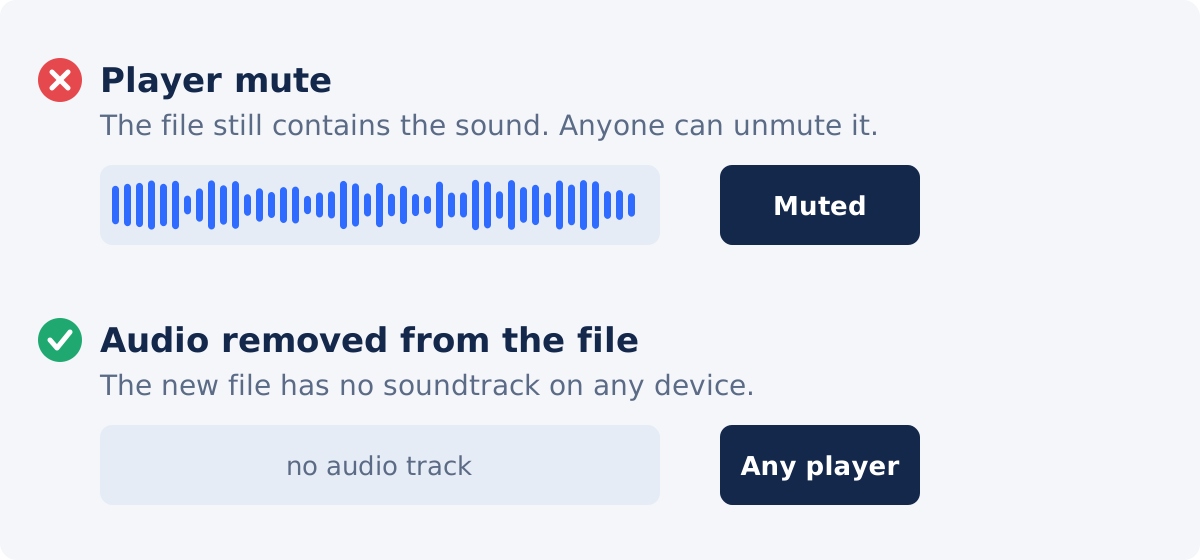
Player mute is a playback setting. The mute button on your phone, in a media player, or on a website silences the sound on that device, at that moment. The file is not changed. Send it to someone else, and they hear everything.
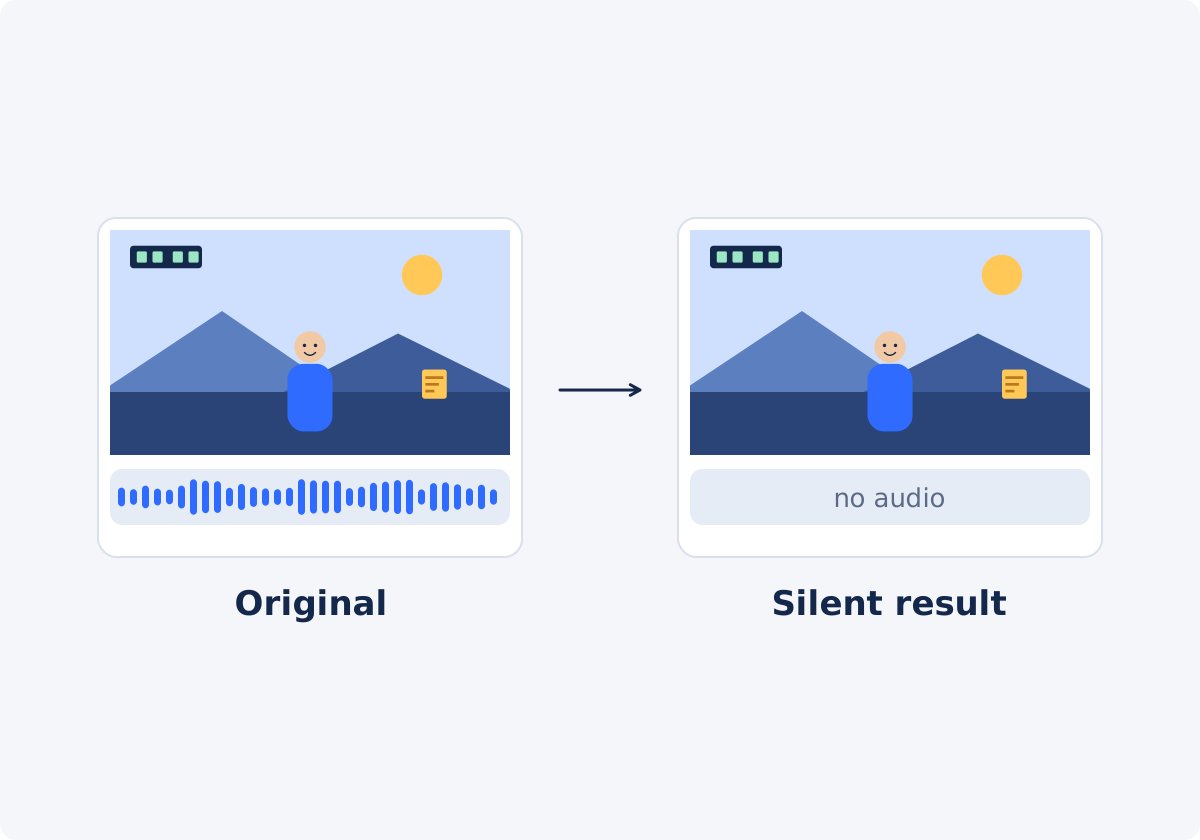
Removing audio from the file produces a processed output, which is a new video file created without the original soundtrack. There is nothing to unmute. Whoever opens that file, on any device, gets a silent video.
In Deus.Video, the picture is normally copied into that new file as it is, without being compressed again. Many tools re-encode the whole video for a job like this, which costs a little sharpness each time. Here, only the sound is taken out, so the image in the silent copy matches your original.
Some apps blur the line. A "mute" toggle in a messaging or social app may strip the sound from the copy it uploads, or may only mute the preview. If it matters, do not rely on a toggle whose behavior you cannot verify. Make a silent file yourself, and check it.
What to check before sharing
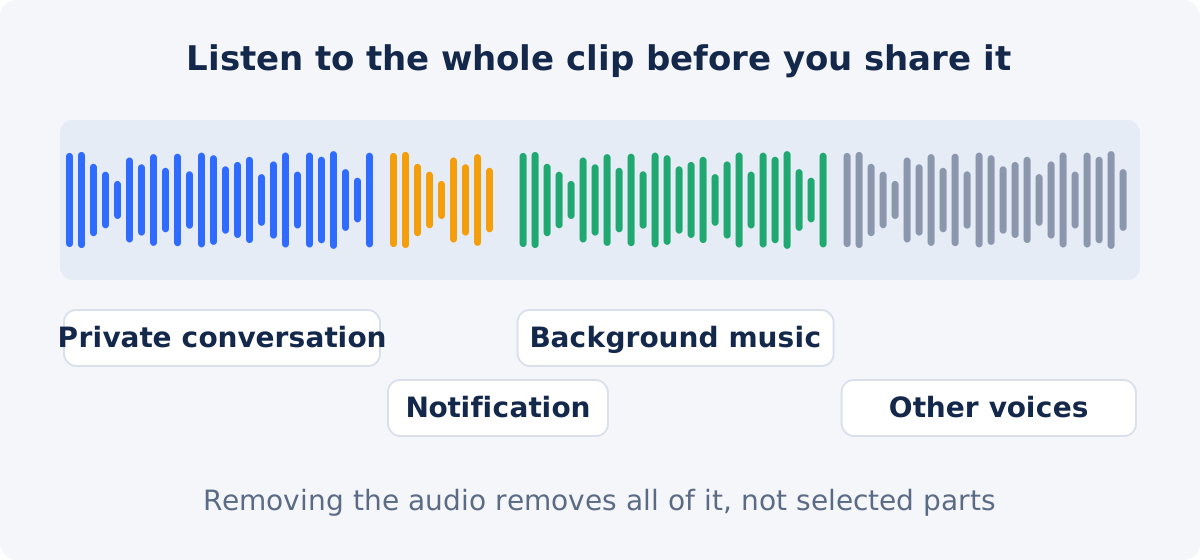
People usually review a video with their eyes. The microphone was recording the whole time, including the parts you were not paying attention to. Play the clip from start to finish, with the volume up, preferably on headphones.
- Private conversation. Talk behind the camera, a phone call in the next room, comments you made while filming.
- Names and details spoken aloud. Addresses, phone numbers, a child's name, a client's name, an order being read out.
- Notifications. Message tones and alerts reveal that something arrived, and voice assistants sometimes read messages aloud.
- Music. A radio, a TV, or a playlist in the background. Platforms may mute, block, or flag videos that contain commercial music, even when it was incidental.
- Background voices. Colleagues, family members, or strangers who did not agree to be recorded.
- Unflattering noise. Wind, traffic, handling noise, a barking dog. Not a privacy problem, but a reason the clip may be better silent.
If any of this is present and cannot be shared, the simplest dependable fix is a silent file. The tool does not remove selected sounds. It removes all of the audio.
How to remove sound from a video in Deus.Video
With the tool, you can remove audio from a video online in a few clicks.
- Upload one video. Drag and drop it, or use the file picker. Common inputs include MP4, MOV, AVI, WebM, and MKV.
- Wait for the upload to finish. The file name and size appear in the upload area.
- Click Remove audio from video. There are no settings to choose. The complete soundtrack is removed.
- Wait for processing. The status line reads "Done! Download your result below" when the file is ready.
- Click Download result. The note under the buttons reminds you that the processed result contains no audible soundtrack, and that you should review it.
- Optionally, click Continue editing this video to open the result in the full editor, for example to add captions or new sound.
- Check the downloaded file as described in the next section, and share that file, not the original.

Check the processed download
- Sound. Play the downloaded file with the volume up. There should be nothing to hear. Skip to several points, including the very end.
- Duration. The length should match the source. Removing audio is not meant to change the picture or the timing.
- Picture. The image is normally copied without being compressed again, so you should see no difference from the original. Watch a few sections anyway, and check the orientation.
- Playback compatibility. The silent copy comes in the same format as your upload, so a file type that your recipient could not open before will not open now either. Open the file on the kind of device, or in the app, where it will be viewed. If you can, send it to yourself first through the same channel.
- The right file. Rename the silent copy clearly, for instance "demo-silent.mp4," so the original does not get attached by mistake.
When you need captions, replacement music, or the full editor
A silent video removes information along with the problem. If viewers needed the speech to follow what is happening, give it back in another form.
- Captions or on-screen text replace spoken explanation. Add Subtitles to Video lets you create timed lines, or upload a subtitle file.
- Replacement music or a new voiceover gives the clip sound you are allowed to share. Add Audio to Video mixes an audio file into the video.
- Several changes at once, such as cutting a section, covering part of the picture, adding text, and replacing the sound, belong in the full Deus.Video editor. There, a clip is silenced with the speaker icon next to its Volume control, or by setting Volume to 0, and everything is exported in one pass.
If the original sound might be needed later, save it before you remove it. The Extract Audio from Video tool stores the soundtrack as a separate audio file.
Sharing scenarios
| Sharing scenario | Audio risk | Recommended action |
|---|---|---|
| Clip for a public social post | Background music; strangers' voices | Remove the audio; add licensed music or captions if needed |
| Product or property walkthrough for a client | Private comments made while filming | Remove the audio; add a clean voiceover later |
| Video sent to a group chat | Family conversation, names, a phone call in the background | Remove the audio; send the silent copy |
| Footage for a website background or a display | Any sound is unwanted, and it adds file weight | Remove the audio |
| Evidence of a defect for customer support | Personal talk around the recording | Remove the audio, unless the sound is the defect |
| Clip where the speech is the point | Removing the audio destroys the content | Do not remove it; trim to the relevant part instead |
| Recording with one problematic moment | A name or a sentence in the middle | The tool cannot silence one section; use the full editor, or remove all audio and caption the rest |
Privacy caveat: what removal does not do
Removing the soundtrack keeps recorded sound from being heard in the new file. That is all it does.
- It does not hide anything visible. Faces, documents on a desk, a street sign, a screen in the background, and a name tag are all still in the picture.
- It is not a metadata cleaner. Video files can carry extra information, such as a location, an author name, a comment, or a date. Information of that kind can remain in the silent copy. If that matters, inspect the file's properties before sharing, and use a dedicated metadata tool.
- It does not affect copies that already exist. The original on your phone, in cloud backups, or in an earlier message still has its sound.
- It does not settle copyright or consent questions. A video can raise those through its images as well.
This is practical guidance, not legal advice. For sensitive material, think about who and what can be seen, as well as what could be heard.
Conclusion
Muting a player hides the sound from you. Removing the audio hides it from everyone who receives the file. Listen to the clip before sharing, make a silent copy when anything in the soundtrack should stay private, and check the download for silence, duration, and picture. Then look once more at what is visible, since a silent file shows exactly as much as it did before.
Have a clip to send, and a soundtrack you would prefer to keep to yourself? Open the Remove Audio tool, process the video, and play the result before you share it.
Frequently asked questions
Is muting a video the same as removing its audio?
No. Muting is a playback setting on one device, and the sound remains in the file. Removing the audio creates a new file without the soundtrack, so nobody who receives it can turn the sound back on.
Can I remove only one part of the sound, or only the background noise?
Not with this tool. It removes the complete soundtrack for the whole video. It does not silence a section, and it does not separate noise, speech, or music. For partial changes, use the full editor, or a dedicated audio tool.
Does removing the audio change the video quality or the length?
No. The tool normally copies the picture as it is, without compressing it again, so the image quality matches your original, and the duration stays the same. The file gets somewhat smaller, since the audio data is gone. Play the download once to confirm before you publish it.
Will the file be smaller without sound?
It may be, since the audio data is gone, but audio is usually a small part of a video file, and the exact change depends on processing. Do not count on a particular reduction.
Can the recipient recover the original sound from the silent file?
No. The processed result does not contain the soundtrack. The sound still exists in your original file, and in any copies of it, so share only the silent version.
Does removing the audio make a video safe to share?
It removes what could be heard. It does not hide what can be seen, and it is not a metadata cleaner, so details such as a location or an author name stored in the file can remain. Review the picture and the file's properties as well.


