What the standalone trimmer can and cannot do here
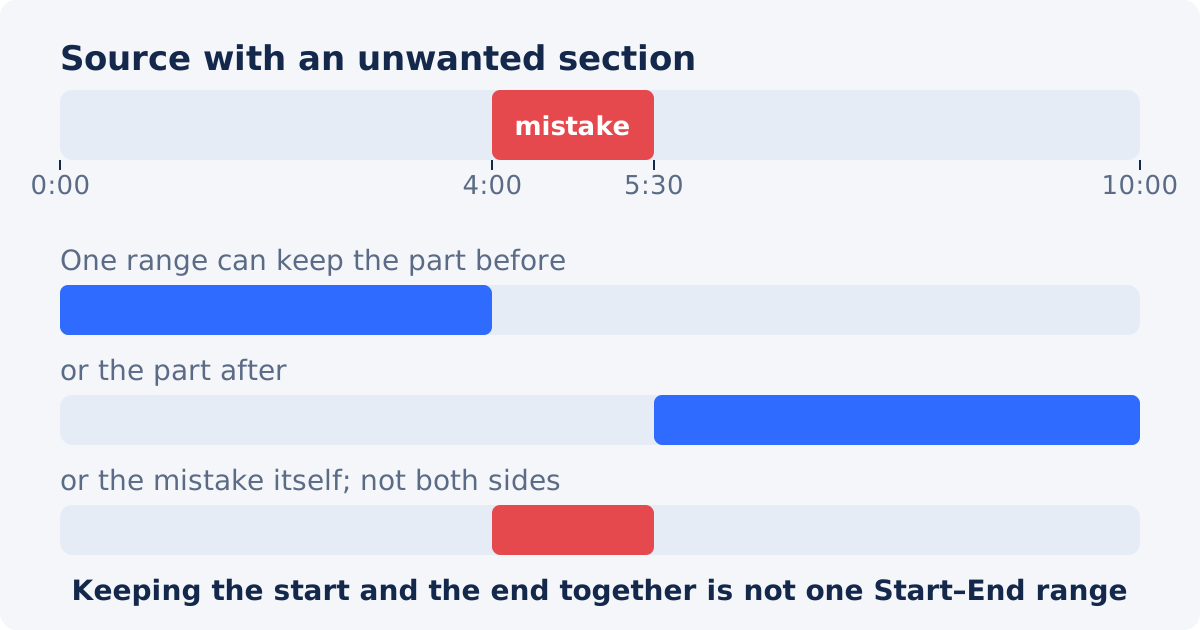
The trimmer's model is one range: everything between Keep from and Keep until stays, everything outside goes. Applied to a video with an unwanted section in the middle, that gives three possible results.
- Keep the part before. Start at 0:00, End at the beginning of the unwanted section.
- Keep the part after. Start at the end of the unwanted section, End at the end of the video.
- Keep the middle segment itself, which is useful when the "unwanted" section is actually the one moment you want to extract.
What one range cannot express is "keep A and C, drop B," because A and C are not continuous. That needs two cuts and a deletion, which is an editing operation rather than a trim. Trying to do it with the trimmer by picking a Start inside A and an End inside C keeps B as well.
Route 1: split and delete in the full editor
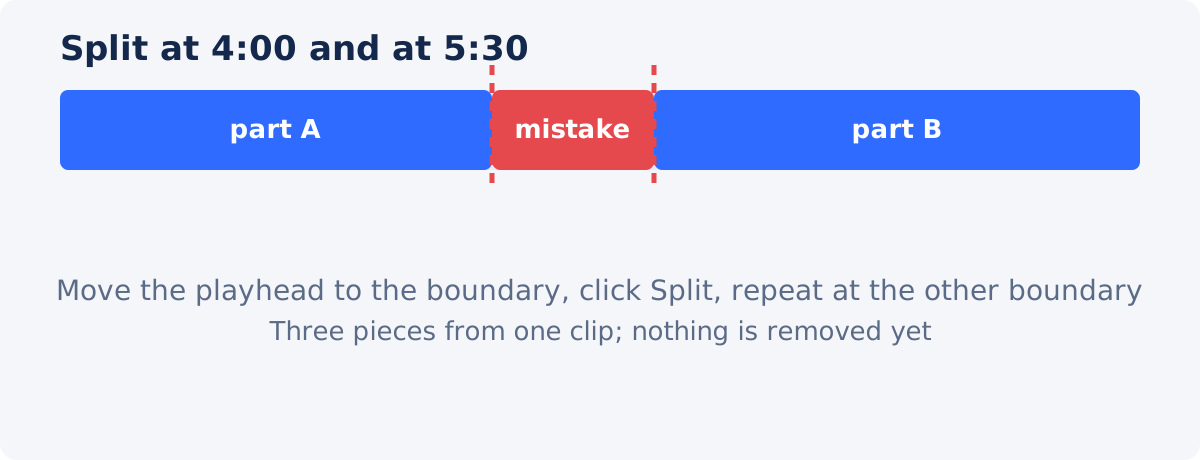
The full Deus.Video editor has a timeline and a Split button that cuts the selected clip at the playhead into two pieces. Two splits make three pieces, and deleting the middle one removes the section.
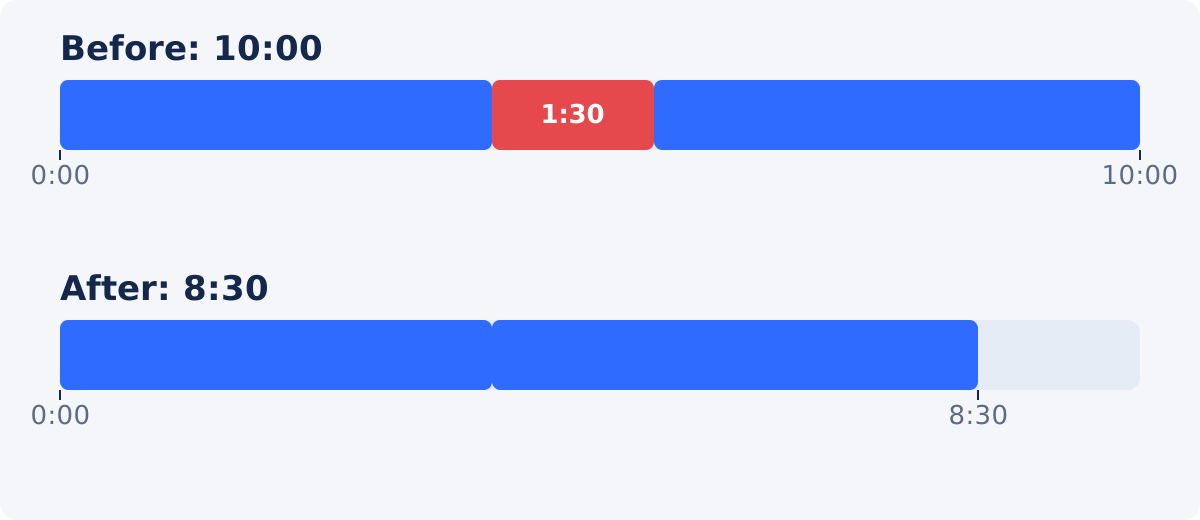
The example below uses a 10-minute recording with a 90-second mistake from 4:00 to 5:30.
- Open the full editor and add the video. It appears as one clip on the timeline.
- Move the playhead to the start of the unwanted section, 4:00, by dragging it or by typing the time in the time field, and click Split. The clip becomes two pieces.
- Move the playhead to the end of the unwanted section, 5:30, and click Split again. There are now three pieces: 0:00–4:00, 4:00–5:30, and 5:30–10:00.
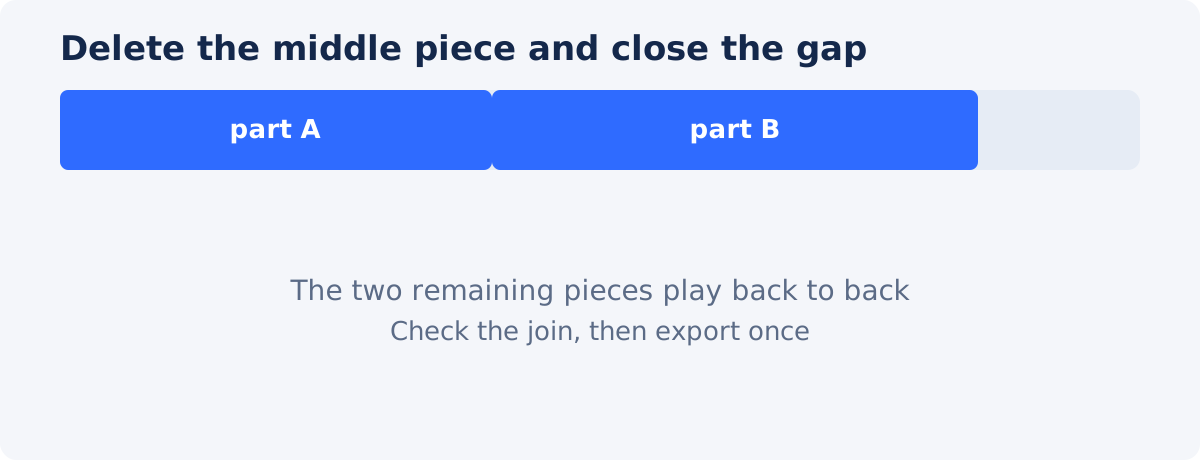
- Delete the middle piece. Right-click it on the timeline and choose Delete from the menu, or click it to select it and press the Delete key. The two remaining pieces stay in place.
- Close the gap by dragging the second piece to the end of the first, so they play back to back.
- Play across the join. Listen for a clipped word and watch for a jump in the picture. Nudge the split points if needed: select a piece and adjust its Start or End fields, which trim that piece without another split.
- Export once with Download video. The result is 8:30 long.
Because the whole job happens in one project, the picture is encoded once at export, and you can add a title, a fade, or a sound at the join in the same session.


Route 2: trim twice, then merge
If the editor is not an option, the same result can be built from standalone tools.
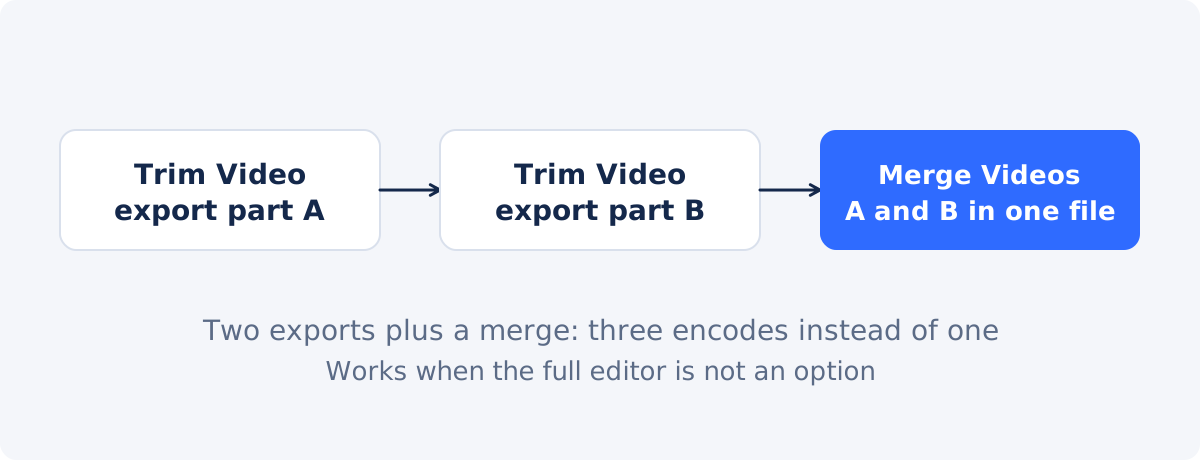
- Trim and export part A. In Trim Video, set Keep from to 0:00 and Keep until to 4:00, process, and download.
- Trim and export part B. Upload the source again, set Keep from to 5:30 and Keep until to 10:00, process, and download.
- Join them. In Merge Videos, add part A and then part B, and merge.
This works, and it costs more than the editor route. Each trim re-encodes the picture, and the merge encodes again, so the final video has been through more encoding rounds than the single export from the editor. The merge also has to fit both parts into one output frame, which is automatic when both parts come from the same source but still a separate processing step. For a one-off on a short video the difference is small; for anything you care about, the editor route is cleaner.
Placing the cuts
Where the two cuts go decides whether the join is invisible.
- Cut in silence. Put both split points in pauses, not on words. A word clipped at either side of the join is the most common tell.
- Match the picture. If the camera did not move, the frames on either side of the join look alike and the cut is quiet. If the speaker shifted position during the removed section, the join shows as a jump; a short fade, a cutaway, or moving the cut points to where the framing matches hides it.
- Keep the sentence whole. When removing a false start, cut from the beginning of the failed attempt to the beginning of the successful one, so the viewer hears one clean sentence.
- Watch the audio bed. Background music or room tone can step at the join. If music was playing, cut on a beat, or add a continuous music track over the whole result in the editor.
Checking the result
Play the exported file across the join at full volume and full screen. Then check the duration: the 10:00 source with a 90-second removal should be 8:30. Confirm that the section is gone and that nothing else moved. Finally, check the beginning and the end of the file, which should be the original beginning and end.
Which operation for which goal
| Goal | Correct operation |
|---|---|
| Keep only one middle segment | Trim Video |
| Remove the beginning | Trim Video |
| Remove the ending | Trim Video |
| Delete one middle scene and keep both sides | Split and delete in full editor |
| Join separately exported sections | Merge Videos |
| Remove part of the picture | Crop Video |
Several sections to remove
The editor route scales: two splits per section, delete each middle piece, close the gaps, and export once. Three sections are six splits and three deletions in one project. The trim-and-merge route does not scale well, because every kept part is a separate export and the merge grows with them. If you have more than one section to remove, use the editor.
When a trim is enough after all
Before splitting, ask whether the unwanted section is really in the middle. A stumble in the first minute of a 10-minute video is better solved by starting the video after it. A rambling ending is better solved by ending earlier. And if the video is one good answer surrounded by things you do not need, keeping that one range is a trim, not a deletion. With the tool you can select the part of your video to keep in one step, which is faster and involves fewer encodes than any two-cut method.
Conclusion
A middle section needs two cuts: split before it, split after it, delete the piece between, and check the join. The full editor does that in one project with one export. The trim-and-merge route reaches the same place with standalone tools at the cost of extra processing rounds. Cut in pauses, match the framing, and confirm the new duration.
If the problem turns out to be at the start or the end rather than in the middle, trim a video online and keep the range you need in a single pass.
Frequently asked questions
Can Trim Video delete a section from the middle?
Not while keeping both sides. It keeps one continuous range, so it can keep the part before, the part after, or the middle itself. Removing a middle section and keeping both sides needs split and delete in the full editor, or two trims joined with Merge Videos.
How do I split a clip in the editor?
Move the playhead to the moment, select the clip, and click Split. The clip is cut into two pieces at that time. Repeat at the second boundary to isolate the section, then right-click that piece and choose Delete, or select it and press the Delete key.
Why is the editor better than trimming twice and merging?
It exports once. Two trims and a merge mean three processing rounds, each of which re-encodes the picture. The editor also lets you fix the join with a fade or a cutaway in the same session.
Will there be a visible jump at the join?
Only if the picture or the sound differs on either side. Cut in pauses, choose points where the framing matches, and add a short fade or a continuous music track in the editor if a jump remains.
Can I remove several sections?
Yes, in the editor: two splits per section, delete each middle piece, close the gaps, and export once. The standalone route becomes impractical beyond one section.
Does removing a section change the quality?
The export re-encodes the picture once, which is usually not visible from an original source. The removed section is simply gone; the kept parts are not otherwise altered.
Sources
- Deus.Video, "Trim Video Online" tool page: https://deus.video/trim-video/ (accessed September 23, 2026)
- Deus.Video, "Merge Videos" tool page: https://deus.video/merge-videos/ (accessed September 23, 2026)
- Deus.Video, full online video editor: https://app.deus.video/new (accessed September 23, 2026)
- Wikipedia, "Generation loss," for why fewer encoding rounds preserve more detail: https://en.wikipedia.org/wiki/Generation_loss (accessed September 23, 2026)


