The sounds a screen recording picks up
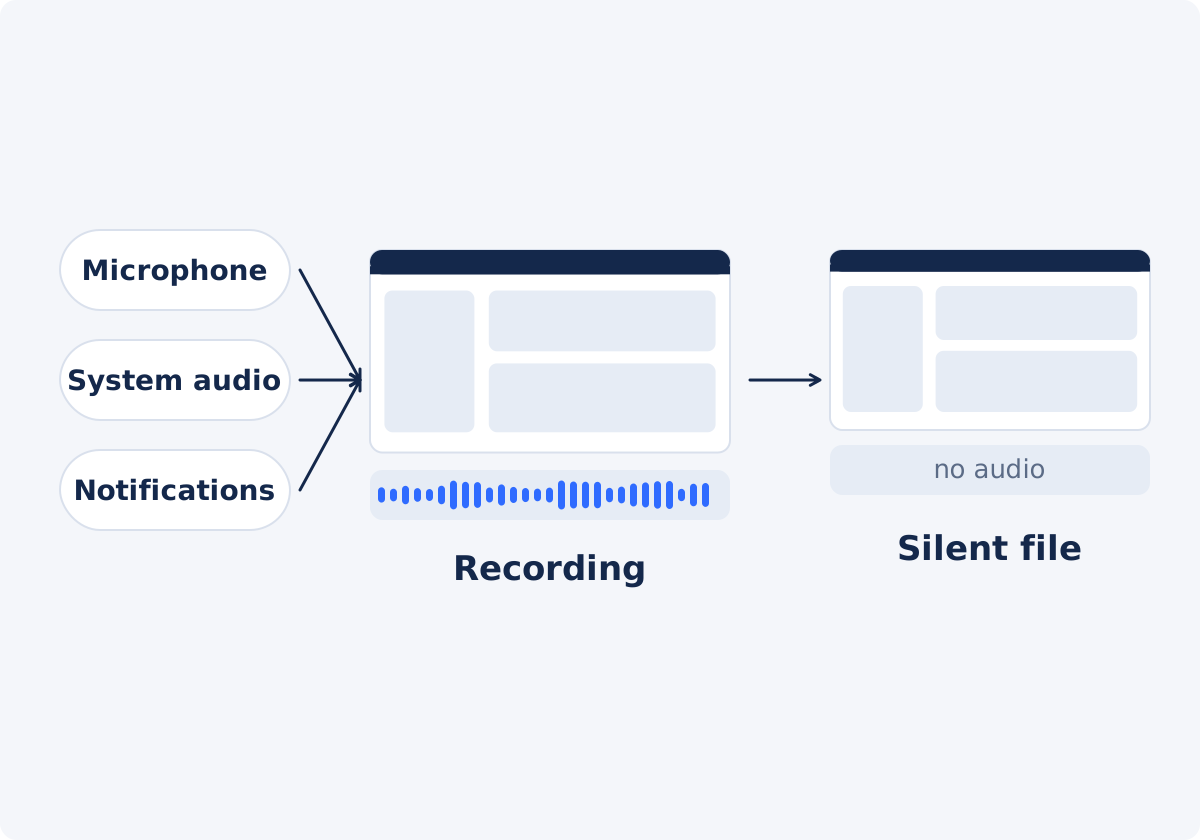
Depending on the recorder and its settings, a screen recording can contain several sources mixed into one soundtrack, which is the audio stored inside the video file.
- Microphone. Your narration, and also breathing, typing, mouse clicks, a chair creaking, and a fan.
- System audio. Sound played by the computer: a video in another tab, a call, a game, music.
- Notifications. Message and email tones, calendar alerts, system beeps. Even without a visible popup, a tone tells the viewer that something arrived.
- Background speech. A colleague at the next desk, a family member, a TV, a call on speaker.
Many people never listen back to a screen recording, because they were there when it was made. Play it once with headphones before it goes anywhere.
Remove everything, or keep the narration?
The Remove Audio tool removes the complete soundtrack. It does not separate your voice from the system sounds, and it does not silence only a section. So the first decision is whether the recording is better with no sound at all.
Remove the whole soundtrack when
- you did not narrate, and the sound is only noise, clicks, and alerts;
- the narration is rough, and you plan to record a clean voiceover;
- private talk, or someone else's voice, is audible;
- copyrighted music, or a video, was playing in the background;
- the recording will be used as a silent GIF-style demo, in documentation, or in a presentation you will talk over live.
Keep the audio when
- your explanation is the point of the recording, and it is clean enough to use;
- the sound of the application matters, as in a music, game, or audio tutorial.
If the narration is good, apart from one interruption, removing everything is excessive. Cut that section out, or silence only that part in the full editor, as described below.
How to remove the audio in Deus.Video
Use the tool to make the video silent.
- Find the recording file. Screen recorders commonly save MP4, MOV, WebM, or MKV, all of which are common inputs for the tool.
- Upload the recording by drag and drop, or with the file picker, and wait for the upload to finish.
- Click Remove audio from video.
- Wait for the status "Done! Download your result below." Long recordings take longer to process.
- Click Download result. To go on editing straight away, click Continue editing this video instead, which opens the result in the full editor.
- Review the downloaded file with the checklist near the end of this guide.
The uploaded recording is not changed. The tool creates a new processed file.

Next step: a replacement voiceover or captions
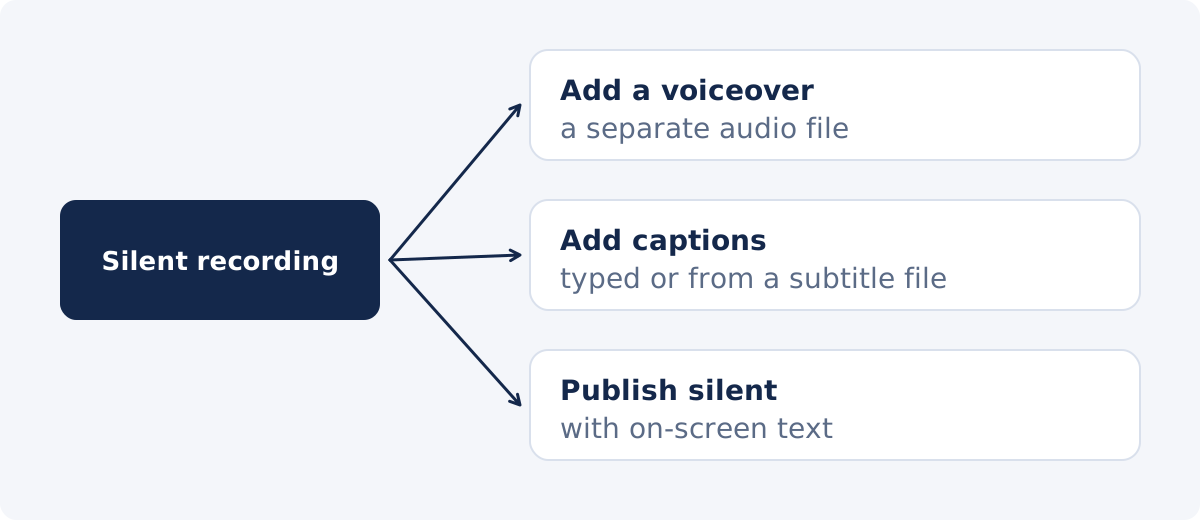
A silent tutorial often needs its explanation back. That is a separate stage, since the tool does not create captions or add sound.
- Voiceover. Watch the silent recording, write a short script that follows it, and record the narration in a quiet room. Add it to the video with Add Audio to Video. A voiceover recorded afterward is usually cleaner, and better paced, than live narration.
- Captions. For viewers who watch without sound, and for clarity, add timed text with Add Subtitles to Video, where you can create lines by hand, or upload a subtitle file.
- On-screen labels. Short callouts, such as "Click Export," can replace narration entirely in brief demos.
Privacy checklist: what is still visible
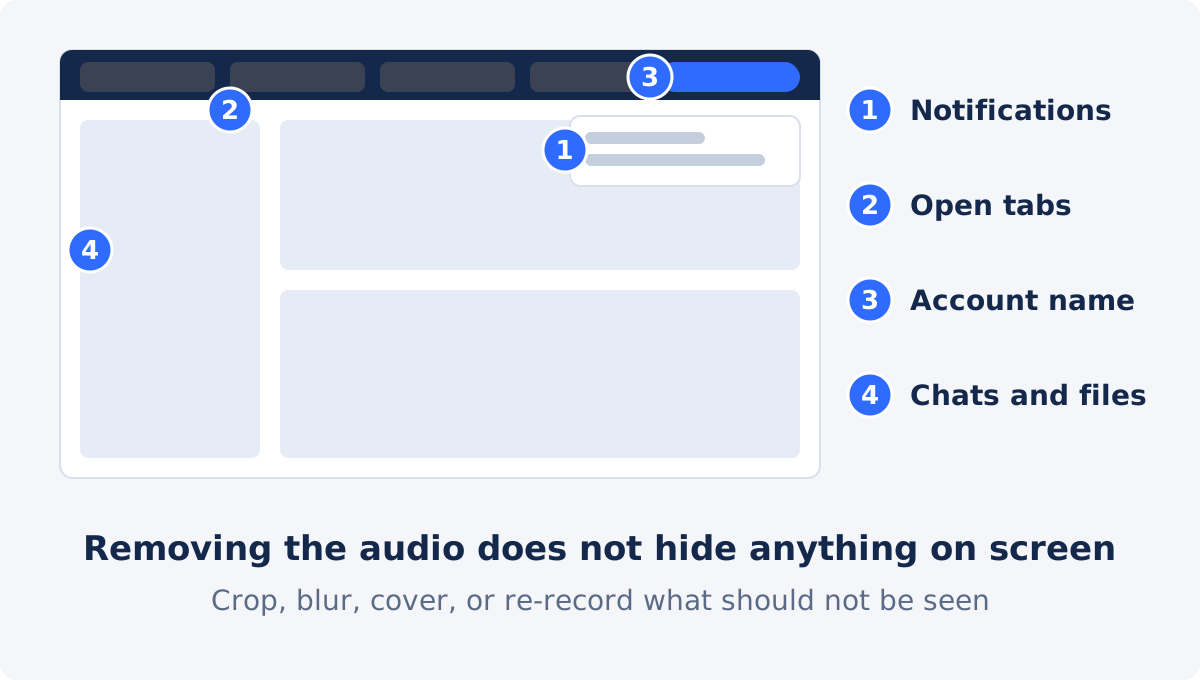
Removing the audio does not hide visual information. The tool does not detect, blur, or remove anything in the picture. Go through the recording, and pause wherever the screen changes.
- Notification popups. Message previews with names and text, email subjects, calendar reminders, and chat banners.
- Browser tabs and the address bar. Tab titles reveal what else you had open. Autocomplete suggestions can reveal history.
- Names and accounts. Your profile picture, email address, user name, company workspace, or a customer's name in the interface.
- Bookmarks, the desktop, and the file browser. File and folder names, recent documents, and download lists.
- Chats and sidebars. Contact lists and conversation previews at the edge of an app.
- Personal and sensitive data. Addresses, phone numbers, order numbers, payment details, API keys, passwords shown in plain text, internal URLs.
- The clock and the date, if the timing of the recording should not be known.
What to do about it depends on where the problem sits. Something at the edge of the frame can be cropped out. A fixed area can be covered in the full Deus.Video editor, where an image or a shape can be placed over part of the picture, or blurred with the Add Filter to Video tool, which applies a blur to a fixed rectangle. A popup that appears briefly can be cut out with the section around it. When sensitive data fills the middle of the screen, re-recording is the safest fix. Before you do, turn on Do Not Disturb, close unrelated tabs and apps, and use a clean browser profile or demo account.
What to do with each kind of recording
| Recording content | Keep audio? | Suggested next step |
|---|---|---|
| Silent demo with clicks, fan noise, and alerts | No | Remove the audio; add captions or labels if steps need explaining |
| Rough live narration with mistakes | No | Remove the audio; record a clean voiceover, and add it |
| Clean narration, no interruptions | Yes | Keep it; check the screen for visible private information |
| Good narration with one notification tone or interruption | Mostly | Cut that section, or silence it in the full editor; removing everything is excessive |
| Private conversation or a call in the background | No | Remove the audio; check that the call window is not visible either |
| Music or a video playing in another tab | No | Remove the audio; add licensed music if the clip needs sound |
| Tutorial where the app's own sound matters | Yes | Keep it; re-record if other sounds intrude |
| Bug report for a support team | Usually no | Remove the audio, unless the sound is part of the bug |
| Recording for a presentation you will narrate live | No | Remove the audio, so nothing plays under your voice |
Review the downloaded silent file
- Silence. Play the file with the volume up, and jump to several points, including the end.
- Duration. It should match the original recording.
- Text legibility. The picture is normally copied without being compressed again, which matters for screen recordings, because small interface text is the first thing to soften when a video is re-encoded. It should look the same as in your recording. Pause on it once to confirm.
- Smooth playback and format. The silent copy keeps the format of your upload, such as MP4, MOV, WebM, or MKV. Watch a section with scrolling, or cursor movement, in the player or platform where it will be used.
- Privacy pass. Watch the whole recording once more, with the visual checklist above in mind.
- File name. Rename the silent copy, so the original, with its sound, is not shared by mistake.
Conclusion
A screen recording's soundtrack is a mix of everything the recorder could hear, and the quickest dependable fix is to remove all of it. Decide first whether your narration deserves to survive. If it does not, make the recording silent, and add a clean voiceover or captions afterward. Then give the picture the same attention: popups, tabs, and names are untouched by audio removal, and they tell viewers just as much.
Recording ready? Remove audio from a video online, download the silent copy, and watch it once for anything that should not be seen.
Frequently asked questions
Can I remove only the notification sounds and keep my voice?
Not with this tool. It removes the complete soundtrack. To keep narration, and lose a specific sound, cut or silence that moment in an editor, or re-record with notifications switched off.
Does removing the audio also remove notification popups from the picture?
No. Audio removal does not change anything visible. Popups, tabs, names, and any on-screen data remain in the video. Crop, cover, cut, or re-record to deal with them.
How do I stop my screen recorder from capturing sound in the first place?
Most recorders have separate switches for the microphone and for system audio. Turn off the ones you do not need before recording, and enable Do Not Disturb, so alerts neither sound nor appear. Settings differ between recorders, so check the one you use.
Can I add a voiceover after removing the audio?
Yes, as a separate step. Record the narration as an audio file, and add it with Add Audio to Video, or in the full editor. The Remove Audio tool does not add sound.
Will the text in my screen recording stay sharp?
Yes. The tool normally copies the picture as it is, without compressing it again, so small text stays as sharp as in your recording. Pause on it in the downloaded file once to confirm, and remember that the platform you upload to may compress the video itself.
Does the tool create captions from my narration?
No. It does not transcribe speech or generate captions. If you want captions, prepare the text yourself, or with a transcription service, before you remove the audio, and add them with Add Subtitles to Video.


