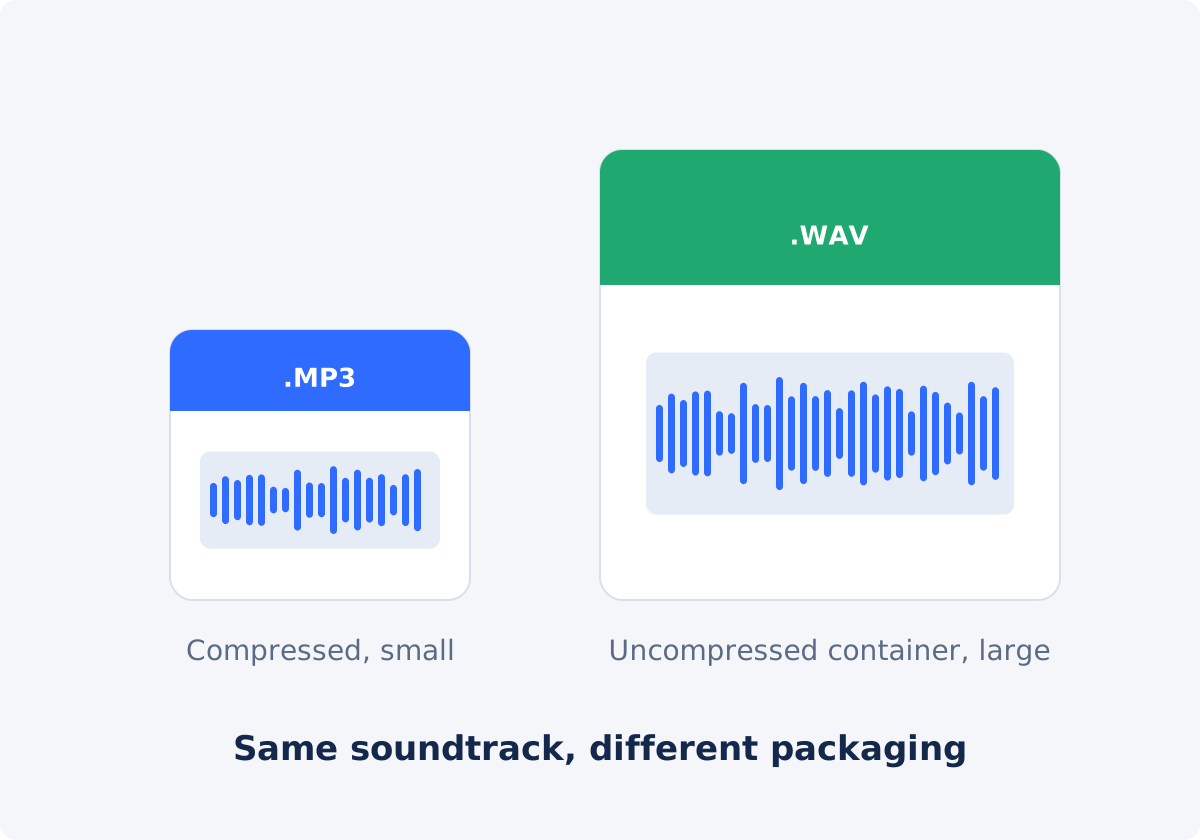
MP3: compressed, small, and widely playable
Compression means storing sound with less data. MP3 is a lossy codec, which means it reduces file size by discarding parts of the signal that listeners are less likely to notice. A codec is the method used to encode and decode audio.
The benefits are practical. MP3 files are small, typically about 1 to 1.5 MB per minute at common settings, so they upload quickly and fit in an email or a chat. They also play on nearly everything: phones, browsers, car stereos, smart speakers, and transcription tools.
The cost is that some information is gone for good. For speech, that loss is rarely audible. For dense music, such as cymbals, strings, reverb, and applause, it can be, particularly if the file goes through further processing later.
WAV: a larger, editing-friendly output container
WAV is a container for audio that normally holds uncompressed PCM samples, meaning the sound is stored as a plain series of numbers with nothing discarded at the time of saving. That makes files large. One minute of stereo audio at CD-style settings is roughly 10 MB.
Audio editors, digital audio workstations, and video editors all handle WAV natively and quickly, because there is nothing to decode. More importantly, saving to WAV does not add another generation of lossy compression. If you are going to cut, clean, equalize, or mix the audio and then export it again, every lossy step you avoid along the way helps.
WAV is less convenient for delivery. Files are heavy to send, some apps and upload forms reject them, and metadata such as titles and cover art is poorly supported.
Why a WAV output does not restore lost detail
This is the most common misunderstanding. WAV is often described as "lossless," and people conclude that choosing WAV gives them lossless audio. It gives them a lossless container for whatever audio goes into it.
The soundtrack inside most videos is already compressed with a lossy codec. Phones, cameras, screen recorders, and video platforms all do this. The detail that compression removed is not stored anywhere. When that soundtrack is decoded and written to WAV, the WAV faithfully preserves the decoded sound, including its limitations. Nothing is put back.
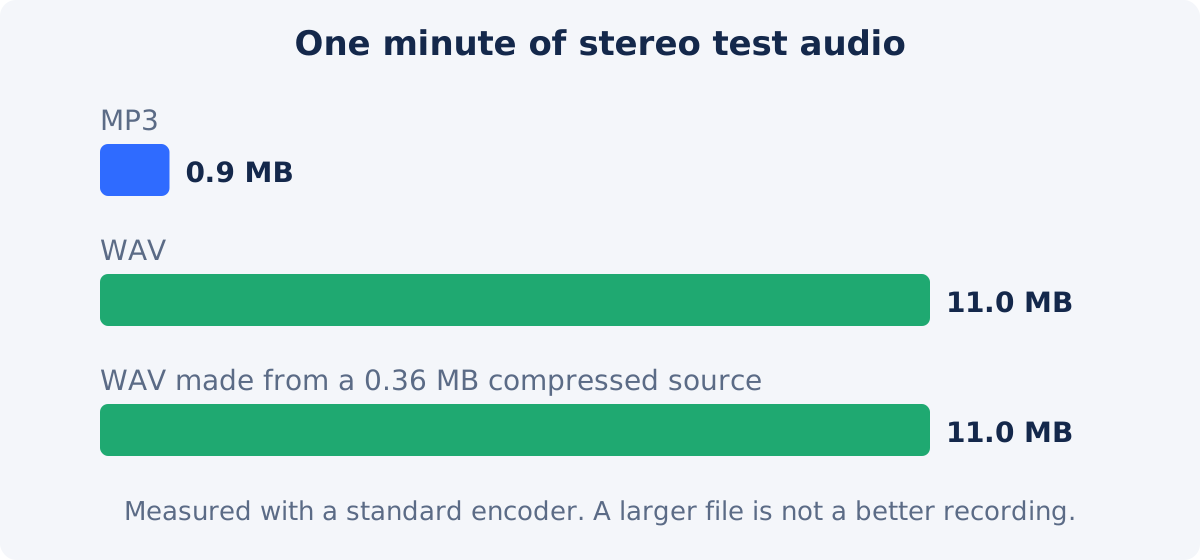
The test below shows it. A clean signal was compressed heavily, which removed its upper frequencies. A WAV was then made from the compressed version. The WAV is about thirty times larger than its source, and the missing frequencies are still missing.

The source sets the upper limit
The quality of any extracted file is capped by the audio in the video you upload.
- The codec and bitrate of the source soundtrack. Bitrate is the amount of data used per second. A video exported with low-bitrate audio cannot produce a rich-sounding file, whichever output you choose.
- The recording itself. Distance from the microphone, room echo, wind, and clipping are baked in.
- The file's history. A clip that was downloaded from a messenger or re-uploaded several times has been compressed each time.
The practical rule: go back to the best source you have. The camera original beats the copy from a chat, and the editor's master export beats the version posted online.
Comparison table
| Format | Compression | Typical size | Best use | Tradeoff |
|---|---|---|---|---|
| MP3 | Lossy | Roughly 1–1.5 MB per minute at common settings | Listening, sharing, transcription uploads, archives of speech | Adds a lossy encode; not ideal before heavy editing |
| WAV | Normally none (uncompressed PCM) | Roughly 10 MB per minute for stereo at CD-style settings | Editing intermediate, mixing, restoration, handoff to an audio editor | Large files; limited metadata; cannot restore detail missing from the source |
The sizes are typical examples, not promises about this tool's output, which has no bitrate or sample-rate settings. In a test for this guide, one minute of stereo audio came to about 0.9 MB as MP3 and about 11 MB as WAV.
How to choose the format in Deus.Video
In the Extract Audio tool, you can save the soundtrack as MP3 or WAV with the same steps.
- Upload one video. Common inputs include MP4, MOV, AVI, WebM, and MKV.
- Open the Output format list and choose MP3 or WAV. MP3 is the default.
- Choose the Extraction mode: Complete soundtrack, or Selected time range with start and end timestamps in hh:mm:ss.
- Click Extract audio from video and wait for processing.
- Preview the processed audio in the player that appears when processing is done.
- Click Download result.
- Need the other format as well? Click Reset and run the extraction again from the same video. Do not convert the MP3 you just made into WAV, because that only wraps the MP3's losses in a bigger file.

Scenarios
Listening
A lecture for the commute, a meeting to replay, a song idea to send to a friend. Choose MP3. It is small and it plays everywhere.
Transcription
Speech survives MP3 well, and many transcription services limit upload size or charge by it, so MP3 is usually the practical choice. Check which formats your service accepts. If it specifically recommends WAV, or the recording is noisy and you plan to clean it first, take WAV.
Editing intermediate
If the audio is headed into an audio editor or a video project, where it will be cut, processed, and exported again, choose WAV. You avoid one lossy generation and give the editor a format it handles natively.
Archive copy
The honest archive is the original video file, because it holds the soundtrack in its original encoding. If you want an audio-only copy as well, WAV avoids further loss, and MP3 saves space. For speech archives, MP3 is normally enough.
Listen to the processed output again
Extraction creates a new file, and a new file deserves a check, whichever format you chose.
- Play the beginning and the end, and confirm the duration.
- Listen to the loudest passage for distortion.
- Listen to a quiet passage for hiss, or for a swirly, watery character in the background.
- With music, pay attention to cymbals, sibilant "s" sounds, and reverb tails, where lossy artifacts show first.
- Compare with the video's own playback. If something sounds wrong in both, the problem is in the source, and changing the format will not fix it.
If you plan to put the audio back under a video later, Add Audio to Video accepts uploaded audio tracks. For larger projects, the full Deus.Video editor lets you combine the audio with clips, text, and subtitles.
Conclusion
MP3 and WAV answer different questions. MP3 asks "how do I get a small file that plays anywhere?" WAV asks "how do I avoid another lossy step before editing?" Neither can exceed the quality of the soundtrack in your video, and a WAV made from compressed audio is a large copy of compressed audio. Pick by what happens next, start from the best source you have, and listen before you save.
Ready to choose? Open the Extract Audio tool, select MP3 or WAV in Output format, and preview the result.
Frequently asked questions
Is WAV always better quality than MP3?
Not in the sense people expect. WAV does not add lossy compression when the file is saved, but it cannot add detail either. If the video's soundtrack was already compressed, the WAV holds that compressed sound in a larger file.
Does MP3 keep the full quality of the video's sound?
No. MP3 is lossy, and the soundtrack is encoded again when it is saved. For speech and casual listening, the change is usually hard to hear. For critical music work, it matters more.
Why is my WAV file so large?
Uncompressed audio stores every sample. Stereo audio at CD-style settings takes roughly 10 MB per minute, so an hour is around 600 MB. That is normal for WAV.
Can I convert my MP3 to WAV later to improve it?
You can convert it, but it will not improve. The detail removed by MP3 compression is gone. If you need WAV, extract it directly from the original video.
Which format should I use for a podcast?
Use WAV as the working format while you edit, and export the finished episode in the compressed format your podcast host asks for. If you only need to publish the audio as it is, MP3 is simpler.
Can I set the bitrate or the sample rate?
No. The tool offers a choice between MP3 and WAV and does not expose bitrate or sample-rate settings. Check the properties of the downloaded file if you need to know them.


