The honest answer
Clips from different cameras, phones, and apps differ in resolution, shape, frame rate, and encoding. One file can only have one of each. To join them, a merger has to bring every clip to common settings and write a new file, which means re-encoding: decoding each clip, and compressing it again. Common video compression is lossy, so each pass discards a little information.
A truly untouched join is possible only in narrow cases, when all clips already share identical technical settings, and the tool is built to copy them without re-encoding. That is not a promise any general-purpose online merger can make for arbitrary uploads, and this guide does not make it. In Deus.Video, the merged video is always a newly encoded file. The realistic goal is a merged video that viewers cannot tell from the sources.
Why resolution, aspect ratio, format, and re-encoding matter
Resolution
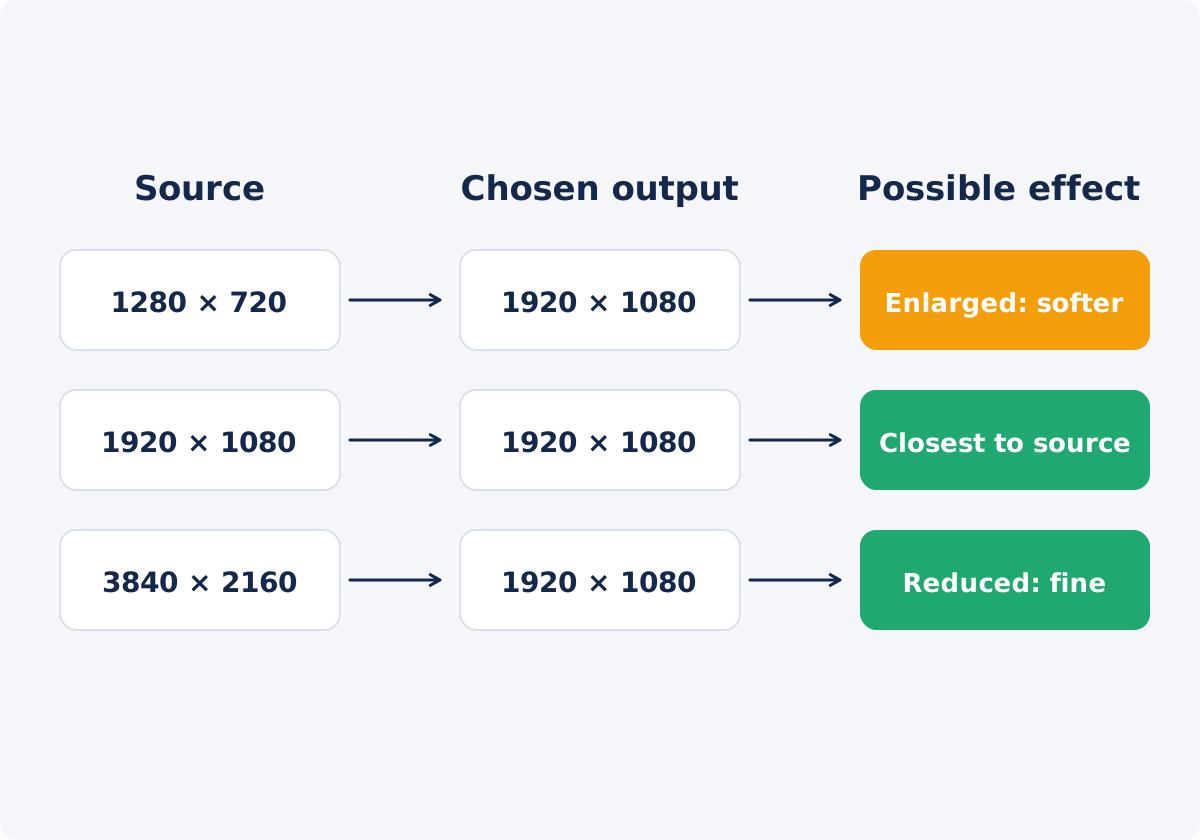
Resolution is the number of pixels in the frame. If the output is larger than a clip, the clip is enlarged, and enlargement cannot add detail, so the clip looks softer. If the output is smaller, the clip is reduced, which generally looks fine.
Aspect ratio
Aspect ratio is the shape of the frame. A clip whose shape differs from the output is fitted inside the frame whole, with black space around it. Nothing is cropped, but the clip is shown smaller, so fewer pixels are spent on it, and less detail reaches the viewer.
Format
The output format is the container of the new file: MP4, MOV, MKV, or WebM. Changing format does not improve or degrade the picture by itself. The quality depends on how the video inside is encoded. Format matters for where the file will play.
Re-encoding
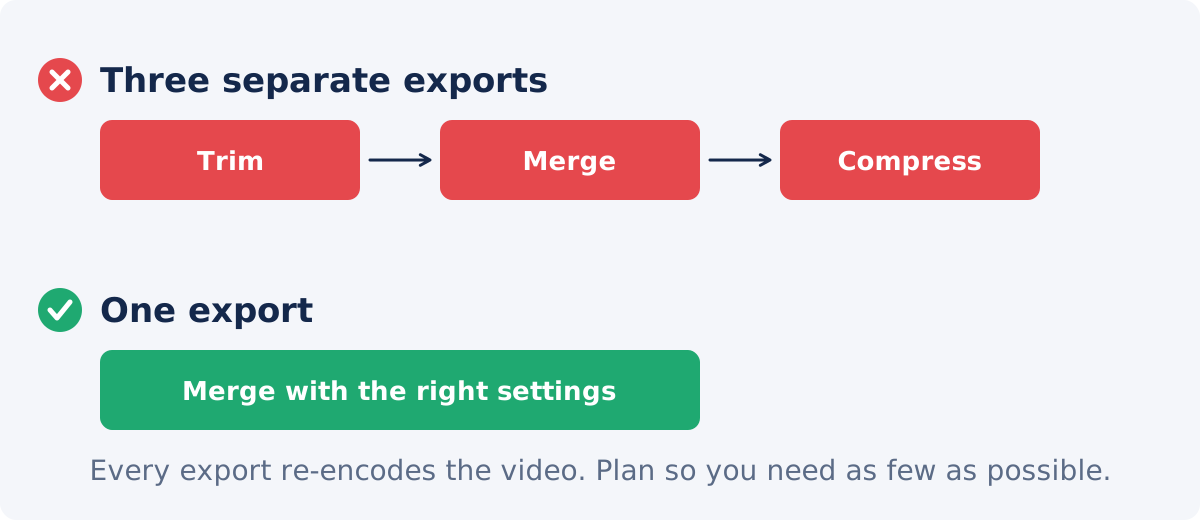
Each time a video is compressed again, some detail is lost. One pass from a good source is rarely visible. The loss accumulates when a file goes through several tools in a row, or when the sources were already heavily compressed, as clips forwarded through messengers usually are.
Do not enlarge low-resolution sources without need
The tool's output sizes are all based on 1080 pixels: 1920×1080, 1080×1920, 1080×1080, and 1080×1350. If your clips are 1280 × 720, they will be enlarged by a factor of 1.5. That is a mild enlargement, and it usually looks acceptable, particularly on phones. If one clip is much smaller, such as 640 × 360 from an old phone, or a download, it will be enlarged three times, and it will look clearly soft next to the others.
- Check the dimensions on each clip card before you merge. They are shown next to the duration.
- Look for a better copy of any small clip. The original from the camera is often much larger than the version that was shared in a chat.
- If a small clip cannot be replaced, consider keeping it brief, or accept the difference. No setting restores detail that was never recorded.
- Do not enlarge clips yourself beforehand in the hope of improving them. That only adds another re-encode.

Choose an output size close to your sources
The closer the output is to what your clips already are, the less each clip has to be changed.
- Match the shape first. Horizontal clips belong in Landscape 16:9. Upright phone clips belong in Vertical 9:16. Putting horizontal footage into a vertical frame costs far more quality than any resolution difference, because the picture is shown small, with most of the frame left empty.
- Then consider resolution. With 1080p clips, the landscape and vertical outputs are a one-to-one match. With 4K clips, the output is a reduction, which is safe. With 720p clips, expect mild softening.
- With mixed sources, choose the frame that suits the majority, and look at the minority in the preview.
MP4 is practical, not a synonym for better quality
MP4 plays on nearly every phone, computer, browser, and platform, which makes it the sensible default. That is a statement about compatibility. An MP4 is not inherently sharper than a MOV, an MKV, or a WebM. Any of them can look excellent or poor, depending on how the video inside was encoded.
- Choose MP4 when you are sharing, uploading, or unsure.
- Choose MOV when an Apple-centered or editing workflow asks for it.
- Choose WebM when a website or a web tool requires it.
- Choose MKV when your archive or player is built around it.
The tool does not offer bitrate, codec, or quality settings, so format is a question of where the file will be used. Pick the right one the first time, because converting the merged file afterward is one more re-encode.

Decisions and their effects
| Decision | Possible effect | Recommended action |
|---|---|---|
| Output larger than the source clips | Clips are enlarged and look softer | Use the highest-resolution copies you have; accept mild softening from 720p |
| Output smaller than the source clips | Usually none that viewers notice | Fine; a 4K source into 1080p is safe |
| Output shape differs from the clips | A small picture with black space around it | Choose the frame that matches most clips |
| Mixing sharp and soft clips | The difference is obvious at each cut | Replace weak clips, or group them together |
| Using clips that came through a messenger | Already compressed, so a new encode shows more | Find the originals |
| Trim, merge, and compress as three exports | Three rounds of loss | Trim only what needs it; merge once; skip extra steps |
| Re-merging a merged file to add a clip | An extra generation for every earlier clip | Merge all the source clips again, in one pass |
| Converting the result to another format later | One more encode | Choose the required format at the merge step |
| Picking a format for "quality" | None; only compatibility changes | Pick by destination; MP4 when unsure |
How to merge the clips in Deus.Video
With the Merge Videos tool, you can combine your video clips in one pass.
- Collect the original files. Avoid copies that were forwarded, downloaded from social media, or screen-recorded.
- Trim only where needed. The merger joins complete clips. If a clip needs cutting, use Trim Video on that clip alone.
- Upload the clips, and drag the cards into order. Note the dimensions shown on each card.
- Choose the Output Size that matches the shape of most clips: Landscape 16:9, Vertical 9:16, Square 1:1, or Portrait 4:5.
- Preview any clip whose shape or resolution differs from the rest.
- Choose the Output format your destination requires, and set Include audio.
- Click Merge Videos once, with every clip in place.
- Download the result, and go through the checklist below.
If the project needs several edits, such as trimming many clips, transitions, titles, or music, do them together in the full Deus.Video editor, where clips are placed in sequence on a timeline, and the video is exported one time.
Checklist before you keep the download
- Play the result at full screen on the largest display you have.
- Pause on a detailed frame from each clip: faces, text, foliage, fabric. Compare it with the same frame in the source.
- Look at dark scenes and smooth gradients for blocks or bands.
- Watch a moment of fast movement in each clip.
- Check every join for a visible change in sharpness or color between clips.
- Confirm the frame shape and the dimensions in the file's properties.
- Listen to the audio through each join.
- Keep the source clips. If anything is off, you will start again from them, not from the merged file.
Conclusion
Merging creates a new file, so the aim is to change your clips as little as possible: original sources, a matching frame shape, no unnecessary enlargement, the right format at the first attempt, and one merge. MP4 is the practical choice for compatibility, not a quality setting. Then trust your eyes. If the result holds up at full screen next to the sources, you have achieved what "without losing quality" can honestly mean.
Ready to join your clips? Open the Merge Videos tool, choose the output size closest to your footage, and compare the result with your sources.
Frequently asked questions
Is it possible to merge videos with no quality loss at all?
Only in special cases, where every clip already has identical technical settings, and the software copies them without re-encoding. The Deus.Video merger always writes a newly encoded file, so the result is never a byte-for-byte copy of the sources. Done once, from good sources, the change is usually too small to see.
Which output size keeps the quality highest?
The one that matches your clips most closely, first in shape, and then in resolution. Horizontal 1080p clips merged to Landscape 16:9 at 1920×1080 are changed the least. Forcing clips into a different shape costs the most.
Is MP4 better quality than MOV or WebM?
No. These are containers. Quality depends on how the video inside is encoded, not on the extension. MP4 is recommended because it plays almost everywhere, which avoids a second conversion later.
Why does one clip look blurrier than the others after merging?
It probably had a lower resolution than the output size, so it was enlarged more than the rest, or it had already been heavily compressed. Check the dimensions on its card, and look for the original file.
Does the merged file size tell me anything about quality?
Not reliably. Size depends on duration, resolution, and encoding. A merged file can be smaller or larger than the sum of its sources, and still look right. Judge by viewing, not by megabytes.
Can I set the bitrate or a quality level?
No. The standalone merger offers output size, output format, and an audio switch. It has no bitrate, codec, or quality controls. Review the downloaded result to judge it.


