Why mixed clips cannot all define the output frame
A video file has one frame size from its first second to its last. Players, platforms, and screens expect that. When you join a 1920 × 1080 horizontal clip with a 1080 × 1920 vertical clip, the result still has to be one size, so something has to give.
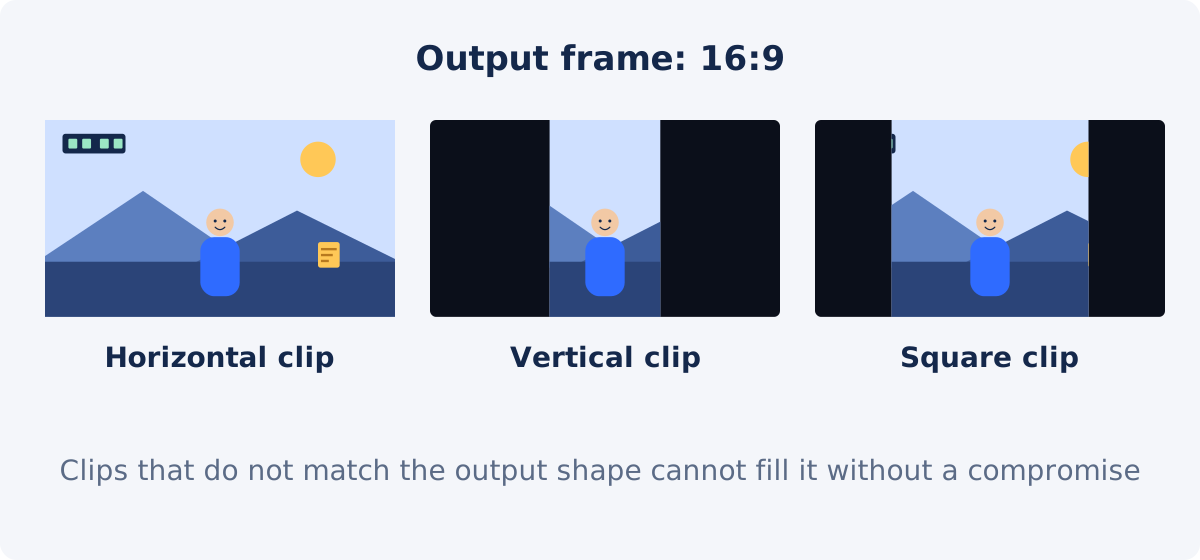
Whatever frame you choose, every clip is normalized to it, meaning it is scaled, and if necessary padded, so that it sits inside that frame. Clips that already match the frame's shape come through essentially as they are. Clips with a different shape are the ones you need to look at.
Resolution vs. aspect ratio
The two terms are often mixed up, and they cause different problems.
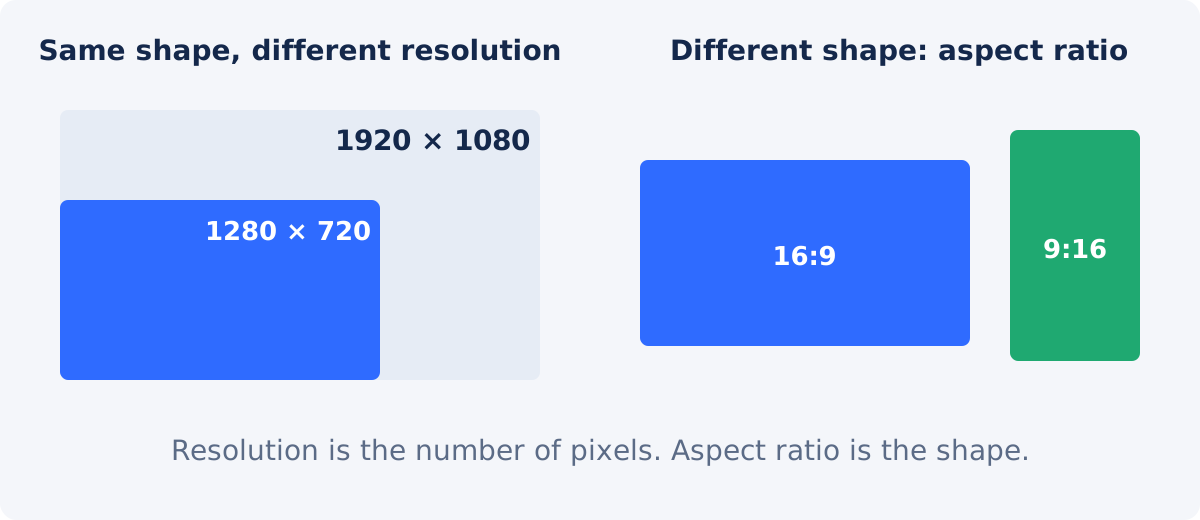
Resolution is the number of pixels: 1280 × 720, 1920 × 1080, 3840 × 2160. It determines how much detail a clip holds.
Aspect ratio is the shape: the width compared with the height. 1280 × 720 and 1920 × 1080 are both 16:9. They have different resolutions, and the same shape.
- Same aspect ratio, different resolution is the easy case. The clips are scaled to the output size. A smaller clip is enlarged, which can make it look a little softer than its neighbors. Nothing is cut off, and no empty space appears.
- Different aspect ratios is the hard case. The shapes do not match, so the clip cannot fill the frame. The merger keeps the whole picture, and leaves the rest of the frame empty.
How to choose between 16:9, 9:16, 1:1, and 4:5
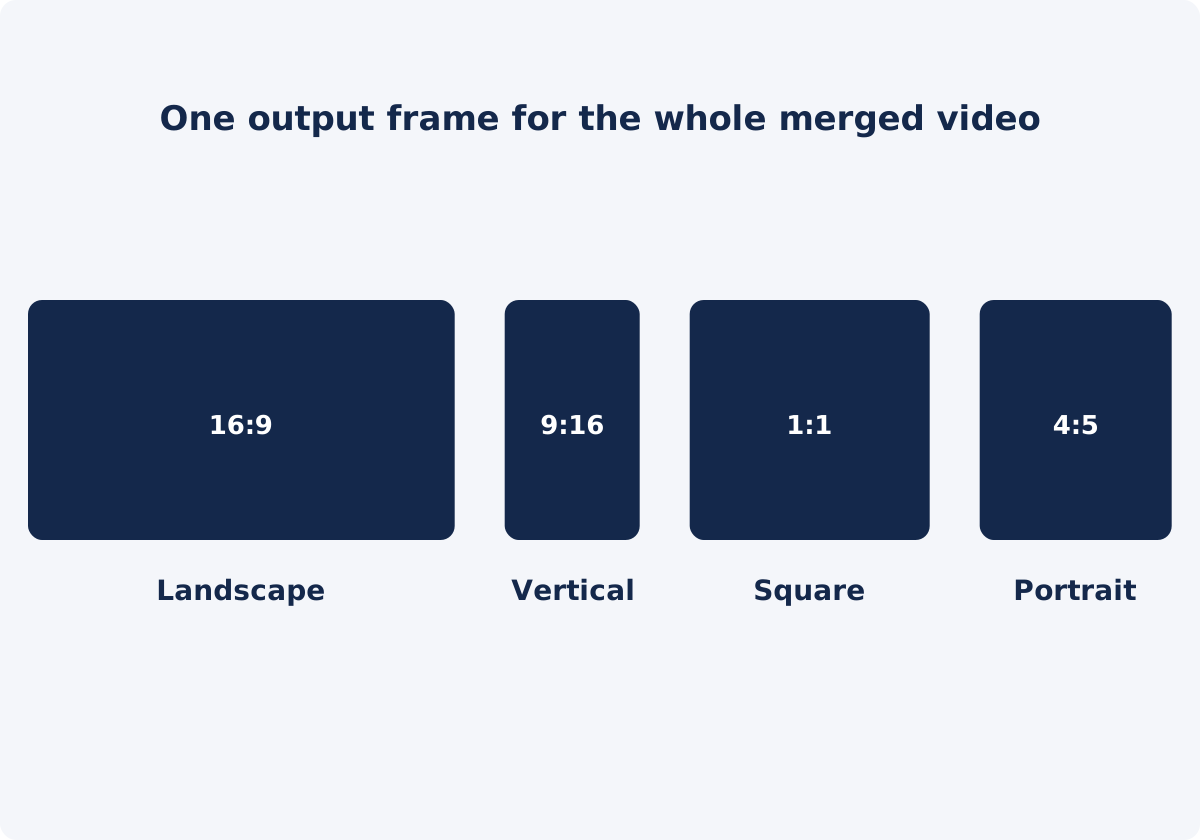
The tool offers four output sizes. Use two questions to decide.
- Where will the video be watched? A TV, a laptop, a presentation, or a standard video page favors 16:9. A phone held upright favors 9:16. Feeds that show posts in a column often suit 1:1 or 4:5. Platforms publish their own current recommendations, so check them for important uploads.
- What shape is most of your footage? If four of five clips are horizontal, a 16:9 output keeps four clips intact and adapts one. A 9:16 output would adapt four, and keep one.
When the two answers agree, the choice is obvious. When they conflict, for instance horizontal footage headed for a vertical feed, the destination usually wins, and you should expect to prepare the clips before merging.
| Output size | Dimensions in the tool | Suits clips that are mostly | Typical use | Watch out for |
|---|---|---|---|---|
| Landscape 16:9 | 1920×1080 | Horizontal phone or camera footage, screen recordings | Presentations, tutorials, standard horizontal video | Vertical clips occupy a narrow strip in the middle, with bars at the sides |
| Vertical 9:16 | 1080×1920 | Phone footage shot upright | Mobile-first clips and stories | Horizontal clips become a small band, with bars above and below |
| Square 1:1 | 1080×1080 | A mix of horizontal and vertical, or centered subjects | Compact social posts, product clips | Both horizontal and vertical clips get bars, though smaller ones |
| Portrait 4:5 | 1080×1350 | Vertical or near-square footage | Feed posts that use more vertical space | Horizontal clips sit small, with large bars above and below |
What happens to margins, framing, and empty space
When a clip's shape does not match the output frame, there are only three things software can do with it. The merger always does the first.
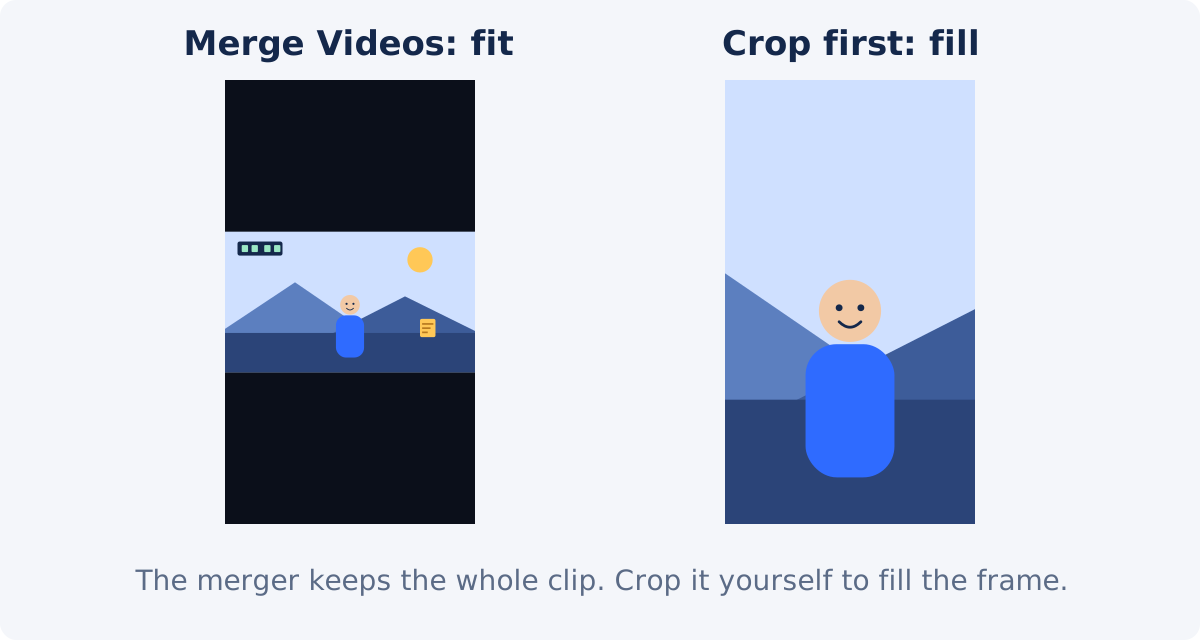
- Fit with empty space. This is what Merge Videos does. The whole clip is scaled until it fits inside the frame, and it is centered. Nothing is cut, and nothing is stretched. The leftover area is filled with black: bars at the sides for a vertical clip in a horizontal frame, or above and below for a horizontal clip in a vertical frame. The picture is complete, and small. A horizontal clip in a 9:16 frame occupies less than a third of the frame's height.
- Fill with cropping. The clip is scaled until it covers the frame, and whatever spills over the edges is removed. There is no empty space, but a horizontal clip in a 9:16 frame keeps less than a third of its width. The merger does not do this. If you want a clip to fill the frame, crop it to the output's aspect ratio yourself before merging.
- Stretching to force the shape, which distorts faces and circles. The merger does not do this either.
Because the whole picture is always kept, you never lose a person at the edge, a caption, or a logo during a merge. What you give up is size. The preview in the tool shows each clip inside the selected output frame, so you can see how large a given clip will appear before you process anything.
How to merge the clips in Deus.Video
Use the tool to merge videos online, with one frame for all clips.
- List your clips with their shapes. The clip cards help: each shows the clip's dimensions, such as 1280 × 720, next to its duration.
- Upload the clips, and drag the cards into order.
- Open Output Size, and choose Landscape 16:9, Vertical 9:16, Square 1:1, or Portrait 4:5.
- Click Preview on each card whose shape differs from the output. Look at where the subject sits, and at what happens at the edges of the frame.
- Try another output size if too many clips suffer. Switching is quick, and nothing is processed until you click Merge Videos.
- Prepare problem clips separately if needed, as described in the next section, and replace them in the list: Delete the old card, and use Add videos for the new file.
- Choose the Output format, set Include audio, and click Merge Videos.
- Watch the merged file, paying attention to each clip that was adapted.

When to crop or resize first, and when merging is enough
Merging is enough when
- all clips share an aspect ratio, even if their resolutions differ;
- the clips that do not match are few and brief, and black bars around them are acceptable;
- seeing the whole picture matters more than filling the screen.
Prepare the clip first when
- You want the clip to fill the frame. Crop the clip yourself to the output's aspect ratio, choosing the part of the picture that matters. A clip that already has the output's shape is merged without bars. The Deus.Video Crop Video tool has presets for 16:9, 9:16, 1:1, and other shapes.
- You want a designed background instead of plain bars, such as a blurred copy of the video, or a color. Place the clip on a canvas of the right shape with the Resize Video tool, or in the editor.
- A clip would become too small to read. A horizontal screen recording fitted into a vertical frame shrinks its text to a third. Crop to the active area first, so the text stays legible.
- A clip is much lower in resolution than the output. Enlarging it will soften it. Consider a smaller overall project, or accept the difference.
Each separate preparation step re-encodes the clip, which means it is compressed again on saving, so prepare only the clips that need it. For projects where many clips need individual framing, the full Deus.Video editor lets you position and scale each clip on one canvas, and export once.
Conclusion
One merged video means one frame. Pick the output size that fits the destination and the majority of your footage, understand that mismatched clips will be fitted whole, with black space around them, and use the preview to see how small they become. Crop or resize the few clips that need deliberate framing, and leave the rest to the merge.
Working with a mix of shapes? Combine your video clips in the Merge Videos tool, try each output size, and preview the odd ones out before you process.
Frequently asked questions
Can I merge a vertical video with a horizontal one?
Yes. Both are placed into the single output frame you select. The clip that does not match the frame's shape is fitted inside it whole, centered, with black bars filling the rest. If you would like it to fill the frame, crop it to the output's aspect ratio before merging.
Which output size should I choose for mixed clips?
Start with the destination: 16:9 for horizontal viewing, 9:16 for upright phones, 1:1 or 4:5 for feed posts. If the destination allows several shapes, choose the one that matches most of your clips, so fewer of them need adapting. Square is a common compromise for an even mix.
Do my clips need the same resolution?
No. Clips of different resolutions are scaled to the output size. Lower-resolution clips are enlarged, and may look softer next to sharper ones. If all clips share an aspect ratio, that is the only visible difference.
Will the tool frame each clip automatically around its subject?
No. The tool never crops. It fits each clip into the output frame whole, and fills the remaining space with black. It does not analyze what is in the picture. To fill the frame around a particular subject, crop the clip yourself before merging.
Can I use a custom output size?
The standalone merger offers four sizes: 1920×1080, 1080×1920, 1080×1080, and 1080×1350. For other dimensions, resize the merged result, or build the sequence in the full editor.
Why do black bars appear next to one of my clips?
That clip's shape differs from the output frame. The merger keeps the whole picture and centers it, which leaves part of the frame empty, and that space is filled with black. To avoid bars, crop the clip to the output's aspect ratio before merging, or choose an output size that matches it.


