How Include audio works
The Merge Videos tool has one audio control, a checkbox labeled Include audio.
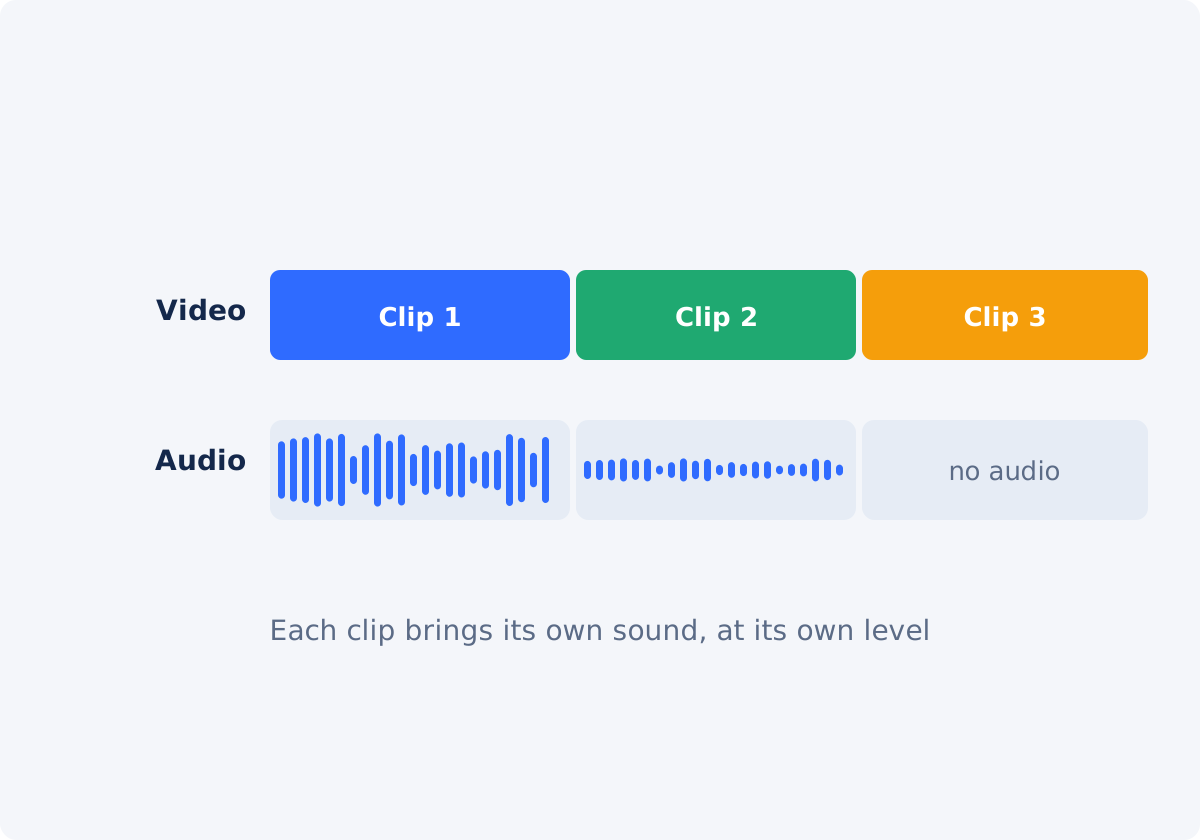
- Selected: the audio tracks of your clips are kept in the merged result. Each clip contributes its own sound for its own duration, and the sound changes at every cut, exactly as the picture does.
- Cleared: the merged video has no sound at all.
It is a single switch for the entire sequence. You cannot keep the audio of one clip, and drop another's. The tool does not adjust volume, fade sound in or out at the joins, reduce noise, or add a music track. A clip that has no audio track simply contributes silence for its part of the video.
What to check in every source clip
Play each clip alone, in a regular video player, before you upload anything.
- Is there sound? Screen recordings and some exports have none. A silent stretch in the merged video is often just a silent source.
- Is it in sync already? Watch someone speak, or a clear impact such as a clap, near the start and near the end of the clip. If the clip drifts by itself, merging will not repair it.
- How loud is it? Note clips that are clearly quieter or louder than the rest.
- Does it play to the end, and can you jump around in it? A file that freezes, or refuses to seek, may be damaged or incomplete.
- What is it? Open the file's properties, and note anything unusual: a very high or irregular frame rate, more than one audio track, or an uncommon format.
Why frame rates, damaged files, and unusual audio tracks cause trouble
Different and variable frame rates
Frame rate is the number of pictures per second. A merged file needs one consistent timing, so clips at 24, 30, and 60 frames per second are brought to a common rate during processing. That is normally harmless. The harder case is a variable frame rate, where the gap between frames changes during the recording. Phones and screen recorders often produce it. When such a clip is converted to steady timing, picture and sound can slide apart, typically a little at first, and more toward the end.
Damaged or incomplete files
Recordings that were interrupted, such as by a dead battery, a full memory card, or a crashed app, may have broken timing information. Players often hide the problem by guessing. Processing exposes it as missing sound, a wrong duration, or a sync offset.
Unusual audio tracks
Some files carry several audio tracks, such as languages or a commentary, or surround sound, or a rare audio codec, or audio that is slightly longer or shorter than the video. When a file has several audio tracks, the merger uses the first one. If that is a commentary, or another language, the wrong sound ends up in the result. Do not assume that every audio format can be processed either. If a clip's sound is missing or wrong after merging, the track layout is a likely reason.
For any of these, a practical fix is to re-export the problem clip to a standard MP4 first, for example with the Deus.Video Convert Video tool, check that the new copy plays in sync, and merge that copy.
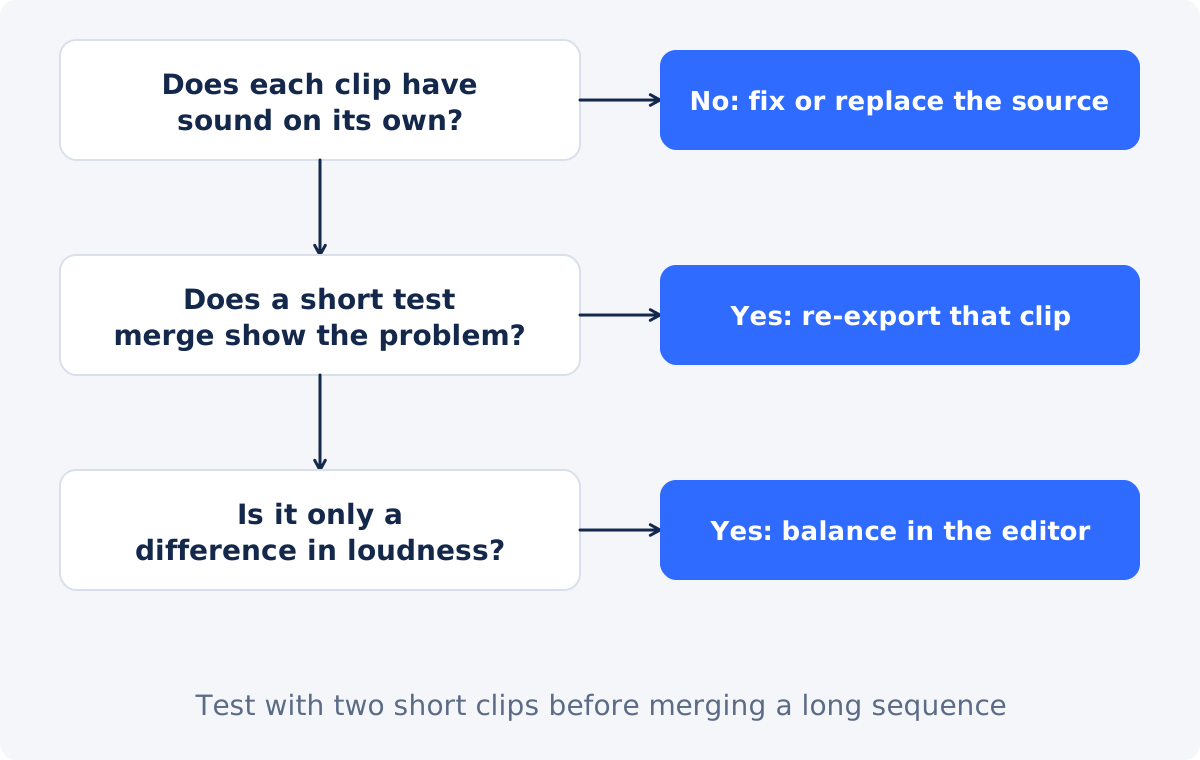
Test a short result before a large export
Do not discover a problem at the end of a forty-minute merge.
- Pick the two clips you trust least: the screen recording, the file from an old camera, the one a colleague sent.
- If they are long, make short versions with Trim Video, ideally sections where someone speaks on camera.
- Merge just those two, with Include audio selected, and the output size and format you plan to use.
- Watch the join, and watch the end of the second clip, where drift is greatest.
- If the test is clean, merge the full set. If it is not, you have found the problem clip, without waiting for the whole job.
Keeping clip audio vs. adding music or a voice-over
These are two different kinds of sound, and they behave differently at a cut.
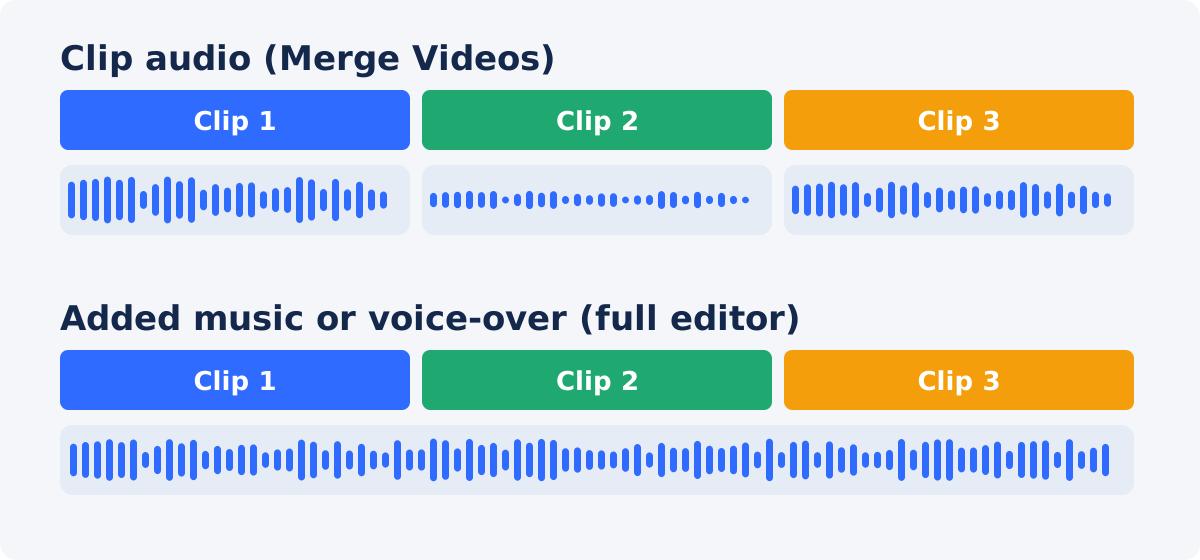
Clip audio belongs to each clip: the voices, the room, the street. In a merge, it changes at every join. That is natural for dialogue and live sound.
Music or a voice-over is one continuous track that runs under, or over, the whole sequence, and it should not be interrupted at the cuts. The standalone merger cannot add it, and if each clip already has its own music baked in, the music will jump at every join.
For a continuous track, there are two routes. Merge the clips first, with or without their own sound, and then add the track to the finished file with the Add Audio to Video tool. Or build the whole piece in the full Deus.Video editor, where clips sit in sequence on the timeline, and audio has its own track, with volume control.
How to merge with audio in Deus.Video
Use the tool to merge videos online, and keep their sound.
- Check each source clip in a regular player, as described above.
- Upload the clips, and drag the cards into order.
- Click Preview on each card, and play it in the tool, to confirm that it loads and has sound.
- Choose the Output Size and the Output format. MP4 is the safest choice for playback.
- Make sure Include audio is selected.
- Run a short test merge if any clip is doubtful.
- Click Merge Videos, and download the result.
- Review the sound at every join, and the sync at the start and the end of each clip's section.

Troubleshooting
| Problem | Likely cause | What to try |
|---|---|---|
| The whole merged video is silent | Include audio was cleared, or no clip has an audio track | Select Include audio; check the sources in a player |
| One section is silent | That clip has no audio, or an audio format that could not be processed | Play the clip alone; convert it to a standard MP4, and merge again |
| Sound drifts out of sync within one clip's section | Variable frame rate or irregular timing in that source | Re-export that clip to a standard MP4; test again |
| Everything after one clip is offset | That clip's audio and video differ in length, or the file is damaged | Trim or re-export that clip; merge again from the sources |
| Volume jumps at the cuts | Clips were recorded at different levels | Balance volume in the full editor; the merger does not normalize |
| A click or an abrupt change at a join | A direct cut through continuous sound | Trim so the cut lands in a pause; use audio fades in the full editor |
| Music restarts or jumps at each join | Each clip has its own music baked in | Merge without audio, and add one continuous track afterward |
| Wrong language or commentary | The source has several audio tracks, and the first one is used | Export the clip with the track you want as its only, or first, track, and merge that |
| Sync looks wrong only in one player | A playback issue on that device | Test in a second player or device before changing anything |
Standalone merger or full editor?
The standalone merger is enough when the clips have usable sound at similar levels, direct cuts are acceptable, and you want either all of the clip audio, or none of it.
Use the full editor when you need any of these:
- volume balancing between clips;
- fades at the joins, or at the start and the end;
- background music or a voice-over under the whole sequence;
- muting one clip while keeping the others;
- transitions, titles, or captions along with the audio work.
In the editor, merging is simply placing clips one after another on the timeline. Each clip keeps its own volume setting, and everything is exported once, which also avoids stacking several rounds of re-encoding, meaning repeated compression of the same material.
Conclusion
Audio problems in a merged video are rarely created by the merge. They are revealed by it. Check every clip alone, keep Include audio selected, test the doubtful clips in a short merge, and listen at every join. Re-export any source with irregular timing or unusual tracks, and move to the full editor when you need balance, fades, or music.
Clips checked and ready? Open the Merge Videos tool, keep Include audio selected, and run a short test before the full merge.
Frequently asked questions
Does Merge Videos keep the sound of my clips?
Yes, when Include audio is selected. Each clip's audio plays during that clip's part of the merged video. Clearing the checkbox gives a silent result. The setting applies to all clips together.
Why is the audio out of sync after merging?
The usual cause is a source clip with a variable frame rate, or irregular timing, which is common in phone and screen recordings. Find the clip where the drift begins, re-export it to a standard MP4, confirm that it is in sync, and merge again from the source files.
Can the tool make all my clips the same volume?
No. It keeps the audio as recorded. It does not normalize or balance loudness, and it does not reduce noise. Adjust the levels in the full editor, where each clip has its own volume setting.
Can I mute only one clip?
Not in the standalone merger. Include audio is one switch for the whole result. Remove the sound from that clip beforehand, or build the sequence in the full editor, and set that clip's volume to zero.
How do I add background music to the merged video?
Music is a separate, continuous track, which the merger does not add. Merge the clips first, and then add the music to the finished file, or do both in the full editor on one timeline.
What if one of my clips has no sound?
It contributes silence for its duration, and the other clips keep their audio. If silence in the middle of the video is a problem, add a continuous music or ambience track afterward to cover it.


