What "transparent video" means
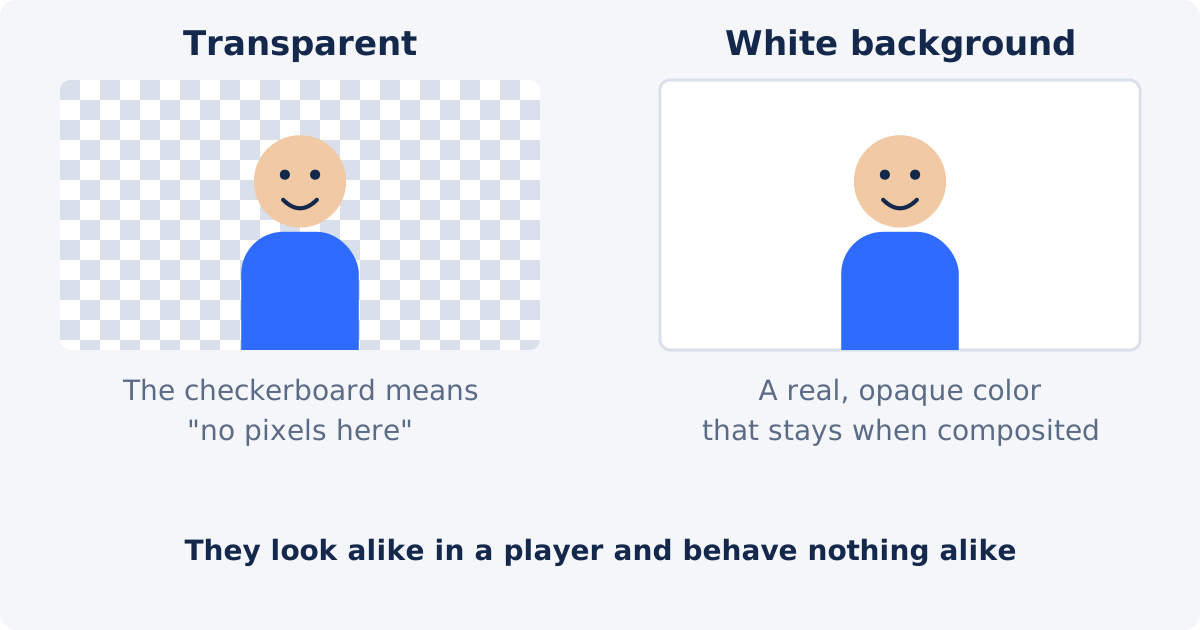
A normal video has a color for every pixel of every frame. A wall is a color, and a window is a color. Nothing is empty. A transparent video is different: the pixels that belonged to the background have been marked as not there. When such a video is placed on top of something else, that something shows through the empty areas, and only the subject remains visible.
This is what makes transparent video useful for compositing, which means combining separate pictures into one. A presenter can sit over slides. A product can rotate over a website. A cutout can be layered under a title.
Transparency vs. a white or black background
The distinction trips people up because both look similar in a player. A clip with a white background is a normal, opaque video. Every pixel has a color, and the white ones are simply white. Put that clip over a photo, and you see a white rectangle with a person in it. There is no way for the editor to know that the white was meant to disappear.
Transparency has no such color. The empty pixels have no opinion about what should be shown, so the layer underneath decides. Most editors indicate transparency with a gray-and-white checkerboard pattern. The checkerboard is not part of the video. It is the editor's way of showing you "nothing here."
The practical test is simple. Drag the clip over a colored layer. If you see the color through the background areas, the clip is transparent. If you see white, or black, it is not.
What an alpha channel is
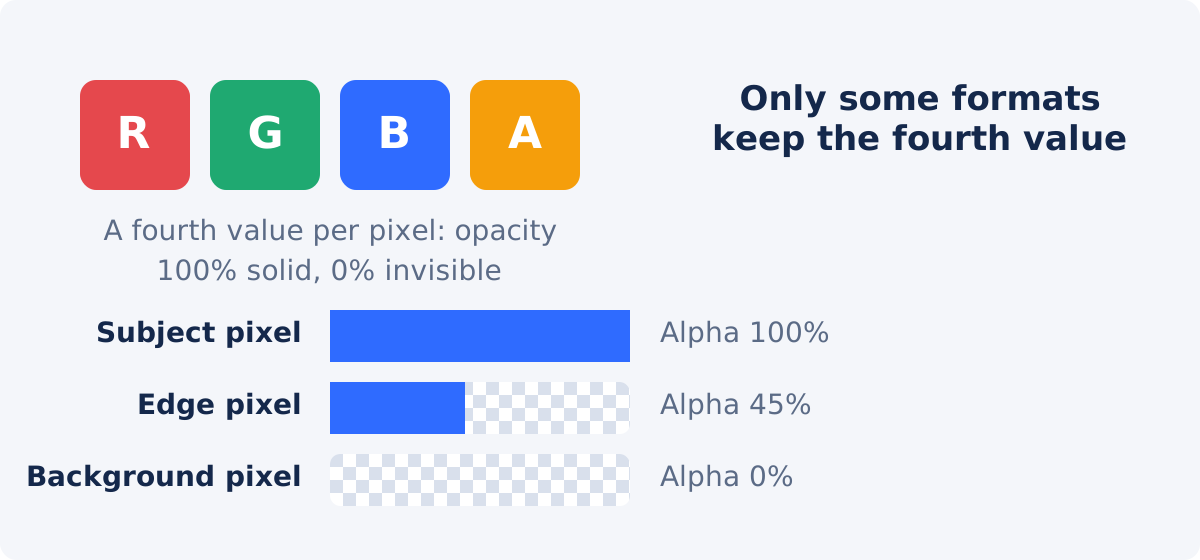
Video pixels are usually stored as three values: red, green, and blue. An alpha channel is a fourth value, stored alongside them, that records opacity. Full alpha means the pixel is solid. Zero alpha means it is fully transparent. Values in between mean partly see-through, which is how soft edges, such as hair, blend into the scene underneath rather than ending in a hard line.
Two consequences follow. Only some video formats have a place to store the fourth value, so exporting a transparent result to the wrong format silently throws the transparency away and fills the background with a color, often black. And only some players and editors read the fourth value, so a file can be transparent and still show a black background in a program that ignores alpha.
How to create a transparent video in Deus.Video
The tool lets you create a transparent video background from ordinary footage, with no green screen.
- Upload one video. MP4, MOV, AVI, WebM, MKV, and other common formats are accepted.
- Set Output background to Transparent. The color and image controls disappear, because nothing is placed behind the subject.
- Click Remove Video Background, and wait for processing. It runs frame by frame on Deus.Video servers, so longer and larger clips take longer.
- Review the preview with the checks in the next section.
- Download the result. Transparent output is delivered as a WebM file, a format that can preserve the alpha channel. Color and image outputs are delivered as MP4, which does not carry transparency here.
- Or continue in the full editor, where the cutout can be placed over other clips, images, and text straight away.
Resolution, frame rate, and audio are carried over from the source. The tool does not upscale, sharpen, or otherwise improve the picture.

How to check transparency on a checkerboard
- Open the downloaded file in an editor that supports transparent video, and place it on a timeline over nothing, or over a bright solid color.
- Look at the background areas. A checkerboard, or your solid color, showing through means the alpha channel survived. A black or white rectangle means it did not, and you should check the format and the program.
- Zoom into the edges around hair, shoulders, and hands. On a checkerboard, a fringe of the old background color is easy to spot.
- Scrub through the clip and watch for frames where the mask jumps, or where part of the subject blinks out.
- Try a dark and a light color underneath. Halos show against one, and holes show against the other.
Some ordinary video players show transparent areas as black, even though the file is fine. Judge transparency in an editor, or in a player known to render alpha, not in whatever opens the file by default.

Where transparent video is used
- Overlays in an editor. A presenter over slides, screen recordings, or gameplay, with the person as a floating layer in a corner.
- Lower thirds and animated elements. A cut-out logo animation, a mascot, or a spokesperson that sits over any scene.
- Courses and webinars. The instructor layered over the material instead of in a separate window.
- Product visuals. A rotating product placed on different colored layouts without re-shooting.
- Web pages and apps, where developers place the video over a page design. Browser support for transparent video varies by format and by browser, so this use needs testing in the target browsers rather than an assumption.
- Presentations, where support for transparent video depends on the presentation software and its version. Test in the actual program before relying on it.
Format and editor compatibility
The Deus.Video transparent result is a WebM file. Whether transparency displays depends on where you open it, and this is where uncertain claims cause the most trouble. The honest guidance is this.
- A dedicated video editor generally reads transparent video, but not every editor reads every transparent format, and support can change between versions. Check the import documentation of your editor, or do a five-second test import.
- Web browsers differ in which transparent video formats they render. If a page needs a transparent clip, the developer should test it in each browser that matters, and may need more than one file.
- Many everyday players, and most social platforms, do not preserve or display transparency. Uploading a transparent clip to a social network gives an opaque video with a filled background.
- Converting the file to MP4 in a general converter usually discards the alpha channel, since MP4 is normally used without one.
If the program you rely on cannot use the WebM result, the reliable workaround is to skip transparency: set the final background in Deus.Video directly as a color or an image, or finish the composite in the full Deus.Video editor, which reads its own transparent output, and export a normal opaque video from there.
Halos, rough edges, and color spill
Transparency exposes edge defects that a solid color would hide, because the edge sits directly on whatever is underneath.
- Halo. A thin fringe of the original background color around the subject, most visible when the new background is a very different color. It comes from edge pixels that were a mix of subject and background. A replacement background of a similar tone to the original, or a slightly darker one, makes it far less visible.
- Rough or flickering edge. A jagged outline, or an outline that changes shape from frame to frame, usually caused by motion blur, low contrast, or heavy compression in the source. The fix is better footage, which the troubleshooting guide in this series covers in detail.
- Color spill. Light from a strongly colored background reflected onto the subject's skin, hair, or clothing. It is a green-screen problem mostly, but a bright red wall or a blue-lit room can do it too. Spill is part of the subject's pixels, so background removal keeps it. Avoid strongly colored light near the subject.

When to set an image or color background instead
| Output | Appearance | Best use | Important limitation |
|---|---|---|---|
| Transparent | No fixed background | Overlays and compositing | Requires alpha-compatible workflow |
| Solid color | One fixed color | Branded clips and simple layouts | Cannot be changed after export without removing it again |
| Background image | Subject placed over an image | Ready-to-publish scenes | Image must match the subject's framing and lighting |
Choose transparent when the clip will be layered in an editor, when the background is not decided yet, or when the same cutout will go over several scenes. Choose a color or an image when the destination cannot handle transparency, when you want a file that plays correctly everywhere, or when the final look is already known. A social post, an email attachment, and a file for a colleague who is not an editor are all better as opaque MP4.
There is also a middle option. Solid color output places the subject on a pure color of your choice. Exported as green or blue, it can be keyed in another program that has a chroma-key effect but cannot import transparent video.
Conclusion
A transparent video is a subject with nothing behind it, stored with an alpha channel that only some formats and programs understand. Deus.Video delivers that as a WebM file, and the rest depends on where it goes. Test the file on a checkerboard in the editor you will use, inspect the edges against light and dark colors, and if the destination cannot handle transparency, choose a color or an image background instead of fighting the format.
Need a cutout to layer over something else? Remove the background from your video with the Transparent output, then check it on a checkerboard before you build the composite.
Frequently asked questions
Why does my transparent video show a black background?
Usually because the program that opened it does not read the alpha channel, or because the file was converted to a format that cannot store one. Open the file in an editor that supports transparent video, and avoid converting it to MP4 before compositing.
Can I get a transparent MP4?
Not from this tool. The transparent result is a WebM file. Color and image results are MP4, which are opaque. Transparency in MP4 is not a standard workflow, and most programs do not expect it.
Will a transparent video work on social media?
Social platforms generally do not preserve transparency, and they fill the background when they re-encode the upload. Composite the clip over the final background first, or use the Color or Image output, and upload an opaque video.
Is a white background the same as transparent?
No. White is an opaque color and stays visible when the clip is placed over another layer. Transparent areas contain no color, so the layer underneath shows through.
What do the checkerboard squares mean?
They are how editors display "nothing here." The checkerboard is not stored in the video. If you see it behind the subject, the transparency is working.
Does making the background transparent reduce the video quality?
The subject keeps the source resolution and frame rate. The result is a newly encoded file in a different format, so it is not a byte-for-byte copy of the original, and edge areas depend on the quality of the footage. The tool does not improve or upscale the picture.
Sources
- Deus.Video, "Remove Background from Video Online" tool page: https://deus.video/remove-video-background/ (accessed September 22, 2026)
- Wikipedia, "Alpha compositing," for the definition of the alpha channel and how partial opacity blends layers: https://en.wikipedia.org/wiki/Alpha_compositing (accessed September 22, 2026)
- Wikipedia, "Chroma key," for color spill and keying: https://en.wikipedia.org/wiki/Chroma_key (accessed September 22, 2026)


