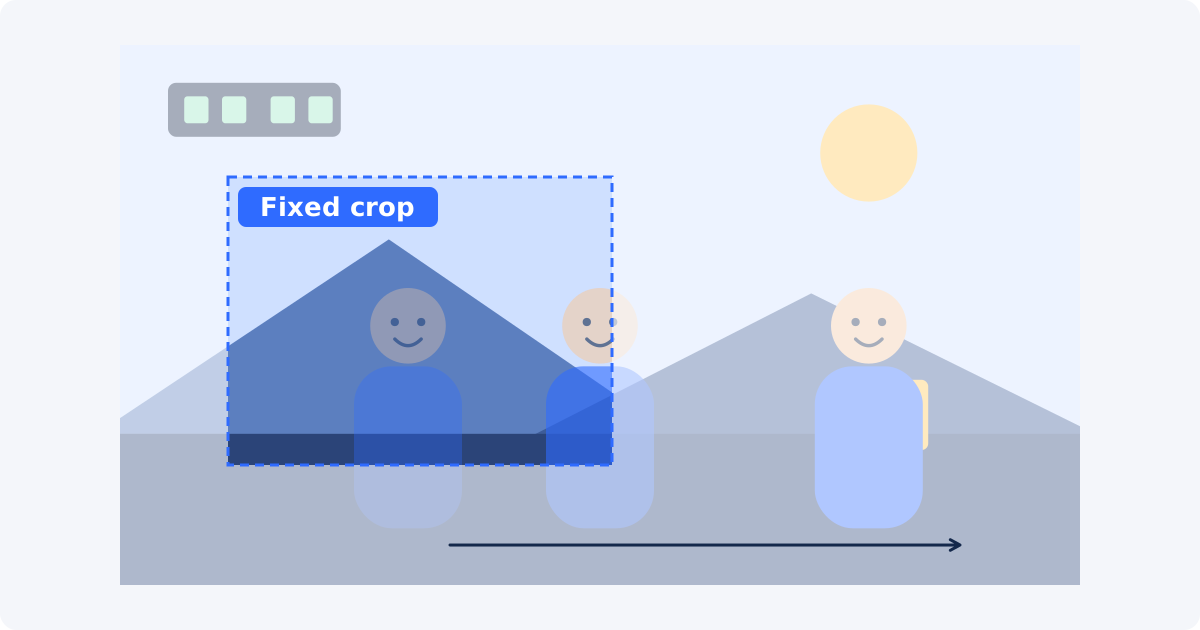
Why a fixed crop may fail over time
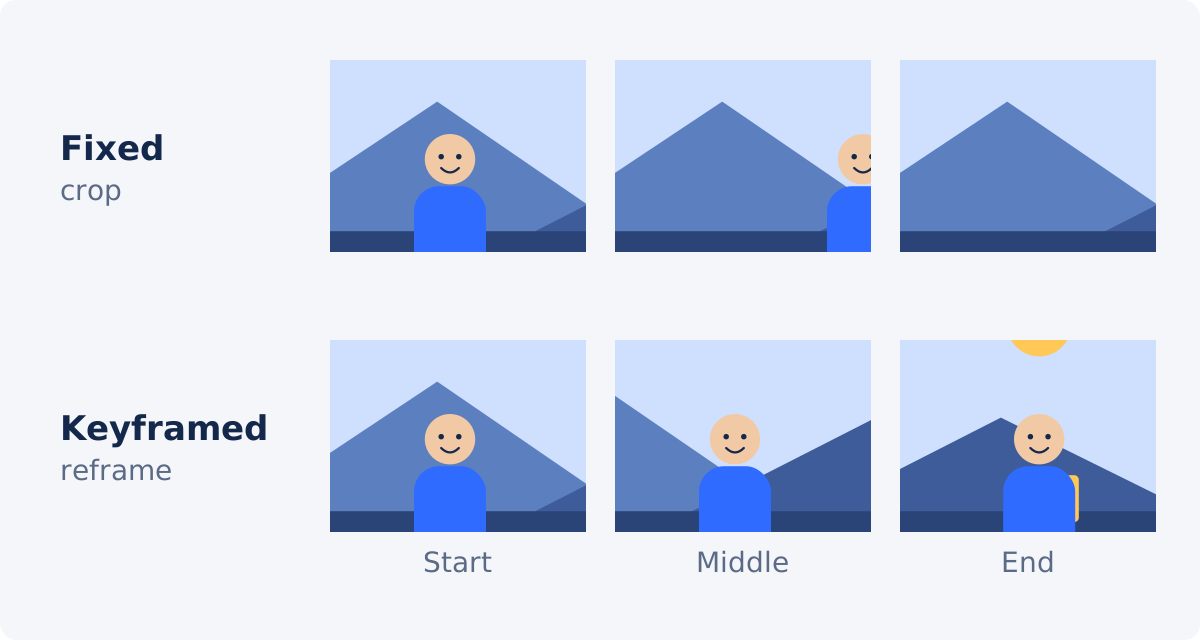
When you set a crop, you usually look at one frame, often the first. The rectangle looks right there. But a video is thousands of frames, and the rectangle does not move. The Deus.Video Crop Video tool, like most simple croppers, applies one fixed crop area to the complete video. It does not detect people or objects, and it does not follow them.
So a speaker who leans toward a whiteboard, a child who runs toward the camera, or a cursor that travels to the far side of the screen can end up half out of the picture, or gone. The tighter the crop, the less movement it tolerates.
Inspect the complete timeline before you export
The timeline is the time axis of the clip. Before you settle on a crop, map the subject's movement across it.
- Play the clip once without touching anything and watch only the subject.
- Scrub slowly and find the extremes: the leftmost, rightmost, highest, and lowest positions the subject reaches. Note the time of each.
- Include the parts that stick out: raised hands, a tool, a ball, a product held at arm's length.
- Imagine a box around all those extremes. That box is the smallest fixed crop that can work.
- Compare the box with the shape you need. If it fits inside your target aspect ratio with room to spare, a fixed crop will do. If it does not, you need one of the other methods below.
The tool lets you preview the complete video with the crop in place before processing. Use that preview for the whole clip, not only for the opening seconds.
How much safety margin to leave
A subject that touches the edge of the frame looks trapped, and any unplanned movement cuts it off. Leave space around the box you found.
- A starting point: add roughly 10–15% of the crop's width on each side of the subject's range, and similar headroom above. Treat this as a rule of thumb, and adjust it to the footage.
- Add lead room. Leave more space in the direction the subject moves or looks. A runner heading right should sit left of center.
- Allow for the unexpected. Gestures, a step backward, and camera shake all use up margin.
- Mind what the margin lets in. A wider crop may bring back the distraction you wanted to remove. Sometimes you have to choose between a clean edge and a safe subject.
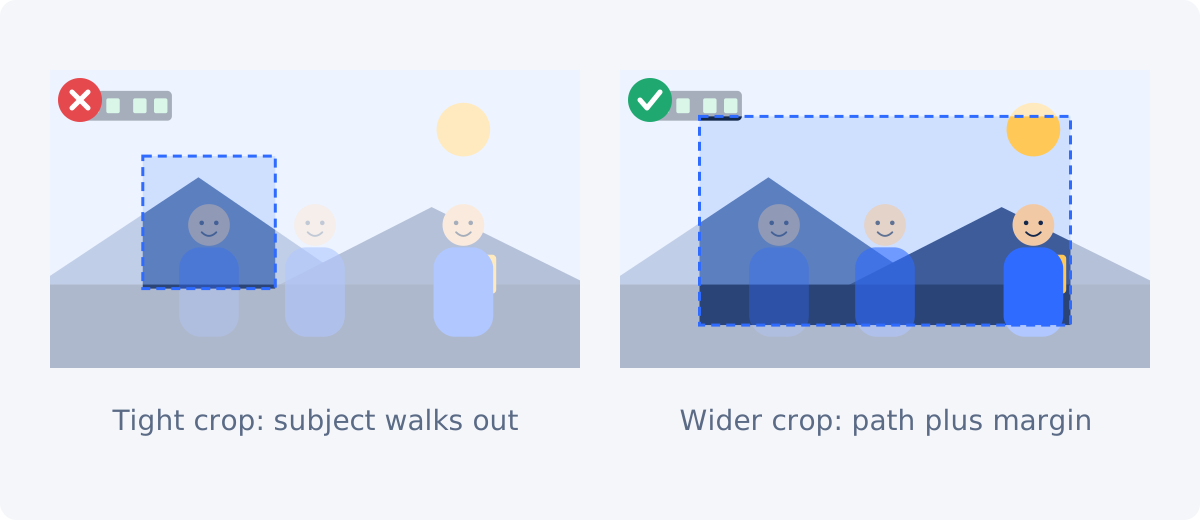
When a wider crop is enough
For small, predictable movement, a wider fixed crop is the right answer, and it is also the most stable-looking one. A presenter who shifts weight from foot to foot, a cook who moves between a board and a pan, a product rotated on a table: all of these stay inside a moderately loose rectangle.
The cost is a smaller subject. The benefit is that nothing in the frame moves except the subject, which is how viewers expect a locked-off shot to behave. A wider crop also keeps more source pixels, so it holds up better on large screens.
Divide a clip into sections with different framing
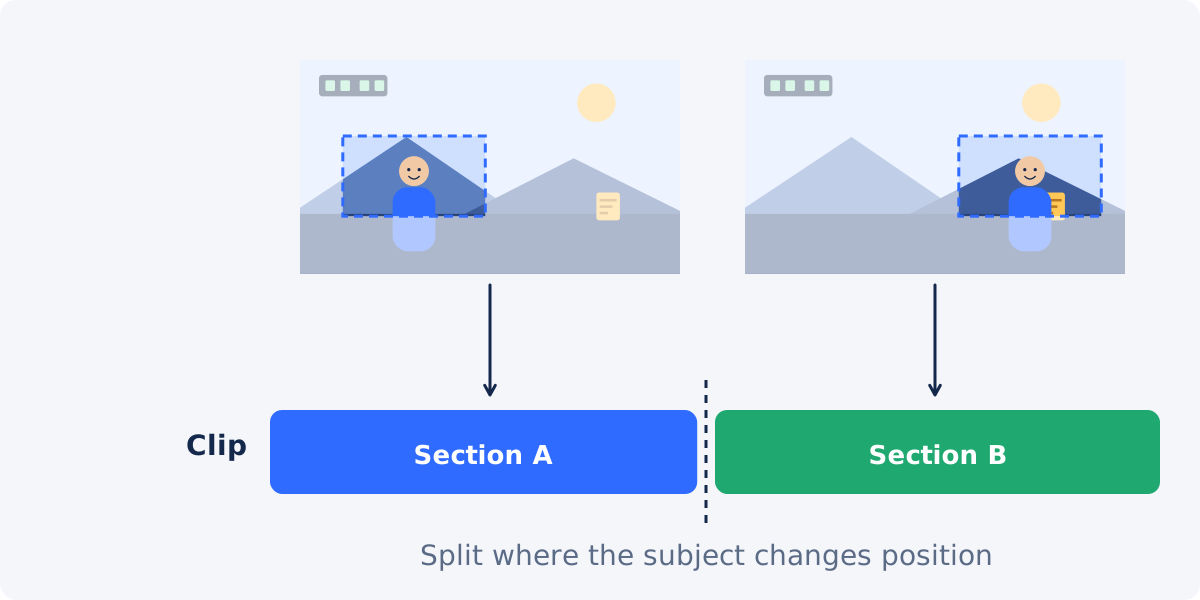
If the subject occupies one area for a while and then moves to another, such as a teacher who walks from the desk to the board, no single rectangle serves both positions well. Two rectangles do.
- Find the moment of the move and note its time.
- Split the video into sections at that point.Trim Video can save each part as its own clip, or you can use Split in the full editor.
- Crop each section separately, each with its own crop position. Use the same aspect ratio and the same crop size for all sections, so the output dimensions match.
- Join the sections in their original order.
- Check the cut. The framing jumps at the split. That reads as a normal edit when it lands on the movement itself or on a pause, and as a glitch when it lands mid-sentence.
Every separate export is another round of lossy encoding. If you need more than two sections, doing the whole job in an editor and exporting once is kinder to the picture.
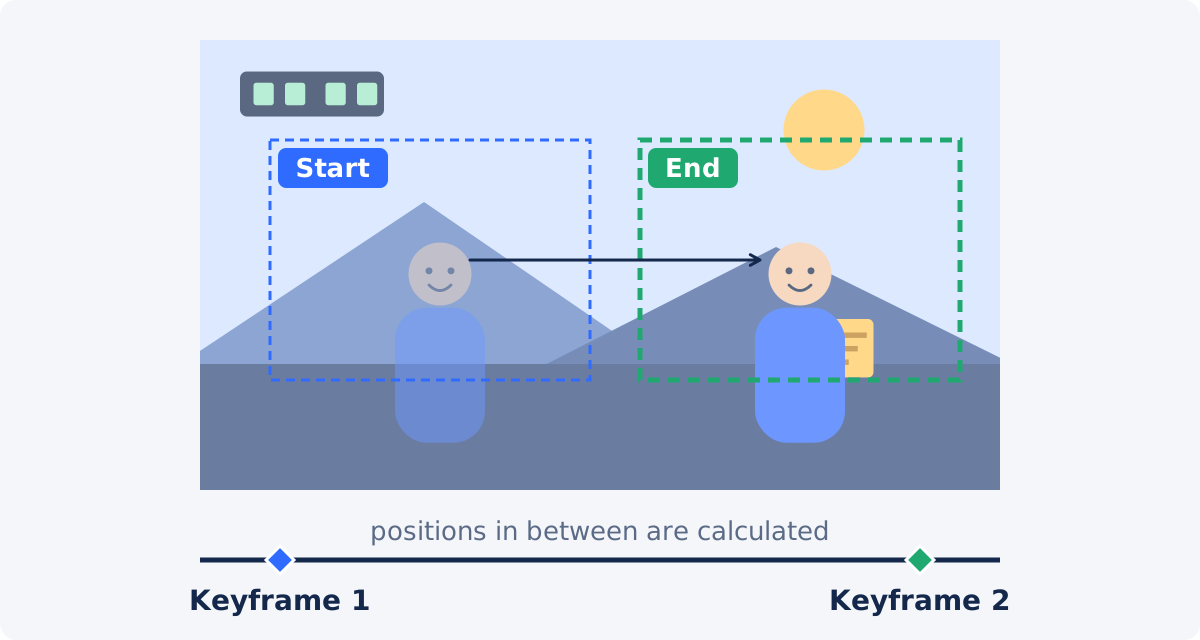
How animated position and keyframes work in the full editor
A keyframe is a marker that stores the value of a property at a moment in time. Set one value at one time and a different value at a later time, and the software calculates everything in between, so the change happens gradually. Professional editors use this for position, scale, and opacity, and the same principle applies here.
The full Deus.Video editor does not have a separate crop command for this. The crop comes from the canvas. The project canvas is the output frame. If you enlarge the video until it is bigger than the canvas, only the part inside the canvas is rendered, and the rest is cropped away. Moving the video then changes which part is visible.
- Set the project size to the output shape you want.
- Add the video and select it. The Edit Video panel shows Top, Left, Horizontal zoom, and Vertical zoom, each with a diamond-shaped keyframe button.
- Raise Horizontal zoom and Vertical zoom by the same amount until the subject is framed as you like. Keep the two values equal, or the picture stretches. A video that just fits the canvas may show a value slightly below 1, so treat that starting value as your baseline.
- Move the playhead to the start of the movement. Adjust Top and Left so the subject is well placed. Position is measured from the center, so 50% and 50% is the middle. Click the keyframe button next to Top and next to Left.
- Move the playhead to the end of the movement and change Top and Left again. Once a property has its first keyframe, changing its value at another time creates the next keyframe automatically.
- Add keyframes in between wherever the subject drifts away from the frame.
- Choose an easing for each keyframe if the default feels mechanical. Ease In Out suits most camera-like moves.
- Play the section, fix what looks wrong, and click Download video.

Static crop versus animated reframe
| Subject behavior | Recommended method | Why |
|---|---|---|
| Subject remains in one area | Fixed crop | One rectangle works throughout |
| Small predictable movement | Wider fixed crop | Safety margin keeps the subject visible |
| Subject changes position once | Split into sections | Each section can use different framing |
| Continuous movement | Keyframed position | The frame can follow movement over time |
| Unpredictable movement across the full frame | Keep wider framing | Tracking with a tight crop may look unstable |
An animated reframe behaves like a camera operator panning after the fact. Done gently, viewers do not notice it. Done with many rapid keyframes, it produces a jittery picture that is more distracting than a loose shot.
People, sports, screen recordings, and product demonstrations
People
Follow the head and torso, not the hands. Keep the eyes in the upper third of the frame, and let gestures reach toward the edge without following each one. A reframe that reacts to every hand movement feels nervous.
Sports
Fast, direction-changing action is the hardest case. Keep the crop wide, lead the movement, and accept that the athlete will be small. If the ball and the player separate, decide in advance which one the frame follows.
Screen recordings
The "subject" is the area of activity: a panel, a menu, the cursor. Interfaces are static, so sections with different fixed framing usually work better than continuous motion. Make sure each section contains the whole element being discussed, and that text stays readable after the crop.
Product demonstrations
Products tend to move between a few positions: on the table, lifted toward the camera, turned around. Frame for the largest of those positions, or split at the moments when the product is picked up and put down.
Avoid empty edges during animated movement
When the video is larger than the canvas, moving it too far drags its edge into view, and the empty canvas shows as a bar at one side. This usually happens between keyframes, where you were not looking.
- Scrub slowly through every animated section and watch all four edges of the canvas.
- If a gap appears, reduce how far the position changes, or increase the zoom a little.
- Remember the limit: the subject can only be centered while there is enough picture on the far side. A subject at the very edge of the source cannot be centered without showing empty canvas.
- Keep all animated properties in step. If Top and Left have keyframes at different times, the frame wanders off its path.
Quality when combining crop and zoom
Enlarging a video inside a canvas is a crop and an enlargement at once. At a zoom of 2, the visible picture comes from half the source width and half the source height, which is a quarter of the pixels, spread over the full output. The closer you follow a subject, the fewer recorded pixels you are showing.
- Start from the highest-resolution original. A 4K source reframed for a 1080p output has real detail to spare. A 1080p source does not.
- Use the lowest zoom that frames the subject acceptably. If a plain crop is enough, use the standalone Crop Video tool instead of enlarging it.
- Do the whole reframe in one project and export once, because every export is another lossy encode.
- Judge sharpness on faces and text at the size viewers will use.
Conclusion
Start by measuring the movement. If the subject's whole range fits inside one rectangle with a margin, use a fixed crop and keep it a little loose. If the subject relocates once, split the clip and frame each part. If it moves continuously, enlarge the video inside the canvas in the full editor and keyframe its position, with few keyframes and gentle easing. When the movement is wild, stay wide.
If a single rectangle covers your subject for the whole clip, use the online video cropper, leave a safety margin, and watch the complete preview before you process the video.
Frequently asked questions
Can Crop Video follow a person automatically?
No. The standalone tool applies one fixed rectangle to the complete video. It does not detect or track subjects. Following movement requires keyframed position in the full editor, or separately cropped sections.
How do I know whether my subject leaves the crop?
Play the complete preview with the crop in place, not only the first seconds. Scrub to the moments of greatest movement and check that the subject, including hands and props, stays inside the frame with some space to spare.
How many keyframes do I need?
As few as possible. Two are enough for a steady move from one position to another. Add one only where the subject clearly drifts out of a good position. Many closely spaced keyframes make the framing shake.
Why does a black or empty bar appear at the side during the move?
The video was moved so far that its edge came inside the canvas. Reduce the position change at that keyframe, or increase the zoom slightly, and scrub through the section again.
Does following a subject reduce quality?
The reframing itself does not, but the zoom it requires does. Showing a smaller part of the source at full output size means enlarging it. Keep the zoom modest, and start from the best source you have.
Is it better to split the clip or to use keyframes?
Split when the subject moves once and then stays put, and when a visible cut is acceptable. Use keyframes when the movement is continuous and the framing should glide. Splitting with the standalone tools means several exports, while an editor can do either method in one export.
Sources
- Adobe Help, "Add keyframes to a clip" – a keyframe captures a property value at a moment, and motion is created between keyframes with different values: https://helpx.adobe.com/premiere/mobile/clip-effects-and-fill/add-keyframes-to-a-clip.html (checked September 21, 2026)
- Wikipedia, "Digital zoom" – enlarging a cropped area adds no resolution: https://en.wikipedia.org/wiki/Digital_zoom
- Wikipedia, "Generation loss" – repeated lossy encoding accumulates loss: https://en.wikipedia.org/wiki/Generation_loss
- Wikipedia, "Rule of thirds" – placing a person's eyes near the upper third line: https://en.wikipedia.org/wiki/Rule_of_thirds
- Deus.Video, Crop Video tool page and full editor – fixed crop for the complete video; position, zoom and keyframe controls verified against production screenshots: https://deus.video/crop-video/ (checked September 21, 2026)


