
Lossy and lossless, in plain words
JPG is lossy. To make the file small, it throws away information that eyes are bad at noticing: fine variations in color, and some precision around sharp changes in brightness. On a photograph the result looks the same at normal size and is a fraction of the storage. The loss shows up as faint blocks in flat areas and a ringing halo along hard edges, most visibly around text.
PNG is lossless. It stores every pixel exactly as it was decoded from the video. The file is larger, sometimes much larger on noisy or detailed content, and opening it gives back exactly the frame. That is why PNG is the safe master format for anything that will be edited or examined.
One point applies to both: the video frame itself has already been through lossy compression inside the video. PNG preserves that frame faithfully; JPG adds a second, usually smaller, round of loss. Neither can restore what the video compression removed.
How each format handles different content
- Photographs and scenes. Natural texture hides JPG's compression well. At normal viewing size the two formats look alike, and the JPG is often a tenth of the size.
- Gradients. Skies, shadows, and studio backdrops can show faint bands in JPG. PNG keeps them smooth, though a video frame may already have banding from its own compression.
- Text. Letters have the hardest edges in any image, and JPG surrounds them with a faint halo. PNG keeps them crisp. Subtitles, slide text, and signs are the clearest case for PNG.
- Diagrams and flat color. Large flat areas and thin lines compress cleanly in PNG and can look slightly dirty in JPG.
- Interface recordings. Screen recordings are all edges and flat color, and PNG suits them. They also compress extremely well as PNG, so the size penalty is small.


What the video already did to the frame
It helps to picture two stages of compression. The first happened when the video was encoded: the camera or the platform decided how much detail to keep in each frame, and that decision is final. The second happens when the extracted frame is saved. PNG skips the second stage entirely. JPG applies it lightly. So a JPG of a clean, high-bitrate frame will look excellent, and a PNG of a heavily compressed frame will faithfully reproduce every block and smear the video put there. Judging a format by an extracted frame that came from a poor video is a common mistake; the format is usually not the problem.
The practical consequence is an order of operations. Choose the best copy of the video first, then the sharpest frame, then the format. The format is the last and smallest decision.
File size and the download trade-off
For one frame, size is not a concern either way. For many frames it is. A 1080p photographic frame is typically a few hundred kilobytes as JPG and several times that as PNG; on noisy or highly detailed footage the PNG can be much larger. Multiply by the number of frames from a range or an every-frame extraction and the ZIP grows fast. In a test with a six-second 720p clip at 30 frames per second, every-frame extraction as PNG produced 180 files totaling about 170 MB.
The Deus.Video tool has no JPG quality setting; JPG frames are written at a fixed, moderate compression. If you need a specific quality level or a size target, extract as PNG and export JPGs from an image editor with the settings you want.
Exporting both and comparing
When in doubt, test. With the tool you can save video frames as JPG or PNG from the same timestamp.
- Upload the video and set Extraction mode to Specific timestamp.
- Choose JPG, enter the time as hh:mm:ss, click Convert to Photos, and download the ZIP.
- Click Reset, choose PNG, enter the same time, convert, and download again.
- Open both images at 100% zoom in an image viewer and look at the edges of text, thin lines, and flat areas.
- Compare the file sizes in the folder.
If you cannot see a difference at 100%, JPG is enough for that content. If halos or blocks are visible where they matter, use PNG.
Two habits make the comparison fair. Look at the same spot in both images, ideally a place with text or a hard edge, since that is where JPG shows itself. And look at actual size or larger, not at the thumbnail the file browser shows; at thumbnail size every format looks the same, which is also the reason JPG is fine for thumbnails.

Scenarios
Thumbnail candidate
Extract as PNG, crop and adjust in an image editor, then export the final JPG for the platform. Working from PNG avoids stacking compression twice; delivering JPG keeps the upload small. If no editing is planned, extracting straight to JPG is fine for a photographic frame.
Presentation slide
PNG. Slides are viewed large and often contain text or a diagram from the video, and presentation software handles PNG well. Size is rarely an issue for a handful of images.
UI tutorial
PNG, without exception. Screen recordings are text and edges, and PNG keeps every pixel of the interface exactly. The files are also small, because flat color compresses well losslessly.
Archive or reference
PNG for a small number of important frames you may return to. JPG for a large set of reference frames, such as one every ten seconds through a long recording, where the count matters more than edge fidelity.
| Criterion | JPG | PNG | Recommendation |
|---|---|---|---|
| Compression | Lossy | Lossless | PNG when the frame will be edited |
| File size | Small | Larger, often several times | JPG for many frames |
| Photographic scenes | Looks the same at normal size | Exact, larger | JPG |
| Text and interfaces | Halos around edges | Crisp | PNG |
| Gradients | Possible banding | Smooth as decoded | PNG for backdrops that matter |
| Further editing | Adds loss before edits | Nothing added | PNG as the master |
| Web upload | Widely expected | Accepted, larger | JPG, exported from a PNG master if edited |
| Improves the frame? | No | No | Choose the source and the frame first |
Decision tree
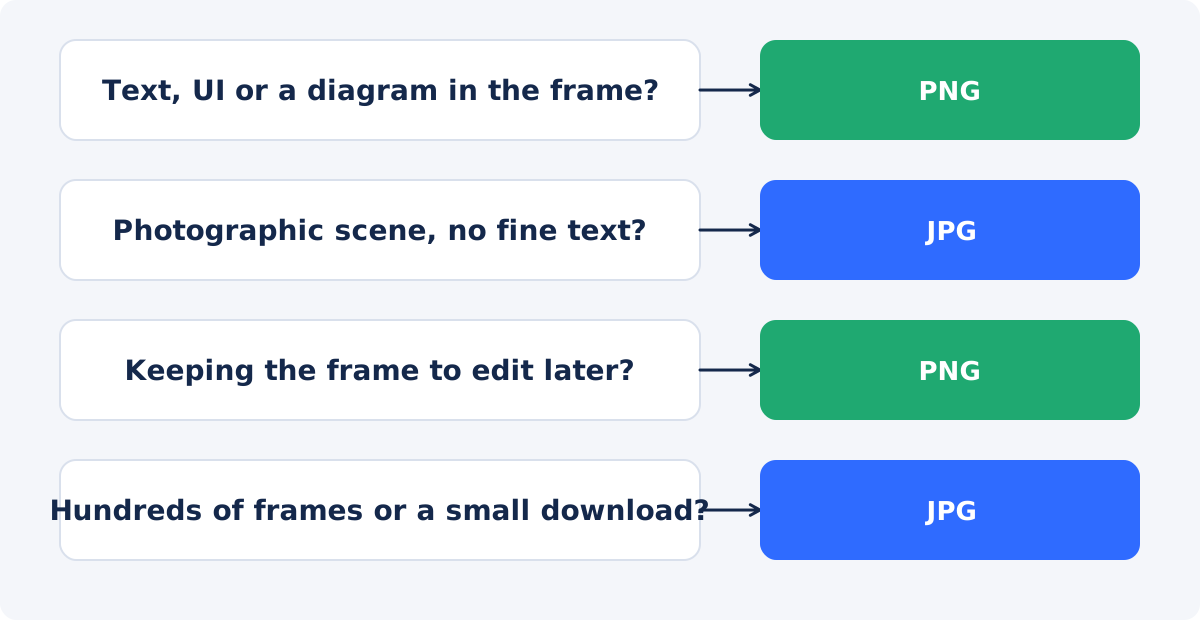
- Is there text, an interface, or a diagram in the frame? PNG.
- Is it a photographic scene with no fine text? JPG.
- Will you edit the frame before using it? PNG, then export from the editor.
- Are you extracting hundreds of frames, or is download size the constraint? JPG.
- Still unsure? Extract both from the same timestamp and compare at 100%.
Conclusion
JPG for photographs, PNG for edges and edits: that is most of the decision. Remember that the frame's quality was fixed when the video was encoded, so the format only decides whether a little more is lost on the way out. When the content is mixed, or the frame matters, extract as PNG and make the JPG yourself.
Want to see the difference on your own footage? Extract a frame from a video as JPG and again as PNG, and compare the two at full size.
Frequently asked questions
Is PNG always higher quality than JPG?
PNG is an exact copy of the decoded frame and JPG loses a little, so PNG is never worse. But both are limited by the video frame, which was already compressed. On photographic content the difference is usually invisible; on text and edges it is visible.
Why is my PNG so much larger than the JPG?
PNG stores every pixel without loss, and detailed or noisy frames do not compress well losslessly. A grainy video frame can be several megabytes as PNG and a few hundred kilobytes as JPG. Flat, clean frames such as screen recordings are much smaller as PNG.
Can I set the JPG quality?
Not in the tool, which writes JPG at a fixed, moderate compression. For a specific quality or size, extract as PNG and export JPG from an image editor with the settings you need.
Which format should I use for a thumbnail?
Extract as PNG if you will crop or adjust it, then export a JPG for the platform. If the frame goes up as is, JPG from the tool is fine for a photographic scene.
Does converting a PNG to JPG later lose quality?
A little, the same loss JPG always adds. That is the right order: keep the PNG as the master and make JPGs from it as needed, rather than the other way around.
Which format is better for frames from a screen recording?
PNG. Interfaces are text, lines, and flat color, which JPG blurs with halos and PNG keeps exactly, usually in a small file.


