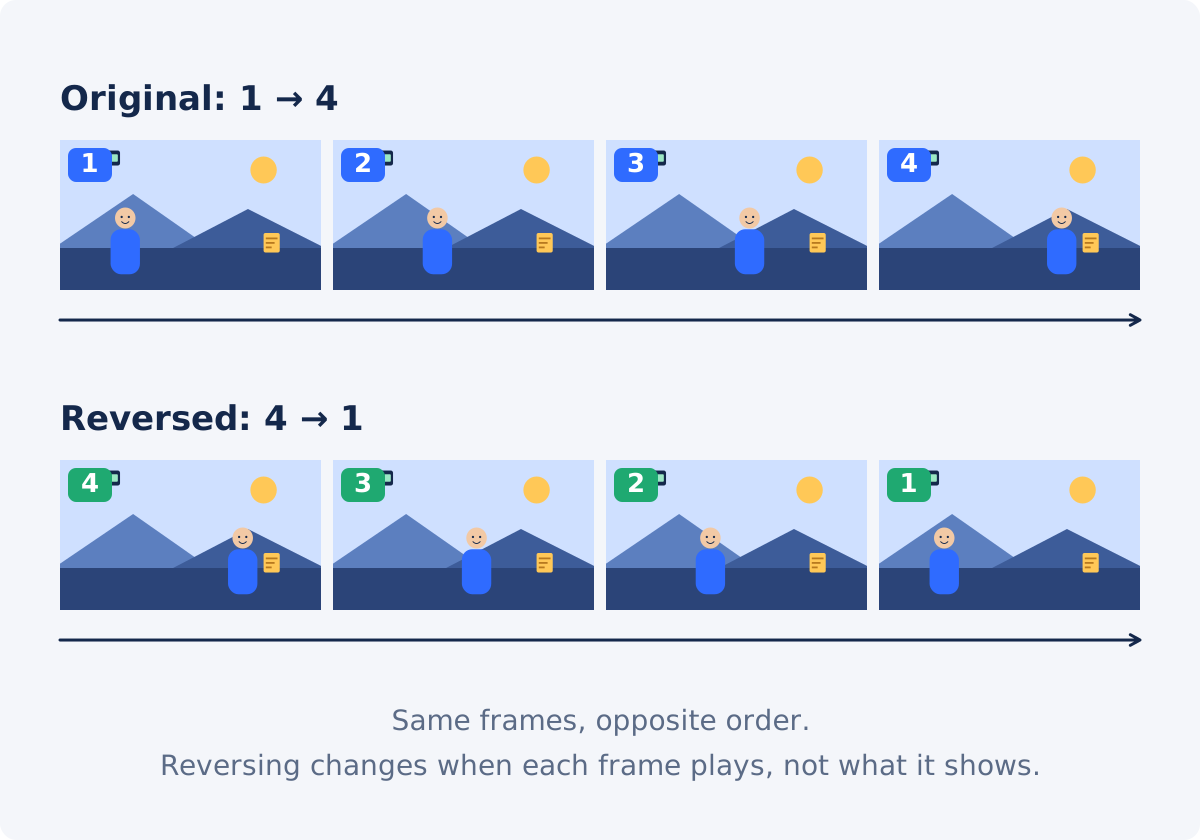
What changes when a video is reversed
A video is a sequence of still frames shown quickly. Reversing keeps every frame exactly as it is and changes only the order they play in. Frame 1 becomes the last frame, frame 2 the second to last, and so on. A glass that shattered now assembles itself. A person who walked away now walks backward toward the camera. The duration stays the same, the picture size stays the same, and nothing is mirrored or flipped. The direction of time is the only thing that changes.
The sound is a separate decision. Audio can be reversed along with the picture, which turns speech into an unfamiliar murmur and turns an impact into a sound that builds up and stops. Or the result can be silent.
Reversing vs. rewinding playback
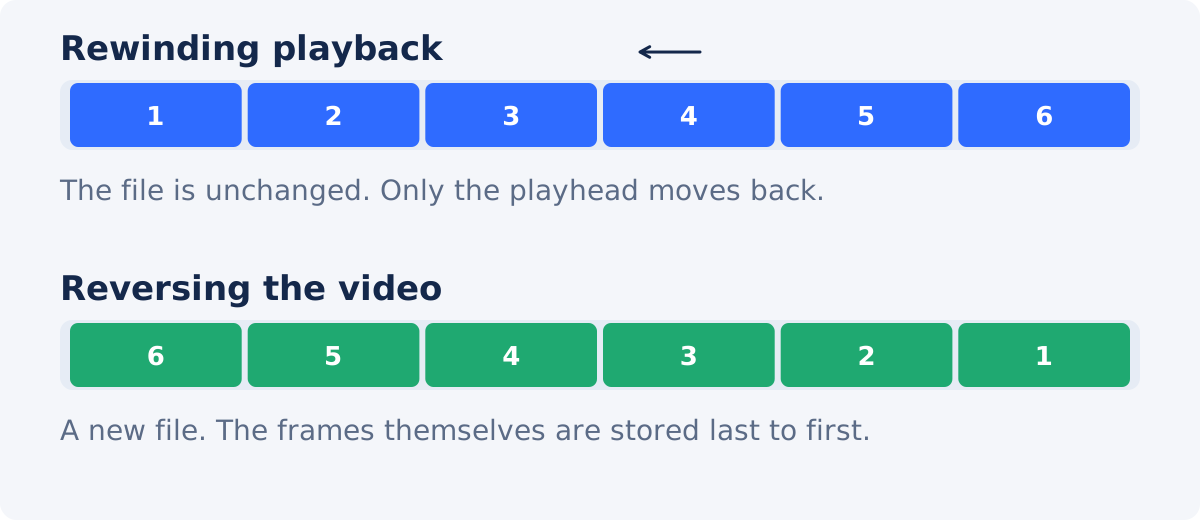
Rewinding, in the everyday sense, means moving a player's position back toward the beginning. The file is not changed, and the moment you press play again, the video runs forward as before. Nobody who receives the file sees anything unusual.
Reversing creates a new video file. Whoever plays it, on any device, sees the action run backward, because that is how the frames are now stored. If you want to share a backwards-playing clip, post it, or cut it into a larger video, reversing is what you need. If you only want to watch a moment again yourself, the player's controls will do.
Choosing an action that reads well backwards
Not everything looks interesting in reverse. A person sitting still looks the same either way. What works is a clear, one-directional change that the viewer can recognize.
- Things that end differently from how they began. A pour, a spill, a fall, a jump, a throw, a demolition, unwrapping a package, drawing a line.
- A single subject in a steady frame. A tripod or a braced phone keeps the attention on the action. Handheld drift is distracting backward as well as forward.
- Short and complete. Two to ten seconds that contain the whole action, from rest to rest, are easier to read than a long take.
- Good light and a clean background. The viewer has to work out what is happening; give them a clear picture.
Walking, talking, and gestures look strange backward. That can be the point in a comedy clip, and it can be distracting in a demonstration.
How to reverse a video in Deus.Video
With the tool, you can reverse a video online in a few steps.
- Upload one video. Common inputs include MP4, MOV, AVI, WebM, and MKV.
- Select the part to reverse. Click a quick preset, 3, 5, 10, 15, 30, or 60 seconds, drag the handles of the selected range on the timeline under the player, or type Start and End times.
- Check the selection line. It reads, for example, "Selected: 0:05.00 of 1:00 maximum." A single selection can be up to 60 seconds.
- Press Play to preview. The player runs the selected range forward, as it is in the source. Use it to confirm that the action starts and ends inside the range.
- Decide on the sound. Keep Reverse audio selected for backward sound, or clear it for a silent result.
- Click Reverse video and wait for processing.
- Download the result, or continue in the full editor to add music, text, or the original clip around it.
The uploaded video is not changed. The tool creates a new processed file from the selection, and because the file is encoded again, its size and fine detail can differ slightly from the source.

What the preview shows
This catches many people. Before processing, the player shows the original footage of your selected range, playing forward. It does not show the reversed version. The preview exists to help you choose the right moment: is the whole splash inside the range, does the clip start at a rest pose, is there dead time to trim?
To see the backwards result, process the video and play the download. If the range needs adjusting, go back to the source, move the handles, and process again. Processing a short selection is quick, so two or three attempts are normal.
Reversed audio or a silent result
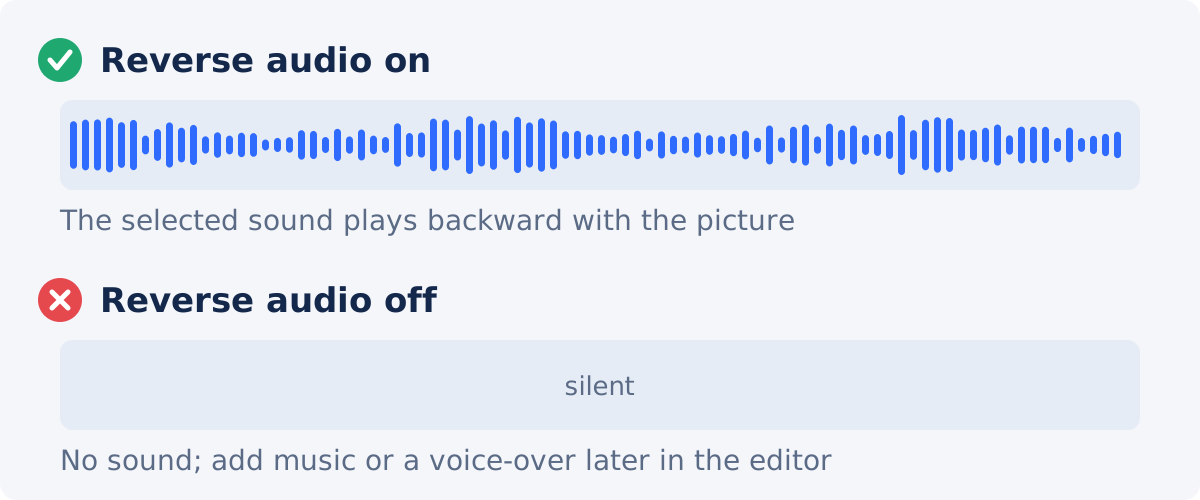
With Reverse audio selected, the sound of the selected range plays backward with the picture. This works for some content and not for others.
- Keep it when the sound is part of the effect: a crash that reassembles with its own backward crunch, a splash sucked back into the glass, an experimental or comic clip where the strangeness is intended.
- Turn it off when the reversed sound would be a distraction: speech, music, room noise, or anything that should feel smooth. A silent clip can be given normal music or a voice-over afterward in the full Deus.Video editor, where the reversed clip is placed on the timeline like any other and sound is added as a separate track.
Reversed speech is never intelligible, so a clip that depends on words should be silent, with captions or a new voice-over.
The 60-second limit
One processed selection can be at most 60 seconds long. A longer source video can be uploaded, and you move the selection to the moment you want. If a project needs more than a minute of backward footage, reverse it in sections of up to 60 seconds each and join them, for example with Merge Videos or in the full editor. In practice, reversed clips are short: the effect works on a single action, and long backward sequences quickly lose the viewer.
Checklist before publishing
- Play the downloaded file from start to end. It should begin at the end of your action and finish at the start.
- Confirm the duration matches the selection you made.
- Look at the first and last frames. A rest pose at both ends makes the clip easier to cut into other footage.
- Listen with the volume up. Reversed sound should be intentional; a silent file should be silent.
- Check the picture on a phone as well as a computer if the clip is for social media.
- Keep the source file. Any change of range means processing again from the original.
Conclusion
Making a video play backwards is a matter of choosing the right few seconds and letting the tool reorder the frames. Pick a clear, one-directional action in a steady shot, use the preview to confirm the range, decide whether the sound should run backward, and judge the effect in the downloaded file. For anything longer than a minute or more complex than a single clip, work in sections and assemble them in an editor.
Have a moment worth running in reverse? Open the Reverse Video tool, select the seconds that matter, and download the backwards version.
Frequently asked questions
Does the preview play the video backwards?
No. The preview plays the original selected range forward, so you can confirm the right moment is selected. The reversed version is the processed file you download.
How long a video can I reverse?
One selection can be up to 60 seconds. You can upload a longer video and choose which part to reverse. For more than 60 seconds of backward footage, process several selections and join them in an editor.
Is the original video changed?
No. The tool creates a new processed file from your selection, and the uploaded source stays as it was. If you want a different range or a different audio setting, process the source again rather than the result.
Will the sound play backwards?
Only if Reverse audio is selected, which it is by default. Clear it to get a silent clip, which you can give new music or a voice-over in the full editor. Reversed speech is not understandable, so clips that depend on words are better silent with captions.
Does reversing reduce the quality?
The frames themselves are unchanged, but the result is a newly encoded file, so its size and fine detail can differ slightly from the source. Work from the original file and avoid reversing a file that has already been processed several times.
Is reversing the same as flipping or mirroring?
No. Reversing changes the order of frames in time. Flipping mirrors each frame left to right or top to bottom. A reversed video still shows the scene the right way around.


