Repeating a clip vs. making a seamless loop
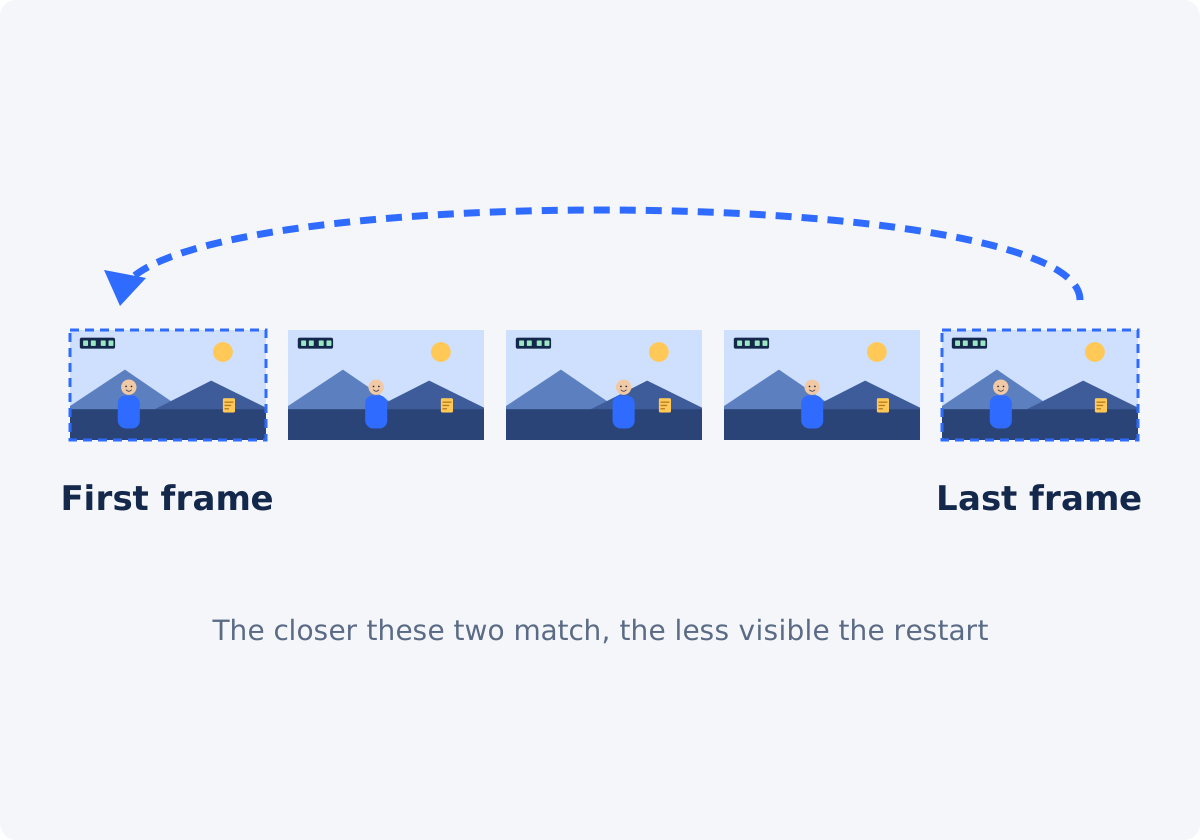
A loop is a clip that plays again from its beginning as soon as it ends. Any video can be looped in that sense. Place copies one after another, and you have a repeated video.
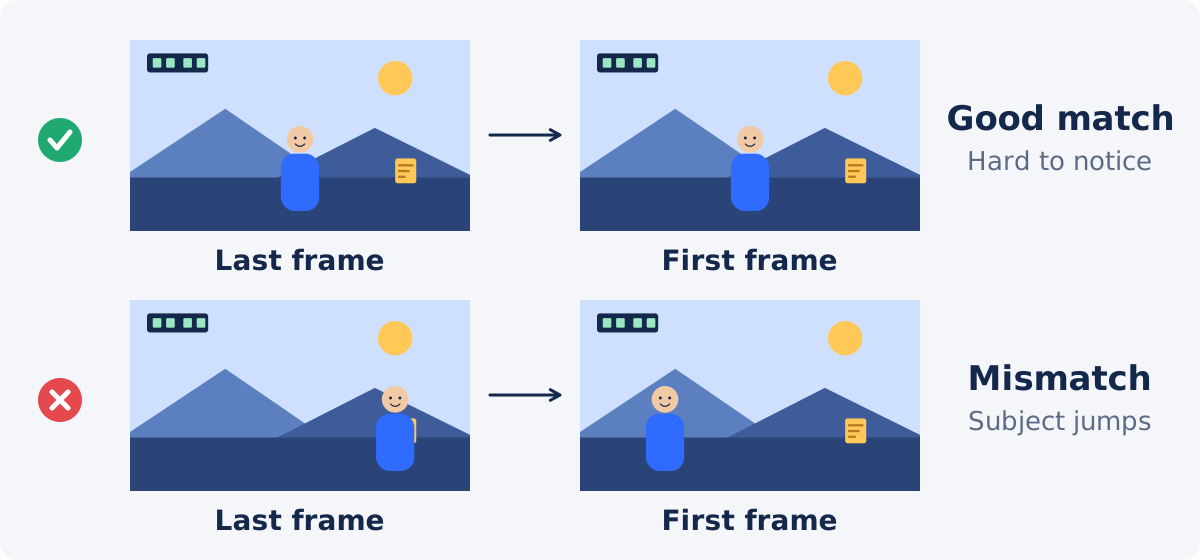
A seamless loop is a stricter thing. The endpoints, meaning the first and the last frame of the selection, are so alike that the jump from one to the other looks like ordinary motion. A clip of someone waving and then walking out of frame can be repeated, but each restart will be obvious: the person reappears from nowhere. A clip of a spinning fan, steady rain, or a product on a turntable can restart almost invisibly.
Whether your result is seamless depends on the footage and on where you cut it, not on how many times you repeat it.
What has to match at the start and the end
- Framing and camera position. Any pan, zoom, or handheld drift between the first and the last frame shows up as a jolt. Tripod shots loop far more easily.
- Subject position. A person, hand, or object should be in the same place, in the same pose. Small differences read as a twitch. Large ones read as teleporting.
- Motion. Direction and speed should continue across the join. A pendulum cut at the same point of its swing, moving the same way, carries on smoothly. Cut at opposite points, it snaps.
- Lighting. Clouds passing, a flickering screen, or a door opening changes the overall brightness. A brightness step at the restart is one of the most noticeable flaws.
- Exposure and color. Phone cameras adjust exposure and white balance while recording. If the camera brightened the shot over ten seconds, the restart flashes back to dark. Locking exposure and focus before recording prevents this.
- Background activity. People walking, cars, leaves, a clock on the wall. Anything that progresses in the background resets at the join.
How to choose start and end points
Start by looking for cycles. Much real motion repeats: a wheel turning, waves arriving, a walking stride, a breathing chest, an animation that was designed to loop. If you cut exactly one cycle, or a whole number of them, the end meets the beginning.
- For cyclical motion, pick a recognizable moment, such as the top of a bounce, as your start. Then find the next time the subject reaches that same moment, and end just before it. If you end exactly on the matching frame, that frame plays twice in a row, which causes a tiny stutter.
- For ambient footage, such as water, clouds, fire, or particles, there are no exact matches, but there is no clear subject either. Pick a stretch where the overall look is stable, and avoid sections with a distinctive event, such as a bird crossing.
- For a person or a product, look for a rest pose that occurs twice: hands on the table before and after a gesture, a product facing front before and after a rotation.
- Prefer shorter ranges. The less time passes between the endpoints, the less the light, the background, and the camera have drifted.
Preview the selection and watch the restart
You cannot judge a loop from its endpoints as still frames. You have to see it restart, several times in a row.
- Play the selected range on repeat, and watch only the moment of the restart.
- On the first pass, watch the subject. On the second, the background. On the third, the overall brightness.
- If something jumps, move one endpoint by a small amount, and watch again. Change one end at a time, so you know which change helped.
- Look away, then look back. If your eye goes straight to the join, viewers' eyes will too.
- Remember that a loop is seen many times. A flaw that seems minor on the first pass becomes irritating by the tenth.
The audio boundary
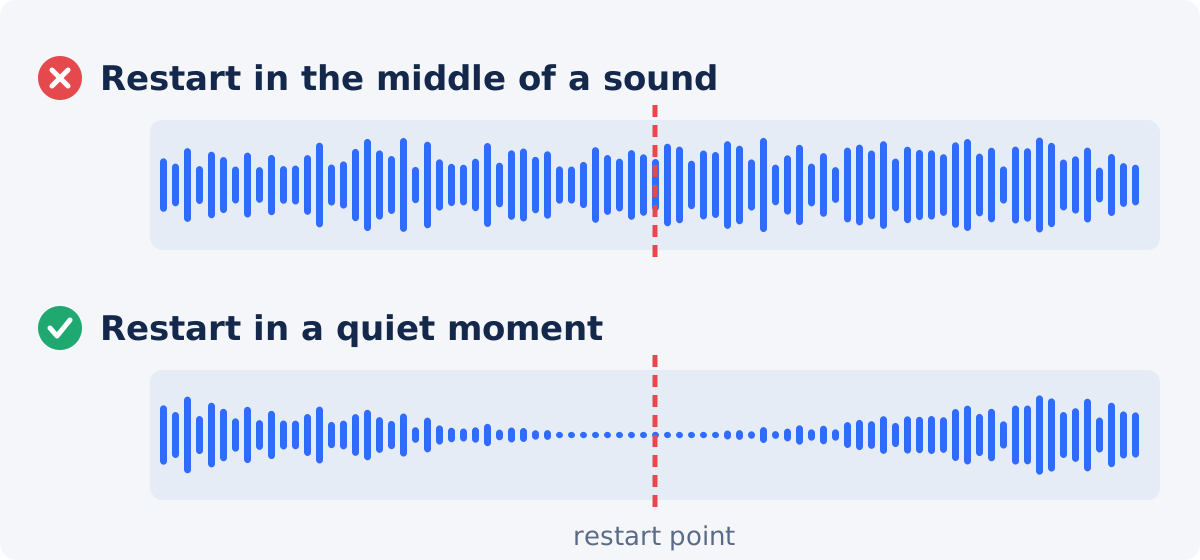
Sound reveals a restart even when the picture is flawless. Speech cut mid-word, music that skips back to bar one, or a hum that clicks at the join all tell the viewer exactly where the loop is.
- Steady ambience, such as rain, wind, or room tone, often loops acceptably, though a small click at the join is possible.
- Speech and music almost never loop cleanly unless they were composed to.
- The simplest fix is silence. Clear "Include audio in loop," and the result has no sound. Many loops are used muted anyway: backgrounds, screens at events, social posts that autoplay without sound.
- If you need sound, place the endpoints in a quiet moment, or add a separate, continuous soundtrack over the repeated picture in an editor. The standalone tool does not fade audio or replace the soundtrack.
How to create a video loop in Deus.Video
With the Loop Video tool, you can repeat the selected video clip and check the restart before anything is processed.
- Upload one video. Common inputs include MP4, MOV, AVI, WebM, and MKV.
- Select the range. Type Start and End times, or drag the selected range on the timeline under the player. "Whole video" resets the selection to the full source.
- Press Play to preview. The selected range plays on repeat, so you can watch the restart point.
- Adjust an endpoint by a fraction of a second, and preview again. The time fields accept hundredths of a second.
- Decide about sound. Keep "Include audio in loop" selected, or clear it for a silent result.
- Choose the Loop mode. "Repeat count" makes one to five copies. "Target duration" adds complete copies until a length in seconds is reached. The quick presets 2×, 3×, 5×, 10 sec, 15 sec, and 30 sec fill these in.
- Read Current status. It shows the selected fragment, the resolved repeat count, and the approximate output duration.
- Click Loop video, wait for processing, and download the result, or continue in the full editor.
The tool places copies of the selected range one after another. It does not analyze the footage, pick endpoints, add a crossfade, or mask a cut. The output is a newly processed file, and re-encoding, which means compressing the video again when it is saved, can change the file size or fine detail slightly.

Loop difficulty by source type
| Source type | Loop difficulty | Recommended approach |
|---|---|---|
| Animation or motion graphic designed to loop | Low | Select exactly one cycle; repeat |
| Abstract textures, particles, light leaks | Low | Pick a stable stretch; silent output |
| Mechanical cycle: fan, wheel, turntable, pendulum | Low to medium | Cut whole cycles; end one frame before the matching pose |
| Water, fire, clouds, rain on a tripod | Medium | Short range; avoid distinctive events; consider a crossfade in an editor |
| Person returning to a rest pose | Medium | Cut from rest pose to rest pose; check hands, head, and clothing |
| Product rotation by hand | Medium to high | Match the facing angle; expect small speed differences |
| Handheld footage | High | Forward-and-reverse loop, or accept a visible cut |
| One-way action: pouring, walking away, a door closing | High | Forward-and-reverse may work; otherwise treat it as a repeated clip |
| Speech or music | High for the sound | Silent loop, or a separate continuous soundtrack in an editor |
When you need the full editor, a crossfade, or a forward-and-reverse loop
Crossfade
A crossfade blends the end of the clip into its beginning over a fraction of a second, which softens small mismatches in ambient footage. It requires overlapping two copies and fading one into the other, which is editor work. It suits water, clouds, and fire. It does not suit a person, because the blend shows a ghost of the subject in two positions.
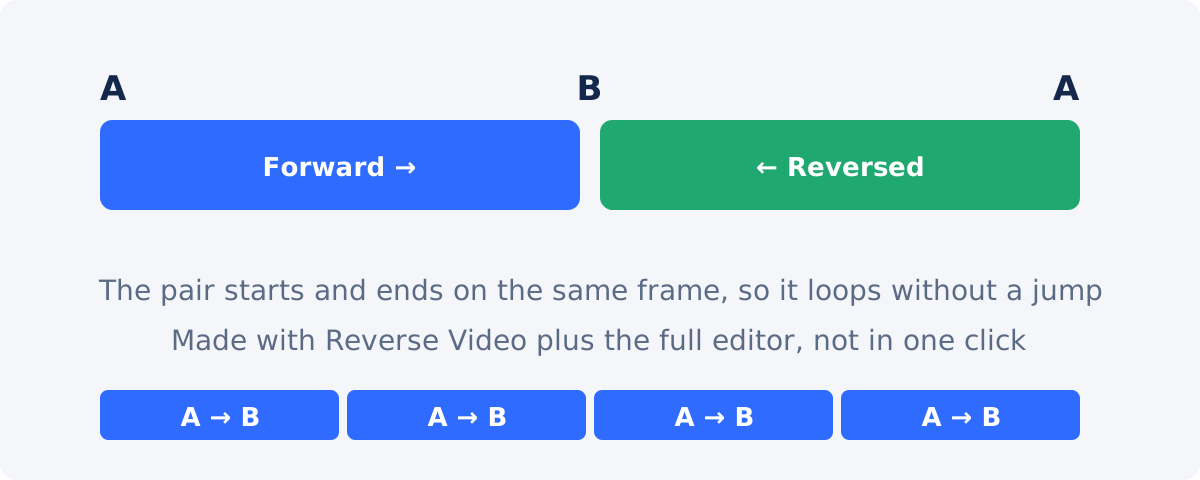
Forward-and-reverse loop
Also called a bounce or a ping-pong loop. Play the clip forward, then the same clip reversed. The pair ends exactly where it began, so the restart is invisible by construction. Create the reversed copy with Reverse Video, and place the two back to back in the full Deus.Video editor. It works for motion that looks plausible backward, such as swaying, drifting, and zooming. It looks wrong for anything with an obvious direction, such as falling water, walking, or smoke rising.
Manual repetition in the editor
In the editor, a loop is simply the same clip placed several times in sequence on the timeline. That gives you room to add a continuous music track, fade audio in and out, put text on top, and trim the final copy to an exact length.
Checklist before export
- The restart has been watched at least five times in a row.
- Subject, background, and brightness have each been checked separately.
- The last frame is not a duplicate of the first.
- Audio is either clean at the join, or switched off.
- The range is as short as the content allows.
- Current status shows the repeat count and output duration you expect.
- The source file is kept, in case you want different endpoints later.
Conclusion
A seamless loop is made at the endpoints. Find footage that returns to where it started, cut whole cycles, and judge the restart in motion, many times over. Handle the sound deliberately, usually by leaving it out. Then let the tool do the simple part, which is repeating the range you chose. When the endpoints cannot be made to match, a crossfade or a forward-and-reverse loop in an editor is the honest fix.
Ready to test your endpoints? Open the Loop Video tool, select a range, and watch the restart before you process it.
Frequently asked questions
Does the tool make my loop seamless automatically?
No. It repeats the range you select, exactly as it is. It does not choose endpoints, blend frames, or hide a cut. A seamless result depends on picking a start and an end that already match, which you can check with the repeating preview.
Why is there a visible jump when my video restarts?
Something differs between the last and the first frame: the subject's position, the camera framing, the brightness, or the background. Shorten the range, or move an endpoint until the two frames match more closely. With handheld or one-directional footage, a jump may be unavoidable without a crossfade or a forward-and-reverse approach.
How long should a seamless loop be?
As short as the motion allows, often between two and ten seconds. Shorter ranges leave less time for light, background, and camera position to drift. For cyclical motion, use exactly one cycle or a few whole cycles.
Should I keep the audio?
Only if it survives the restart. Steady ambience may be acceptable. Speech and music usually are not. Clearing "Include audio in loop" gives a silent file, which is what most looping backgrounds and social clips need.
What is a forward-and-reverse loop?
The clip plays forward, and then the same clip plays backward, ending where it started. The restart is invisible, because the end frame and the start frame are identical. It is built from a reversed copy and an editor timeline, not in the standalone loop tool.
Will looping reduce the quality of my video?
The result is a newly processed file, so its size and fine detail can differ slightly from the source. Work from the original, and avoid running the looped file through the tool again. If you need more copies, start again from the source with a different setting.


