What determines the size of a GIF
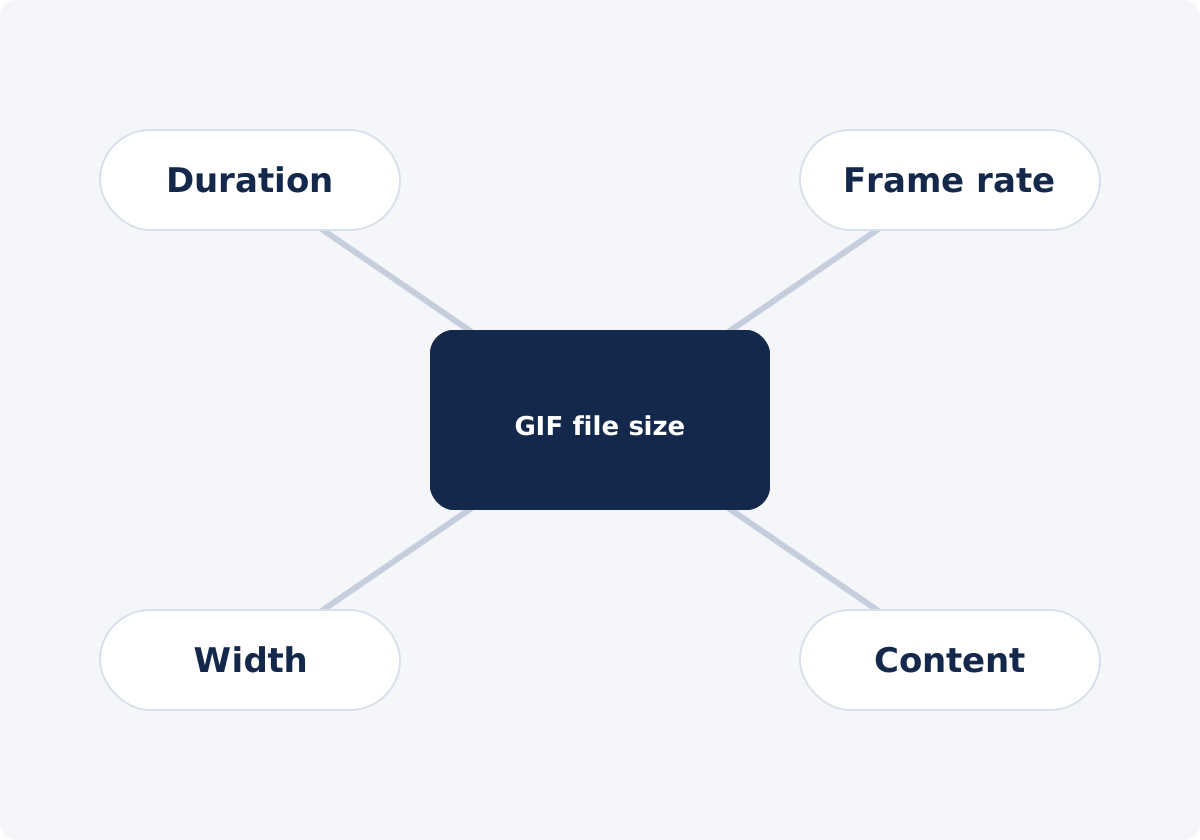
A GIF is a stack of images played in sequence. Its size is, roughly, the number of frames multiplied by the data in each frame.
- Duration and frame rate set the number of frames. Five seconds at 20 FPS is 100 images. FPS means frames per second.
- Width and height set the pixels per frame. The tool keeps the proportions, so you choose the width, and the height follows.
- Content sets how well each frame compresses. GIF uses a simple lossless compression that works on runs of identical pixels. Flat colors compress well. Noise, texture, and gradients do not.
Unlike video formats, GIF has no efficient way to describe motion between frames, and each frame is limited to 256 colors. That is why GIFs are heavy for what they show, and why the three settings matter so much.
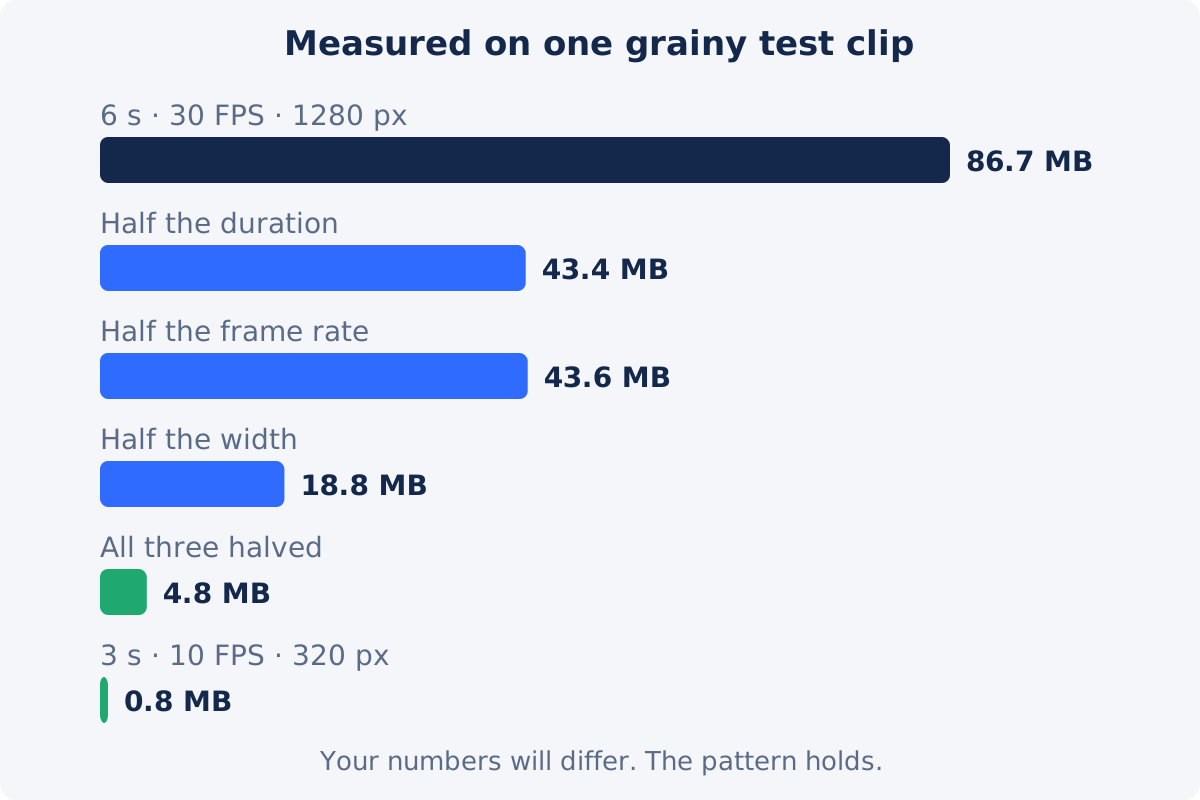
To see the pattern, we converted one grainy six-second test clip several ways. At 30 FPS and 1280 pixels wide, the GIF was 86.7 MB. Halving the duration gave 43.4 MB. Halving the frame rate gave 43.6 MB. Halving the width gave 18.8 MB. With all three halved, it was 4.8 MB. Your numbers will differ, because content matters, but the relationships hold.
The most effective step: shorten the duration
Cutting the length removes frames outright. Half the duration is about half the file, and the frames that remain look exactly as they did. No other change is free in that way.
- Remove the lead-in. Start where the action starts.
- Remove the tail. End when the point has been made.
- Ask whether the viewer needs the whole sequence, or only the key second or two.
- Split a long demonstration into several short GIFs, one per step. They load independently, and each one makes a single point.
In the Deus.Video tool, this means setting Extraction mode to "Selected time range" and entering tighter start and end times in hh:mm:ss. Times are whole seconds. For a cut between seconds, shorten the source first with Trim Video.
How lowering FPS affects motion and size
The frame count is proportional to the frame rate, so going from 30 to 15 FPS removes about half the frames and about half the file. The visual cost depends on how fast things move.
- Slow or simple motion, such as a cursor, a menu opening, or a person talking, looks fine at 8–12 FPS.
- Moderate motion is comfortable at 12–15 FPS.
- Fast motion, such as sports, dance, or gameplay, starts to stutter below about 15 FPS, and looks like a slideshow below 8.
GIF timing is also less precise than video timing. Frame delays are stored in hundredths of a second, and players differ in how they handle very short delays, so very high frame rates do not always play back as intended. Staying at or below 20 FPS avoids most of that.
How reducing width affects sharpness
Width has a squared effect. Because the height scales with it, half the width means a quarter of the pixels in every frame. In our test, halving the width cut the file by more than three quarters. It is the most powerful of the three settings, and the one with the most visible cost.
- Small text and thin lines are the first casualties. A screen recording that reads well at 800 pixels can be illegible at 400.
- Faces and large shapes survive downsizing well.
- Match the width to the display size. If the GIF will sit in a 480-pixel column, a 1280-pixel GIF wastes most of its data.
- Do not plan on enlarging a small GIF later. Scaling up adds size and no detail.
In the tool, set Output GIF size to "Custom" and type the width in pixels.

Why complex scenes, noise, and gradients compress poorly
GIF compression looks for repeated patterns within a frame. A flat blue background is a long run of identical pixels and costs almost nothing. A noisy night sky has no repetition, so nearly every pixel has to be stored.
- Noise and film grain change every pixel in every frame.
- Camera shake and pans change the whole picture from one frame to the next.
- Water, foliage, confetti, and crowds are full of fine, unpredictable detail.
- Gradients have to be approximated with at most 256 colors. Converters usually add dithering, a pattern of dots that imitates the missing shades, and that pattern behaves like noise.
You cannot change the content in the converter, but you can choose it. A locked-off shot, a clean background, a screen recording with flat interface colors, or a simple animation will give a far smaller GIF than handheld, grainy footage at identical settings.
A practical order of optimization
Use the online video-to-GIF converter and work from the change that costs the least to the one that costs the most.
- Find out the limit. Know the maximum size your destination accepts, or the size you are aiming for.
- Shorten the duration. Tighten the start and end times. Create the GIF, and check the size of the download.
- Reduce the width to the size at which it will be displayed. Create it again, and check that text and detail are still readable.
- Lower the FPS in steps, for example from 20 to 15 to 12. Watch the motion in the preview after each step.
- Check again at real display size, in the place where the GIF will be used.
- Still too large? Repeat the cycle once, starting with duration. If it is still over, switch to video.
Always go back to the source video for each attempt. The tool does not take a GIF as input, and it has no quality slider, palette setting, or target file size. Also, a video compressor will not help with a finished GIF. Compress Video works on video files, not on GIFs.

What each change does
| Change | Expected file-size impact | Visual effect | Best for | Risk |
|---|---|---|---|---|
| Shorter duration | Large; roughly proportional to the time removed | None on the remaining frames | Every GIF; always the first step | Cutting context the viewer needs |
| Smaller width | Very large; pixels fall with the square of the width | Softer picture; small text degrades | GIFs shown in narrow columns, chats, thumbnails | Unreadable text and interface labels |
| Lower FPS | Large; roughly proportional to the frames removed | Choppier motion | Slow movement, screen recordings, talking heads | Stutter in fast action |
| Calmer source footage | Varies; can be substantial | None, if you can choose the take | Planned recordings and demos | Not an option for existing footage |
| Splitting into several GIFs | Each file is small; the total may be similar | None | Step-by-step tutorials | More files to manage and place |
| Switching to MP4 or WebM | Usually the largest reduction of all | Better color; sound is possible | Anything longer or photographic | The destination may not play video inline |
When to use MP4 or WebM instead of a GIF
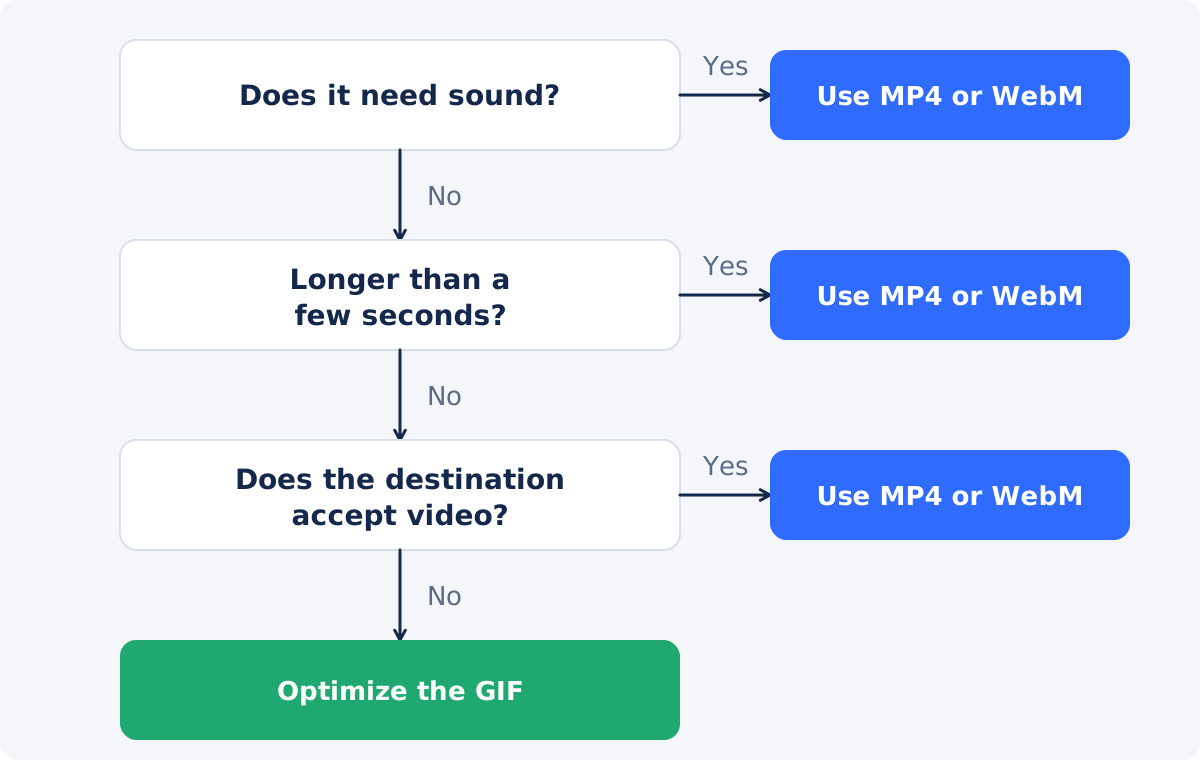
If the clip is longer than about ten seconds, contains photographic footage, or needs sound, a video file will be smaller and will look better. In a small test, a three-second clip at 640 pixels wide was 4.8 MB as a GIF and well under 0.1 MB as an MP4.
Most websites, social platforms, and messengers play short videos inline, often muted and looping, which gives the same experience as a GIF at a fraction of the weight. Use Convert Video if you need the clip in MP4 or WebM. Keep GIF for places that accept only images, or where video does not autoplay.
Conclusion
GIF size comes from frames multiplied by pixels, and from how busy those pixels are. Cut the duration first, because it is free. Then fit the width to the display size. Then lower the frame rate as far as the motion allows. Check after every change, and go back to the source video each time. If the file is still too heavy, the content belongs in a video.
Ready for a lighter loop? Create a GIF from your video with a shorter range and a custom width, and compare the download with your limit.
Frequently asked questions
Why are GIF files so large?
A GIF stores every frame as an image, with simple compression that works within each frame and does not describe motion efficiently. It is also limited to 256 colors per frame, which forces dithering patterns that compress poorly. Modern video formats store mostly the differences between frames, so the same clip is usually many times smaller as an MP4.
What is the fastest way to reduce GIF size?
Shorten it. Removing seconds removes frames outright, with no effect on how the remaining frames look. After that, reduce the width to the size at which the GIF will be displayed. Width has a squared effect on the pixel count, so it often saves more than lowering the frame rate does.
Can I compress a GIF I already have?
The Deus.Video converter takes video as input, not GIF, so it cannot re-process a finished GIF. If you have the source video, create the GIF again with a shorter range, a smaller width, or a lower FPS. That also gives a cleaner result than repeatedly converting an existing GIF.
Does lowering FPS make a GIF look worse?
It makes motion less smooth, and how much that matters depends on the content. Screen recordings, slow pans, and talking heads look fine at 8–12 FPS. Fast action shows stutter below about 15. Lower the frame rate in steps and watch the preview, and stop before the motion becomes distracting.
What width should I use?
Use the width at which the GIF will actually be displayed. A chat or a small embed rarely needs more than 320–480 pixels. A blog or documentation column is often 600–800 pixels. If the GIF contains interface text, check readability before going smaller, because text is the first thing to break.
Can I set a target file size?
No. The tool offers a time range, a frame rate from 1 to 30 FPS, and the original or a custom width. There is no target-size field or quality slider. Create the GIF, check the size of the downloaded file, and adjust the three settings until it fits.


