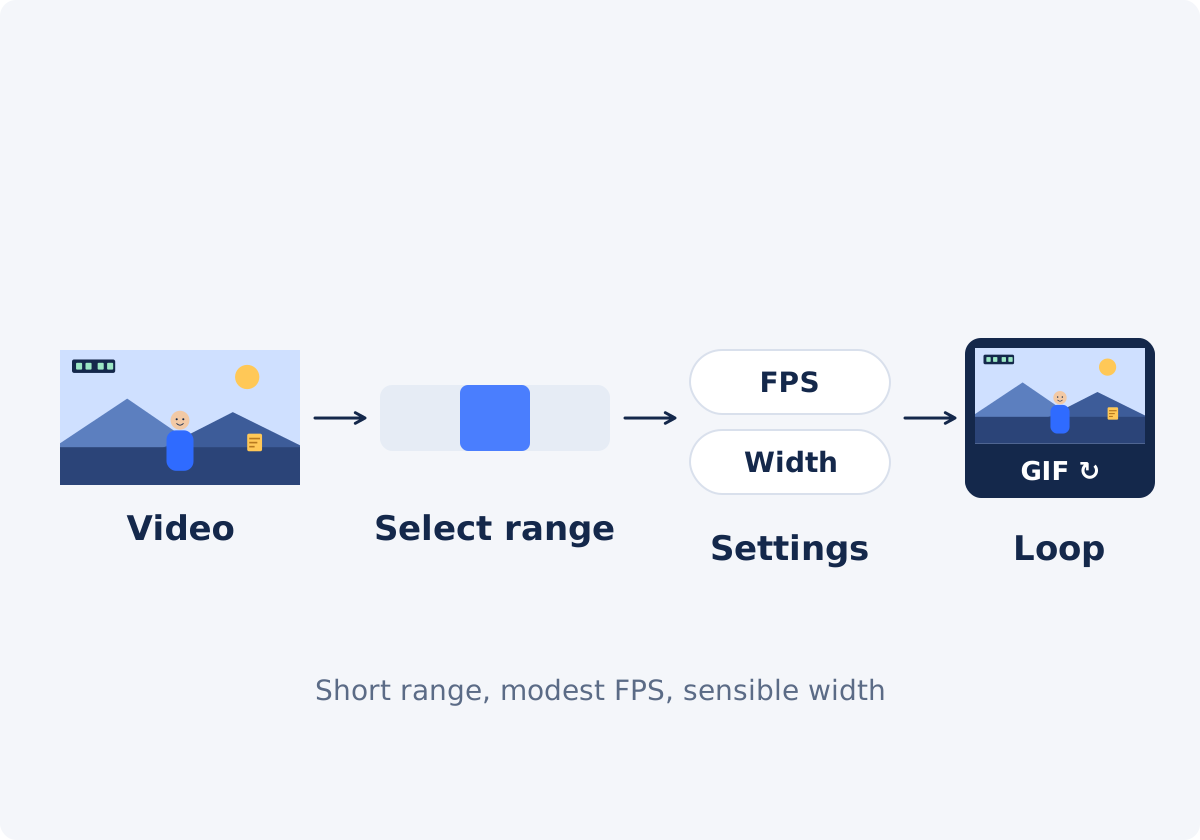
What to prepare before converting
- The source video. Use the best copy you have. Common inputs include MP4, MOV, AVI, WebM, and MKV. Whether a particular file works also depends on the codec inside it and on your browser.
- The moment. Watch the video in any player and write down where the interesting part starts and ends, to the second. The tool takes times as hh:mm:ss.
- The destination. A chat message, a help article, a slide, a README. Where the GIF will live decides how wide it needs to be and how heavy it may be.
- The point of the GIF. One action, one reaction, one step. If you need to show three things, make three GIFs.
Step by step: from video to GIF
With the tool, you can convert a video to GIF without installing anything.
- Upload one video file. Drag and drop it, or use the file picker. The file name and size appear in the upload area.
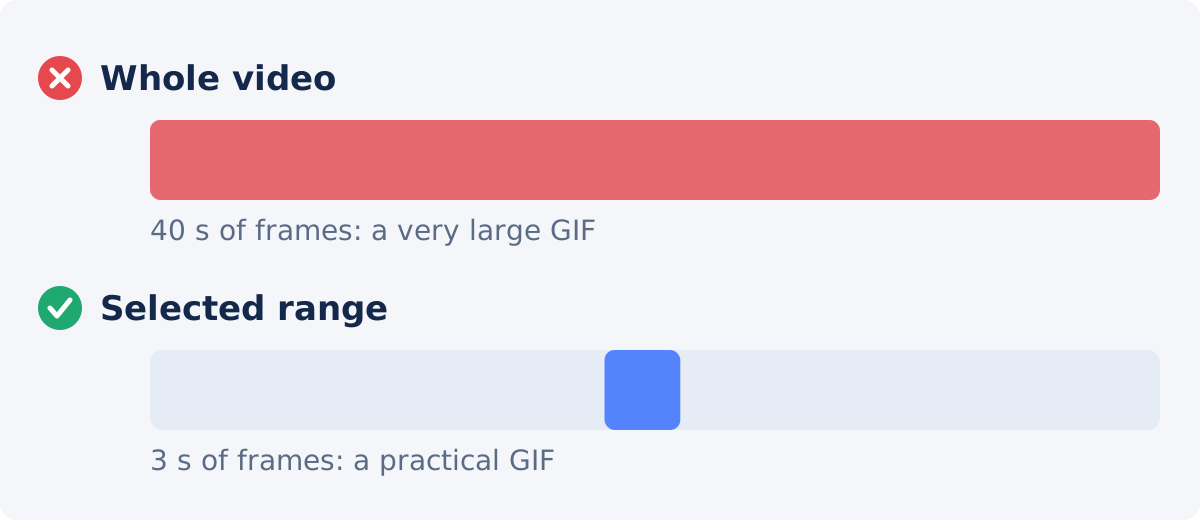
- Choose the Extraction mode. "Whole video" is the default. For almost every GIF, switch to "Selected time range."
- Enter Start time and End time in hh:mm:ss format, for example 00:00:12 and 00:00:16.
- Set the Frame rate. The field accepts 1 to 30 FPS and starts at 20. FPS means frames per second, the number of pictures shown each second.
- Choose the Output GIF size. "Original" keeps the video's width. "Custom" reveals a Width (px) field where you type the width in pixels.
- Click Create GIF and wait until the status says the result is ready.
- Watch the preview. The GIF plays on the page. Check the loop, the motion, and the legibility of any text.
- Click Download result. If something is off, click Reset, change one setting, and create the GIF again from the same video.
The tool does not crop the frame, add text, reverse the clip, or control how many times the GIF repeats. It also has no quality slider and no target file size. Duration, FPS, and width are the levers you have.

How to choose a short fragment
Length is the biggest decision you make. Every second adds frames, and every frame is stored as an image. A 40-second GIF is almost never what anyone wants to receive.
- Aim for 2 to 6 seconds. That is enough for a reaction, a click-through of one feature, or a product detail.
- Start on the action. Skip the second where nothing happens yet. Viewers see the loop many times, and dead time is repeated too.
- End on a resting point. A GIF jumps from its last frame back to its first. If both look similar, the loop feels smooth. If the last frame is mid-motion, the jump is jarring.
- Remember the one-second steps. Times are entered in whole seconds. If the ideal cut falls between seconds, include the extra moment, not less.
If you need frame-accurate cuts, trim the clip first with Trim Video, then convert the whole trimmed file.
Which FPS and width to try first
There is no single correct setting, only reasonable starting points. Create the GIF, look at it, and adjust.
- Frame rate. 10–15 FPS suits most content. Screen recordings and slow movement hold up at 8–10. Fast action may need 15–20. Going to 30 rarely looks better in a GIF and makes the file much heavier.
- Width. Think about where the GIF will be shown. A chat or a small embed rarely needs more than 320–480 pixels. A documentation page or a blog column is often 600–800 pixels wide. Keeping the original width of a 1080p or 4K video is almost always too much.
Starting settings by goal
| Goal | Suggested duration | Suggested FPS | Width approach | Trade-off |
|---|---|---|---|---|
| Reaction or meme for chat | 2–4 s | 12–15 | Custom, about 320–480 px | Small and quick to load; fine detail is lost |
| One interface action for a help article | 3–8 s | 8–12 | Custom, close to the width of the content column | Text stays readable; motion is a little steppy |
| Product detail or short demo | 3–6 s | 12–15 | Custom, about 480–640 px | Good balance; gradients may show banding |
| Fast motion: sports, dance, game clip | 2–4 s | 15–20 | Custom, about 360–480 px | Smoother motion; the file grows quickly |
| Simple animation or logo loop | 1–3 s | 10–15 | Original, if the source is already small | Flat colors suit GIF well |
| Lightest possible file | 1–3 s | 6–10 | Custom, about 240–320 px | Small file; choppy and soft |
These are starting points to test on your own clip, not rules. Content with noise, confetti, water, or camera shake produces heavier GIFs than calm content at the same settings.
Why a GIF has no sound
GIF is an image format. It stores a sequence of pictures with timing, and nothing else. There is no place in the file for an audio track, so the sound of your video is dropped during conversion. The tool reminds you of this next to the preview.
If the moment depends on speech, music, or a sound effect, a GIF is the wrong container. Keep it as a short video. And keep your source file in any case, since the GIF cannot be turned back into a video with sound.
Common problems and how to fix them
The file is too large
Shorten the range first, then reduce the width, then lower the FPS. Each of these removes image data. Note that a video compressor does not shrink a finished GIF. Compress Video works on video files, so the way to a lighter GIF is to create it again with leaner settings.
The motion is jerky
The FPS is too low for the speed of the movement. Raise it in steps of about 5, and shorten the clip or narrow the width to pay for the extra frames.
Text is blurry or unreadable
The width is too small for the size of the text. Increase the width, or zoom in on the important area in the source video before converting, so the text occupies more of the frame.
The range is slightly off
Adjust the start or end by a second and create the GIF again. If you need finer control, trim the video first.
Colors look patchy
Each GIF frame can use at most 256 colors. Skies, shadows, and skin tones show bands or speckles. A smaller width hides it somewhat. If color fidelity matters, use video.

When to keep MP4 or WebM instead
- The clip is longer than about ten seconds.
- Sound matters.
- The footage is photographic, with gradients, skin tones, or dark scenes.
- The destination plays video inline, as most websites, social platforms, and messengers do.
- You need a light file. A short MP4 is often many times smaller than the equivalent GIF.
In those cases, trim the clip and, if the format is the obstacle, use Convert Video to get an MP4 or a WebM. Choose GIF when you need a silent loop that displays like an image: in a README, a knowledge-base article, a slide, or a chat that does not autoplay video.
Conclusion
A good GIF is short, focused, and sized for where it will be seen. Select a few seconds, start around 10–15 FPS, choose a width that matches the destination, and judge the result in the preview. If it is too heavy, cut the duration first. If it needs sound, length, or accurate color, keep it as a video.
Have a moment worth looping? Open the online video-to-GIF converter, select the range, and check the preview before you download.
Frequently asked questions
How long should a GIF be?
Most useful GIFs run between two and six seconds. That is long enough to show one action or reaction and short enough to keep the file manageable. Longer loops grow quickly in size, because every additional second adds a full set of frames. If you need more than about ten seconds, a short video is usually the better format.
Can I convert only part of my video?
Yes. Set Extraction mode to "Selected time range" and enter the start and end times in hh:mm:ss format. Only that section is converted. Times are entered in whole seconds, so for a cut that has to land between seconds, trim the video first and then convert the whole trimmed clip.
What frame rate should I use for a GIF?
Start with 10 to 15 FPS. It looks reasonably smooth for most content and keeps the file size under control. Drop to 8–10 for screen recordings and slow scenes, and go up to 15–20 only for fast motion. The tool accepts values from 1 to 30, and its field starts at 20.
Why is my GIF bigger than the original video?
Video formats store mostly the changes between frames and use efficient compression. A GIF stores each frame as an image with simple compression. A long, wide, or high-FPS GIF can therefore be far larger than the MP4 it came from. Shorten the range, reduce the width, and lower the FPS to bring it down.
Can I add text or crop the GIF in the tool?
No. The converter turns a video, or a time range of it, into a GIF at the FPS and width you choose. It does not crop, add captions, or edit individual frames. Make those changes to the video first, for example in the full Deus.Video editor, export the video, and then convert it.
Can the full editor export a GIF?
No. The full Deus.Video editor exports video. GIF output comes from the Convert Video to GIF tool. A practical order is to edit and export your clip as a video first, and then run that file through the converter with the range, FPS, and width you need.


