What it means to combine videos
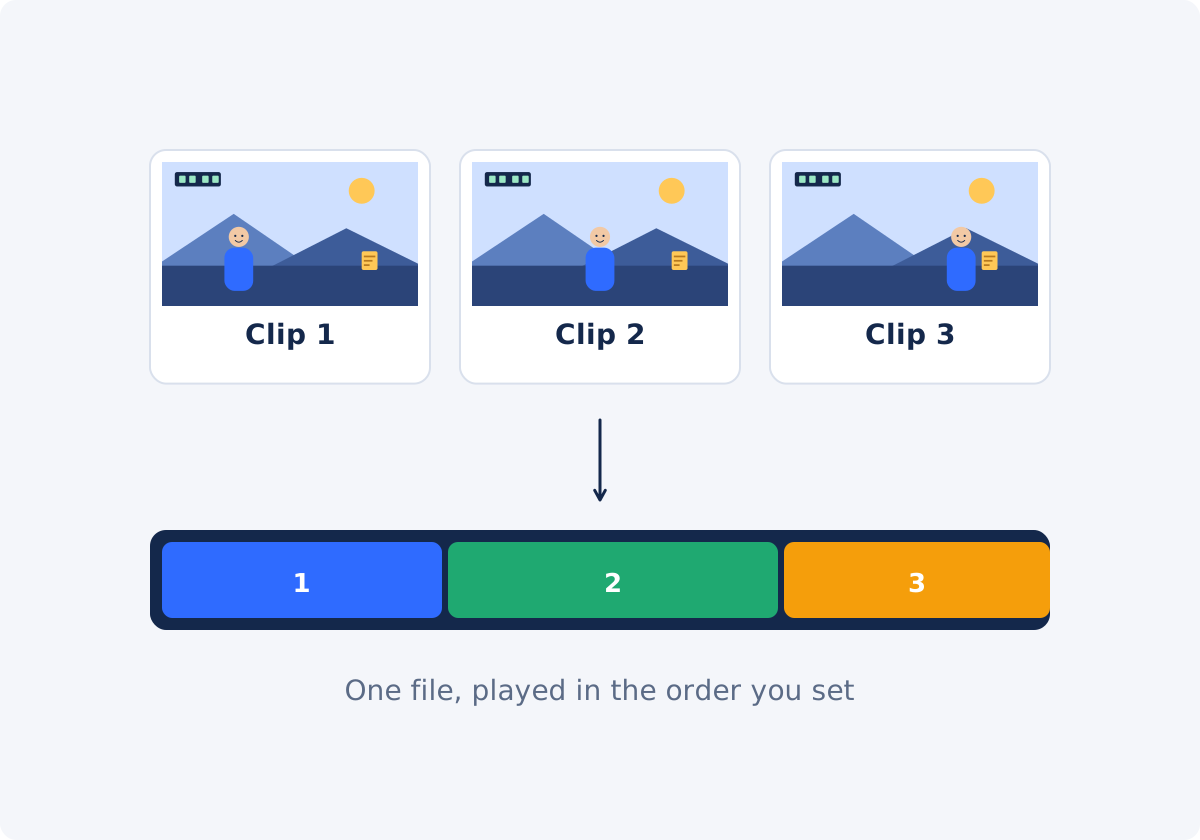
Combining, merging, joining, and putting videos together all describe the same operation: several separate files become one file, with the clips playing one after another. Nothing is layered, and nothing plays at the same time. A three-clip merge of 20, 20, and 23 seconds gives one video of about a minute.
The result is a new file. Your original clips are not changed. Because the clips may differ in size, shape, and format, creating that new file usually involves re-encoding, which means the video is compressed again when it is saved. The merged file is therefore optimized for the output you choose, not a byte-for-byte copy of the sources.
Two related jobs are different. Showing two videos next to each other at the same time is a side-by-side layout, which needs a canvas and a timeline. Placing one video on top of another is an overlay. Neither is a merge, and both belong in a full editor.
What to prepare before you upload
The order of clips
Write the sequence down before you start: intro, part one, part two, outro. If file names are cryptic, rename them with a number at the front, such as "01-intro.mp4." You can reorder clips in the tool, but knowing the plan saves time, especially with more than three or four clips.
Unwanted parts
The merger joins complete clips. It does not trim them. If a clip begins with five seconds of you reaching for the camera, those five seconds will be in the middle of your finished video. Cut them first with Trim Video, and merge the trimmed files.
Orientation and shape
Check whether all clips are horizontal, or all vertical. A merged video has one output frame, so a vertical clip in a horizontal video, or the reverse, will not fill the frame in the same way as the others. Mixed material can be merged, but decide in advance which shape the final video should have.
Sound
Play each clip, and listen. Does it have sound at all? Is one much louder than the others? The merger keeps or removes clip audio for the whole result. It does not balance volume between clips, so large differences are better fixed before merging, or handled in the full editor.
How to combine multiple videos in Deus.Video
With the Merge Videos tool, you can put multiple clips into one video in a few steps.
- Upload two or more video files. Common inputs include MP4, MOV, AVI, WebM, and MKV, and the clips do not have to share a format. Use Add videos to bring in more clips later.
- Arrange the order. Each clip appears as a card showing its file name, dimensions, and duration. Drag the cards into the sequence you want. The list order is the playback order.
- Preview the clips. Click Preview on a card to load that clip into the player. A label such as "Clip 1 / 3" shows which one you are watching. Click Delete to remove a clip you do not need.
- Choose the Output Size: Landscape 16:9 (1920×1080), Vertical 9:16 (1080×1920), Square 1:1 (1080×1080), or Portrait 4:5 (1080×1350). One size applies to the entire merged video. A clip with a different shape is fitted inside that frame, with black space around it. It is not cropped or stretched.
- Choose the Output format: MP4, MOV, MKV, or WebM. MP4 is the simplest choice for broad playback.
- Set Include audio. Keep it selected to carry each clip's sound into the result, or clear it for a silent video.
- Check Current status, which shows the number of clips, the total duration, and the active clip.
- Click Merge Videos, wait for processing, and download the file, or continue in the full editor.

How to check the order and the result
Before merging, read the card list from top to bottom against your written plan, and confirm that the total duration in Current status is roughly the sum you expect. A total that is far too long usually means a duplicate upload, or an untrimmed clip.
After merging, do not just check that the file opens.
- Watch every join. Skip to a few seconds before each cut, and play through it. Look for a repeated moment, a missing moment, or a jarring change.
- Listen at every join. Volume jumps and clipped words show up here.
- Check the framing of each clip inside the output size, especially for any clip whose shape differs from the rest.
- Play the ending. Make sure the last clip runs to its end.
- Compare the duration with the total you noted.
Direct cuts vs. transitions
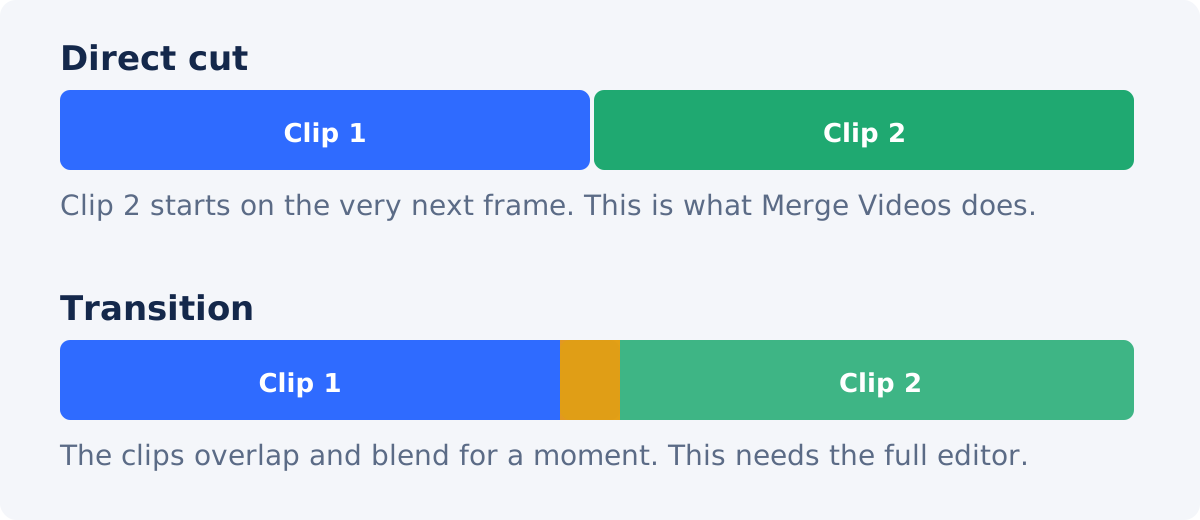
A direct cut is the simplest join: the last frame of one clip is followed immediately by the first frame of the next. It is how most films and videos are edited, and it is what the standalone merger produces.
A transition is an effect that bridges two clips, such as a crossfade, a dip to black, or a slide. It requires the clips to overlap in time, which is a timeline operation. The Merge Videos tool does not add transitions.
Direct cuts work well when the clips are clearly different scenes, or when each clip starts and ends cleanly. They feel abrupt when two clips are nearly identical, since the picture seems to jump, or when the sound changes sharply. If you need softened joins, music under the whole sequence, titles, or captions, build the sequence in the full Deus.Video editor. There, merging is simply adding clips one after another on the timeline, with room for everything else around them.
Common mistakes
- Merging untrimmed clips. Setup and dead air end up in the middle of the video.
- Wrong order. Cards were not rearranged after upload, or a late addition landed at the end.
- Mixing orientations without a plan. One vertical clip among horizontal ones looks like an accident unless the output shape was chosen for it.
- Ignoring loudness. A quiet interview followed by a loud outdoor clip makes viewers reach for the volume.
- Uploading the same clip twice, which is easy to do with similar file names.
- Choosing the format by habit. Pick the format the destination accepts. When in doubt, use MP4.
- Re-merging a merged file to add one more clip. Each pass re-encodes the video. Go back to the source clips, and merge them all at once.
- Not watching the result before sending it.
Merge Videos, Trim Video, or the full editor?
| Your task | Use | Why |
|---|---|---|
| Join complete clips in order | Merge Videos | Upload, reorder, choose size and format, merge |
| Join clips that differ in format or size | Merge Videos | One output size and format is applied to all |
| Remove the start or end of one clip | Trim Video | The merger joins whole clips and does not cut them |
| Trim several clips, then join them | Trim Video first, then Merge Videos, or the full editor | The editor does both in one project and one export |
| Add transitions between clips | Full editor | Transitions need overlapping clips on a timeline |
| Add music, titles, captions, or overlays | Full editor | These are separate layers over the sequence |
| Show two videos at the same time | Full editor | Side-by-side is a canvas layout, not a merge |
| Balance volume between clips | Full editor | The merger keeps or removes audio as a whole |

Conclusion
Combining videos is a simple operation that rewards a little preparation. Trim what you do not need, settle the order, check orientation and sound, and then upload, arrange, and merge. Choose one output size and a format your destination accepts, and watch every join in the finished file. When you need more than direct cuts, move to the editor.
Have your clips ready? Open the Merge Videos tool, drag them into order, and preview the sequence before you merge.
Frequently asked questions
Can I combine videos in different formats?
Yes. You can add common formats such as MP4, MOV, AVI, WebM, and MKV to the same sequence. The result is saved in the single output format you choose, which can be MP4, MOV, MKV, or WebM. Whether a particular file can be processed also depends on the codecs inside it.
How do I change the order of the clips?
Drag the clip cards in the list under the player. The order of the cards from top to bottom is the order in which the clips will play in the merged video.
Can I cut part of a clip inside the merger?
No. The standalone merger joins complete clips. Trim each clip first with Trim Video, or do the trimming and joining together in the full editor.
Does the tool add transitions between clips?
No. Clips are joined with direct cuts. For crossfades or other transitions, music, titles, or captions, use the full editor.
Will combining videos reduce their quality?
Creating one file from several usually involves resizing and re-encoding, so the result is not a byte-for-byte copy of the sources, and file size or fine detail can change. Choosing an output size close to your clips, and merging once from the original files, keeps the change small.
Can I place two videos side by side?
Not with Merge Videos, which plays clips one after another. A side-by-side layout needs a canvas where two clips are positioned next to each other, which is a job for the full editor.


