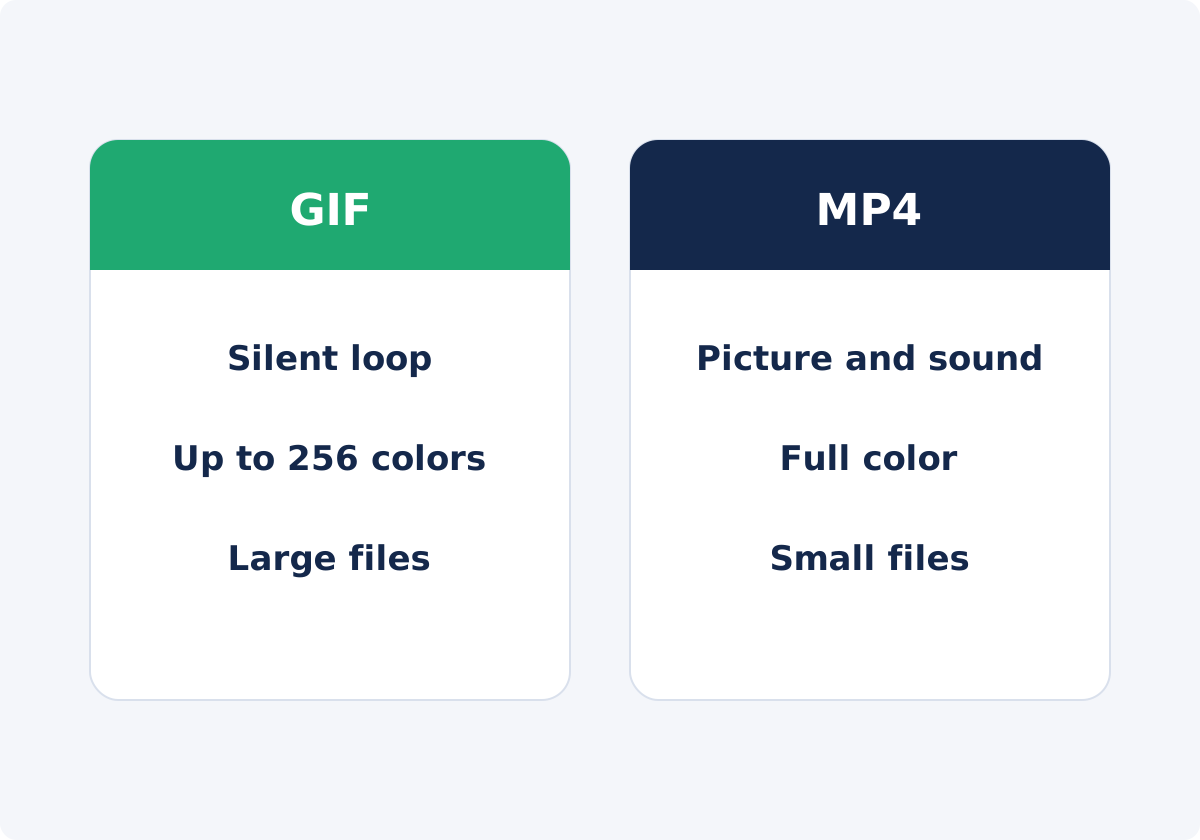
How the two formats differ
Color
Each frame of a GIF draws from a palette of up to 256 colors. Flat graphics, interface screenshots, and cartoons fit within that. Photographic footage does not: skies, skin tones, and shadows contain thousands of shades. Converters approximate them with banding, which looks like visible steps, or with dithering, a pattern of dots that simulates in-between shades. MP4 video typically stores millions of colors, so gradients stay smooth.

Sound
A GIF cannot contain audio. The format has no place for it. An MP4 can carry a soundtrack, and can just as well be silent or muted.
File size
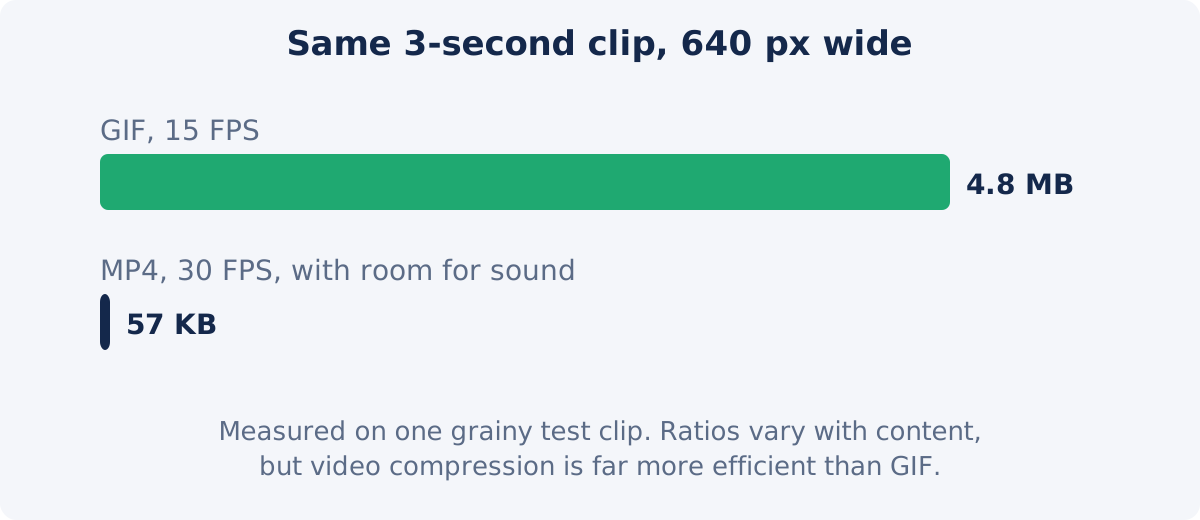
GIF compresses each frame as an image, using a simple lossless method. Video codecs, the methods used to compress video, store mostly what changes from frame to frame, and discard detail the eye is unlikely to miss. The gap is large. In a small test for this guide, a three-second clip at 640 pixels wide came to 4.8 MB as a 15 FPS GIF and 57 KB as an MP4. The ratio varies with content, but MP4 is almost always much smaller.
Playback
A GIF behaves like a picture that moves. It starts on its own, loops, and has no controls. A video has a player: play, pause, seek, volume, and full screen. Whether a video starts automatically and loops depends on how the page or app is set up. Browsers generally allow autoplay only for muted video.
Compatibility
GIF works almost anywhere an image works, which is its lasting advantage. MP4 with common codecs plays in all major browsers and on nearly all devices, but it needs a video player, and some places accept only images: many README and wiki renderers, some email clients, some chat tools, and some presentation or documentation systems. Support differs from one platform and client to another, so test in the real destination.
Comparison table
| Criterion | GIF | MP4 | Practical recommendation |
|---|---|---|---|
| Color | Up to 256 colors per frame; banding or dithering in gradients | Full color | MP4 for photographic footage; GIF is fine for flat graphics and interfaces |
| Sound | None | Supported | If sound matters, MP4 is the only option of the two |
| File size | Large; grows fast with length, width, and FPS | Small for the same content | MP4 whenever bandwidth, storage, or page speed matters |
| Length | Practical for a few seconds | Any length | Keep GIFs under about ten seconds |
| Playback | Starts and loops on its own; no controls | Player controls; autoplay and looping depend on the page | GIF when the clip must simply "be moving"; MP4 when viewers need to pause or seek |
| Where it works | Almost anywhere images are accepted | Almost anywhere video is accepted | Check the destination; pick GIF only when video is not an option |
| Frame rate | Best at modest rates; timing is coarse | Full frame rates | MP4 for fast action |
| Editing later | Poor source; colors are already reduced | Reasonable source | Keep the video as your master, and treat the GIF as a copy |
When a GIF is the right choice
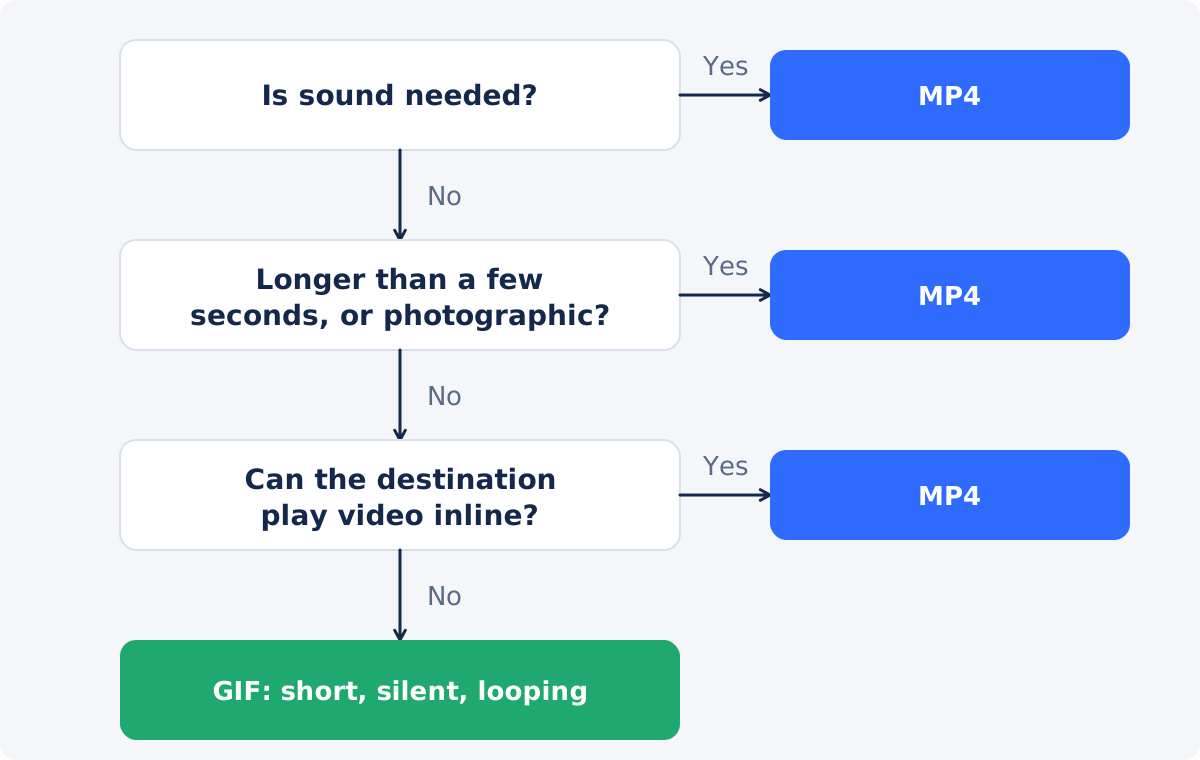
- The destination accepts images but not video, or does not play video inline.
- The clip is a few seconds long and makes sense as an endless loop.
- There is no sound to lose.
- The visuals are simple: interface elements, flat colors, diagrams, text, simple animation.
- You want it to move on its own, with no play button, wherever it is pasted.
When MP4 is better
- There is speech, music, or any sound that matters.
- The clip runs longer than about ten seconds.
- The footage is photographic: people, products, places, gradients, dark scenes.
- Page weight and loading speed matter, as they do on most websites.
- Viewers need to pause, rewind, or watch full screen.
- The platform converts uploads anyway. Many social networks turn uploaded GIFs into video behind the scenes, so starting from a video gives a cleaner result.
If your file is in a format the destination does not accept, Convert Video produces MP4 and other common outputs.
How to turn a video fragment into a GIF
When GIF is the right call, you can create a GIF from your video in a few steps.
- Upload one video. Common inputs include MP4, MOV, AVI, WebM, and MKV. Actual support depends on the codec inside the file and on the browser.
- Set Extraction mode to "Selected time range," and enter the start and end times in hh:mm:ss. Keep it to a few seconds.
- Set the Frame rate. The field accepts 1 to 30 FPS. About 10–15 suits most clips.
- Set Output GIF size. Choose "Original," or "Custom" with a width in pixels that matches where the GIF will be shown.
- Click Create GIF, and watch the preview. Check the loop, the colors, and any text.
- Click Download result. Keep the source video, since the GIF has no audio and reduced color.
The converter does not crop, caption, reverse, or set a loop count, and it has no palette, dithering, or quality controls. The full Deus.Video editor exports video, not GIF, so edit first, export a video, and convert that file.

Choosing by scenario
Short UI demonstration
A three-to-six-second recording of one click path, for a changelog, a pull request, or a help article. Interfaces have flat colors and little motion, which is what GIF handles best, and these destinations often render images only. GIF at 8–12 FPS is a good fit. If the page supports video, a muted looping MP4 is lighter.
Product demo
Real footage of a product, with lighting, reflections, and perhaps a voiceover. The gradients will band in a GIF, and the voiceover will be lost. Use MP4. If you need a teaser for a place that takes only images, cut a two-to-three-second GIF from the best moment, and link it to the full video.
Tutorial
Anything with explanation, several steps, or narration belongs in a video, where viewers can pause and go back. GIFs work as illustrations inside a written tutorial, one short loop per step.
Meme or reaction
This is the home ground of the GIF: a couple of seconds, silent, looping, pasted into a chat. Keep it narrow and short. Note that many messengers and social apps deliver "GIFs" as video internally, so either format may end up the same to the viewer.
Email or knowledge base
Email clients generally do not play embedded video, and support for animated GIFs varies between clients. Some show only the first frame. Make sure that first frame carries the message on its own, keep the file light, and test in the clients your readers use. Knowledge bases differ as well: some embed video players, and some accept images only. If one still picture would say enough, Convert Video to Photo extracts a frame.
Conclusion
GIF earns its place through convenience: it moves on its own wherever an image is allowed. It pays for that with limited color, no sound, and heavy files. MP4 is the better format by almost every technical measure, and the right default. Decide by destination first, and by content second. Whichever you publish, keep the original video as your master.
If your destination calls for a looping image, open the online video-to-GIF converter, select a few seconds, and check the preview before you download.
Frequently asked questions
Is GIF or MP4 better quality?
MP4, in almost every case. It stores full color and handles motion efficiently, so a small file can look clean. A GIF is limited to 256 colors per frame, which causes banding or dot patterns in photographic footage. GIF holds up well only for simple visuals, such as interface recordings, flat graphics, and basic animation.
Why is a GIF larger than an MP4 of the same clip?
GIF compresses every frame as a separate image with a simple lossless method. Video codecs store mainly the differences between frames, and discard detail that viewers are unlikely to notice. For the same duration and dimensions, an MP4 is commonly many times smaller, and the gap widens with longer, wider, or busier clips.
Can a GIF have sound?
No. The format has no audio track. What some apps label as a "GIF with sound" is a short video file. If the sound matters, keep the clip as an MP4. When you convert a video to GIF, the audio is dropped, so hold on to the source file.
Do GIFs autoplay everywhere?
Mostly, but not everywhere. Browsers and most apps animate GIFs automatically. Some email clients and some platforms show only the first frame, or require a tap. Behavior depends on the platform and the client, and it changes, so test your GIF in the place where your audience will see it.
Should I use GIF on my website?
Usually not for anything larger than a small decorative loop. A muted, looping, inline video gives the same effect at a fraction of the weight, which helps loading speed. GIF remains practical where your publishing system accepts images only, or where you cannot control how video is embedded.
Can I convert a GIF back to MP4 with the original quality?
You can convert it, but the quality will not come back. The colors were already reduced to a small palette, the frame rate may have been lowered, and the audio is gone. This is why the source video should be kept as the master, with the GIF treated as a delivery copy.


