How a forward-and-reverse loop works
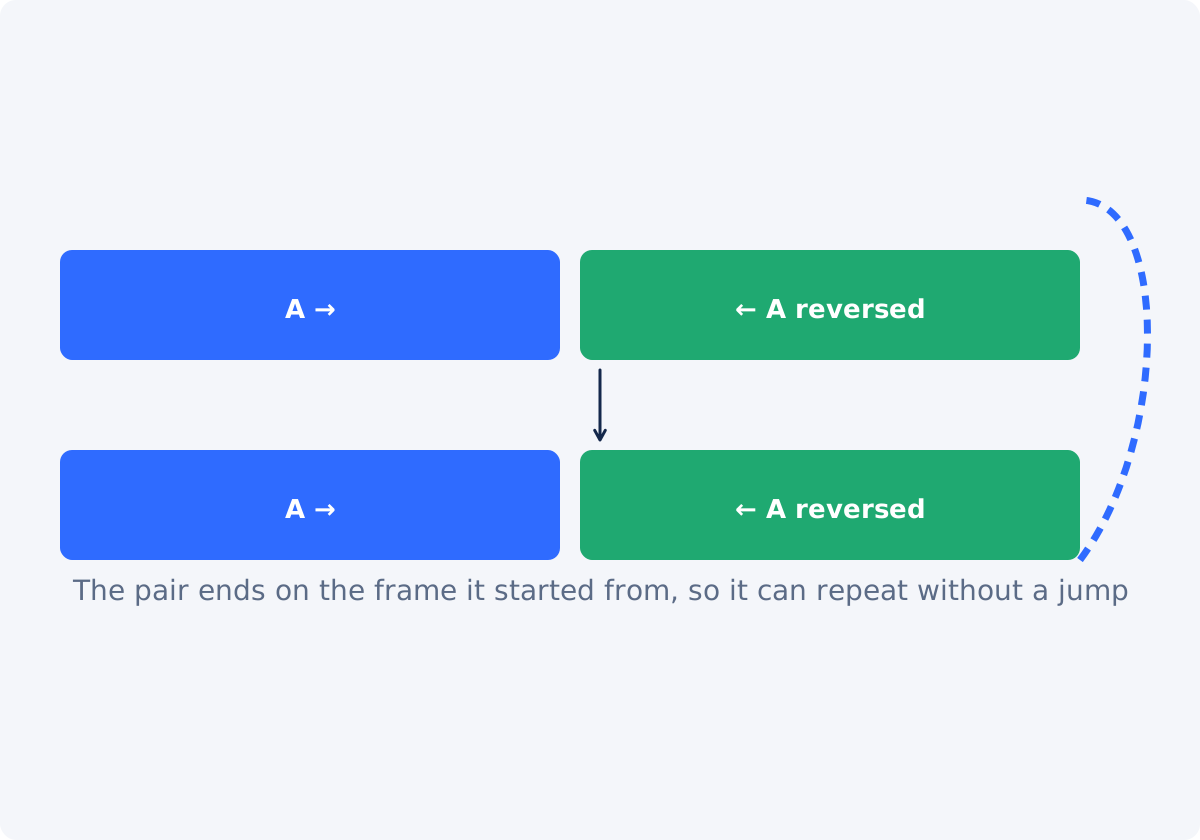
An ordinary loop repeats a clip from its end back to its start. Unless the first and last frames match, the restart is a jump. A forward-and-reverse loop avoids that by construction. The clip plays forward from frame 1 to frame N, then the reversed copy plays from frame N back to frame 1. The sequence now ends on frame 1, which is exactly where it began, so the next repetition continues without a jump. The motion simply swings back and forth.
Reversing, meaning storing the frames in the opposite order, is what produces the backward half. Everything else is arrangement: putting the two halves together and repeating them.
Which source clips work best
- Motion that is plausible in both directions. Swaying, drifting, bobbing, turning, a slow zoom, waves, hair in wind, a head turning, a hand waving.
- A locked camera. Handheld drift becomes a visible wobble at the turn.
- Short. One to three seconds forward makes a two-to-six-second loop, which is the range where the bounce feels lively.
- No obvious one-way action. Falling water, a person walking, smoke rising, or pouring look wrong in the reverse half. The eye notices the physics.
- Steady light. A change in brightness during the clip is played twice and becomes a pulse.
Clips that are wrong for a bounce are often right for a rewind effect, where the backward motion is meant to be noticed.
Preparing a short selected action
Decide where the swing should turn. The turning point is the last frame of your selection, so choose an end where the motion has a natural pause or extreme: the hand at the top of a wave, the head fully turned, the object at the far side of its movement. The start of the selection is where the loop will visibly restart, so pick a moment of stillness or a matching extreme there too.
Keep the selection tight. Unlike a rewind effect, a bounce does not want long rest margins, because the still frames at the ends become pauses that play twice. A quarter second of stillness at each end is enough.
Creating the reversed copy
Use the tool to make the selected clip play backwards.
- Upload the source video. Common inputs include MP4, MOV, AVI, WebM, and MKV.
- Select the action with a quick preset, the timeline handles, or Start and End times. One selection can be up to 60 seconds; for a bounce, one to three seconds is typical.
- Press Play to confirm the range. The preview runs forward; the reversed version is the processed download.
- Clear Reverse audio in most cases. A bounce usually gets a music or ambient track, not backward sound.
- Click Reverse video, and download the reversed clip.
- Also save the forward version of the same selection, so the two halves match exactly. Trim Video keeps a time range without changing its direction; use the same Start and End values.

Assembling forward and reversed
In the full editor
In the full Deus.Video editor, add the forward clip and then the reversed clip so they sit one after another on the timeline. Then add the pair as many times as you need, or export the pair once and repeat it with Loop Video. The editor also lets you add music, a fade, or text on top before the export.
With Merge Videos
For the simplest case, Merge Videos joins the forward file and the reversed file into one clip with a direct cut. Order the two clips forward first, reversed second, and merge. The result is one bounce cycle, which Loop Video can repeat.
| Loop type | Sequence | Best use |
|---|---|---|
| Simple loop | A, A, A | Cyclical or ambient footage whose first and last frames already match |
| Forward-and-reverse (bounce) | A, A reversed, A, A reversed | Any short motion that looks natural both ways; no matching endpoints needed |
| Reverse first | A reversed, A, A reversed, A | Same bounce, starting from the end pose; useful when the end frame is the better opening image |
| Rewind effect | A, A reversed, B | Not a loop: a story beat where time runs back and something new follows |
Removing the duplicate frame at the turn
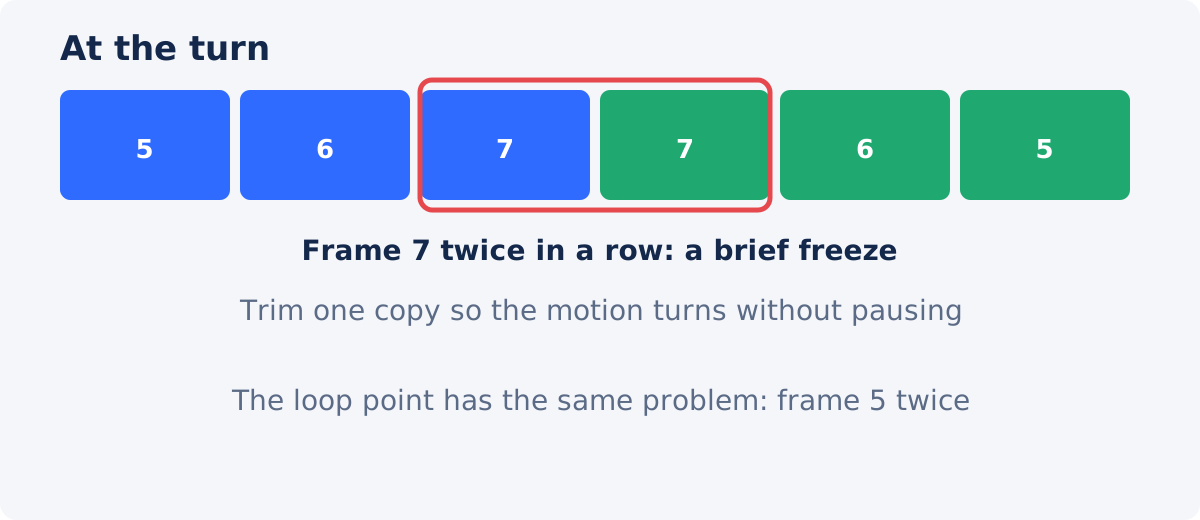
The last frame of the forward clip and the first frame of the reversed clip are the same picture. Played back to back, that frame is shown twice, which appears as a tiny pause at the turning point. The same happens at the loop point, where the last reversed frame and the first forward frame are both frame 1.
Whether it is noticeable depends on the frame rate and the speed of the motion. At 30 frames per second, one repeated frame is a thirtieth of a second, invisible in slow motion and a visible hitch in fast motion. If you see it, trim one frame, or a few hundredths of a second, from the start of the reversed clip and from the end of it, in the editor. Judge by eye at full speed rather than by rule.
Choosing the audio
The reversed half of a bounce would carry backward sound, and the join between forward and backward audio is audible on every cycle. For most bounces, that is unwanted.
- Music or an ambient track across the whole loop is the usual choice. Clear Reverse audio when making the reversed clip, keep the forward clip silent too, and add one continuous track in the editor.
- Reversed speech is never a good idea in a loop; it is unintelligible and it repeats.
- Reversed sound effects can work for a deliberately strange loop, such as a bouncing ball whose bounce is heard both ways. Test it; it tires quickly.
- Silence is fine for a loop that will play muted, which is most social and background use.
Checking the joins
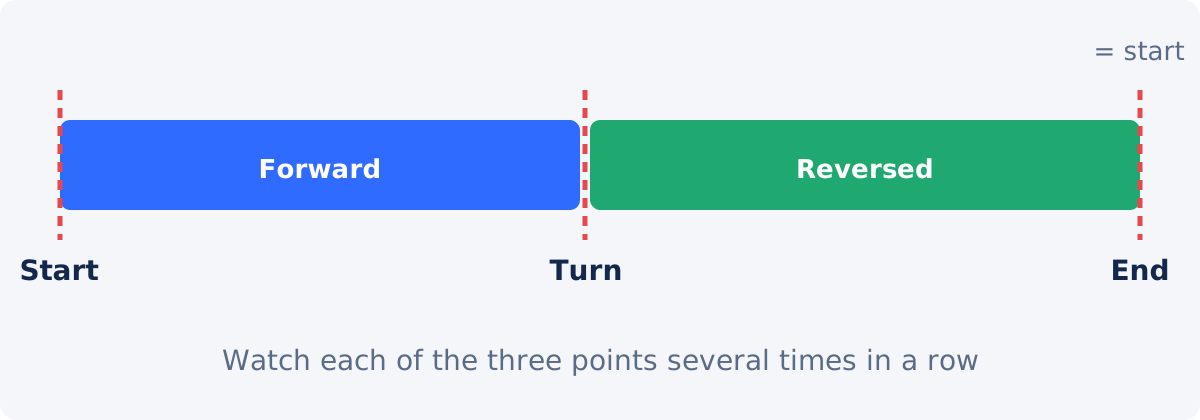
A bounce has three places where things can go wrong. Watch each of them several times in a row, at full speed and at the size where the loop will be shown.
- The start. Does the first forward frame match the last reversed frame? If the selection was clean, they are the same picture, and the loop restarts invisibly.
- The turn. Does the motion reverse smoothly, or freeze for a moment? Trim the duplicate frame if it freezes.
- The end, which is the loop point. Same check as the start, seen from the other side, plus the audio: does the music continue without a click?
Also watch the whole loop for anything that pulses, such as a light change or a camera drift, since it now happens twice per cycle.
Conclusion
A forward-and-reverse loop is a short forward clip, its reversed copy, and a repeat. Choose motion that looks natural both ways, keep the selection tight, reverse it without audio, and assemble the pair in the editor or with Merge Videos. Then look at the start, the turn, and the end, trim the duplicate frames if you see a pause, and lay one continuous sound over the whole thing.
Have a short motion that swings? Open the Reverse Video tool, reverse the selection, and pair it with the forward clip to build the loop.
Frequently asked questions
Does the Reverse Video tool make the loop for me?
No. It creates the reversed copy of your selection and nothing more. Placing the forward and reversed clips one after another, trimming the join, and repeating the pair are done in the full editor, or with Merge Videos followed by Loop Video.
Why is there a short pause when the motion turns around?
The last forward frame and the first reversed frame are the same picture, so it is shown twice. Trim one frame from the join in the editor. The same applies where the loop restarts.
Should the reversed half have sound?
Usually not. Backward audio joins are audible on every cycle, and reversed speech repeats unintelligibly. Make both halves silent, by clearing Reverse audio and using a silent forward clip, and add one continuous music or ambient track across the whole loop in the editor.
How long should each half be?
One to three seconds forward is typical, giving a two-to-six-second cycle. The tool allows up to 60 seconds per selection, but long bounces feel slow.
Why does my bounce look wrong?
The motion is probably one-directional, such as pouring, falling, or walking, so the backward half breaks the physics. Choose swaying, turning, drifting, or waving motion, and keep the camera still.
How do I get the forward clip to match the reversed one exactly?
Use the same Start and End values for both: reverse the selection in Reverse Video, and keep the same selection forward with Trim Video, or cut the original to that range in the editor.


